
Roles & Permissions
Updated Reading time: 6 min
On this page
Roles and Permissions in Kibi Connect#
What someone can see and do in Kibi Connect is determined by three things: the roles they hold platform-wide, their role in individual groups, and—for external persons—the user type "Guest". This page explains all three.
The roles are not fixed: you can adapt existing roles to your organization and create your own.
Configure Roles and Permissions Yourself#
You can find the management section under "Roles & Permissions" in the Administration. This area is reserved for System Admins—no other permission grants access, not even managing user accounts.
It consists of three tabs:
Roles: Overview of all roles; here you can create new ones and edit existing ones.
Permission Check: Shows for a selected person which permissions they actually hold and where they come from. The quickest way to answer "Why can't this person see that?".
Permission Catalog: All platform permissions, organized by modules—as a reference.
Permissions are assigned per module in levels#
You don’t set 123 individual permissions, but rather a level per module. The "Modules" and "System" tabs separate the functional areas from system administration.
Level |
Meaning |
|---|---|
No Access |
The module is not visible for this role. |
View |
Read content, but cannot create or edit anything. |
Create |
Create own content and edit own content. |
Administer |
Manage all content of the module, including others', along with settings. |
Custom |
Appears automatically as soon as you set individual permissions deviating from a level. |
Example for Files: "View" only allows viewing, "Create" additionally allows uploading, editing own files, and sharing, "Administer" also allows editing and deleting others' files.
Create Your Own Roles#
Create as many custom roles as you like, such as "Project Manager" or "Quality Assurance", and assign levels appropriate to the task.
You can also modify the pre-configured roles—and reset them to their default state at any time.
Pre-configured roles cannot be deleted, but custom ones can.
The "System Admin" role remains unchangeable. It serves as a reference point, allowing a tenant to reopen access if locked out by a faulty role. The only exception: The permission "Connect AI assistants via MCP" can be revoked to completely disable MCP. More on this under MCP Interface: Connecting AI Assistants.
Info
Roles add up: Anyone with multiple roles receives the combined permissions from all of them. There is no hierarchy—a role does not include or override the permissions of another.
The Pre-configured Roles#
Kibi Connect comes with these roles. They are intended as a starting point and are customizable—the following descriptions apply to their default state.
Colleague: The base role for all employees. View, comment on, and like global content (news, wiki, calendar); chat; view colleague profiles; create groups and collaborate in their own groups according to their group role.
HR Manager: Create, edit, and manage user accounts; assign roles without admin permissions; manage personnel files; create closed groups like departments and manage their members without seeing their content. Only the System Admin can edit the roles themselves—i.e., which permissions a role contains. Only the System Admin can edit admin accounts and assign admin roles.
Wiki Creator: Create global wiki entries and edit and delete their own.
News Creator: Create global news and calendar entries and edit and delete their own.
Content Manager: Manage all content—news, polls, wiki, calendar, and files—and set extended visibility for them.
Fleet Manager: Manages the fleet: vehicles, logbook, damage reports, and driver's license checks.
System Admin: Full access to system configuration and user management, including assigning admin permissions and role management itself.
Warnung
Even a System Admin cannot see groups they are not a member of, nor personnel files. This is intentional: sensitive areas remain closed, regardless of role.
Assigning Admin Roles#
Admin roles include the "System Admin" role and any role containing admin permissions—such as for integrations, webhooks, mail management, or settings. Since version 6.32, two additional rules apply to them:
Only the System Admin can assign them
Only System Admins can assign or revoke admin roles and edit admin accounts. HR Managers and other roles with permission to manage user accounts can no longer do this; they continue to manage all other accounts.
"Address verified" for accounts from an identity management system
If an identity management system (SCIM, Microsoft Entra ID, or RO.CAS) has set or changed an account's email address, the platform requires a visible verification before assigning an admin role. You will see the address, when and from which source it was set, and confirm with the checkmark "Address verified".
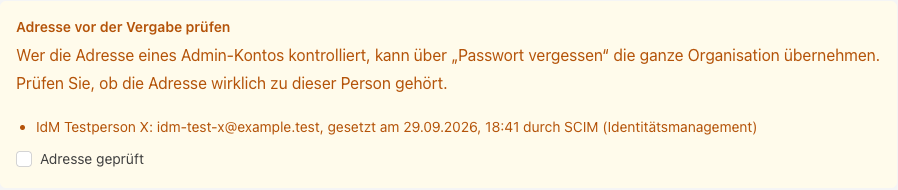
The reason: Whoever controls an admin account's address can take over the entire organization via "Forgot password?". Therefore, verify that the address truly belongs to that person. The verification applies everywhere an account receives admin permissions: in the user account, in the member list of a role, and when an existing role gains an admin permission. It is logged.
Info
Roles from an identity management system are never automatically assigned as admin roles: Neither on first login nor via a SCIM group can an admin role be assigned. More on this under SSO & Directory.
Role with "Integrations" permission: It can view the integrations overview and "SSO & Directory" in read-only mode. Only the System Admin can enable/disable integrations and change identity sources.
Guest Access for External Persons#
For suppliers, customers, planning offices, or other external participants, there is guest access. A guest is not a role, but a user type—that is the crucial difference.
Guests cannot be assigned roles. What a guest can do is determined by their groups, not by a role.
A guest has a fixed basic set of permissions: They can chat, and access the feed, wiki, calendar, events, and their groups—each only with the content they are entitled to via their groups.
The general file area remains closed to them. However, they can view and edit files of the groups they are a member of, just like any other member—according to the group role there.
In groups, a guest can have at most the "Collaborate" role. They cannot become a group admin, as that would allow them to add more people themselves.
Guests and employees can only see each other if they share at least one group. Thus, a guest does not appear in the employee directory, nor can they search it.
Info
This upper limit applies regardless of other configurations: A guest can never have more permissions than the guest status allows. Therefore, grant external persons access via the groups they should collaborate in—that is the intended method.
Groups and Permissions#
Creating Groups#
Anyone can create a group; the creator automatically becomes the group admin.
Hidden groups and departments can only be created by System Admins and HR Managers.
Roles Within a Group#
Each member of a group has one of three roles there:
Read (formerly "Member"): Can read, like, and comment on all content in the group, but cannot edit anything. Default role for new members; the default can be changed.
Collaborate (formerly "Creator"): Can create content and edit any file in the group—even those uploaded by others. This includes filling out and saving PDF files with the Kibi PDF tool. Only their own content can be deleted.
Admin: Can create, edit, and delete everything in the group—including others' files—and manages the members.
Warnung
In groups, only the group role matters. Platform-wide roles like System Admin or Content Manager do not grant access to a group where someone is not a member.
Overview#
Role |
Platform-wide |
In Groups |
|---|---|---|
Colleague |
View, comment on, and like content; chat; view colleague profiles; create groups. |
Access only in their own groups, according to the group role there. |
HR Manager |
Manage user accounts and assign roles without admin permissions; personnel files; create closed groups. Only the System Admin can edit admin accounts, admin roles, and the roles themselves. |
Manages members of department groups without seeing their content. |
Wiki Creator |
Create global wiki entries, manage own entries. |
No additional permissions. |
News Creator |
Create global news and calendar entries, manage own entries. |
No additional permissions. |
Content Manager |
Manage all content and files, set extended visibility. |
No additional permissions. |
Fleet Manager |
Manage vehicles, logbook, damage reports, and driver's license checks. |
No additional permissions. |
System Admin |
Full access to system configuration, user, and role management. |
No additional permissions—even they cannot see others' groups. |
Guest (User Type) |
Fixed basic set of permissions, no roles assignable; general file area closed. |
Like any member according to group role, at most "Collaborate". |
Practical Examples#
HR Group: An HR Manager creates a closed group for HR topics. Only its members can see the content—even a System Admin cannot, unless they are a member.
Project Group: A colleague creates a public project group. All colleagues can view and comment on the content, while members with the "Collaborate" role can post contributions and jointly edit the group's documents.
External Collaboration: A planning office receives guest access and is added to the project group. There, it works on the same documents as the internal team; everything outside this group remains hidden from them.
Custom Role: An organization needs a "Project Manager" role that administers tasks and files but does not handle user accounts. A System Admin creates it under "Roles & Permissions" and sets the two modules to "Administer", leaving everything else unchanged.