
How do I write and reply to messages?
2min
In the open chat, you can write messages, respond specifically to individual posts, send quick confirmations, and manage individual messages. This article shows you step by step where to find each function.
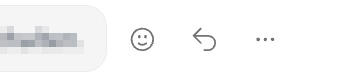
Most functions for a single message only become visible when you hover over the message with your mouse (on smartphone: tap the message). Then a smiley, a reply symbol (arrow), and a menu with three dots appear.
Send a message
Open the Chat module and the desired conversation.
Tap in the input field at the bottom: Write a message....
Write your text and send it using the send symbol (paper airplane).
📷 Screenshot: The "Message" input field at the bottom with the send symbol.
Send a quick reaction
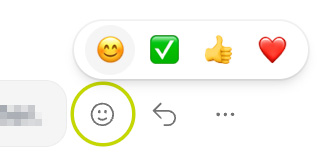
When you hover over a message, the smiley symbol appears. Clicking on it allows you to attach a smiley as a quick reaction to the message.
Reply to a message
With a reply, you specifically refer to a particular message. The original message is quoted in the process.
How to find the function:
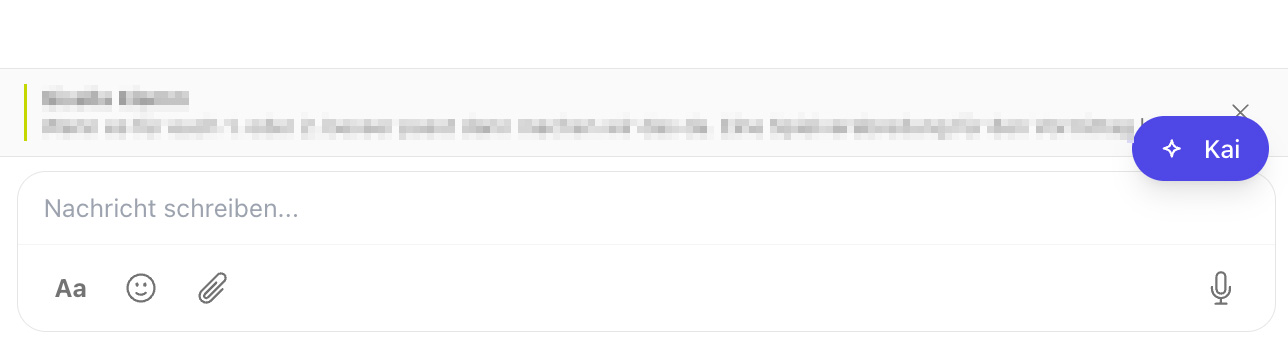
Hover over the desired message.
Tap the reply symbol (arrow)
The message you are replying to appears as a quote above the input field.
Write your reply and send it.
If you no longer want to reference this message in your reply, remove the quote by clicking the × on the reply notice before sending.
Delete a message
How to find the function:
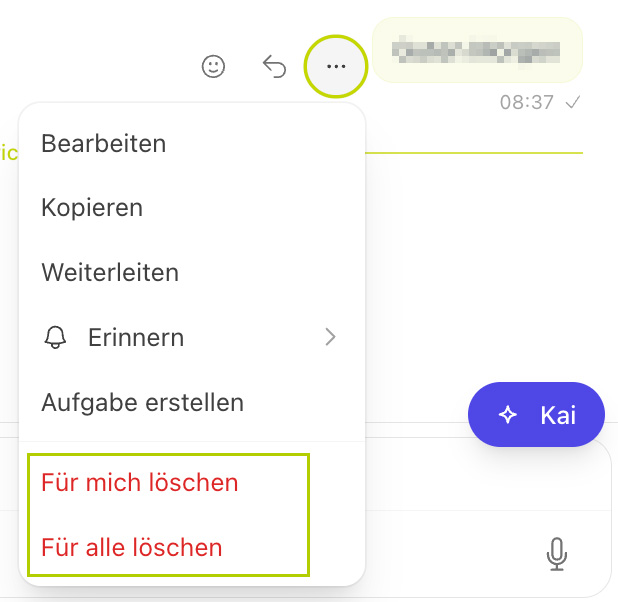
Hover over the message and open the three-dot menu.
Select Delete for me or Delete for all.
Confirm the security prompt.
The difference:
Delete for me: The message disappears only from your view; everyone else can still see it.
Delete for all: The message is removed for all participants. Available only for your own messages; in groups, administrators can additionally delete others' messages.
Deleted messages cannot be restored. If the message contains an attachment (image, video, or file), it will also be deleted.
Create a task from a message
From a message, you can directly create a task so that no to-do gets lost in the conversation history.
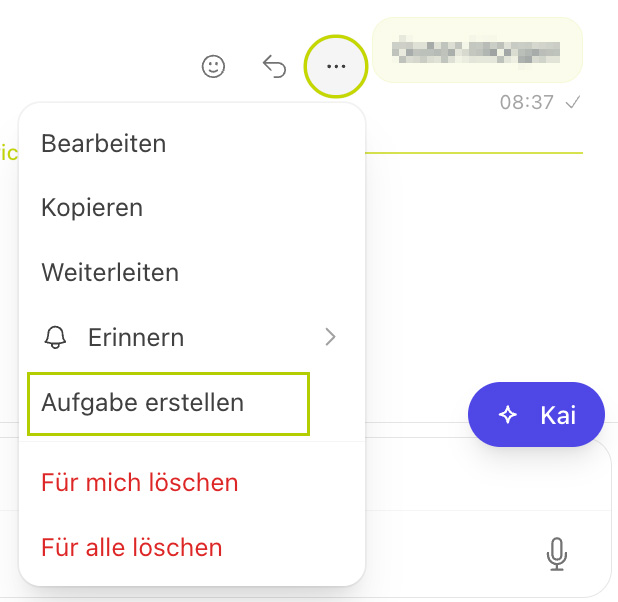
Open the three-dot menu of the message.
Select Create task.
The message text is transferred. Add the details and save the task.
This menu item only appears if the Tasks module is activated in your Kibi Connect and you have access to it.