
How do I organize the wiki (structure & subpages)?
Updated Reading time: 2 min
On this page
The wiki is structured hierarchically: there are areas (top-level pages) and subpages. This keeps even a large wiki organized. There are two ways to manage the structure—the page tree in the navigation and the page settings of an open page.
1. Organizing via the page tree#
The page tree in the left navigation displays all pages and subpages in their hierarchy. Use the arrows to expand and collapse areas and navigate through the wiki.

Creating a new area#
Use + New area to create a new top-level page—it forms its own area.
Creating a subpage#
Select + (New Subpage) on the desired page. The new page will be placed directly below this page in the tree.
Info
Detailed instructions for creating pages can be found under How do I create a wiki page? (see below).
2. Assigning via Edit > Page Settings#
For an existing page, you control its placement via the page settings. This allows you to move a page to a different location, turn a subpage into its own area—or vice versa.
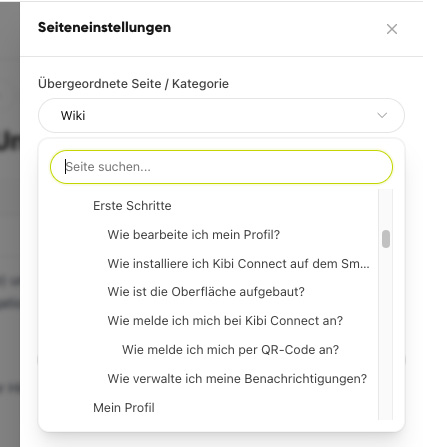
Open the relevant page and click Edit.
Open the Page Settings.
In the Parent Page / Category field, select the desired parent page—or change the existing assignment.
If you leave the field blank, the page will become an independent area at the top level.
Click Save. The new placement will then also appear in the page tree.
Tips for a good structure#
Create few, clear main areas and organize topics as subpages under them.
Use descriptive, unambiguous titles.
Avoid excessive nesting—two to three levels are usually sufficient.
Warning
A page with subpages cannot be deleted directly. First, move the subpages to another location via page settings or delete them first.