
SSO & Directory
Updated Reading time: 6 min
On this page
Under SSO & Directory, you connect Kibi Connect to your company directory: employees log in with their company account, and accounts and groups come directly from the directory.
Info
New since version 6.32 (09/30/2026): This section replaces the previous pages "Single Sign-on" and "Microsoft Entra". Old links and bookmarks will automatically redirect here. Existing connections to Microsoft Entra ID will continue to work unchanged.
How to open the section#
Open the Administration.
In the menu, select Integrations → SSO & Directory. Alternatively, you can access it via Integrations → Overview and the "SSO & Directory" card.
The list shows all identity sources with type, status, number of linked accounts, and last login.
Warning
Only System Admins can create, modify, and delete identity sources, set up SCIM, and confirm the identity provider's second factor. Roles with the "Integrations" permission see the section in read-only mode. The reason: an identity source determines who is allowed to log in as whom.
Which identity providers you can connect#
Method |
Typical Providers |
What you need |
|---|---|---|
OpenID Connect |
Keycloak, Okta, Auth0, ADFS, agov, and other OIDC providers |
Issuer URL, Client ID, and Client Secret |
SAML 2.0 |
eIAM, ADFS, Shibboleth, and other SAML providers |
Identity provider metadata (XML, file, or URL) |
Microsoft Entra ID |
Microsoft 365 |
An app registration in Entra; one Entra source per platform |
Info
Active Directory or LDAP in-house: Kibi Connect does not connect directly to a local directory. Connect it via Keycloak (User Federation) or ADFS and connect Kibi Connect to this service via OpenID Connect or SAML.
Multiple sources simultaneously#
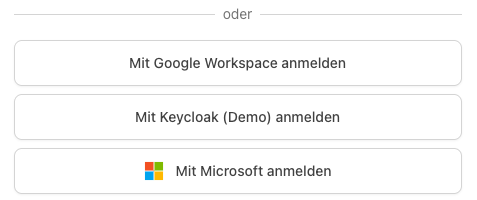
You can operate multiple identity sources in parallel, for example, Microsoft Entra ID for administration and Keycloak for production. Each active source appears as a separate button on the login page, labeled "Log in with <Display Name>". Login with password, passkey, or QR code remains available alongside.
Add identity source#
Click on Add identity source.
Select your provider's method: OpenID Connect, SAML 2.0, or Microsoft Entra ID.
Enter the Display Name, e.g., "Keycloak" – the login page will then display "Log in with Keycloak". The Short Name (lowercase letters, numbers, hyphens) becomes part of the login address.
Fill in the connection details (see below) and click Create identity source.
Enter the displayed Redirect URL (OpenID Connect) or Entity ID and ACS URL (SAML) with your identity provider.
For Microsoft Entra ID, confirm with Set up: the integration is enabled and the source is created. Afterward, store the access data of your Entra app. The steps in the Microsoft Entra Admin Center are described on the page MS Entra Integration.
The three tabs of an identity source#
Each source has the same three tabs. Changes in all tabs are saved together via the Save bar at the bottom.
Tab "Connection"#
OpenID Connect
-
Issuer URL
The address of your identity provider, e.g., https://login.example.com/realms/company. With "Fetch Discovery", you check if the provider responds and see the login endpoint, token endpoint, and keys.
-
Client ID and Client Secret
From the client configuration with the provider. A saved secret is no longer displayed; enter it only to replace it.
-
Scopes and PKCE
Scopes separated by spaces. PKCE additionally secures the login – only disable it if your provider does not support it.
SAML 2.0
-
Adopt metadata
Insert the metadata XML, upload the file, or provide the metadata URL. Entity ID, login URL, and signature certificate are filled from this and remain editable. If the metadata contains multiple providers (e.g., with eIAM or AGOV), specify the desired Entity ID.
-
Details for your identity provider
Entity ID of this platform, ACS URL, and the platform's certificate. With "Download SP Metadata", you get everything in a file that you upload to the provider.
-
NameID Format
Recommended is "Persistent". For "Transient", you need a fixed attribute as an identifier.
-
Certificate change
Enter old and new certificates one below the other. The platform notifies System Admins in time before a certificate expires.
Test connection
The Test connection button checks if Kibi Connect can reach the identity provider and trust it – without anyone having to log in. Each check point appears with "OK", "Note", or "Error", for example, whether the issuer matches, whether Client ID and Client Secret are accepted, or how long a SAML certificate is still valid.
Tab "Login"#
-
Adopt attributes
Determines which details from the identity provider (first name, last name, email address, username) are transferred to the profile. These are updated with every login.
-
Assign accounts
On the first login, Kibi Connect searches for the matching account via a chain of rules – in order, the first rule with a match applies. After that, the person is permanently linked to their account.
-
Second factor with identity provider
If your identity provider requires a second factor for every login, confirm this here. Kibi Connect will then not additionally ask for its own second factor. The source then carries the note "MFA confirmed".
-
Allow login via this source
When disabled, the button disappears from the login page. Links remain preserved.
-
Delete identity source
To confirm, type the name. Links and a SCIM connection are removed, but the accounts themselves remain. Microsoft Entra ID is not deleted but the connection is disabled in the "Connection" tab.
Example of a rule chain:
Rule |
Identity provider attribute |
Compare with |
|---|---|---|
1 |
Email address |
|
2 |
employeeId |
Username (e.g., employee number) |
This way, employees with an email address find their account via the address, and all others via the employee number. This is also the default setting for Microsoft Entra ID. You can create up to three rules and change their order. Without a rule, no existing account is searched; accounts must then be linked beforehand or created via SCIM.
Warning
Email address only with verified addresses: Choose the assignment via the email address only if your identity provider verifies the addresses. With OpenID Connect, the rule only applies if the provider reports the address as verified (email_verified).
If two rules point to different accounts, the directory contradicts itself. The login will then be rejected and nothing will be linked.
Tab "User Sync"#
OpenID Connect and SAML 2.0
-
Create accounts on first login
Anyone who logs in for the first time via the source and does not yet have an account will get one – provided there are free licenses. Under "Roles for new accounts", you specify which roles these accounts receive. Roles with admin rights cannot be assigned here.
-
SCIM provisioning
Your identity management creates, maintains, and deactivates accounts and groups. Setup, offboarding, group, and role assignment are described on the page "Setting up SCIM Provisioning".
-
Lock fields maintained by the directory
On: Employees see name, email address, and contact details in the profile as read-only. Off: Employees can edit the fields, but the next sync will overwrite the changes again. The setting applies per source.
Microsoft Entra ID
Here you will find the complete directory sync as before: schedule, adopted fields, offboarding, notifications, "Sync now", and orphaned accounts. SCIM is optionally available as an alternative if you prefer to provision accounts from Entra. Roles with the "Integrations" permission at the "Configure" level can also change the directory sync; the login settings in the "Connection" tab remain reserved for System Admins.
Protection for admin accounts#
Anyone who controls the email address of an admin account could gain access via "Forgot password?". Therefore, fixed protection rules apply to accounts from an identity management:
-
Email confirmation
If SCIM or the Entra sync wants to take over an existing admin account or change its email address, this only takes effect once the affected person confirms it. The email is sent to the previous address.
-
No automatic admin roles
Neither on first login nor via SCIM group are roles with admin rights assigned.
-
Limit on mass offboarding
If an identity management wants to deactivate more than half of its accounts in a short time, the platform stops and notifies System Admins by email.
-
Last System Admin
The last active System Admin can never be locked or deleted via SCIM.
-
"Address verified"
Anyone who gives an account with an address set by the identity management an admin role must visibly verify the address first. Details under "Roles & Rights".
Who is allowed to do what?#
Task |
System Admin |
Role with "Integrations" permission |
|---|---|---|
View identity sources |
Yes |
Yes (read-only) |
Create, modify, delete sources |
Yes |
No |
Set up SCIM, renew token |
Yes |
No |
Confirm provider's second factor |
Yes |
No |
Configure Entra directory sync |
Yes |
Yes, with "Configure" level |