
How do I create and manage a group chat?
1min
In a group chat, several people exchange information together – such as a team, a project, or a department.
Create a group
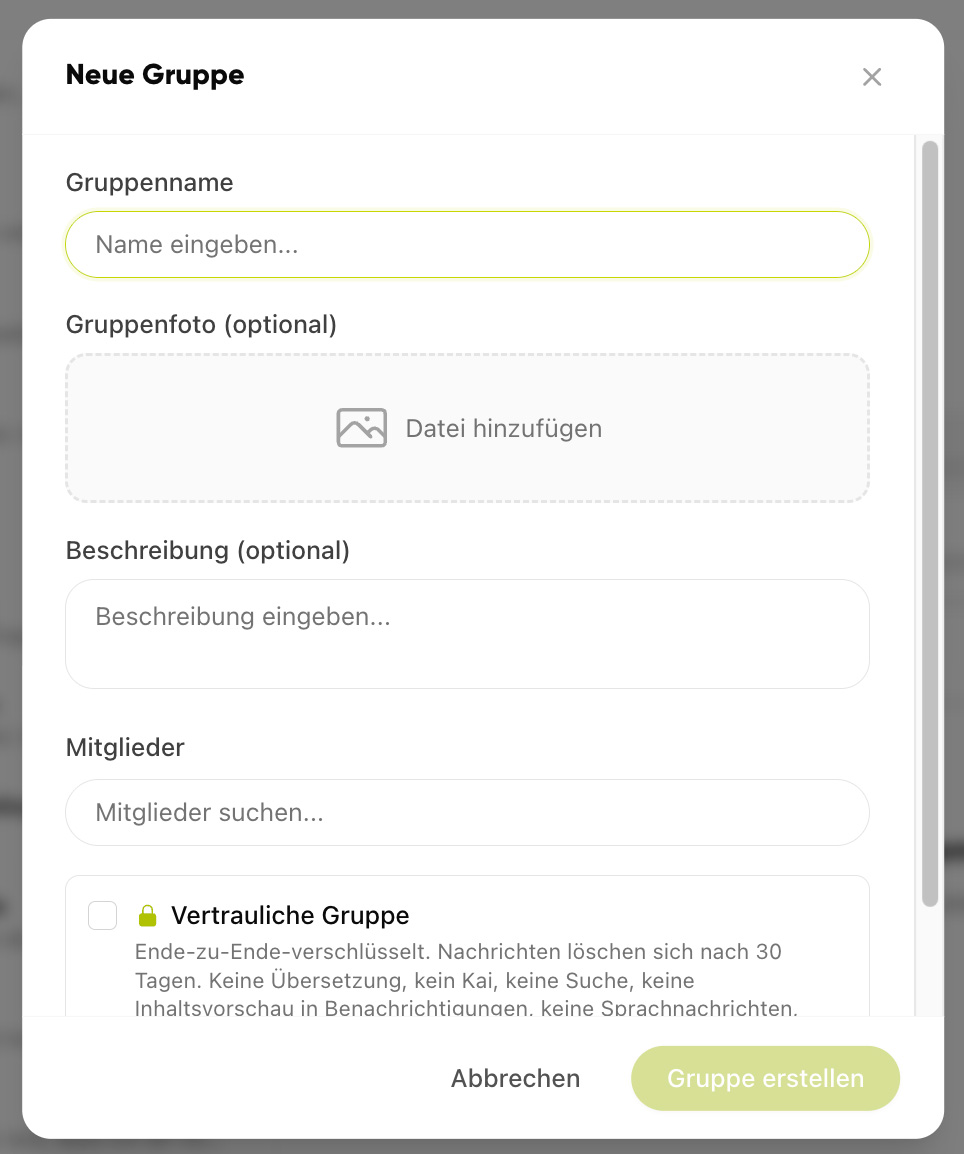
Open the Chat module.
Tap New Group.
Assign a group name and optionally a group image and description.
Add the desired members.
Confirm with Create.
Group name (Required)
Max. 120 characters
Group photo (Optional)
The following image formats are allowed: jpg, jpeg, png, and webp
Description (Optional)
Free text with max. 500 characters
Members (Required)
Select the people you want to add to the group.
The maximum number of members in a group chat is 3,000.
Confidential group (Optional)
Confidential groups offer maximum security through end-to-end encryption. To optimally protect your data, the following special rules apply in these groups:
Automatic deletion: All messages are automatically deleted after 30 days.
Unencrypted information: The group name, group description, and group photo are not encrypted.
Limited functions: Voice messages, calls, translations, AI functions, message searches, or content previews in notifications are not available.
File management: Shared files can only be downloaded; there is no file preview.
Manage members
In the group's Settings under the Members section, you can add or remove people at any time.
Roles in a group
There are three roles in a group with different permissions:
-
Owner
Creates the group and has all rights.
-
Administrator
Can manage members and group settings.
-
Participant
Joins the group and sends messages.
Leave a group
In the group settings, select Leave group to exit the group.