How will I be notified about new messages?
Updated Reading time: 3 min
On this page
Kibi Connect shows you new messages directly in the chat and, if desired, as push notifications on your smartphone, in the browser, or in the desktop app. You can mute individual chats when you need some peace and quiet.
Detecting New Messages#
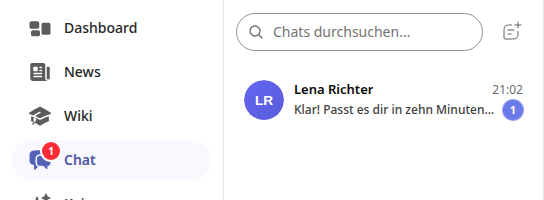
New messages appear immediately in the open chat. For all other chats, you will see two indicators:
Number on the Chat menu item: The red number in the navigation shows you that unread messages are waiting for you.
Number in the chat list: Each chat with new messages displays the number of unread messages.
Info
Chat messages are not under the bell at the top right. There you will find other notifications. You can find your unread messages in the chat.
Allow push notifications#
With push notifications, you will be informed of new messages even when the platform is currently closed.
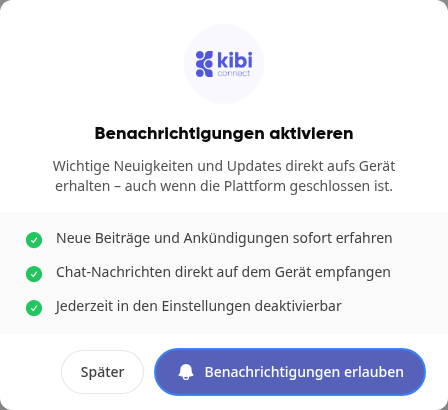
When Kibi Connect asks you, click Allow notifications in the Enable notifications dialog.
Confirm the prompt from your browser or device.
Important
When starting the app on your smartphone for the first time, allow it to send notifications. Otherwise, Kibi Connect cannot send you push notifications.
Info
In confidential chats, notifications do not show a preview of the content.
Notifications in the desktop app#
In the desktop app for Windows and macOS, Kibi Connect displays new messages as notifications from your operating system as long as the app is running.
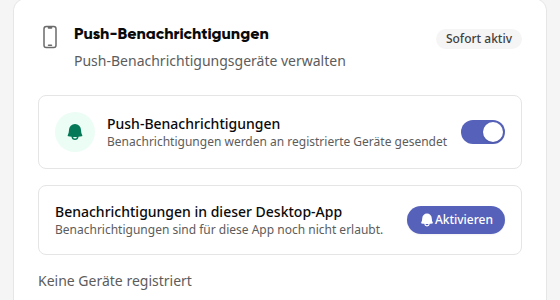
On first launch, the app asks you in the dialog Enable desktop notifications. Click Enable and confirm the prompt from your operating system.
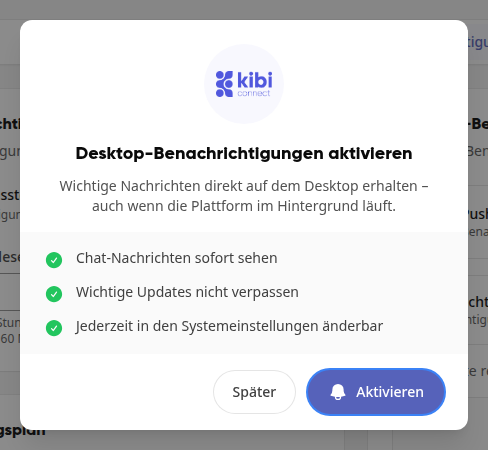
If you chose Later, you can catch up at any time: Open the Notifications tab in your profile. Under Push notifications, you will find the card Notifications in this desktop app. Click Enable there.
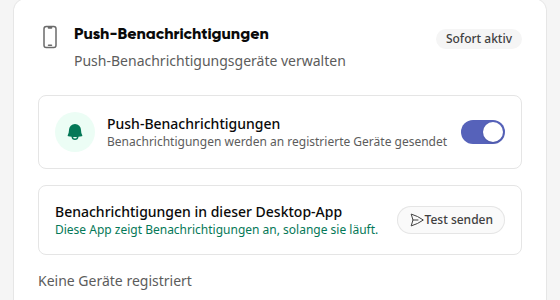
If notifications are allowed, the card shows Send test. This lets you see what a notification from the app looks like.
Tip
If you have denied notifications for Kibi Connect in the operating system, the card shows Open system settings. Enable notifications for Kibi Connect there. As soon as you return to the app, the card shows the new status. If the button is missing, you will find the setting in the operating system under Notifications → Kibi Connect.
When someone mentions you#
If someone mentions you in a chat with @ and your name, you will receive a separate notification for it.
In a group chat, the entire group can also be mentioned, for example with @Sales. Then all members of the group will be notified, except for the person writing the message. Before sending, the dialog Mention entire group? shows you how many people will be notified at most.
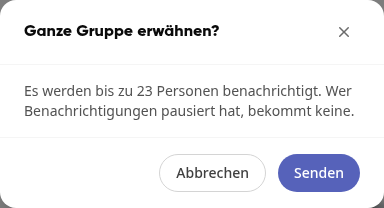
If you have muted the group chat, you will not receive a notification for a mention of the entire group.
If you have paused your notifications, you will not receive one either.
If you are mentioned in a message by your name and also via the group, you will only receive one notification.
Tip
How to mention a person or the entire group yourself is described under How do I write and reply to messages?.
Muting a chat#
Open the chat and click the bell icon Mute at the top right.
Choose how long the chat should be muted: 1 hour, 8 hours, 24 hours, 1 week, or Always.
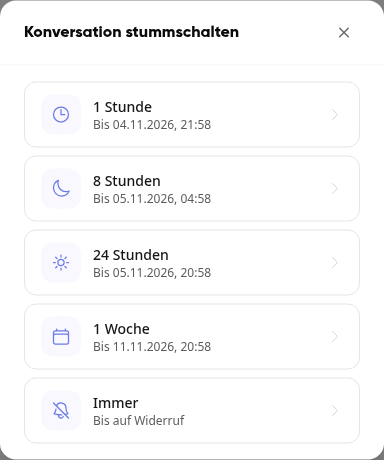
A muted chat shows a crossed-out bell in the chat list and at the top of the chat.

To unmute, click the bell icon again in the chat (Unmute).
Info
Messages still arrive in a muted chat. You just won't receive push notifications for them, not even if someone mentions the entire group.
Read and Unread Status#
As soon as you open a chat, it is considered read, and the number in the chat list disappears. If you want to come back to it later, you mark it as unread again:
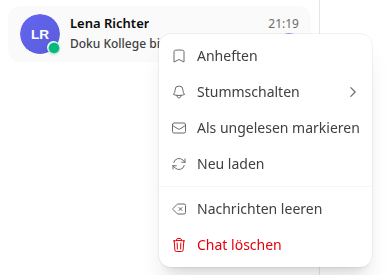
Right-click on the chat in the chat list.
Select Mark as unread.