
Where are the images that Kai generates created?
Updated Reading time: 2 min
On this page
Kai can generate images upon request. Here you can see how to create an image, where to find it later, and where it is created.
Generate an image in the conversation#
Open Kai in the navigation.
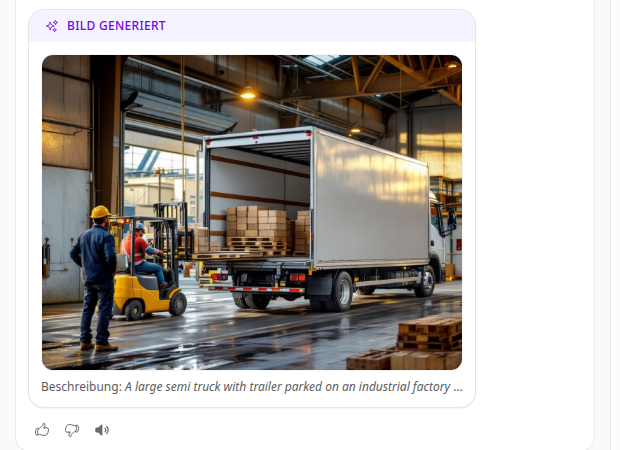
In the input field, describe what the image should show, for example, “Create an image of a truck on the factory premises.”
Kai displays the image in the conversation on a card labeled Image generated. Under Description, the text used to generate the image is shown, usually in English. Clicking on the image opens it in a new tab.
Find the image again#
The image remains visible in the conversation. You can find the conversation under Kai in the Conversations tab, also via the Search threads... field.
Additionally, Kai saves each image from the conversation as a file in your personal storage:
Open Files in the navigation and click on My Storage.
Open the Kai and then the Images folders in sequence.
Open the folder for the month, for example 2026-11. The filenames start with ai-generated-.
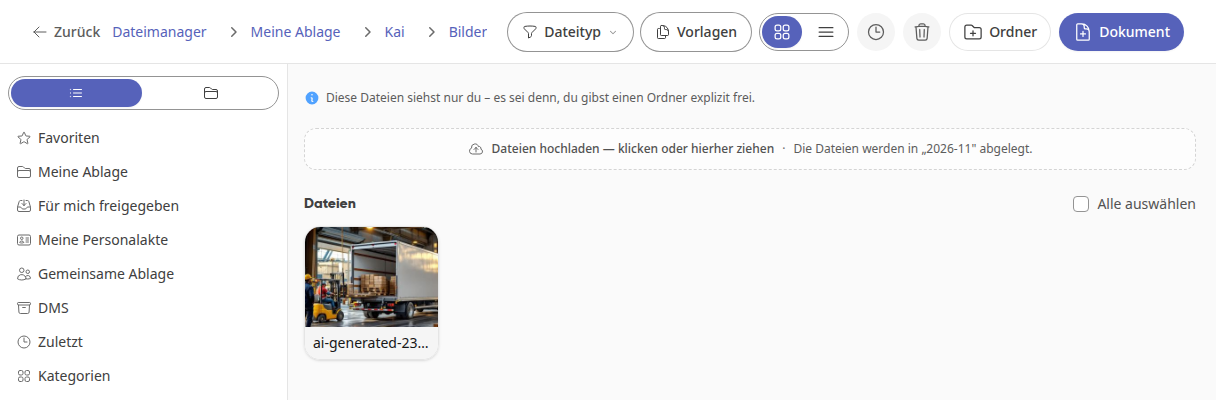
These files are only visible to you until you explicitly share a folder.
Info
Generated images do not appear in the Results tab. Look for them in the conversation or in your storage.
Images from the editor#
You can also generate images in the editor, for example on a wiki page: In edit mode, switch to the AI tab and click Generate image, or type /bild in the text. The image is inserted directly at that point in the text.
The file for this is not in your storage but under Files in the File Manager in the folder Wiki > AI-Generated Images.
Where the images are created#
Generated images are created at OVHcloud in a data center in Gravelines (France) and thus within the EU. Previously, image generation was handled by a service in the USA—this is no longer the case. Which services we use is listed in the List of Subprocessors.
For admins: Disable image generation#
Open Administration > AI & Workflows > Kai and switch to the Settings tab.
In the Image generation section, turn off the switch Generate images with Kai.

Click Save at the bottom of the page.
When disabled, Kai no longer generates images, and Generate image is missing from the editor.
Info
Disabling image generation does not affect Kai’s ability to describe and find existing images. This is controlled separately under Not for Kai.