
Subscriptions & Licenses
Updated Reading time: 6 min
On this page
- The tabs at a glance
- Overview
- Change subscription
- Combine license packages
- Change term
- Additional mailboxes
- Price preview before ordering
- Cancellation periods and canceling subscription
- Reduce licenses and additional services
- What the platform shows you
- How to cancel your subscription
- Offer for you
- Invoices
- Pay
- Billing data
- Who can do what?
Under Administration → System → Subscriptions & Contracts, you can see what your platform includes: your subscription, licenses, open offers, invoices, and billing data. You can make changes to your subscription here yourself, with a price preview before ordering.
Info
Who can do what? Only system administrators can place orders, change subscriptions, accept offers, and modify billing data. Those with the "Manage system settings" permission can view everything but cannot trigger any actions. All other employees cannot see this section.
The tabs at a glance#
Tab |
What you’ll find there |
|---|---|
Overview |
Your subscription, open offers, scheduled changes, licenses, and storage |
Change |
Adjust license packages, term, and additional services |
Invoices |
All invoices with status, PDF, and payment options |
Assignment |
Who has which Kai rate and which mailbox |
Credit |
Kai credit: balance, top-up, expiry |
Consumption / Bookings |
What the credit was used for, every top-up and deduction |
Billing data |
Company, address, VAT ID, billing email, and order reference |
Contracts |
Your contracts and contract documents with Weslink |
Overview#
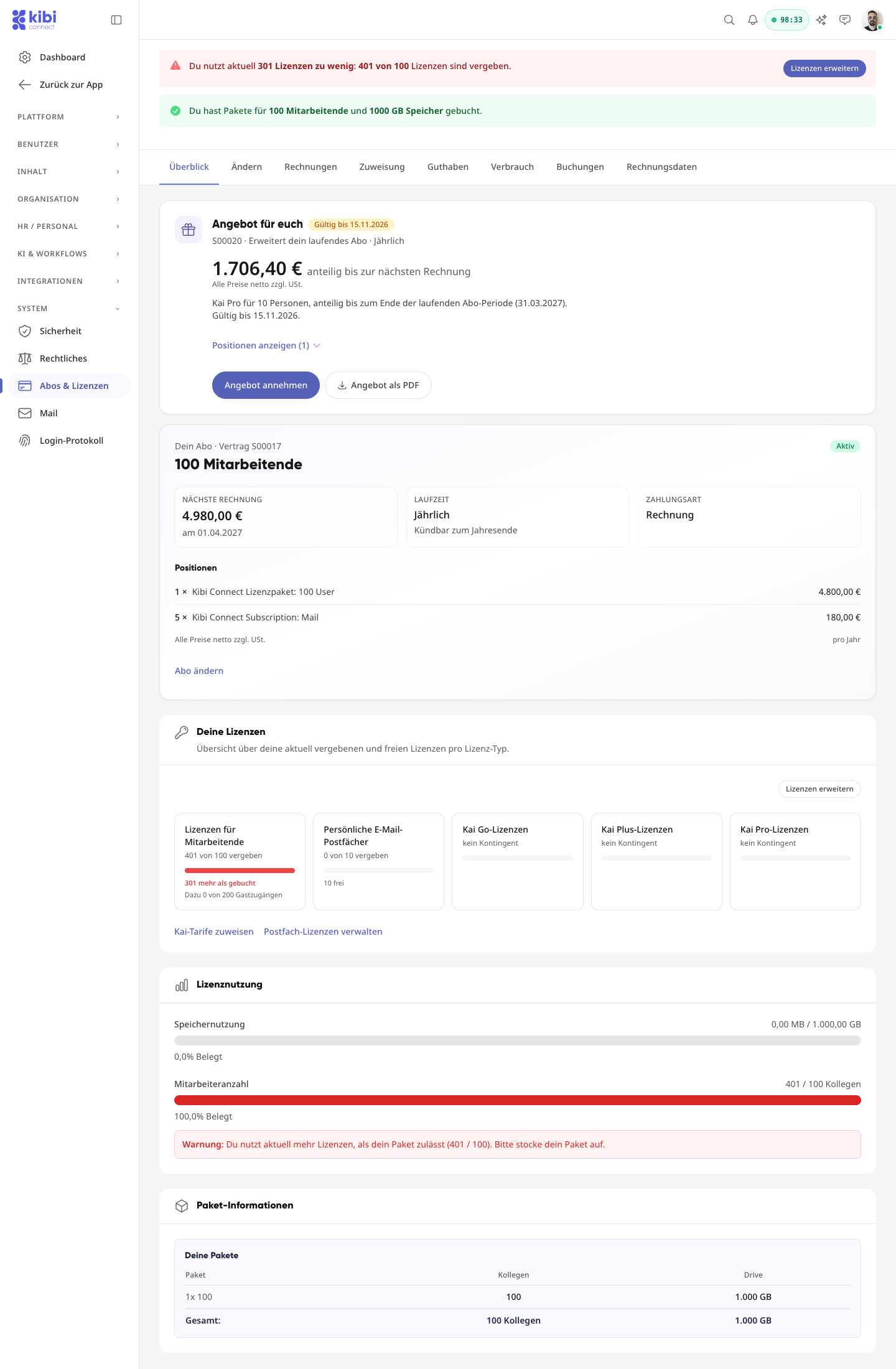
The Your Subscription card shows at a glance:
-
Package
How many employees your license packages cover, e.g., 100 employees.
-
Next invoice
Amount and date of the next subscription invoice.
-
Term
Annual, quarterly, or monthly, with a note on when you can cancel.
-
Items
All components of the subscription with quantity and price per period.
If you have ordered a change to take effect at the end of the period, it will appear under Scheduled, with the date from which it applies. Until then, you can cancel it with Revoke.
Change subscription#
In the Change tab (or via Change subscription in the Overview), you adjust license packages, term, and additional services.
Combine license packages#
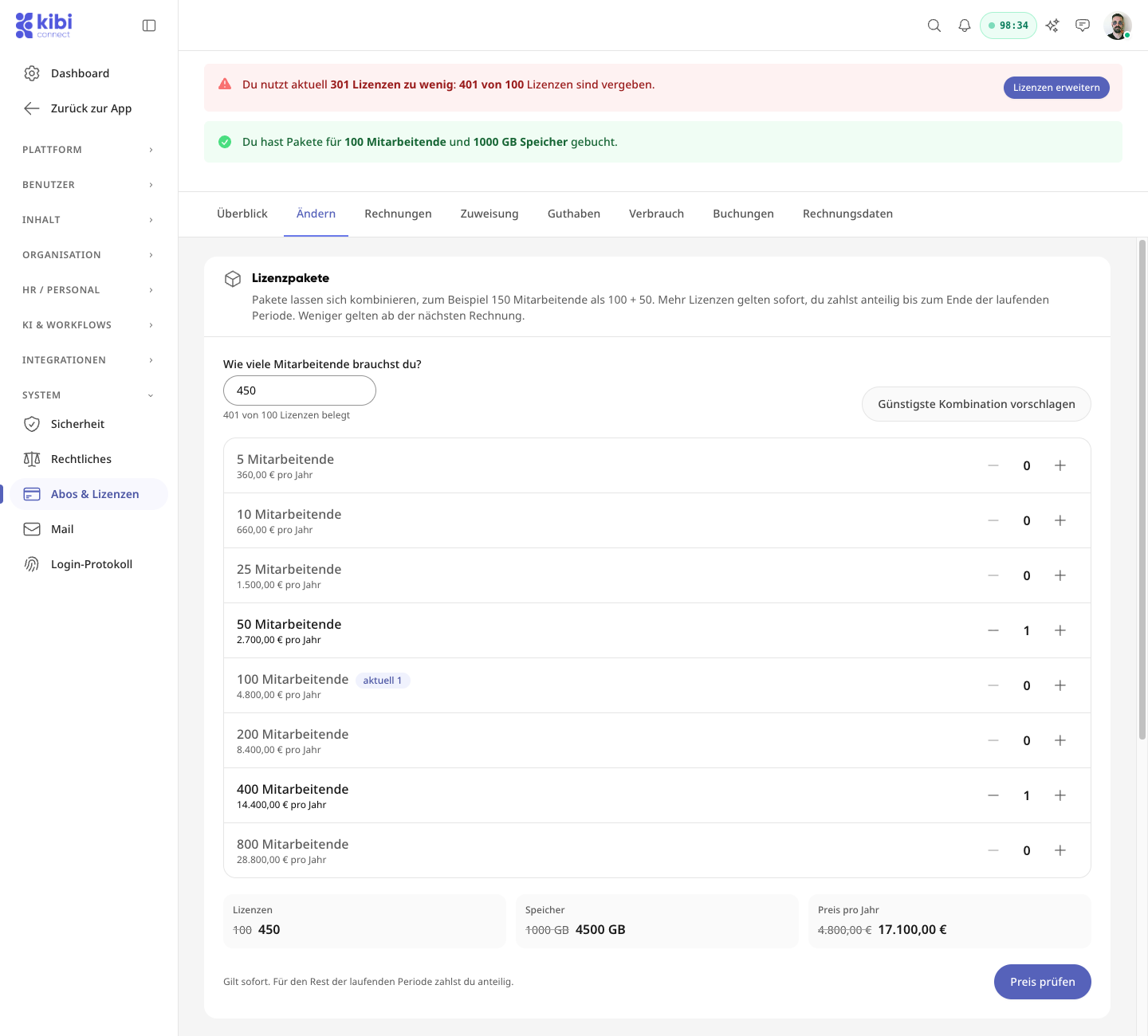
Packages can be combined. For example, 150 employees could be a package of 100 plus a package of 50.
-
Enter the desired number under How many employees do you need?.
-
Click Suggest cheapest combination. The platform selects the cheapest mix; if the price is the same, it chooses the one with fewer packages.
-
Adjust the mix if needed using + and −. Below, you’ll see licenses, storage, and price before and after.
-
Click Check price.
Only the difference is calculated: If you go from 100 to 150, you’ll add a package of 50, while the package of 100 remains unchanged.
Change |
Applies from |
Billing |
|---|---|---|
More licenses |
immediately |
pro-rated until the end of the current period |
Fewer licenses or cheaper combination |
at the end of the term, if the cancellation period is still sufficient; otherwise at the end of the following term |
until then, everything remains as before, nothing is refunded |
A switch to fewer licenses is scheduled. The same cancellation period applies as for the entire subscription (see Cancellation periods and canceling subscription below). Until the deadline, you can revoke it in the Overview. If, on the deadline date, more employees are using the platform than the smaller package covers, your previous package remains in place, and you will receive an email.
Warning
If your contract has individual terms, you cannot reduce licenses here yourself or cancel the subscription yourself. You can still order more as usual. For everything else, write to us at connect@weslink.de.
Change term#
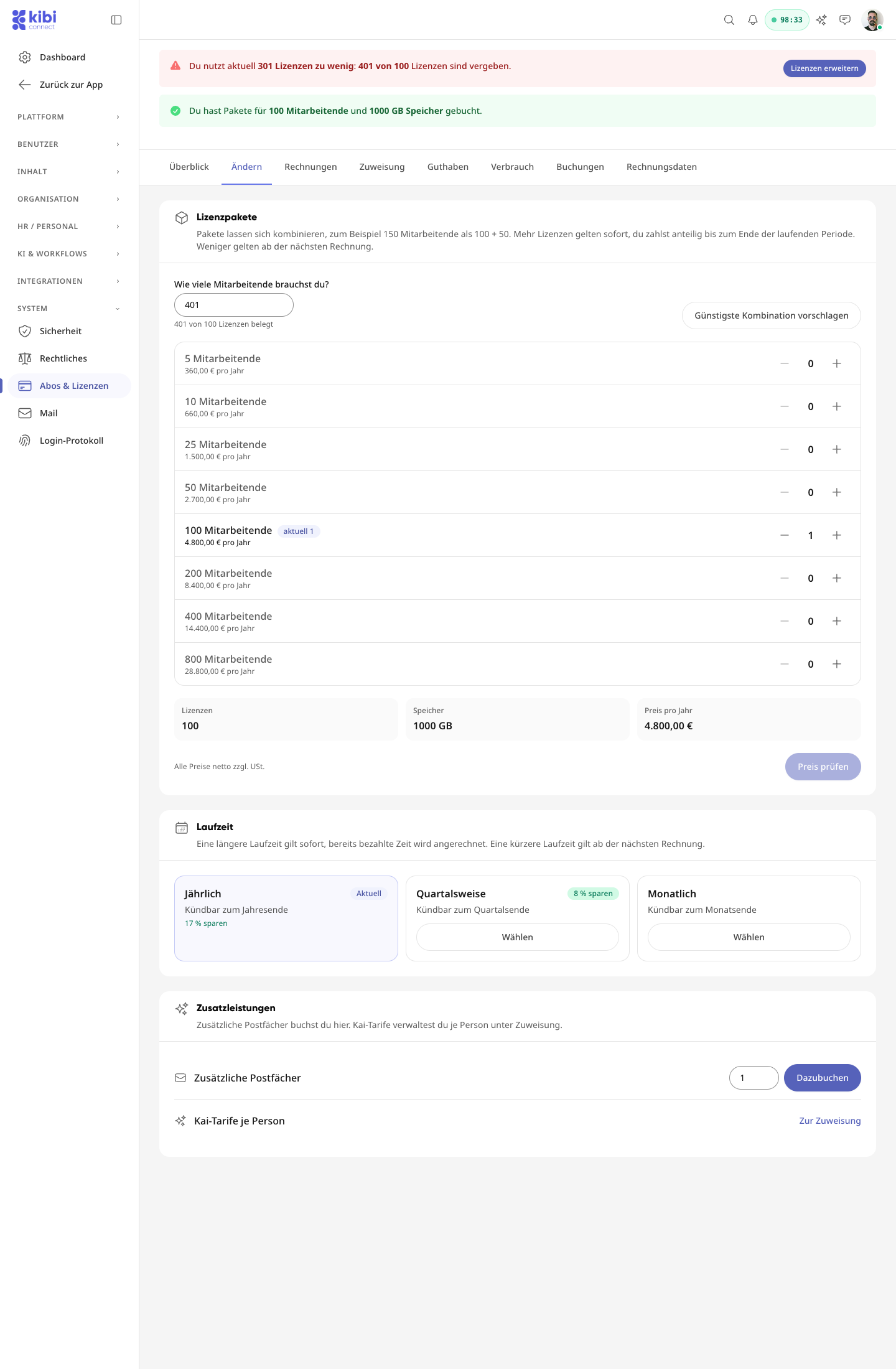
You can choose between Annual, Quarterly, and Monthly. You’ll see the savings directly on the card, calculated compared to the monthly term:
Term |
Savings |
Cancellation period |
|---|---|---|
Annual |
17% savings |
3 months before the end of the annual term |
Quarterly |
8% savings |
3 weeks before the end of the quarterly term |
Monthly |
– |
1 week before the end of the monthly term |
-
A longer term applies immediately; any prepaid time is credited.
-
A shorter term applies at the end of the current term if the change is made within the cancellation period of your previous term. Otherwise, it applies at the end of the following term. Until then, it is scheduled.
Additional mailboxes#
Under Additional services, enter the number and click Add. New mailboxes apply immediately; you pay a pro-rated amount until the end of the current period. You do not book Kai rates here but per person in the Assignment tab.
Price preview before ordering#
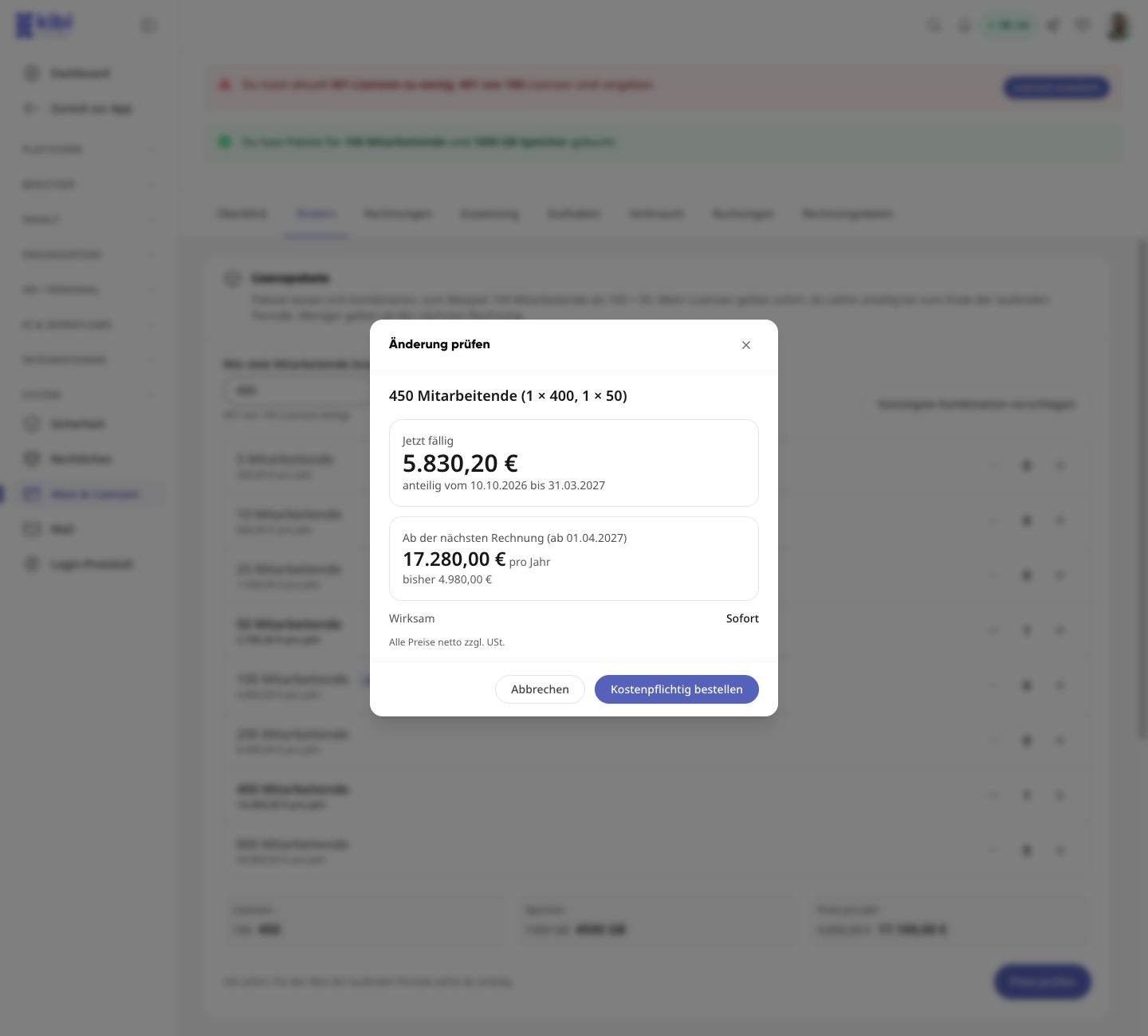
Before anything is booked, the Check change dialog shows you exactly what will happen:
-
Due now
The pro-rated amount for the remainder of the current period, with the time frame. If changes are made at the end of the period, nothing is due now.
-
From the next invoice
The new amount per period, alongside the previous amount.
-
Effective
Immediately or on the date at the end of the current period.
With Order with payment, you book immediately; with Schedule, you book at the end of the period. Afterward, the platform briefly displays "Being processed...". You can then find the invoice under Invoices.
Info
For scheduled changes, the amount is an estimate. The invoice amount is authoritative. All prices are net plus VAT.
Cancellation periods and canceling subscription#
Your subscription automatically renews for the same term unless you cancel. You can cancel at the end of the current term with the following notice period:
Term |
Cancellation period before the end of the term |
|---|---|
Annual subscription |
3 months |
Quarterly subscription |
3 weeks |
Monthly subscription |
1 week |
The decisive factor is when the cancellation is received by us. If it is received after the deadline, the subscription will only end at the end of the following term.
Reduce licenses and additional services#
The same period applies to fewer licenses, a smaller package, fewer mailboxes or Kai rates, a smaller credit contingent, and switching to a shorter term. The change takes effect at the end of the term; until then, you retain the previous scope. Amounts already invoiced will not be refunded.
What the platform shows you#
-
On the subscription card
The term with its period, e.g., Cancelable at the end of the annual term (notice period: 3 months).
-
Before confirming
When reducing or canceling, you’ll see the cancellation period and the date on which the change takes effect or your subscription ends. If the period for the current term has already expired, the platform will indicate the day it expired and the later date.
How to cancel your subscription#
-
Open the Change tab and click Cancel subscription.
-
Check the date on which your subscription ends. You can optionally provide a reason.
-
Confirm with Cancel definitively.
Afterward, the subscription card will display Canceled on with the date. Until then, you can use the platform as before. Until the day before, you can revoke the cancellation with Revoke cancellation. All system administrators will receive a confirmation email.
You can also cancel in text form, e.g., by email to connect@weslink.de. Only system administrators can cancel in the platform.
Warning
Individual agreements take precedence. If something different was agreed in your offer or order, such as a different notice period or minimum term, that applies. The subscription card will then display Individual contract terms.
You cannot cancel or reduce such subscriptions yourself in the platform. For this, write to us at connect@weslink.de.
Info
The rules are set out in § 5 and § 6 of the Kibi Connect Terms (version 1.6). The notice period and data that the platform shows you on the subscription card and before confirmation are authoritative for your subscription.
Offer for you#
If our sales team has created a custom offer for your platform, it will appear at the very top of the Overview under Offer for you. You’ll see the amount, validity, and whether it extends your current subscription or starts a new one. Use Show items to expand the details, and Download offer as PDF to download it.
-
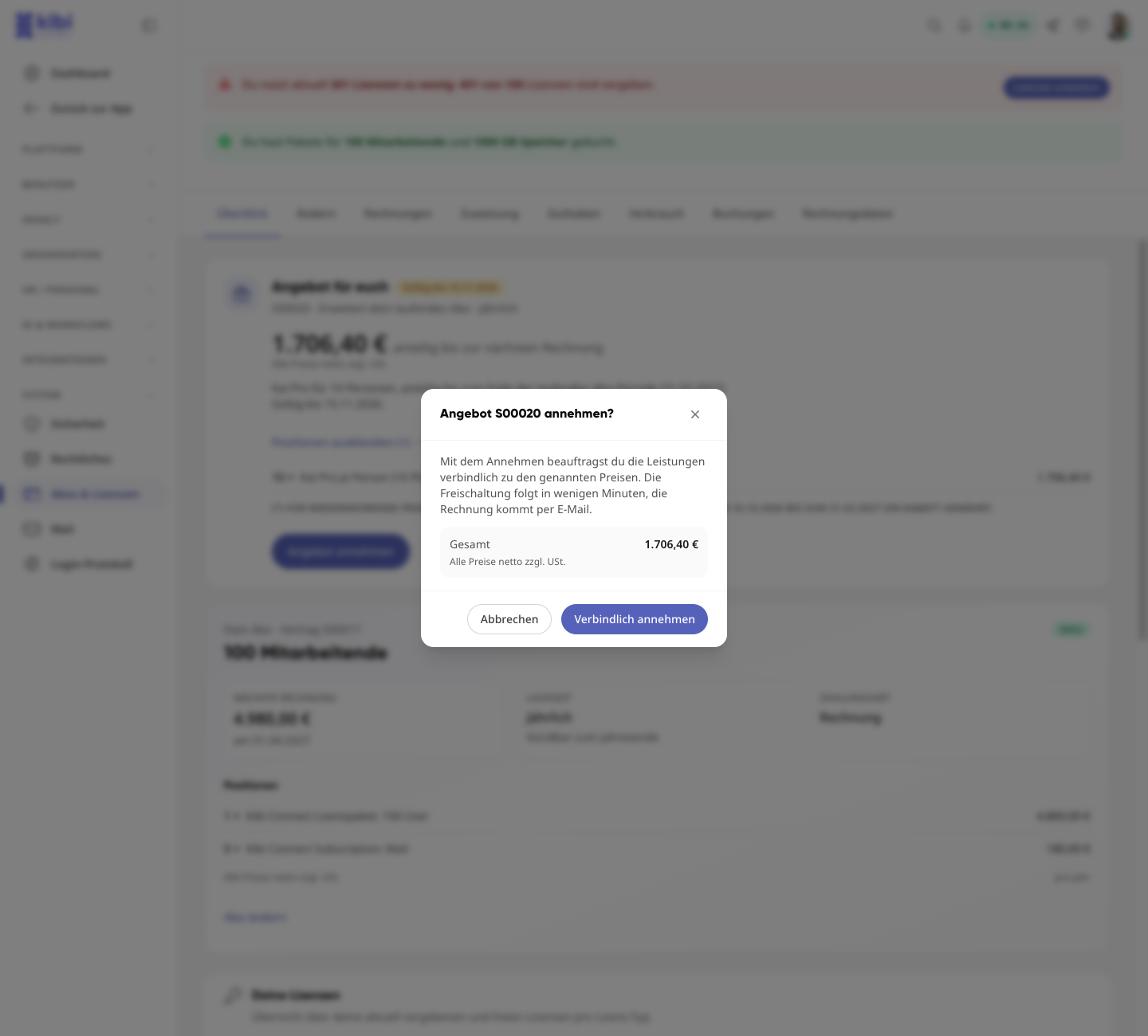
Click Accept offer.
-
In the dialog, check the total amount and confirm with Accept definitively.
-
Activation follows within a few minutes; the invoice will be sent by email.
-
Some offers must be confirmed through our sales team (office@weslink.de), e.g., if advance payment is required. The offer will then explain how to proceed.
-
You accept renewal offers by replying to the offer email.
-
An expired offer can no longer be accepted. Feel free to request a new one.
Invoices#
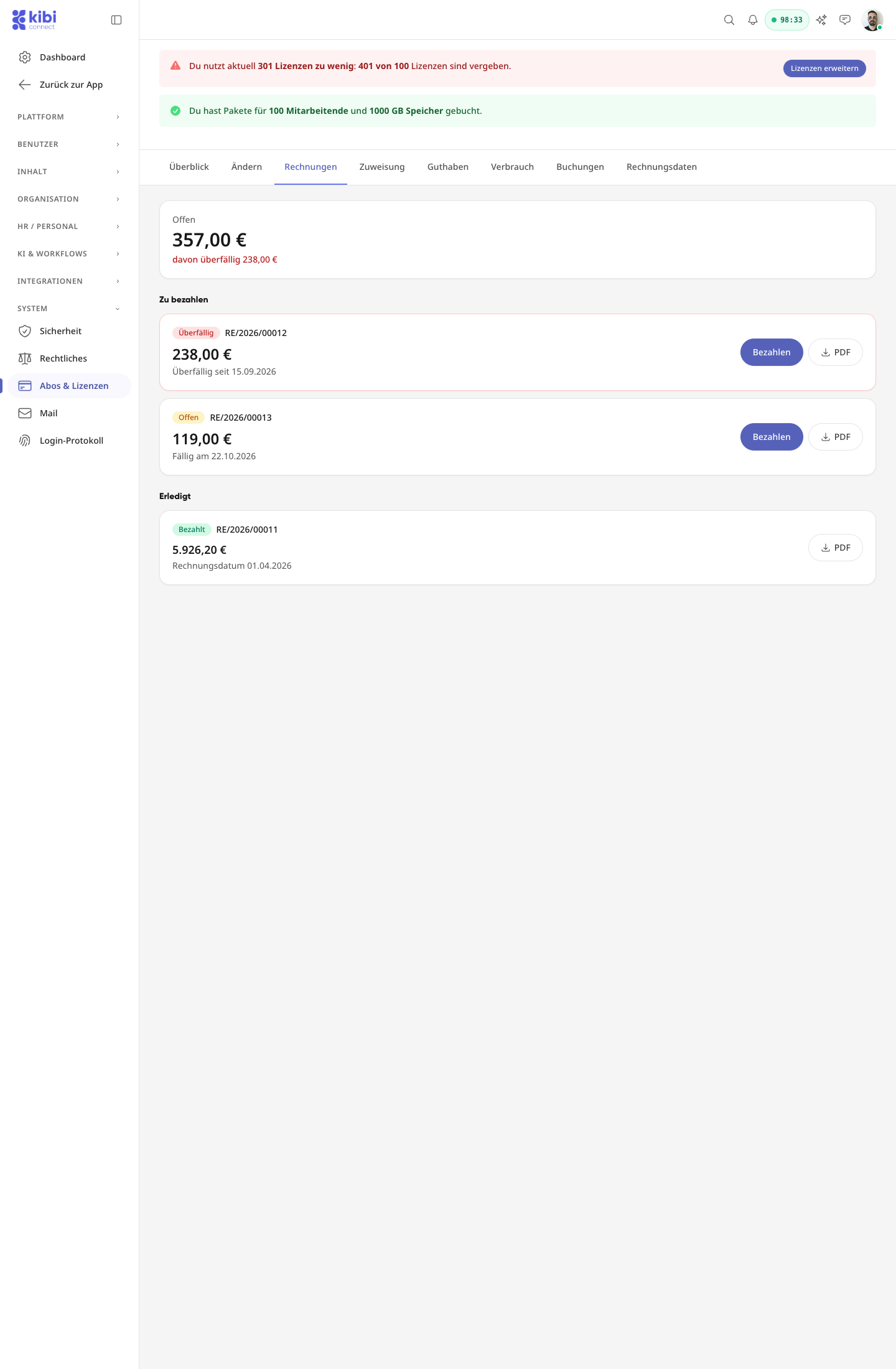
At the top, you’ll see the total amount outstanding and how much of it is overdue. Below, the invoices are sorted into To pay and Completed. You can download each invoice as a PDF.
Status |
Meaning |
|---|---|
Open |
not yet paid, due date not yet reached |
Overdue |
due date exceeded |
Partially paid |
a partial amount has been received, the rest is open |
Payment in progress |
the payment is on its way |
Paid |
completed |
Canceled |
the invoice is no longer valid |
Pay#
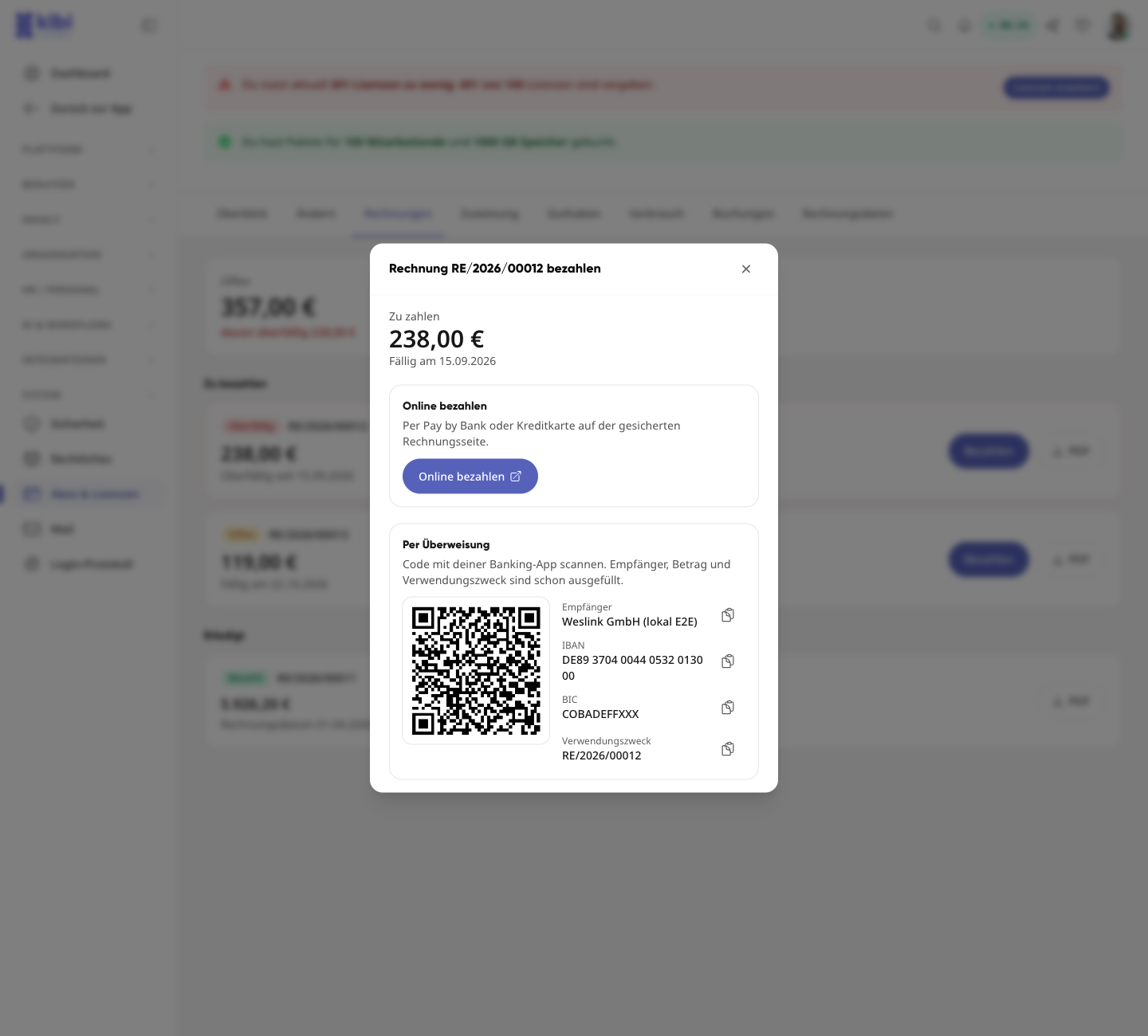
For an open invoice, click Pay. You have two options:
-
Pay online
Via Pay by Bank or credit card on the secure invoice page. Only system administrators can see this link.
-
By bank transfer
Scan the GiroCode with your banking app. The recipient, IBAN, amount, and reference are already filled in. Each field can also be copied individually.
Billing data#
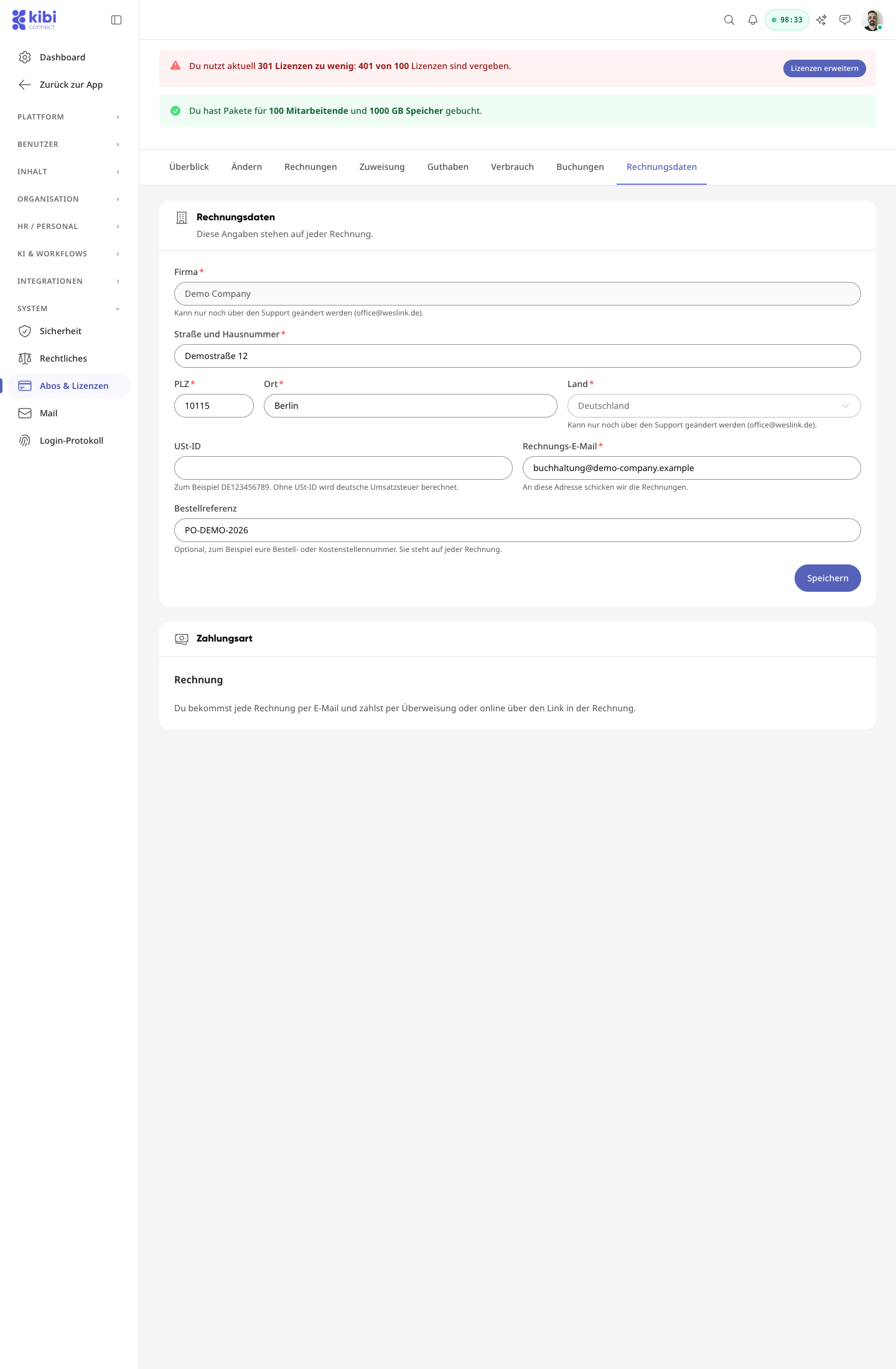
In the Billing data tab, you maintain the information that appears on every invoice: company, street and house number, postal code, city, country, VAT ID, billing email, and an optional order reference (e.g., your purchase or cost center number). Changes take effect from the next invoice.
Warning
Only changeable via support: Company name, country, and a VAT ID that has already been set cannot be changed by yourself after the first invoices. These fields are then locked and display a note to contact support. Write to us at office@weslink.de.
Without a VAT ID, German VAT is calculated. The payment method is Invoice: You receive each invoice by email and pay by bank transfer or online via the link in the invoice.
Who can do what?#
Action |
System administrators |
Permission "Manage system settings" |
All others |
|---|---|---|---|
View subscription, invoices, billing data |
yes |
yes |
no |
Cancel subscription |
yes |
no |
no |
Change subscription, add mailboxes |
yes |
no |
no |
Accept offer |
yes |
no |
no |
Change billing data |
yes |
no |
no |
Pay invoice online (link) |
yes |
no |
no |
Buy Kai credit or book contingent |
yes |
no |
no |