
How do I contact the works council?
Updated Reading time: 2 min
On this page
The works council is there for all employees. In the Works Council section, you can submit concerns, suggest topics, and view office hours. Published works agreements can be found in the Wiki.
Info
Which of these options are available depends on which sub-areas are activated in your company. If the section is missing from the navigation, contact the administration.
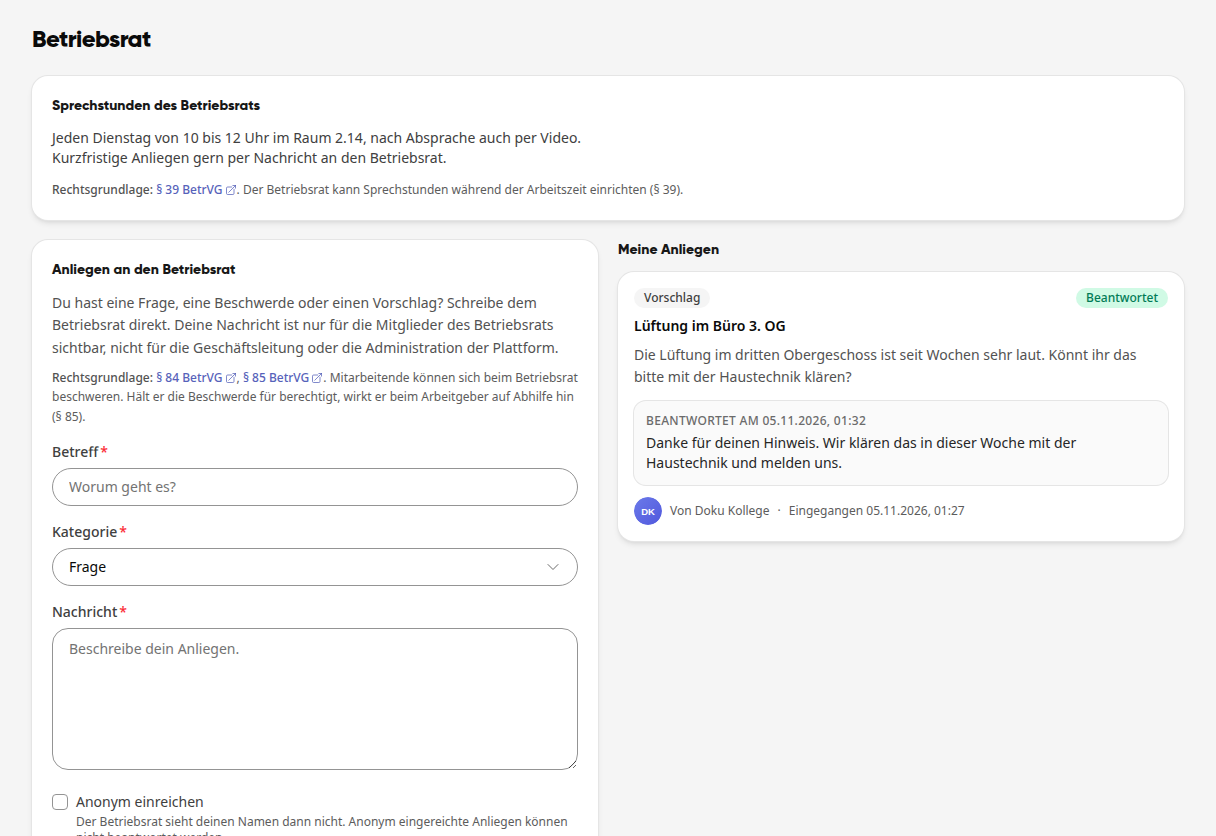
Click on Works Council in the navigation. At the top are the office hours, followed by the form for concerns and the list of topic suggestions.
Submit concerns (§§ 84, 85 BetrVG)#
In the Concern to the Works Council card, enter the Subject.
Select the Category: Question, Complaint (§ 85 BetrVG), Suggestion, or Other.
Describe your concern under Message.
Check the box for Submit anonymously if the works council should not see your name.
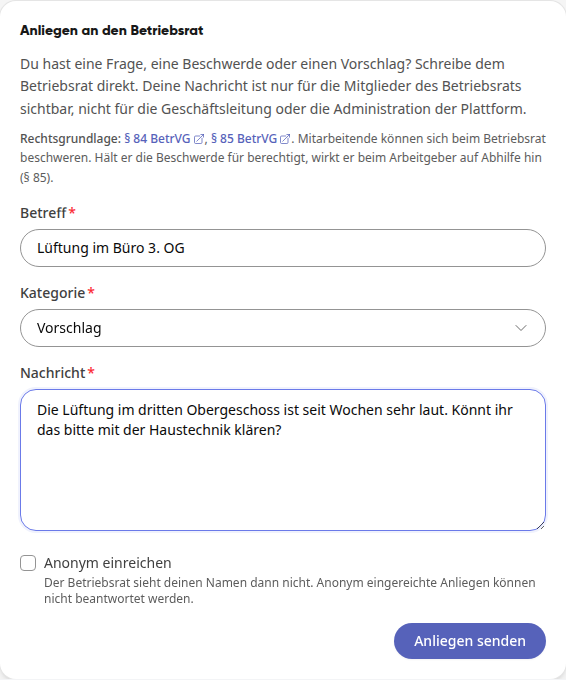
Click on Send concern.
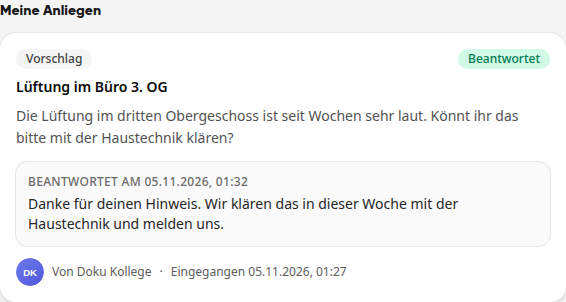
Your concern appears on the right under My Concerns with its processing status, for example New or Answered. The chair and deputy will be notified.
Warning
Anonymous concerns cannot be answered and will not appear under My Concerns.
Info
If the works council is not yet set up, a message will inform you when sending. Concerns and topic suggestions are possible as soon as it has members.
Read response#
As soon as the works council responds, you will receive a notification in the platform and an email. The response itself is under My Concerns; the email only mentions the subject.
Suggest topics (§ 86a BetrVG)#
Under Topic Suggestions, click on Submit suggestion.
Enter the Topic and Description.
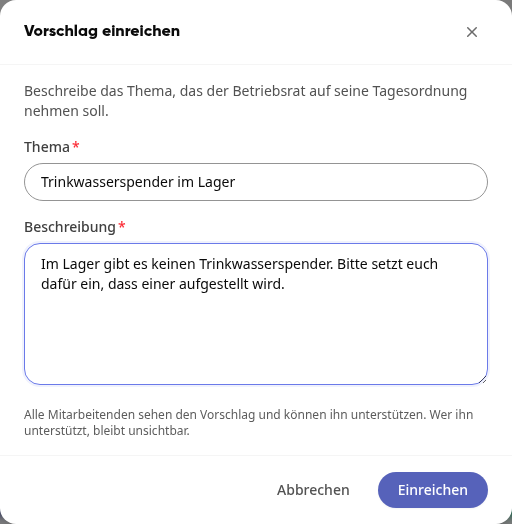
Click on Submit.
All employees can see your suggestion. It is marked for you as Your Suggestion, and you can withdraw it via Withdraw.
Support others' suggestions#
Find the appropriate suggestion in the Topic Suggestions list.
Click on Support. Use Withdraw support to undo this.
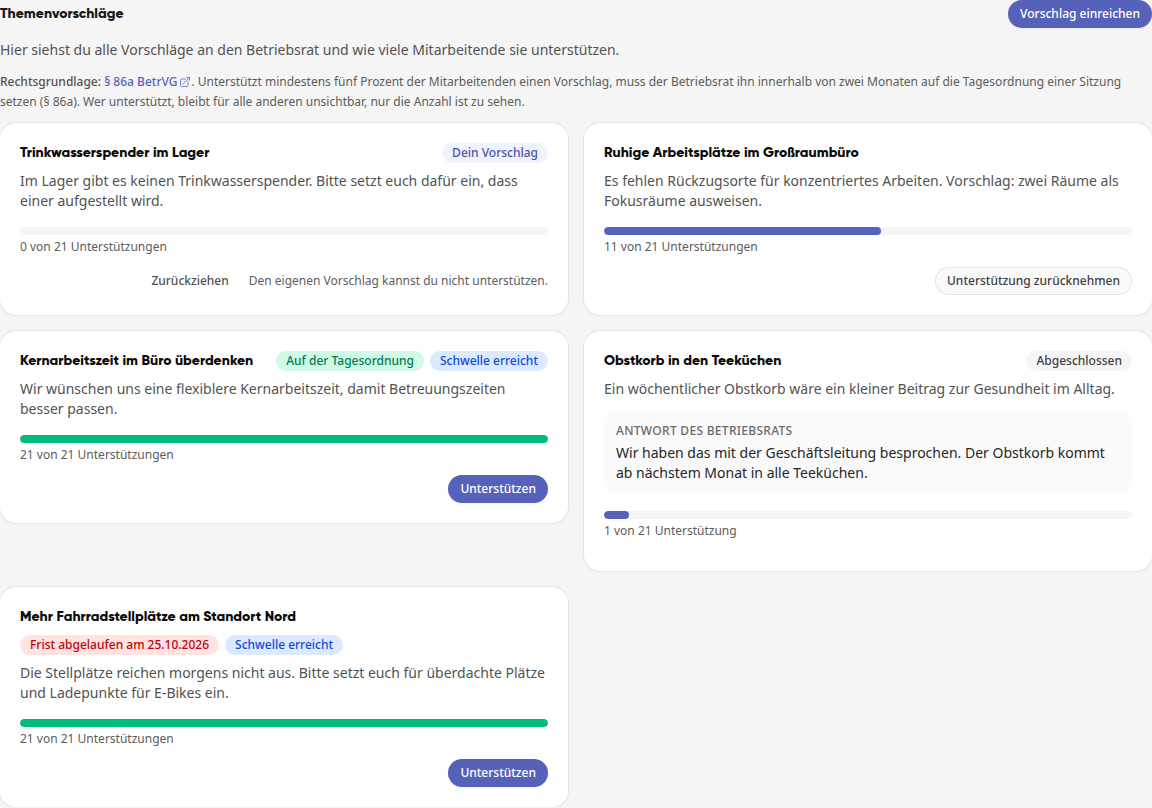
Who supports remains invisible; only the number is visible.
You cannot support your own suggestion.
At five percent support, Threshold reached appears. The works council must then place the topic on an agenda within two months.
For completed suggestions, the Works Council's response is directly on the suggestion.
Office hours (§ 39 BetrVG)#
The time and location of office hours are displayed at the very top of the section as soon as the works council has entered them. They are visible to all employees.
Read works agreements (§ 77 BetrVG)#
Open the Wiki in the navigation.
Click on the Works Council page.
Under Subpages, open the desired agreement. The file is also located there.
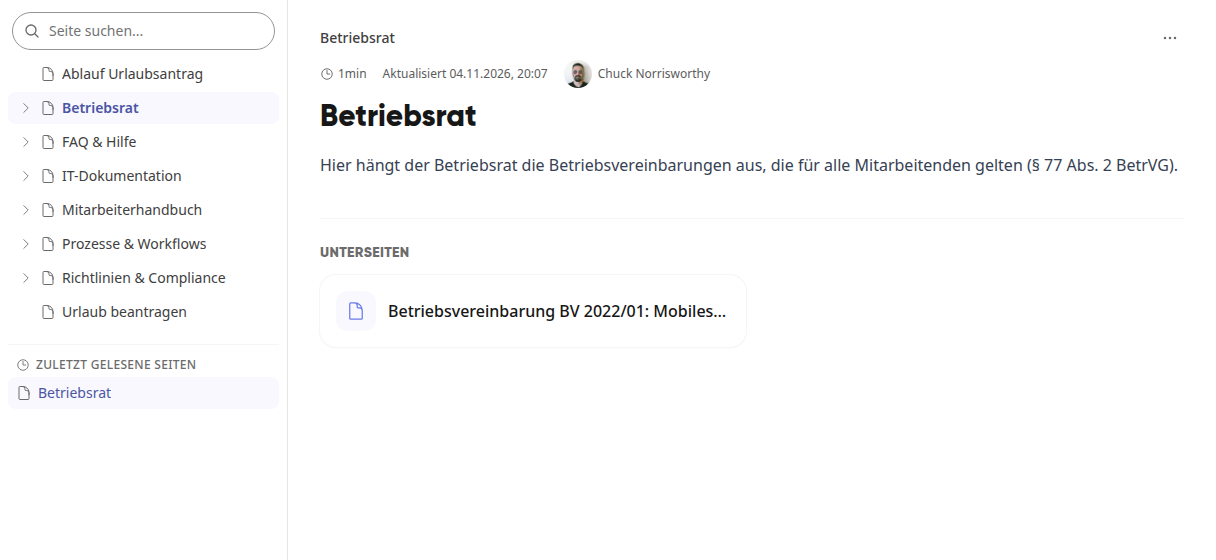
Published works agreements are also in the platform's legal catalog. Kai answers questions about them for you.
Confidentiality#
Emails and notifications never mention the text of your concern.
Your message is only visible to the members of the works council, not to the management or the platform administration.
The works council determines after how many months the platform deletes completed concerns and, for completed topic suggestions, removes the information about who submitted and supported them (§ 79a BetrVG).