
How do I book a room for an appointment?
Updated Reading time: 1 min
You can directly reserve a room for an appointment—for example, a meeting room. When creating or editing an appointment, you can see which rooms are available at the selected time.
Book a room for an appointment#
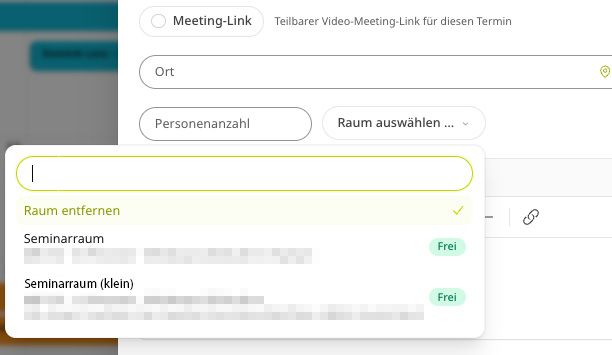
Create or open an appointment and set the date and time.
Optionally, specify the number of people the room should accommodate.
Click Select room and choose a room.
Save the appointment—the room is then reserved for that time.
For each room, you can see the location, capacity (number of people), equipment (e.g., whiteboard, screen), and whether it is Available or Occupied at the selected time. Use the search field to find a specific room; with Remove room, you can undo the selection.
Display room bookings in the calendar#
In the sidebar under Rooms, you can show or hide the calendars of individual rooms (e.g., seminar room or Viko room). This way, you can see at a glance when a room is occupied. Use Show more to display additional rooms.
Info
A room can only be booked if it is available at the selected time. If it is occupied, choose a different time or a different room.