
How do I create a group?
Updated Reading time: 2 min
On this page
In Groups you organize teams, projects, or topics and share targeted information there. When creating a group, you set some details and configurations—this article explains what is mandatory and what you can optionally adjust.
Create a Group#
Open the Groups module and select "Create Group".
Fill in the details and settings (see below).
Click Save.
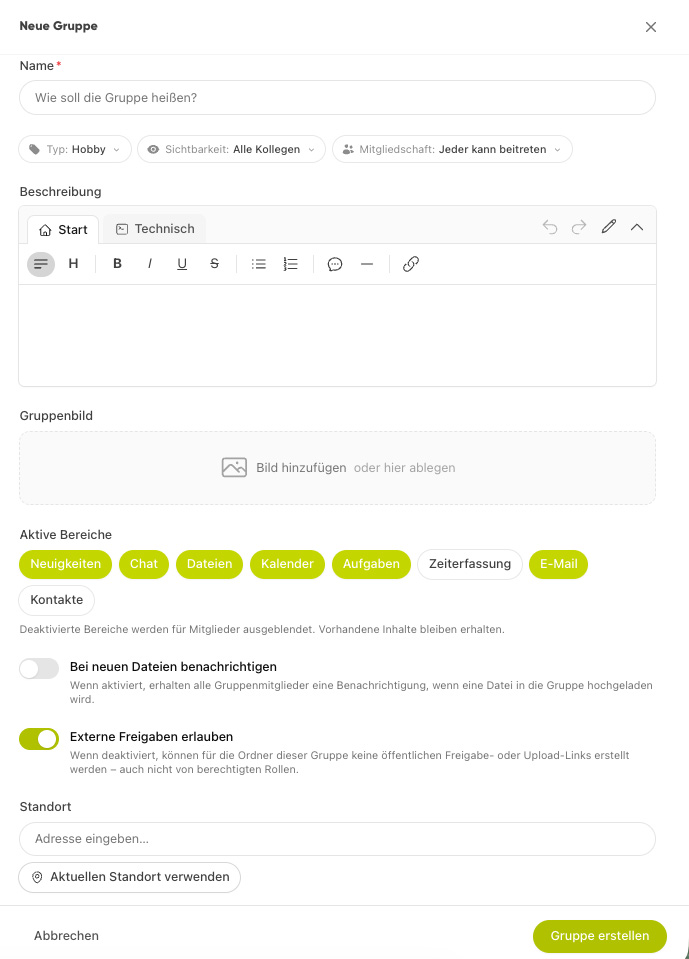
Group Details#
Name – Required. The display name of the group.
Description – Optional. Briefly explain what the group is about.
Group Image – Optional. An image for quick recognition.
Settings#
In the Settings section, you define the type of group and who can see or join it.
Type (Required)#
The Type categorizes the group thematically. Standard types:
Department
Location
Hobby
Project
Other
Info
The types Department and Location can usually only be selected by administrators or HR. Depending on the company, there may be additional custom group types.
Visibility (Required)#
Visibility determines who can see the group:
All Colleagues – The group is visible to everyone.
Members Only – The group is only visible to its members.
Info
Visibility is typically set by administrators or HR; the default is "All Colleagues".
Membership#
Membership determines how new members join the group:
Anyone Can Join – Colleagues join on their own.
Via Request/Invitation – Joining must be approved by an administrator.
This field is omitted for certain types (e.g., Department, Location) and when visibility is set to "Members Only".
Active Areas#
Under Active Areas, select which tools are available as tabs in the group: News, Chat, Files, Calendar, and Tasks.
Warnung
At least one app must be enabled. Deactivated apps are hidden from members—existing content remains and becomes visible again after reactivation.
Notify on File Upload#
Optional. If enabled, all group members receive a notification whenever a file is uploaded to the group.
Info
Additional fields like MS Entra details only appear with the corresponding configuration and only for administrators.
Tips#
Choose a clear, unambiguous name and a short description—this makes it easier for colleagues to find the group.
Only activate the apps you really need. More can be added at any time later.
For confidential topics: Combine "Members Only" visibility with "Via Request/Invitation" membership.
"Notify on File Upload" is useful for teams actively collaborating on documents—but can lead to many notifications with frequent uploads.