
Sign in to Kibi Connect on additional devices
Updated Reading time: 1 min
With QR code login, you can quickly and without a password log in to Kibi Connect. This is especially convenient if you want to use Kibi Connect on your smartphone or tablet as well and don’t want to re-enter your access data.
Where can I find my QR code?#
You can access your personal QR code at any time in your user account:
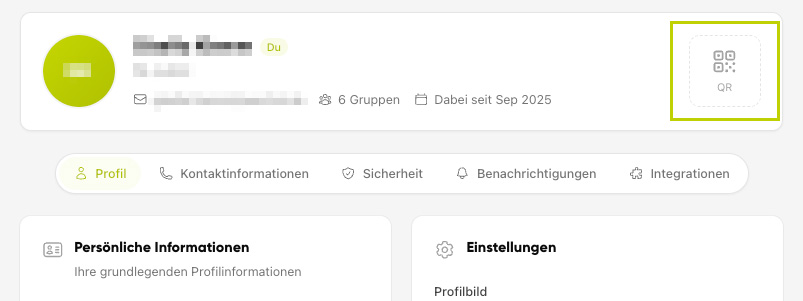
Open your user account.
Click on QR in the top right.
Tipp
The QR code is automatically hidden again after a short time. Click on "QR" again to display it.
QR codes contain sensitive login data and are hidden for security reasons.
How to log in with QR code#
To log in on another device, open the login page there and hold your QR code in front of the camera:
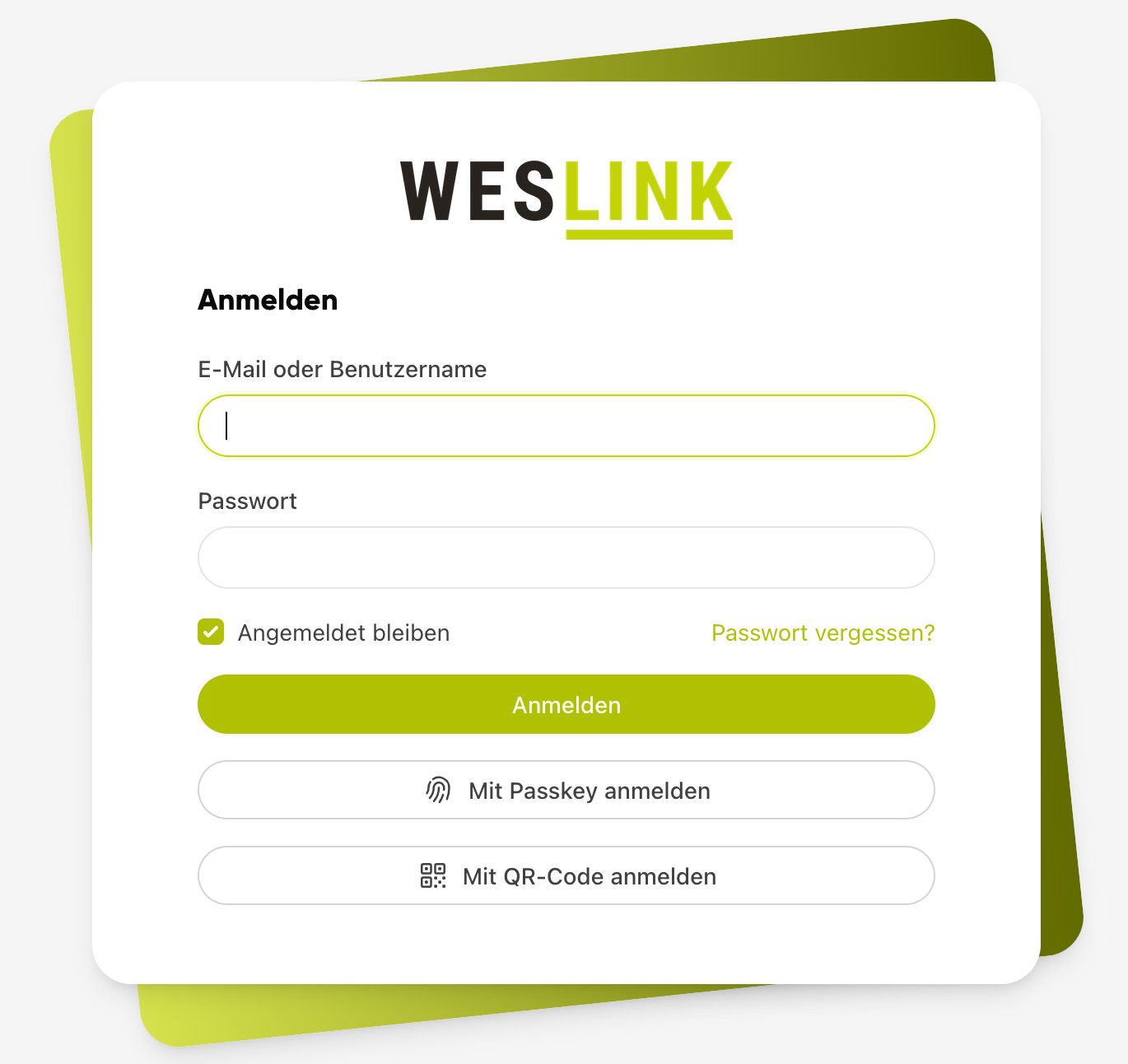
Open the login page on the device and click on "Log in with QR code".
Allow camera access.
Hold your QR code in front of the camera.
You will be logged in automatically and remain permanently logged in on this device until you log out again.
Tipp
If no camera is available or the message "No camera found" appears, click on "From file" and upload a photo or screenshot of your QR code.