
How do I use the AI assistant "Kai" in the Wiki?
2min
“Kai” is the AI assistant in the Wiki. It helps you in two places: directly when writing and editing content in the editor—and as a Q&A chat that searches your Wiki and answers questions about it.
The AI assistant is optional and is only available if it has been enabled for your Kibi Connect. If the AI is not configured, the message “AI not available” will appear.
Get help with writing (in the editor)
When creating or editing a Wiki page, you will find the AI Assistant tab in the editor. Several tools are available there.
Edit selected text
First, highlight a section of text, then select the desired action in the AI Assistant tab:
Action |
What it does |
|---|---|
Improve |
Corrects grammar and spelling, improves style and readability—meaning and tone remain unchanged. |
Expand |
Enhances the text with helpful details (about 30–50% more content). |
Shorten |
Reduces the text to about half and removes repetitions. |
More formal |
Rewrites the text in a more professional and factual manner. |
Simplify |
Uses simpler words, shorter sentences, clearer structure—easy for everyone to understand. |

Here’s how:
Highlight the desired text section.
Open the AI Assistant tab and select an action (e.g., Simplify).
Review the result and save the page.
If you haven’t selected any text, the message “Select text first to edit it.” will appear. Formatting (e.g., bold, lists) is preserved, and the text is processed in the language of your page.
Generate new text
With Generate text, Kai creates a new text suggestion based on a short description and inserts it into the editor.
Example description: “Create a short onboarding checklist for new accounting employees with 5 points.”
Generate an image
With Generate image, Kai creates a suitable image for your page from an image description.
Example image description: “Minimalist icon image on the topic of data security, simple, in blue tones.”
Ask questions about the Wiki (Wiki Assistant)
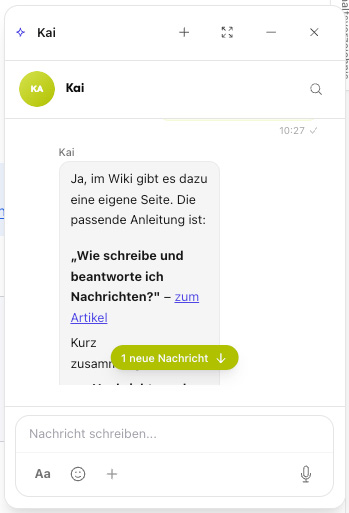
The Wiki Assistant chat answers questions about the content of your Wiki. To do this, it searches the Wiki (content search) and cites the source page it refers to in the answer.
How to use the chat:
Open the Wiki Assistant (chat window “Wiki Assistant”).
Enter your question at the bottom (“Ask a question…”) and send it.
Read the answer along with the reference to the mentioned Wiki page.
Example questions:
“How do I apply for leave?”
“Where can I find the IT security policy?”
“Summarize the key points of the onboarding page.”
The assistant answers based on the existing Wiki content. It cannot provide reliable information on topics that are (not yet) documented in the Wiki. The number of requests is limited to protect against overload.
Achieve good results
Formulate descriptions and questions concretely (topic, target audience, desired length/format).
Use “Improve” or “Simplify” for existing drafts instead of starting from scratch.
For chat questions, use clear keywords that also appear in the Wiki pages.
Always review AI-generated texts and images before publishing them. The AI can make mistakes or inaccurately represent content—the responsibility for published content lies with you.