How do I share files and images?
Updated Reading time: 1 min
You can send images, videos, audio files, and documents directly to your chat partners in the chat, individually or multiple at once.
Send an attachment#
Open the desired conversation in the Chat module.
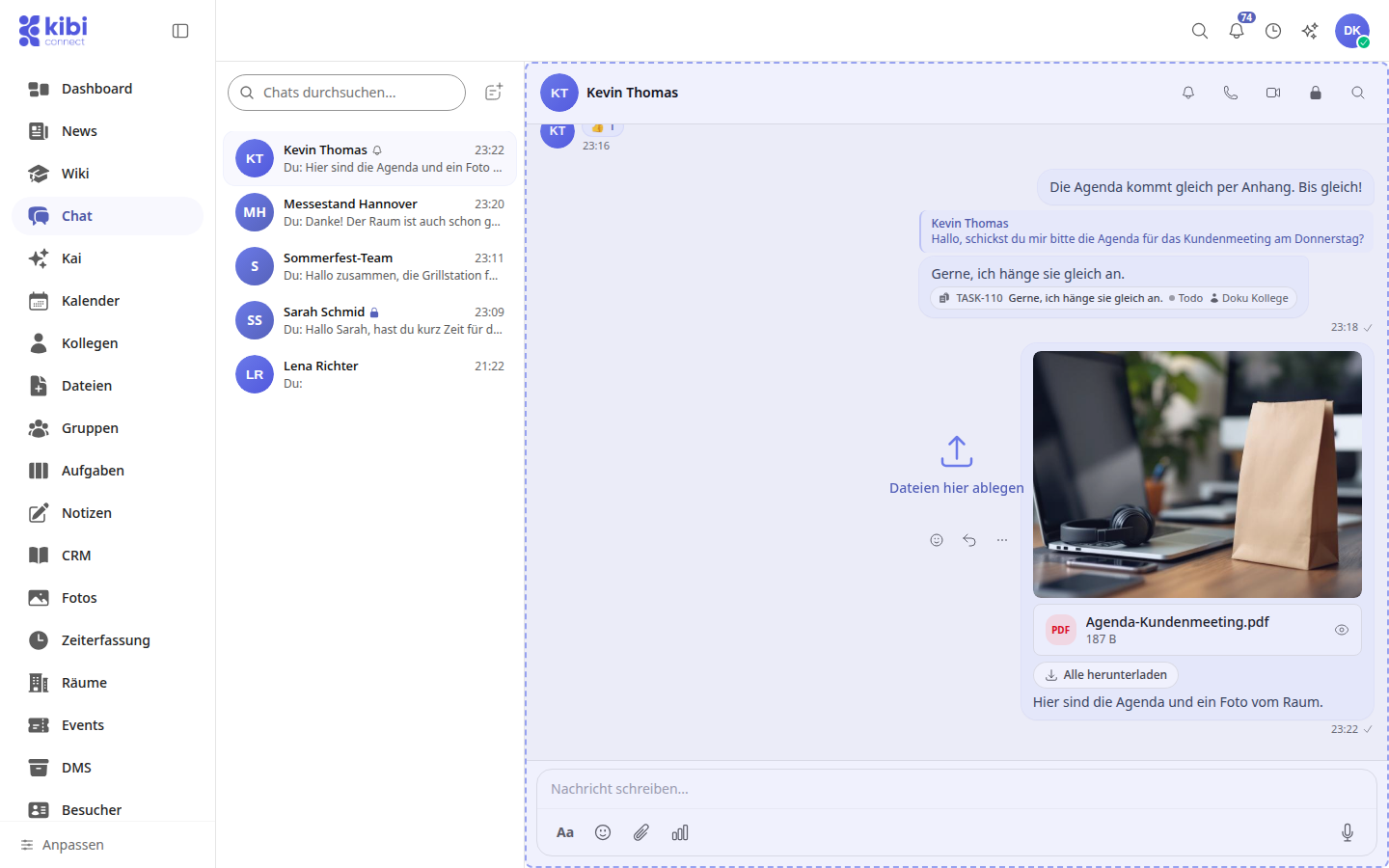
Click on the paperclip below the input field and select one or more files. You can also drag files into the chat with your mouse and drop them at Drop files here.
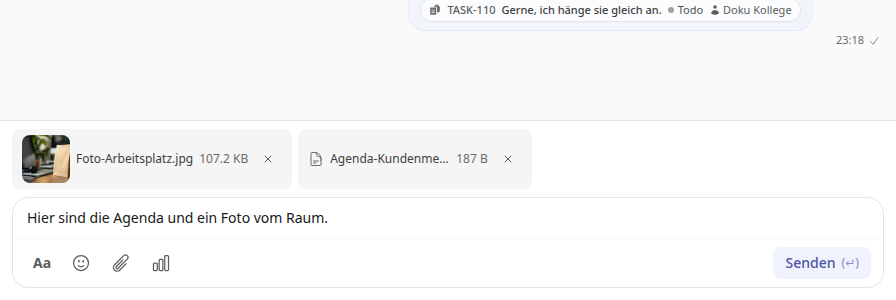
You will see your selection above the input field. Use the × on a file to remove it again.
If needed, write some text and click Send.
Tipp
On smartphones, you will find the camera icon next to the paperclip, which allows you to take a photo directly.
Allowed formats and size#
Per message, you can send up to 10 files, each up to 50 MB. The following formats are allowed:
Images: jpg, jpeg, png, gif, webp, svg, bmp, heic, heif
Videos: mp4, webm, mov, avi
Audio: mp3, wav, ogg, aac, m4a
Documents: pdf, doc, docx, xls, xlsx, ppt, pptx, odt, ods, odp, txt, csv, rtf, md
Data: json, xml, yaml, yml
Archives: zip, rar, 7z
Other file types are not accepted by the chat. You will then see a message above the input field, such as File type not supported.
View and download attachments#
Sent and received attachments are directly available in the message.
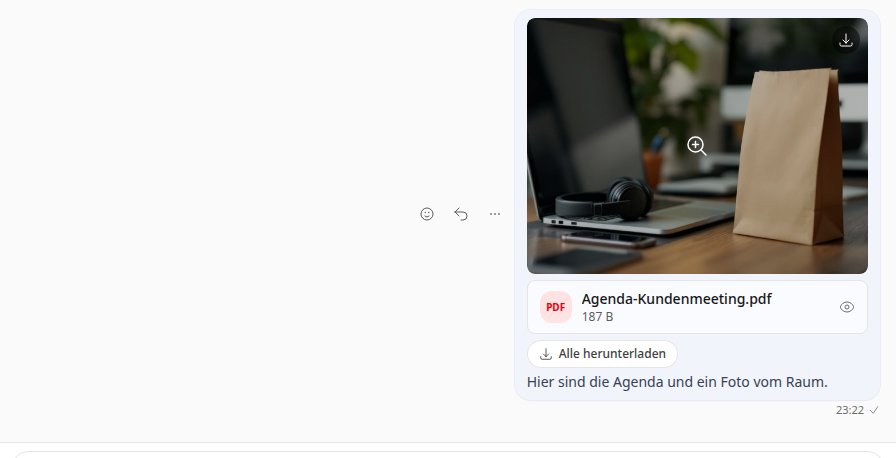
View: Click on an image or file to open the full view. There you can also browse between the attachments of a message.
Download individually: In the full view, click Download.
Download all: If a message contains multiple attachments, save them together as a ZIP file using Download all.