
Modules and Module Manager
Updated Reading time: 2 min
On this page
Modules and Module Manager in Kibi Connect#
Kibi Connect is a comprehensive employee platform. The module system allows for the flexible integration of functions such as wiki, chat, files, and external links.
What are Modules in Kibi Connect?#
Modules in Kibi Connect are modularly integrable functions or external tools that can either be embedded in the user interface or used as standalone links. Examples of such modules include:
Internal Functions:
Wiki
Chat
Calendar
Files
Group Management
External Tools and Links:
Requirement Capture Tools
Time Management Systems
Custom Web Applications
With this system, administrators can control which modules are available and enable them individually for different roles and visibilities.
The Module Manager#
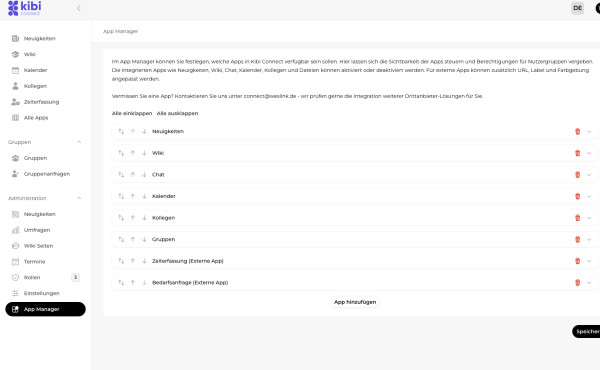
The Module Manager allows administrators to manage the visibility and availability of modules in Kibi Connect.
Functions of the Module Manager:#
Activate or deactivate modules:
Determine which modules are available to employees.
Role-specific access:
Specify which roles have access to certain modules.
Multiple role selection is possible.
Visibility control:
Modules can be made accessible either via the sidebar or the dashboard.
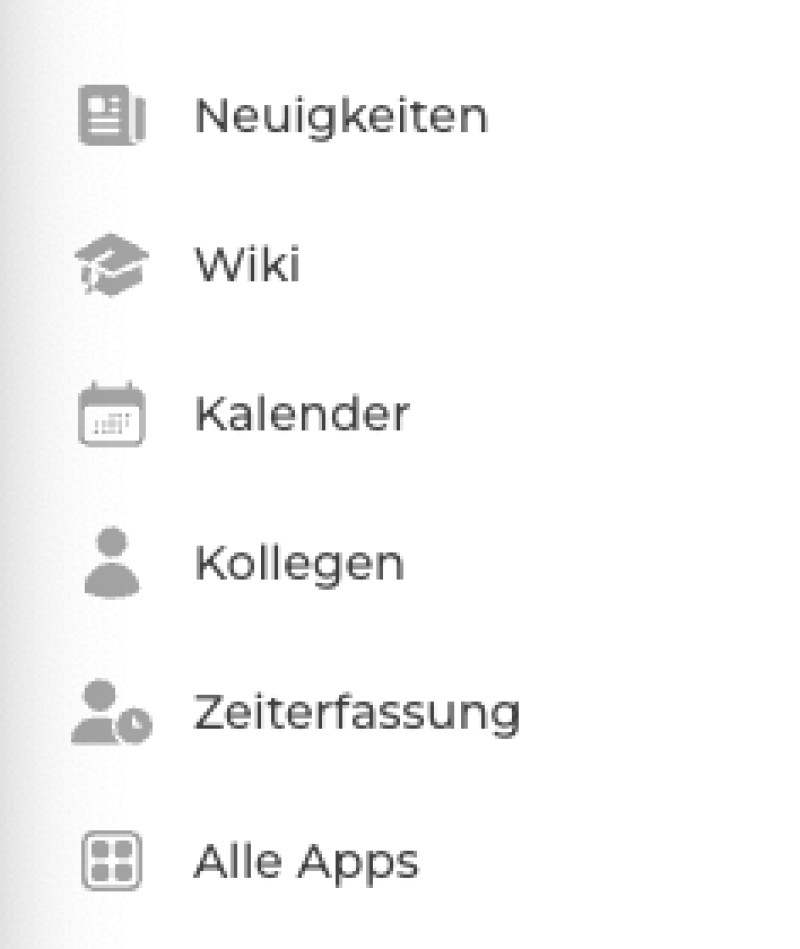
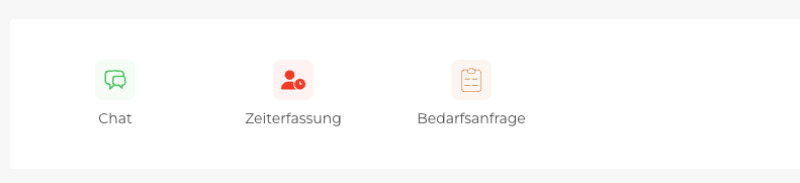
Customization of external tools:
Provide external links or web applications with individual colors, icons, and descriptions.
Steps for Management:#
Activate modules via the Module Manager:
Go to Settings and open the Module Manager section.
Set visibility and roles:
Select which roles should have access to the module.
Define positioning:
Decide whether the module should be accessible via the sidebar, the dashboard, or both.
Overview "All Modules"#
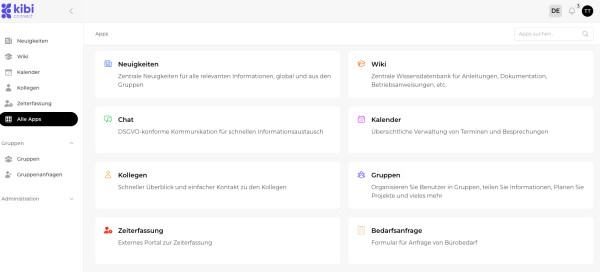
With the new "All Modules" overview, users can:
Search through all available modules – including those not displayed in the dashboard or sidebar.
Quickly access rarely used or specific modules.
Practical Examples#
Integrate an external requirement capture tool:
An external link to a Google Form is added as an external tool and made visible in the dashboard.
Internal knowledge database:
The wiki is activated and enabled for the roles Colleague and Knowledge Creator.
Time management:
An external time tracking tool is integrated and made accessible only to the HR Manager role.