
MS Entra Integration
Updated Reading time: 6 min
On this page
- 1. Create Enterprise Application
- 2. Create App Client Secret
- 3. Configure Application Permissions
- 3b. Configure Redirect URI for SSO
- 4. Assign Users to Your Application (Optional)
- 5. Configure Kibi Connect
- Step 5.1: Set Up Microsoft Entra ID as Identity Source
- Step 5.2: Enter Credentials in the "Connection" Tab
- Step 5.3: Test Connection
- Step 5.4: Enable Login with Microsoft (Optional)
- Step 5.5: Set Up Login and User Synchronization
- Overview: What is Configured Where
- 6. Automatic Group Assignment
Info
Important Links
Microsoft Entra Admin Center: https://entra.microsoft.com/
App registrations: App registrations
This guide connects Kibi Connect with Microsoft Entra ID: for login with "Sign in with Microsoft" and for automatic synchronization of accounts, departments, and profile fields. Steps 1 to 4 are done in the Microsoft Entra Admin Center, step 5 in Kibi Connect.
Info
New since version 6.32: Microsoft Entra ID is an identity source in the SSO & Directory section. The previous "Microsoft Entra" page in the administration no longer exists; old links redirect there. Existing setups continue to work unchanged, and the redirect URL remains the same.
Entra is connected via OpenID Connect. You do not need the SAML configuration of the enterprise application for this. For other providers, Kibi Connect supports SAML 2.0 – see "SSO & Directory".
1. Create Enterprise Application#
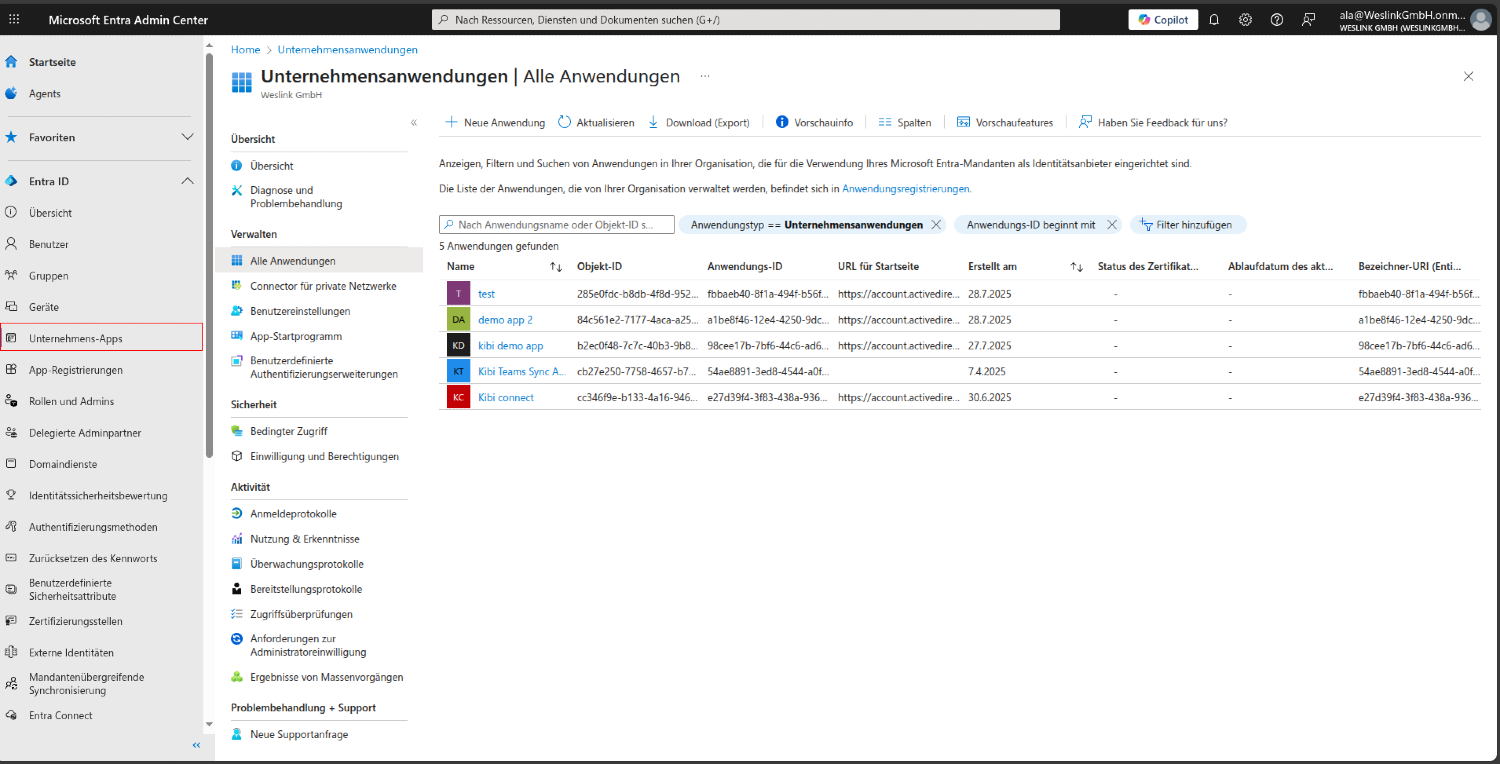
Step 1.1: Navigate to Enterprise Apps#
In the Microsoft Entra Admin Center, search in the left sidebar for:
Home (House icon)
Entra ID (expanded section)
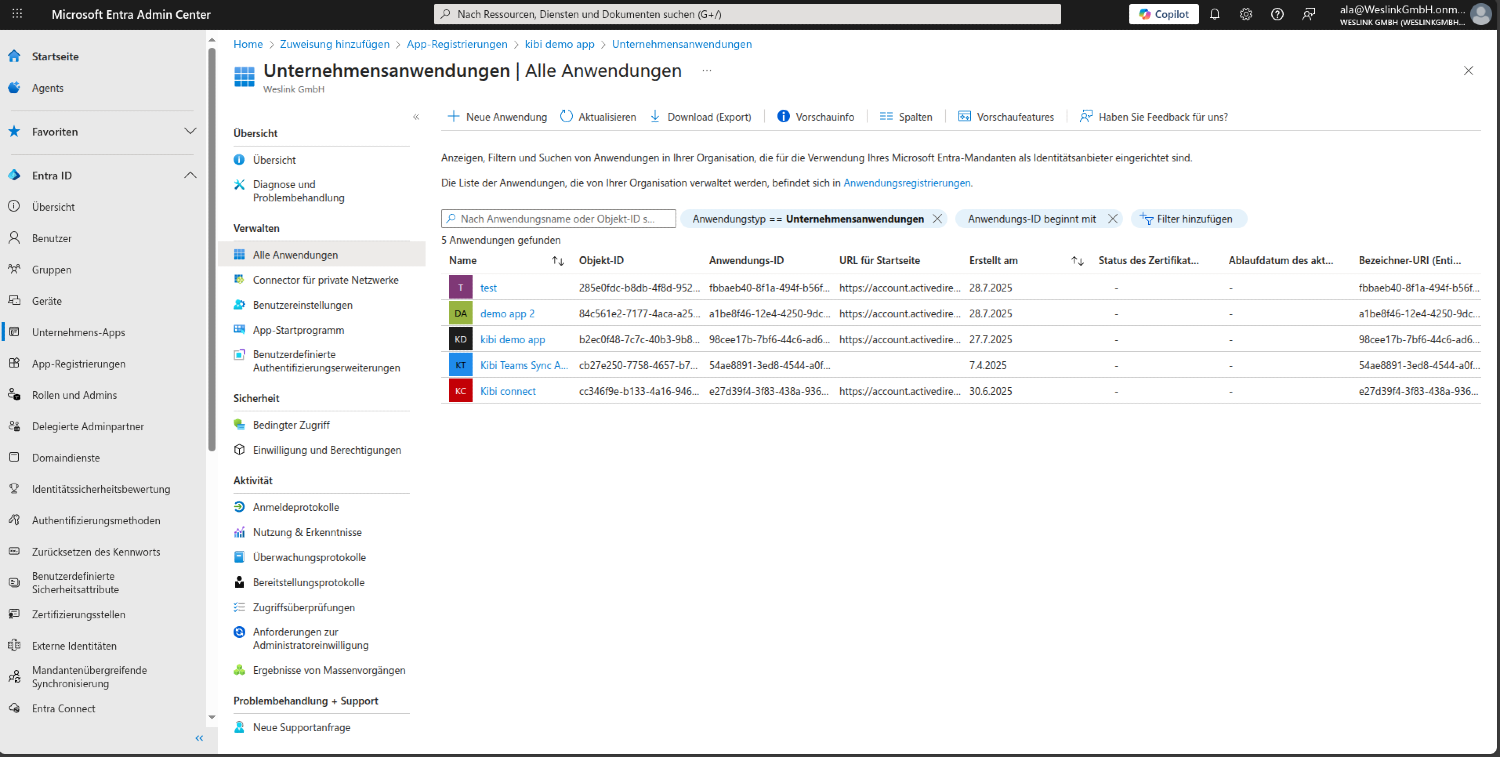
Enterprise Apps - Click on this option
Step 1.2: Click "New Application"#
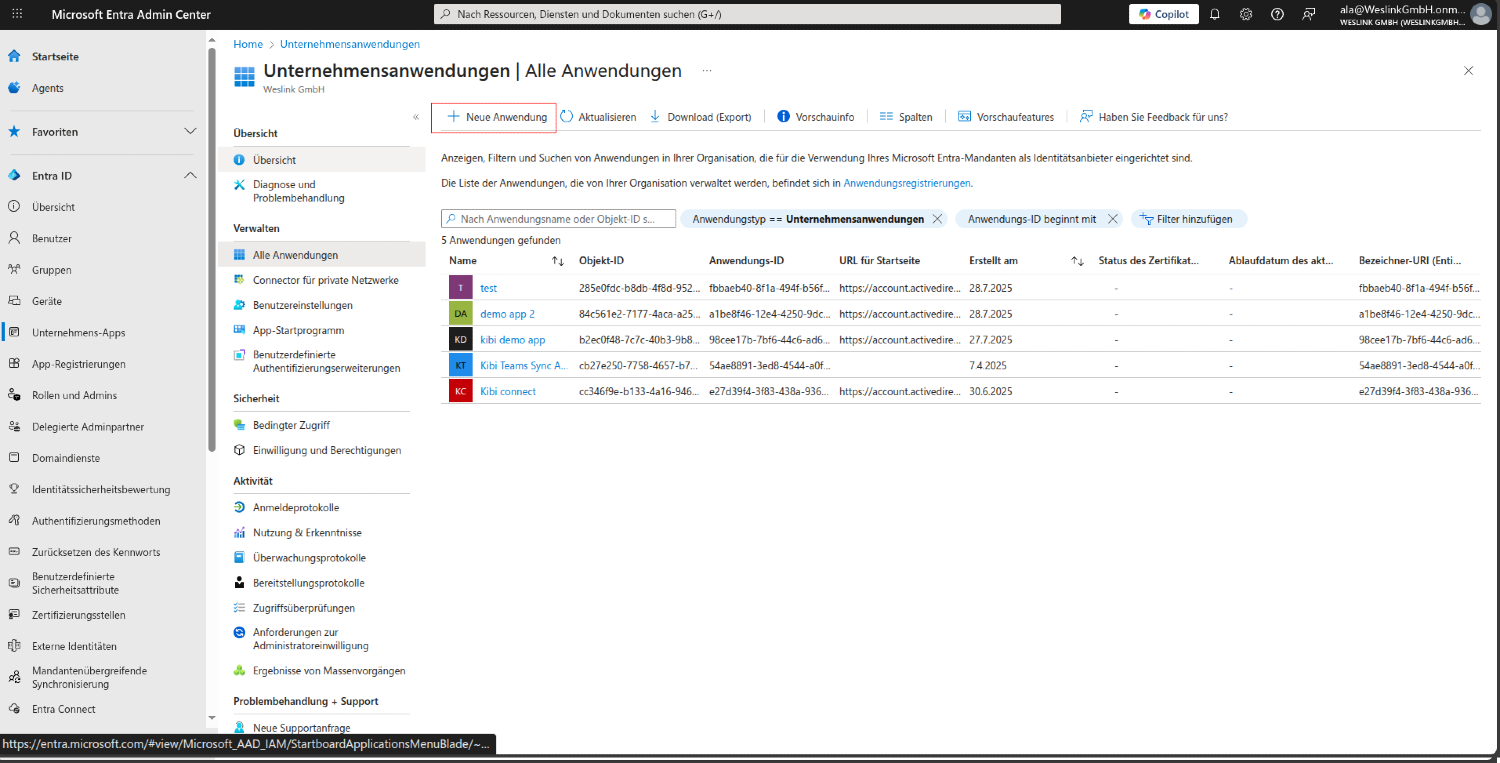
On the Enterprise Apps page, look for the action buttons at the top.
Step 1.3: Select "Create Your Own Application"#
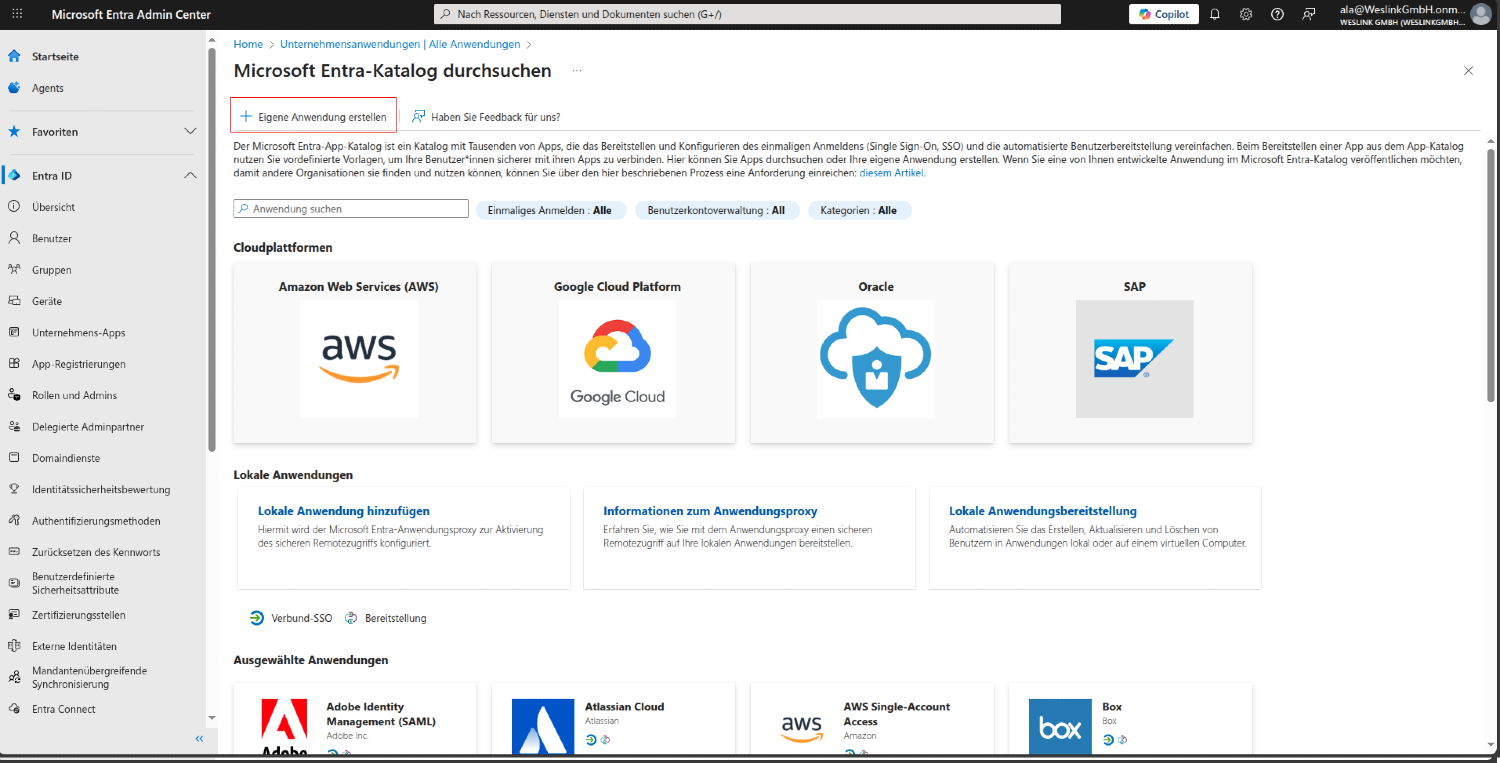
A modal window opens with several options. Look for:
Create your own application - Click on this option
This opens a side panel for configuration
Step 1.4: Configure Application Details#
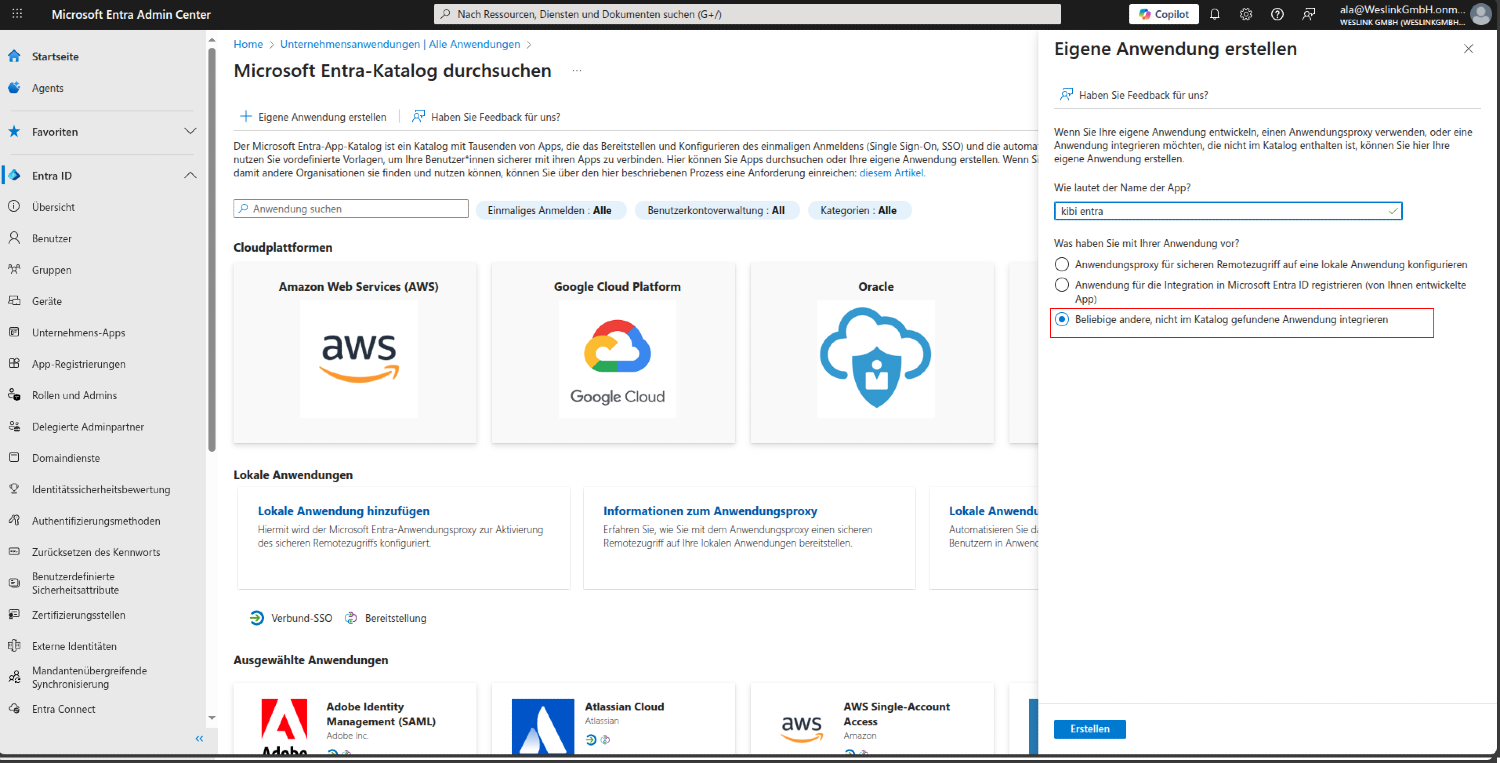
In the side panel that opens, you must:
Name: Enter your application name (e.g., Kibi demo app)
Important: Make sure you select "Integrate any other application you don't find in the gallery (Non-gallery)".
Step 1.5: Confirm Application Creation#
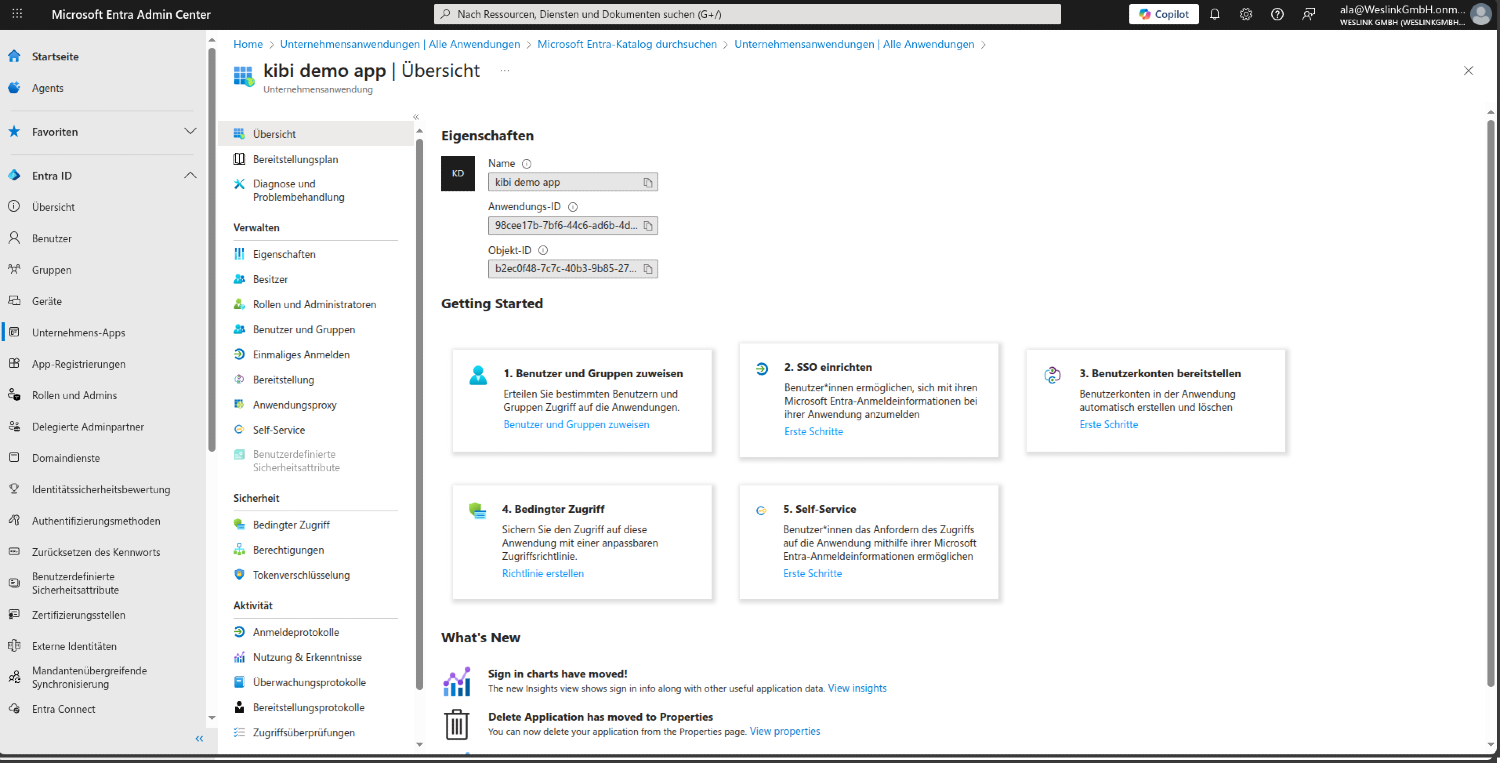
After clicking Create, you will be redirected to the application overview page. Confirm that:
Your application name appears in the title
You can see the application ID (client ID)
The application appears in your enterprise apps list
2. Create App Client Secret#
Step 2.1: Navigate to App Registrations#
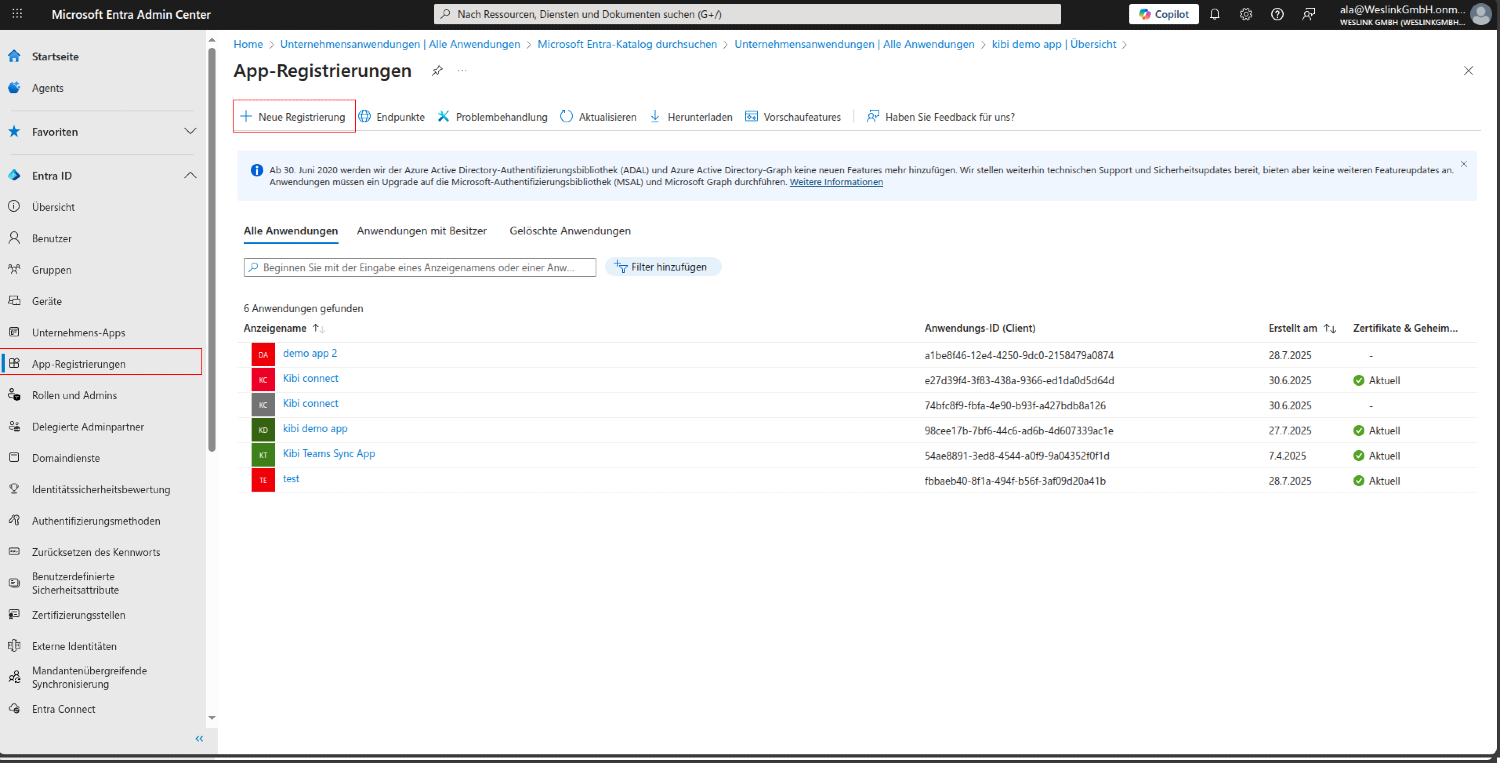
Search in the left sidebar for and click on App registrations.
Select All applications
Select your application from the list
Step 2.2: Access Certificates and Secrets#
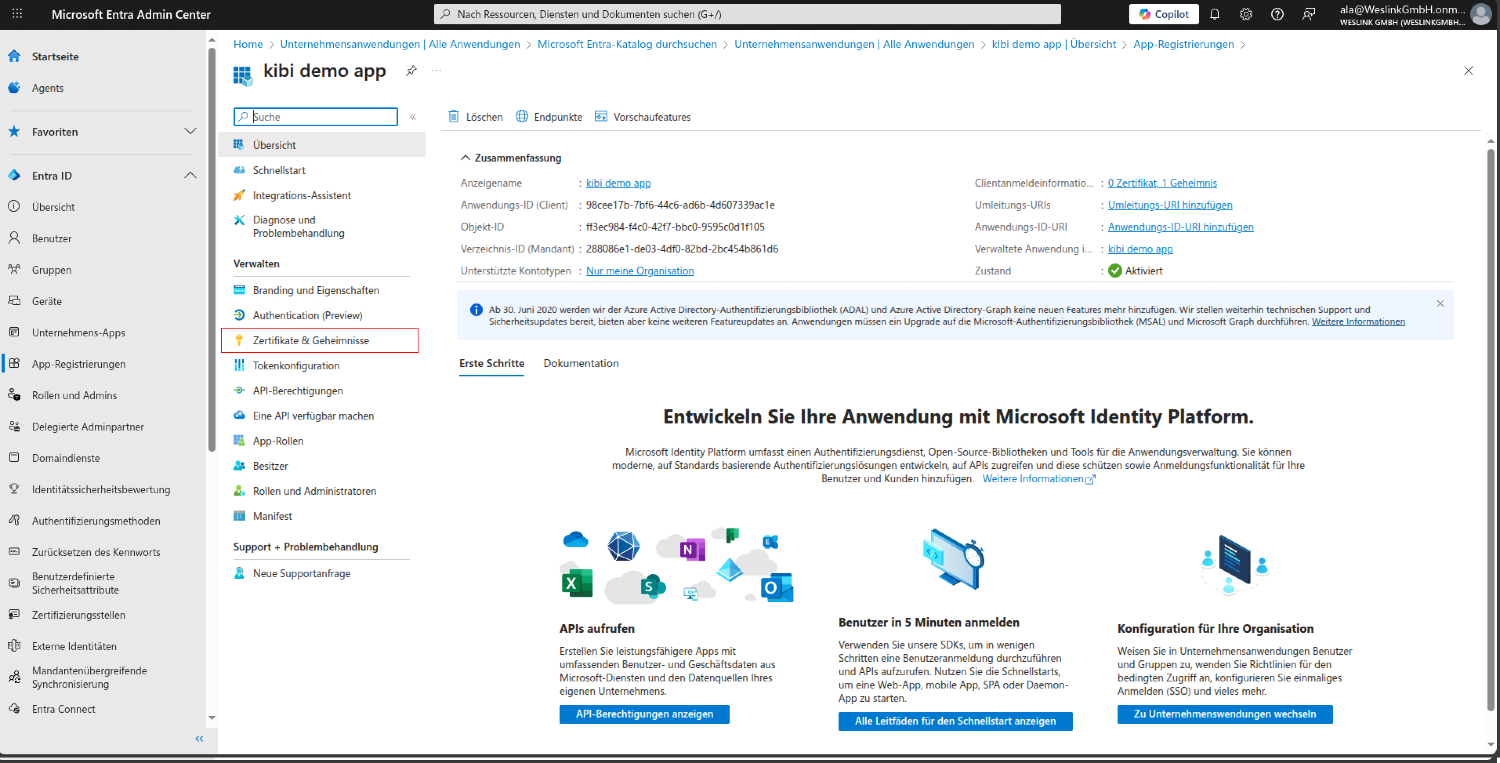
In the application details, look in the left menu for and click on Certificates and secrets.
Step 2.3: Create New Client Secret#
On the Certificates and Secrets page:
Click on + New client secret
Add a description (e.g., Kibi Connect Integration)
Select expiration (recommend 12 months or longer)
Click on Add
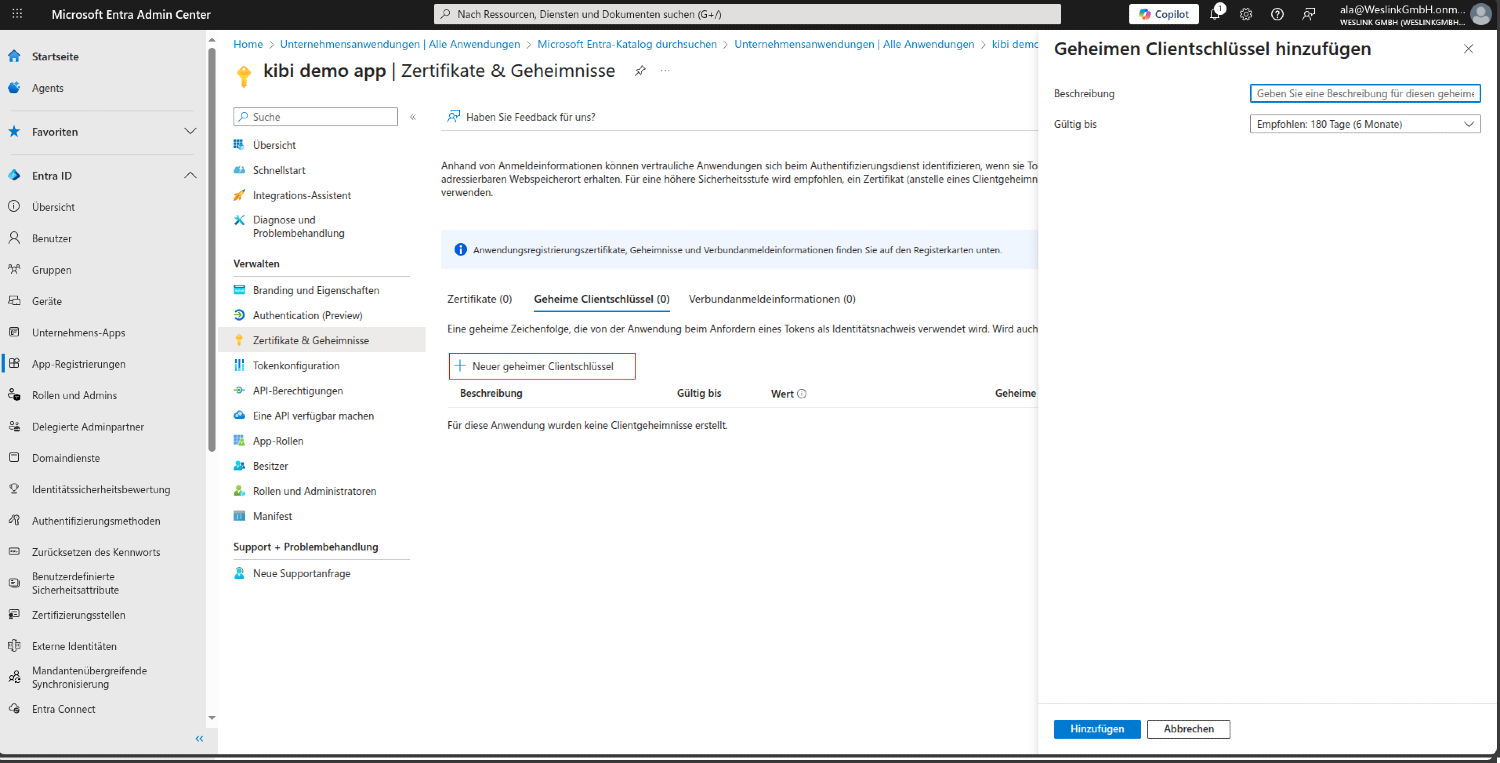
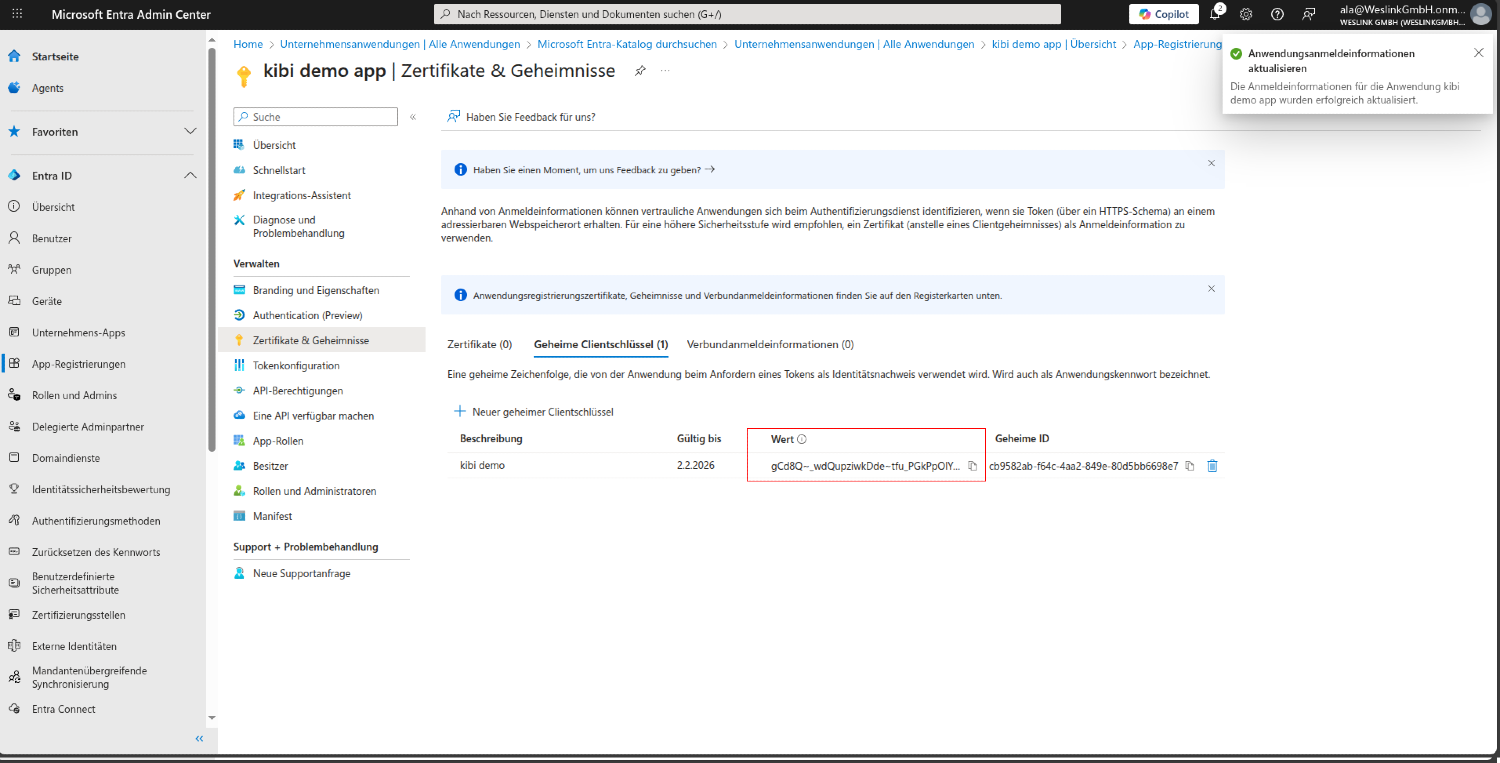
Step 2.4: Copy the Secret Value#
IMPORTANT: After creating the secret, you will only see the secret value once. Copy it immediately!
Warning
Warning: The secret value will be hidden once you leave this page. Make sure you copy it to a secure location.
3. Configure Application Permissions#
Step 3.1: Navigate to App Registrations#
Search in the left sidebar for and click on App registrations.
Select All applications
Select your application from the list
Step 3.2: API Permissions#
In the application details, look in the left menu for and click on API permissions.
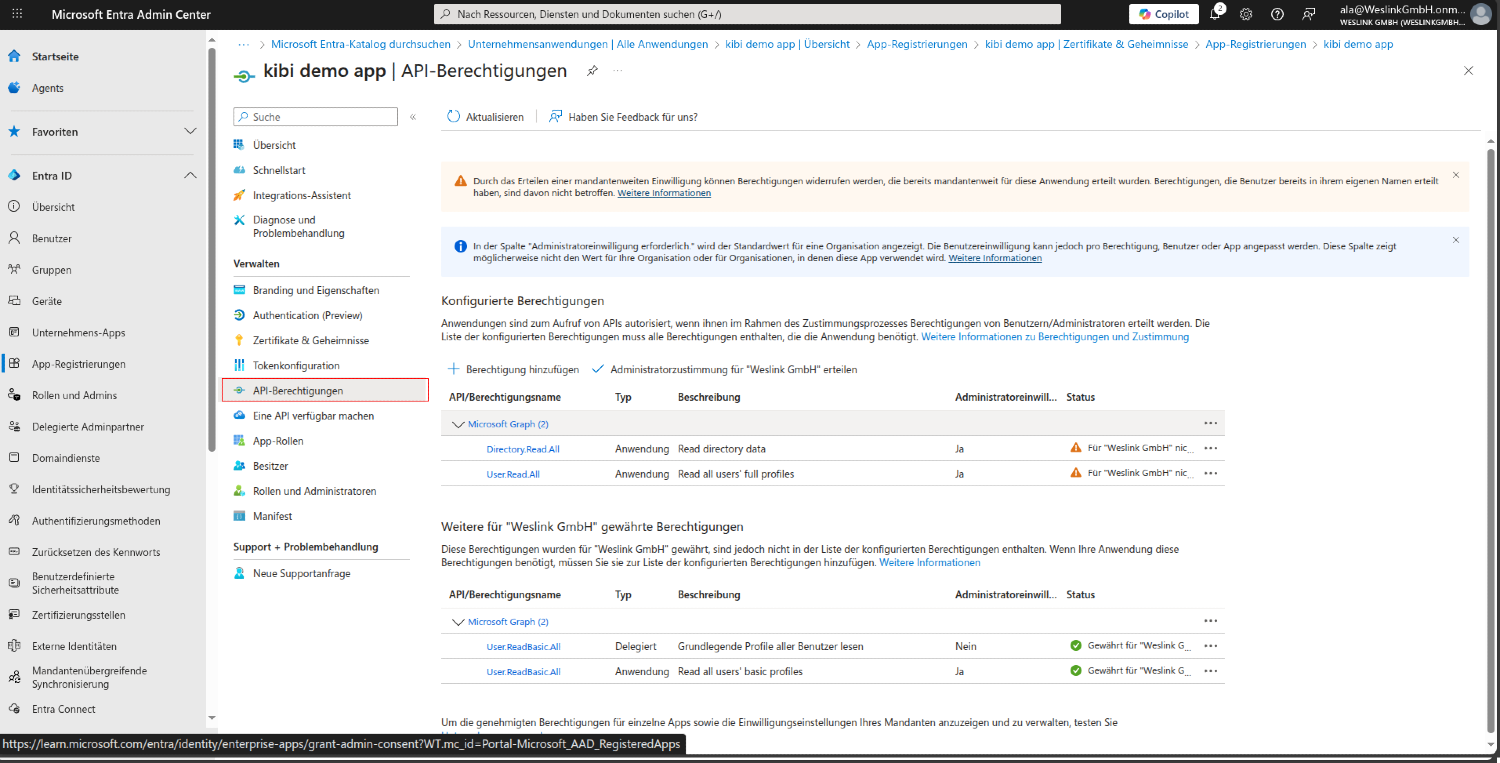
Step 3.3: Add Microsoft Graph Permissions#
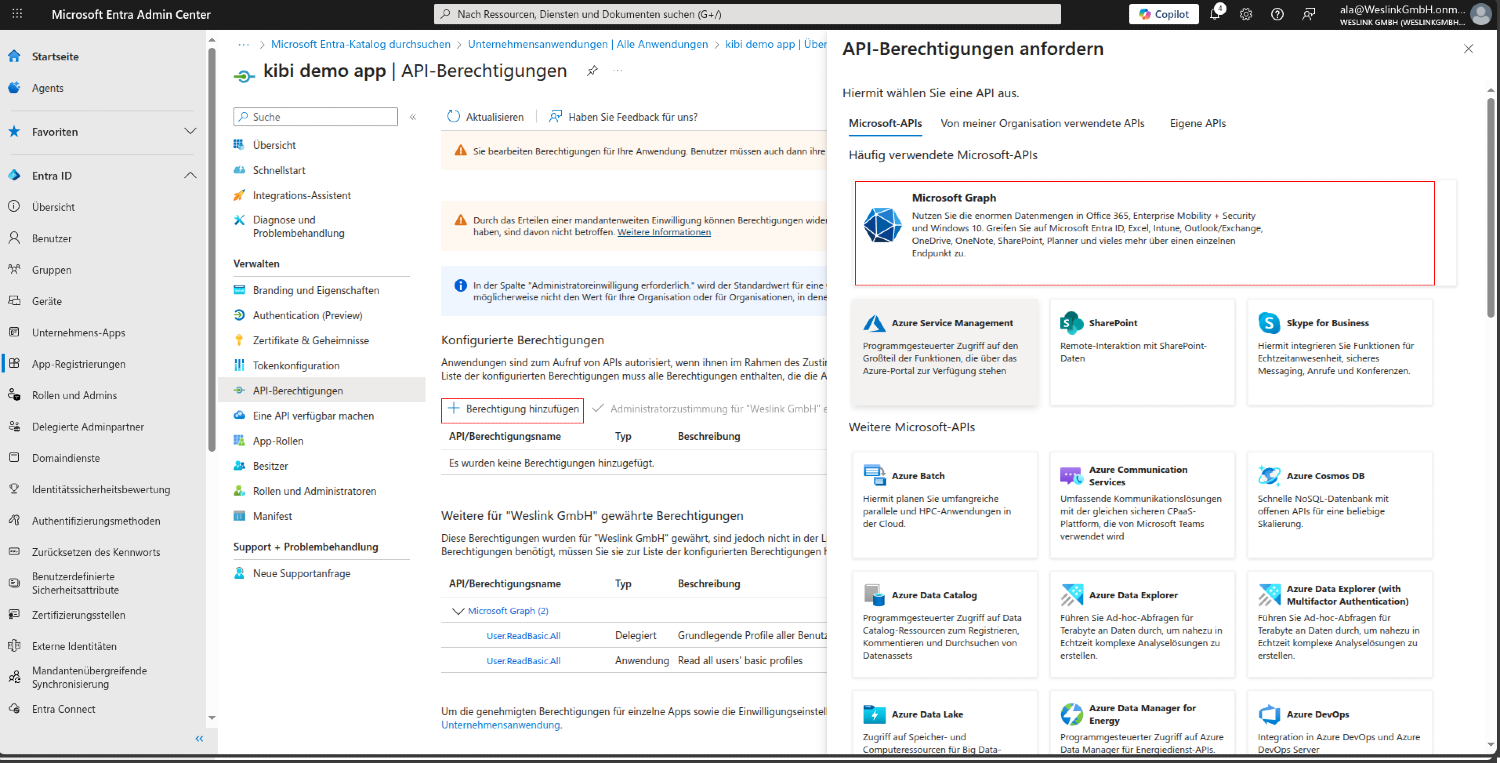
On the API permissions page:
Click on + Add a permission
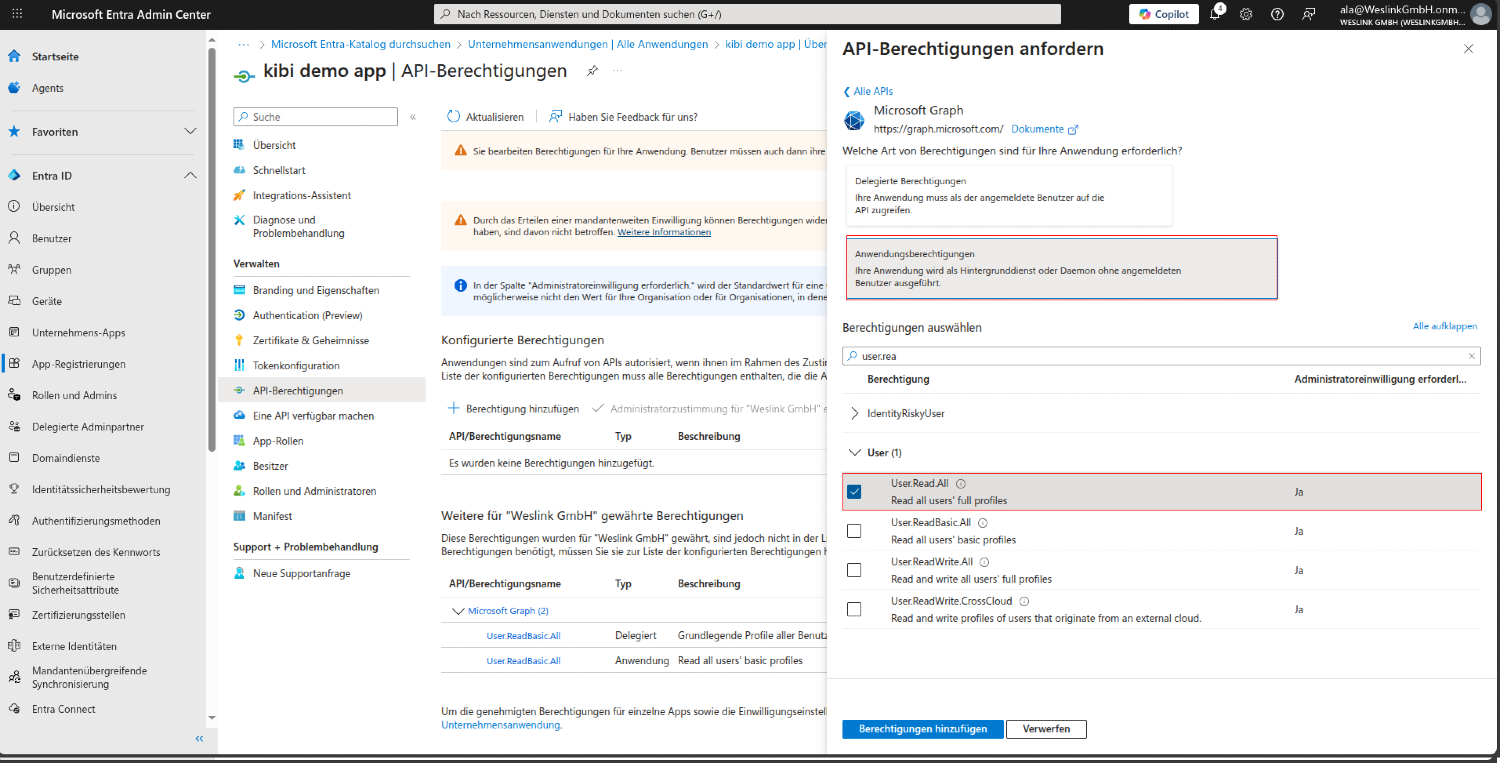
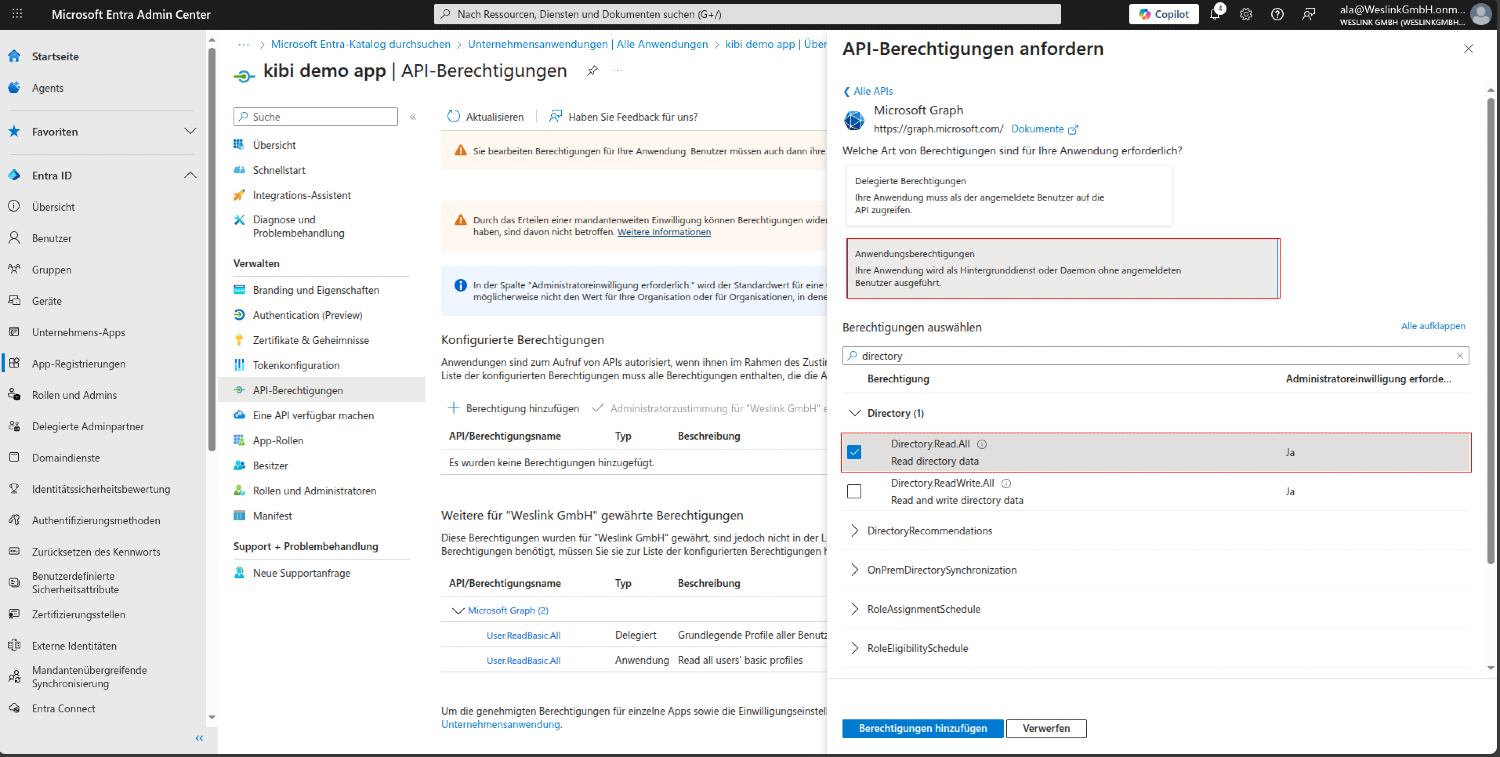
Select Microsoft Graph
Select Application permissions
Search for User.Read.All under User
Search for Directory.Read.All under Directory
Click on Add permissions
Step 3.4: Grant Admin Consent#
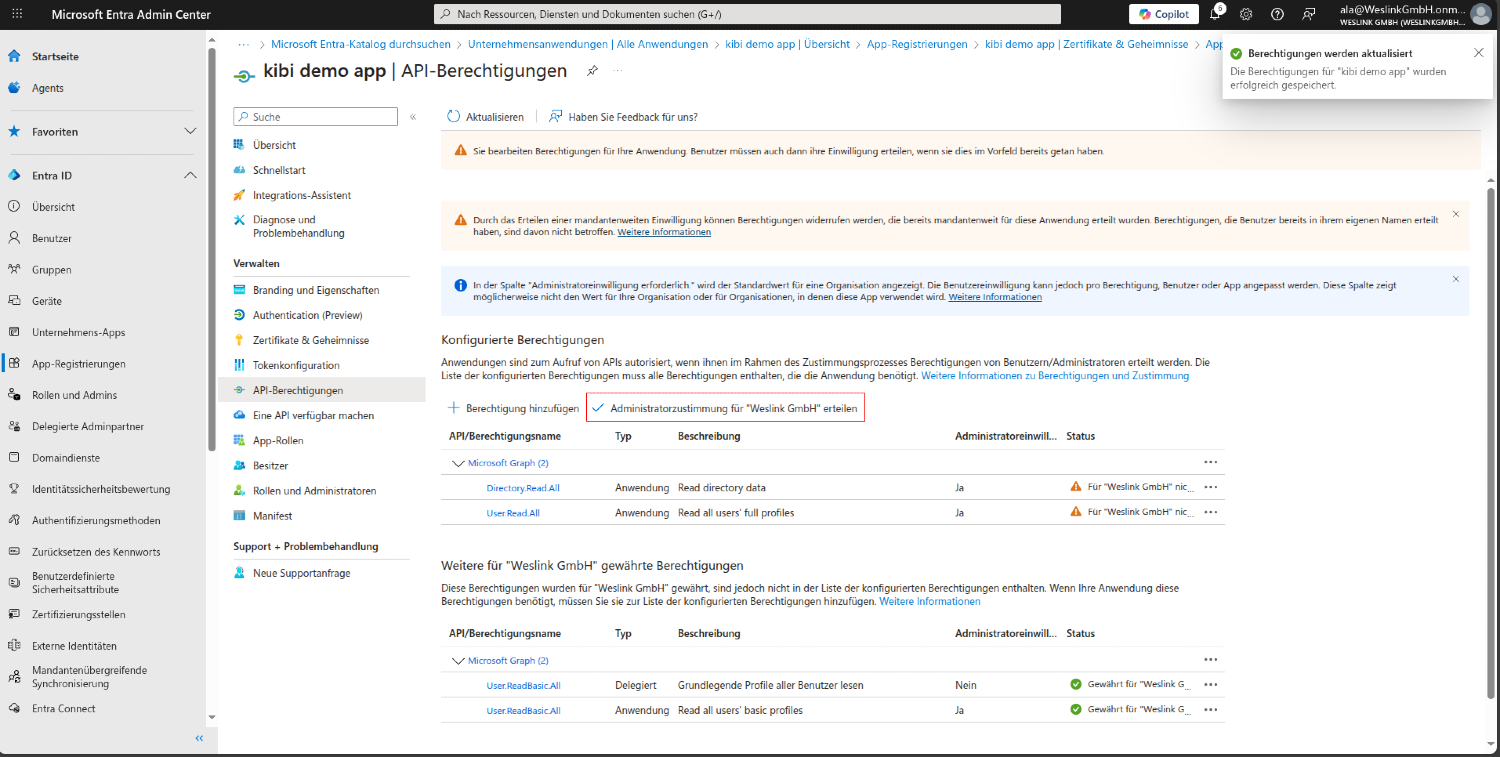
IMPORTANT: Grant the application admin consent, otherwise synchronization will not work.
Click on Grant admin consent
Click on Yes
Step 3.5: Permissions for Single Sign-On (Delegated Permissions)#
If you want to use SSO ("Sign in with Microsoft"), you need additional delegated permissions:
Click again on + Add a permission
Select Microsoft Graph
This time select Delegated permissions
Search and enable the following permissions:
openid– OpenID Connect loginprofile– Read user profileemail– Read email addressUser.Read– Read signed-in user profile
Click on Add permissions. Then grant admin consent again.
3b. Configure Redirect URI for SSO#
This step is only required if you want to use Single Sign-On (SSO).
Step 3b.1: Enter Redirect URI#
In your app registration, click on Authentication in the left menu.
Click on + Add a platform
Select Web
Enter the following Redirect URI:
Info
https://YOUR-DOMAIN/auth/microsoft/callback
Replace YOUR-DOMAIN with the domain of your Kibi Connect tenant (e.g., companyname.kibi.de).
Example: https://mycompany.kibi.de/auth/microsoft/callback
Click on Configure.
4. Assign Users to Your Application (Optional)#
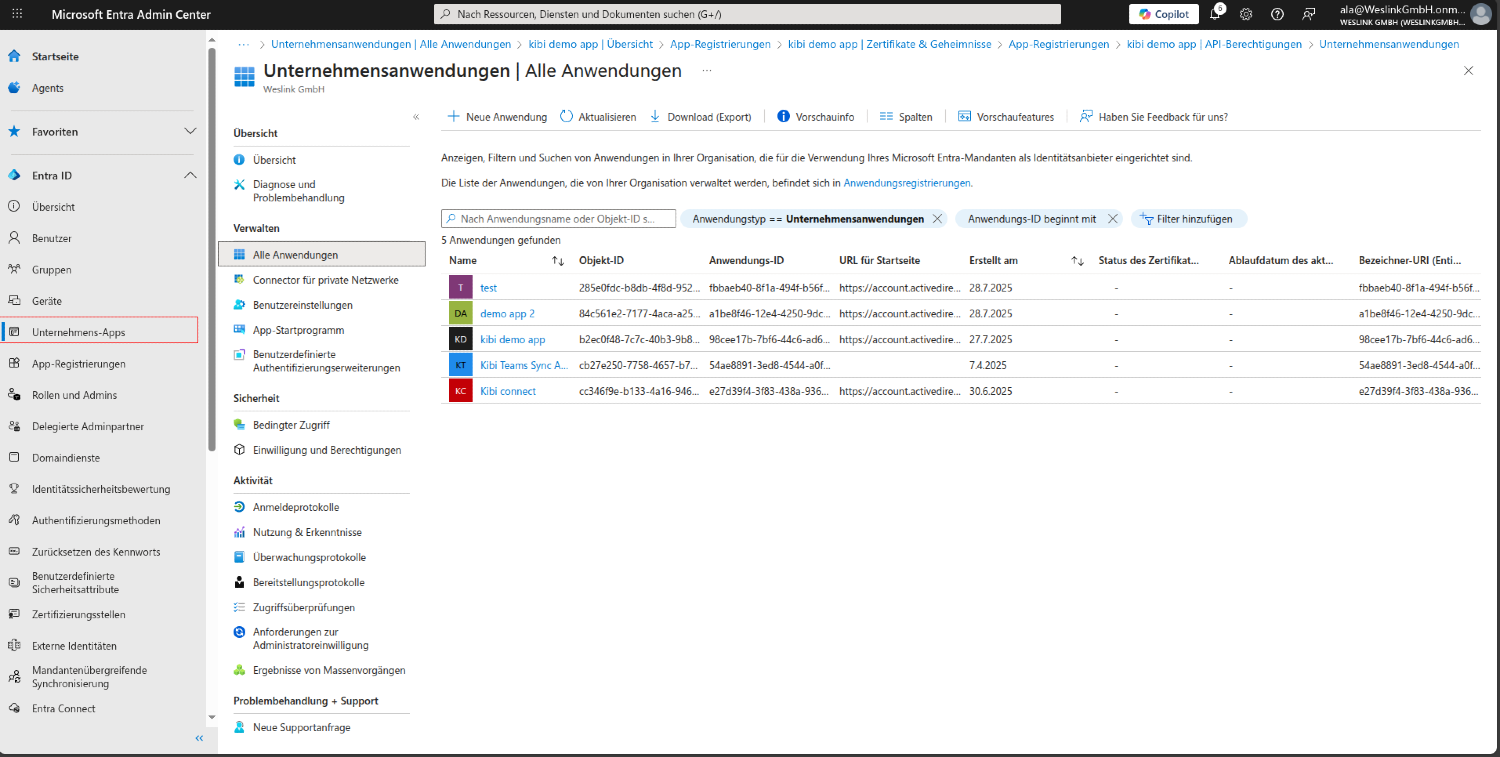
Step 4.1: Navigate to Enterprise Apps#
Search in the left sidebar for and click on Enterprise Apps.
Select your application from the list
Step 4.2: Access Users and Groups#
In the application details, look in the left menu for and click on Users and groups.
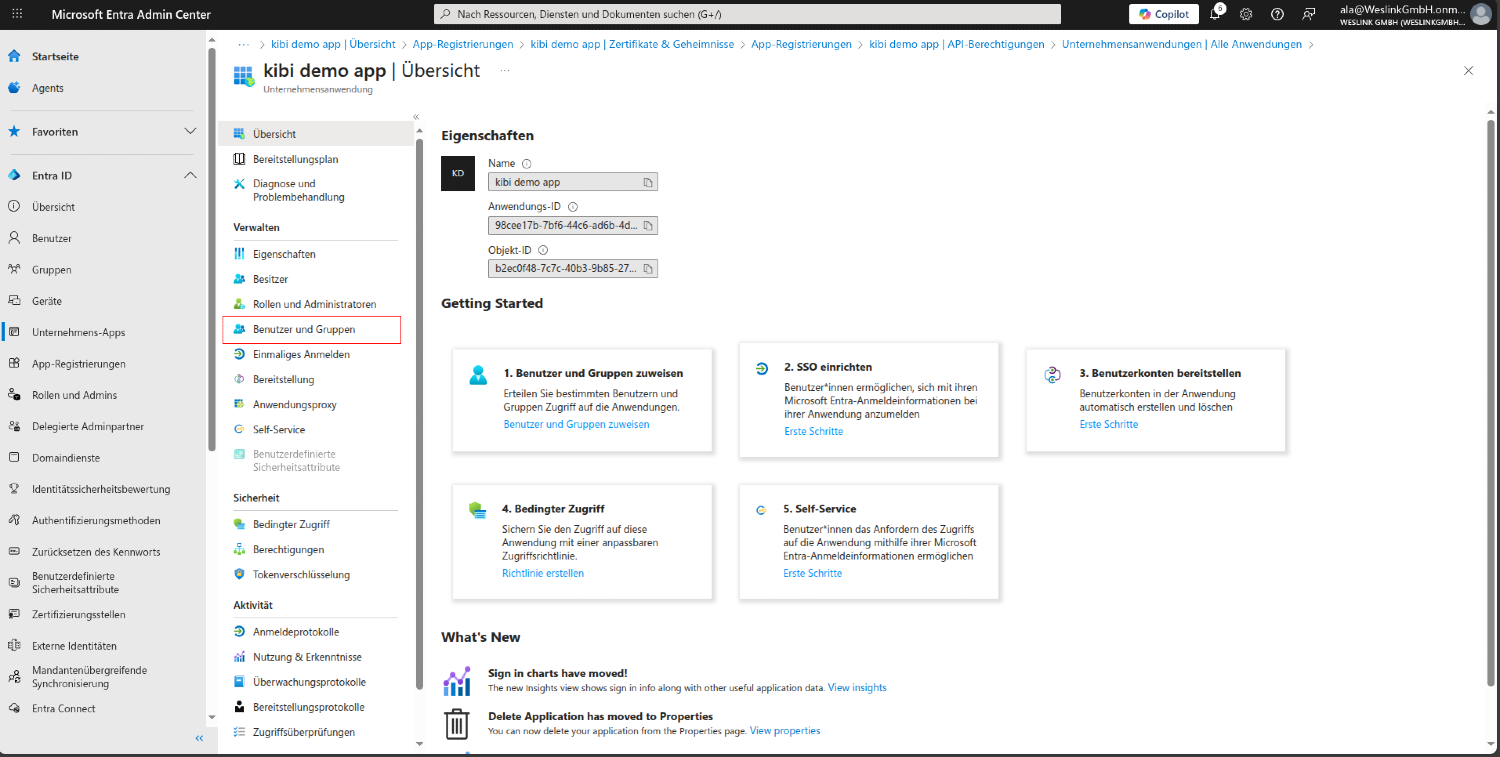
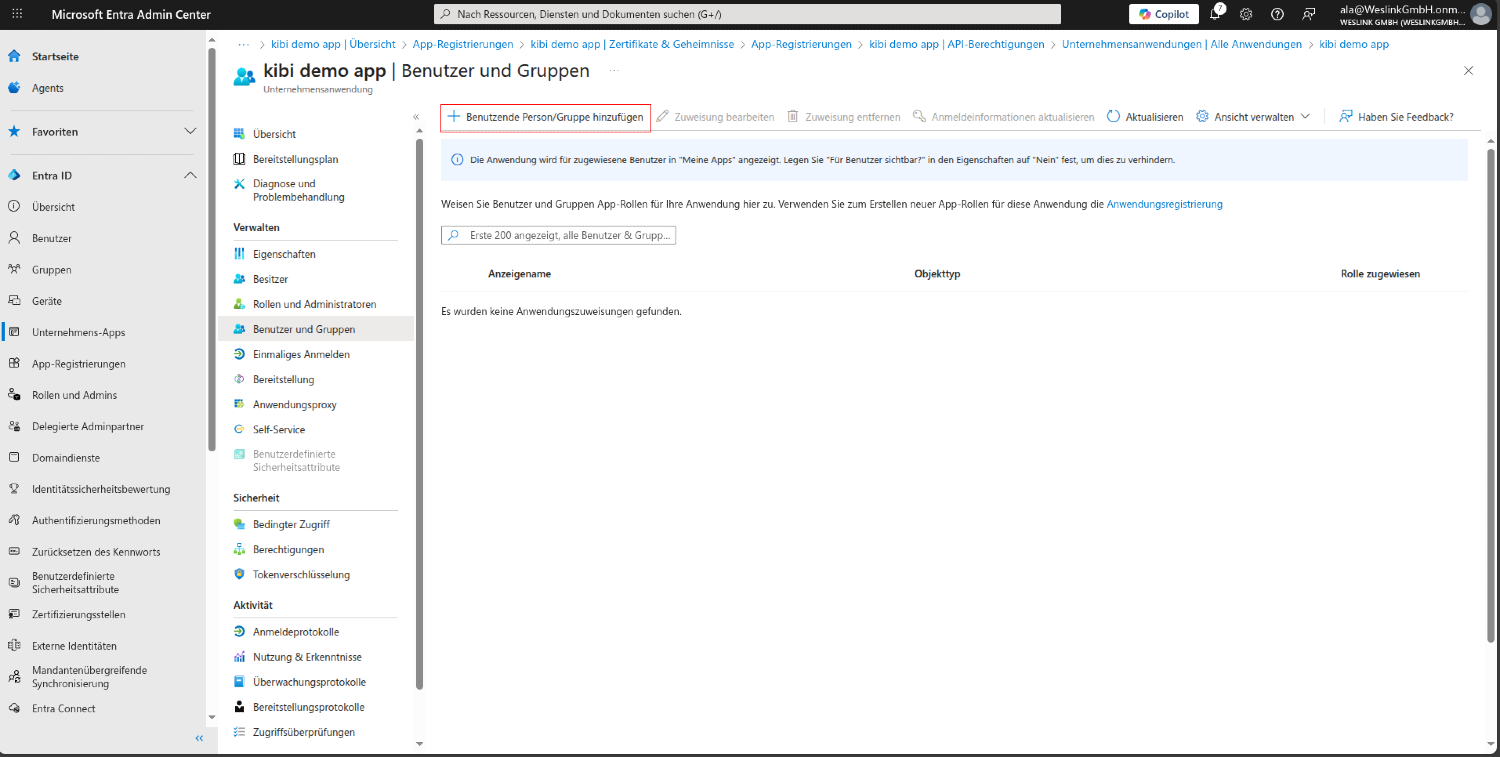
Step 4.3: Assign Users to Your Application#
On the Users and Groups page:
Click on + Add user/group
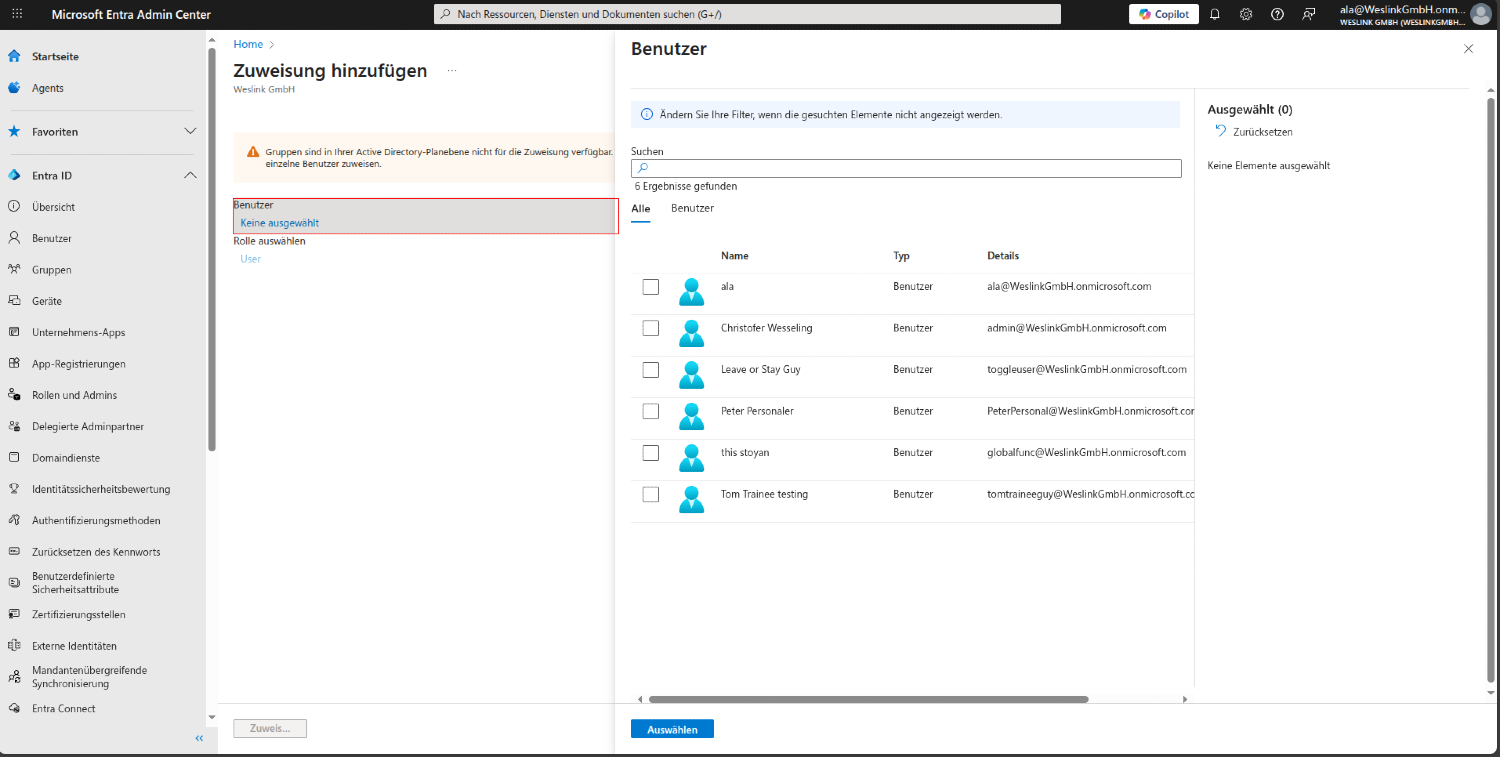
Step 4.4: Confirm Assignment#
On the Add assignment page:
Click on Users
Select the users you want to assign to your application
Click on Select
5. Configure Kibi Connect#
Step 5.1: Set Up Microsoft Entra ID as Identity Source#
Open Administration → Integrations → SSO & Directory.
Click on Add identity source and select Microsoft Entra ID.
Confirm with Set up. The integration will be enabled and the source created.
Info
There is one Entra source per platform. If it already exists, open it directly from the list. Only system admins can create and change the login settings.
Step 5.2: Enter Credentials in the "Connection" Tab#
MS Entra Tenant ID
The directory ID (tenant ID) in the format xxxxxxxx-xxxx-xxxx-xxxx-xxxxxxxxxxxx. You can find it in the Entra Admin Center under "Overview". "common", "organizations", or a domain name will not work.
Client ID
The application ID from your app registration.
Client Secret
The secret value from step 2.4.
Save with Save connection settings and enable Enable MS Entra integration.
Step 5.3: Test Connection#
Click on Test connection. If the details are correct, "Login credentials valid" will appear.
Step 5.4: Enable Login with Microsoft (Optional)#
If you entered the redirect URL from step 3b, enable Enable Single Sign-On (SSO) and check the displayed redirect URL. The login page will then show "Sign in with Microsoft".
Step 5.5: Set Up Login and User Synchronization#
Tab "Login"
How accounts are assigned during the first login – preset first via email address, then via employee number (employeeId) for employees without an address. Here you also confirm that Entra requires a second factor for every login.
Tab "User Synchronization"
Directory synchronization as before: schedule, adopted fields, behavior for deactivated accounts, notifications, "Synchronize now", and users without Entra ID. Optionally, you can also set up SCIM.
Warning
Protection for Admin Accounts: If an admin account's email address changes in Entra, the synchronization will only adopt the new address once the person has confirmed it via email to their previous address. If the synchronization attempts to remove a large portion of linked accounts at once, it will hold back this step. Details under "Set up SCIM provisioning".
Overview: What is Configured Where#
Setting |
Where |
Type |
|---|---|---|
App Registration |
Microsoft Entra Admin Center |
One-time |
Client Secret |
App Registration → Certificates & Secrets |
One-time (renew before expiry) |
API Permissions (Synchronization) |
App Registration → API Permissions |
Application Permission |
API Permissions (Login) |
App Registration → API Permissions |
Delegated Permission |
Redirect URI |
App Registration → Authentication |
Only for login with Microsoft |
User Assignment |
Enterprise Application → Users and Groups |
Optional |
Tenant ID, Client ID, Client Secret |
Kibi Connect → Administration → Integrations → SSO & Directory → Microsoft Entra ID → Connection |
One-time |
SAML Configuration |
– |
Not required |
6. Automatic Group Assignment#
Kibi Connect can automatically assign users to groups based on information from Microsoft Entra (Active Directory). This way, new employees are directly assigned to the correct department or location group.
Step 6.1: Configure Groups for Assignment#
For each group that should be automatically populated, you must set the corresponding mapping field:
Navigate to Group Editing in Kibi Connect.
In the group settings area, you will find two optional fields:
MS Entra Department: Enter the exact department name as stored in Microsoft Entra (e.g., "Customer Service", "Marketing").
MS Entra Location: Enter the exact location as stored in Microsoft Entra (e.g., "Berlin", "A13").
Info
Note: These fields are only visible to system administrators and only if the MS Entra integration is active.
Step 6.2: How Automatic Assignment Works#
During each synchronization with Microsoft Entra, the following happens:
Kibi Connect reads the department and location of each user from Microsoft Entra.
If a group has a matching MS Entra Department or Office Location field, the user is automatically assigned to that group.
New groups are automatically created if at least 2 users with the same department or location exist.
Existing group memberships are preserved.
Warning
Important: The values in the "MS Entra Department" and "MS Entra Location" fields must exactly match the values in Microsoft Entra (case sensitivity is not considered).
Step 6.3: Example#
Assume you have the following structure in Microsoft Entra:
Employee(s) |
Department |
Location (Office Location) |
|---|---|---|
Max Mustermann |
Sales |
Berlin |
Erika Musterfrau |
Sales |
Hamburg |
Hans Beispiel |
Marketing |
Berlin |
And in Kibi Connect, you create:
Group "Sales" with MS Entra Department = "Sales"
Group "Location Berlin" with MS Entra Location = "Berlin"
After synchronization, Max Mustermann will be automatically assigned to the groups "Sales" and "Location Berlin", Erika Musterfrau to the group "Sales", and Hans Beispiel to the groups "Marketing" (if available) and "Location Berlin".