
How do I manage my notifications?
2min
With notifications, you stay up to date on new posts, messages, and appointments—without having to check constantly. You decide for yourself what you want to be notified about and how.
How to open your notification settings
Click on My Account in the top right.
Select Notification Settings.
Enable push notifications
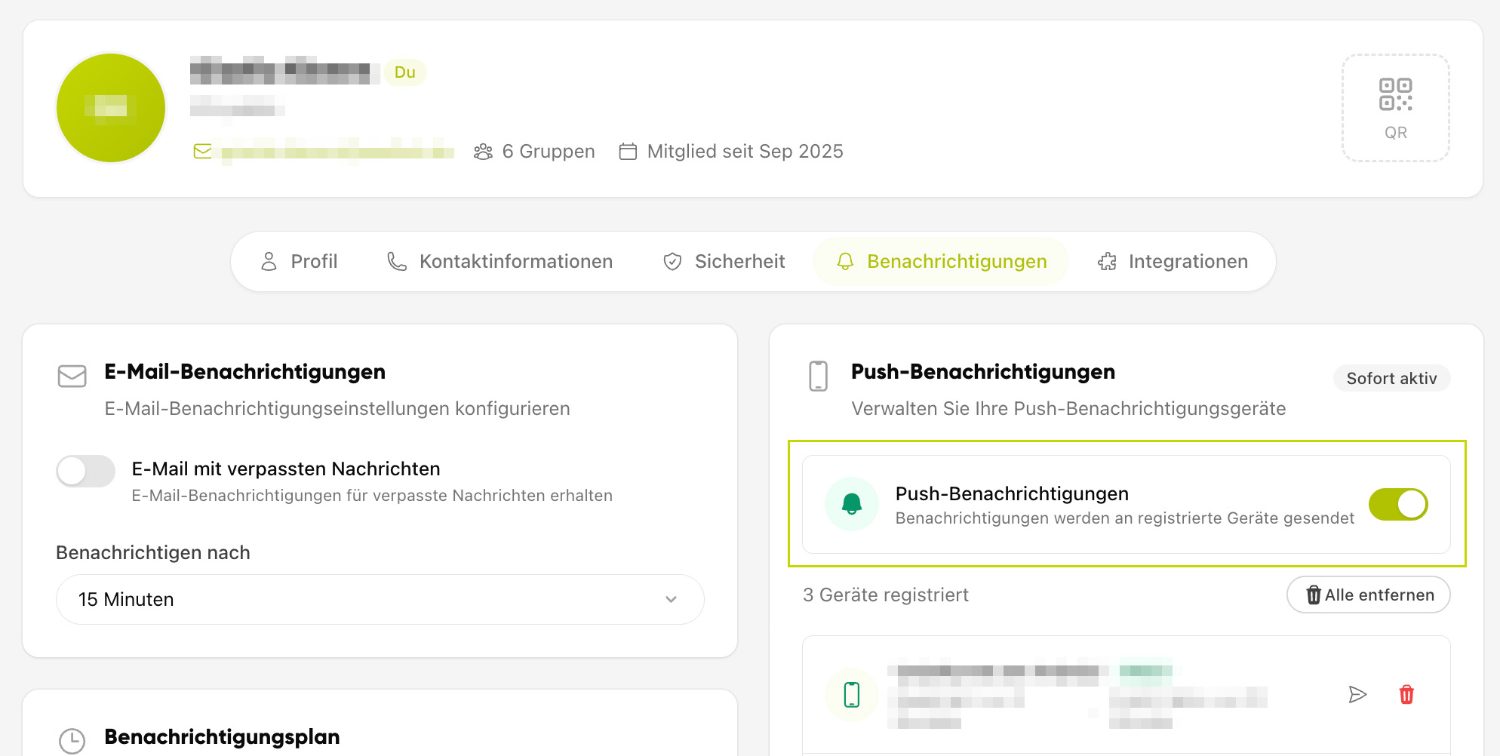
Enable the "Push Notifications" option to receive important updates directly as alerts on your device—even when Kibi Connect is not open.
For push notifications to arrive, your browser or device must allow notifications for Kibi Connect. Confirm the corresponding browser prompt with "Allow".
Mute categories
In the Notification Settings, you can mute individual categories—this way, you only receive notifications for the topics that are important to you.
Do Not Disturb
With Do Not Disturb, you can temporarily pause notifications. When activating, select a duration:
30 minutes
1 hour
2 hours
4 hours
Until tomorrow
Indefinitely
As long as "Do Not Disturb" is active, this will be displayed; you can turn it off again at any time.
Set status
Using Set Status, you can let your colleagues know whether you are available. There are predefined statuses such as Do Not Disturb, In a Meeting, On the Go, Sick, On Vacation, and Working from Home. Some statuses also pause your notifications and are automatically reset after an appropriate time.
Working hours and days off
Set your working hours and days off to control when you receive notifications. Outside these times, notifications are automatically suppressed.
Summary of missed notifications
Notifications that were suppressed during "Do Not Disturb" or outside your working hours are not lost: Upon request, you will receive an AI-assisted summary by email.
Screenshot: The notification and status settings with "Do Not Disturb", status selection, and working hours.