
How do I schedule tasks in the calendar?
Updated Reading time: 2 min
On this page
In the calendar, you reserve time for your tasks. To do this, drag a task from the sidebar into the calendar or schedule it directly in the Tasks module. This creates a work block in your calendar.
Drag task into the calendar#
Open the Calendar.
Click on Schedule tasks at the bottom of the sidebar. The number next to it shows how many open tasks are assigned to you.
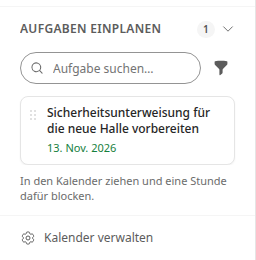
If needed, search for a task using Search task.... Use the filter symbol to display only tasks from a specific group.
Drag the task to the desired time, for example in the weekly view.
Kibi creates a one-hour work block. The task remains in the list and is marked there as Scheduled.
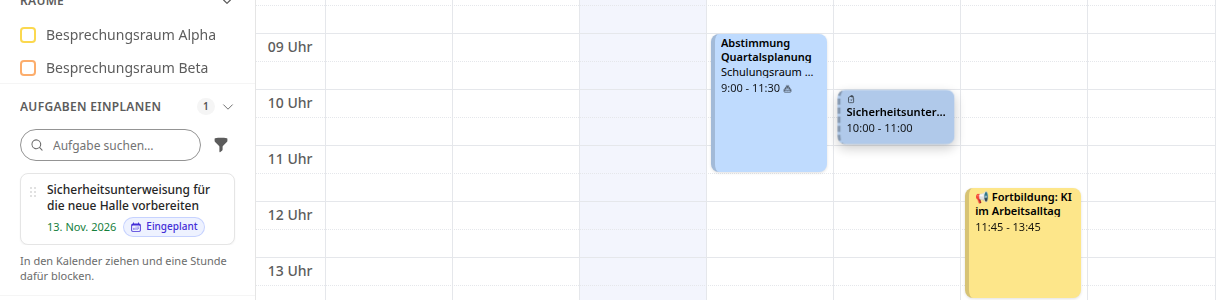
If one block is not enough, simply drag the same task into the calendar again. The list will then show, for example, 2× Scheduled.
Schedule task in the Tasks module#
Open the Tasks module.
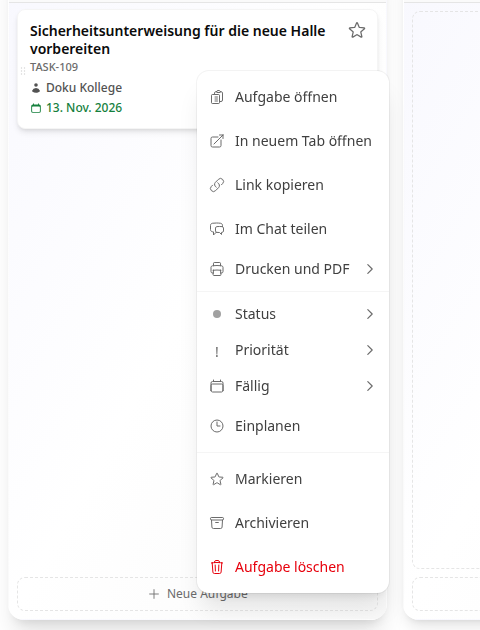
Right-click on the task and select Schedule.
Select Date, Time, and Duration. The duration ranges from 15 minutes to 4 hours.
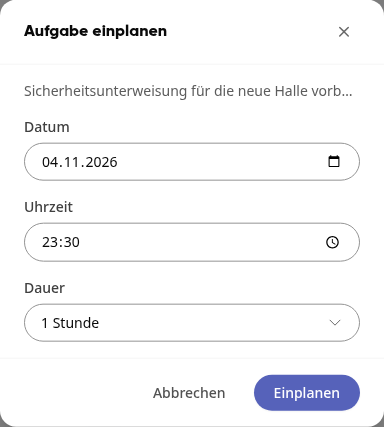
Click on Schedule.
Kibi confirms this with Task scheduled. Use Open in calendar in this message to jump directly to the calendar.
Tipp
On smartphones, the Schedule tasks area is not available in the calendar. Use the Tasks module there instead.
Move, modify, or delete a work block#
Move: Drag the block in the calendar to a different time.
Change duration: Drag the bottom edge of the block up or down.
Delete: Click on the block. The task opens and shows all blocks under Scheduled. Hover over the entry, click the trash can icon, and confirm with Delete scheduling.

When deleting, only the time slot is removed from the calendar. The task itself remains.
Info
The list only shows open tasks assigned to you. If there are none, you will see No open tasks. You manage tasks themselves in the Tasks module.
Info
Regardless of scheduling, a task with a due date appears on that day as an entry Due: … in the calendar.