
How do I assign licenses?
Updated Reading time: 3 min
On this page
In the Assignment tab, you define who uses which Kai rate. There you can also book additional licenses and release licenses that you no longer need.
Info
This function is available to system administrators.
Open Assignment#
Open Administration and click on Subscriptions & Contracts under System.
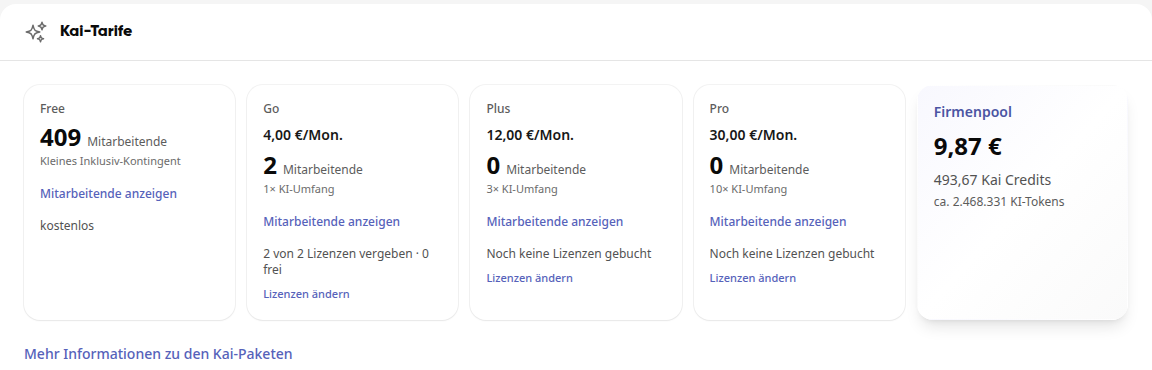
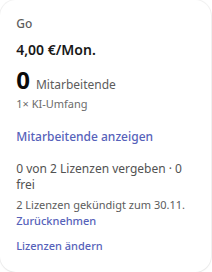
Click on the Assignment tab. At the top, you can see for each rate how many employees are using it and how many licenses are assigned and free. With Show employees, you jump to the people in this rate.
Assign a rate to a person#
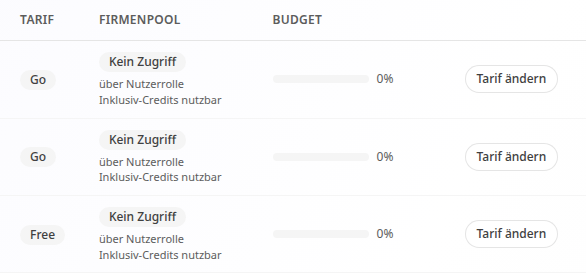
In the Employees and Rates table, search for the name or email address. You can also filter by rate or use over 90% to display only people who have almost used up their budget.
Click on Change rate in the person's row.
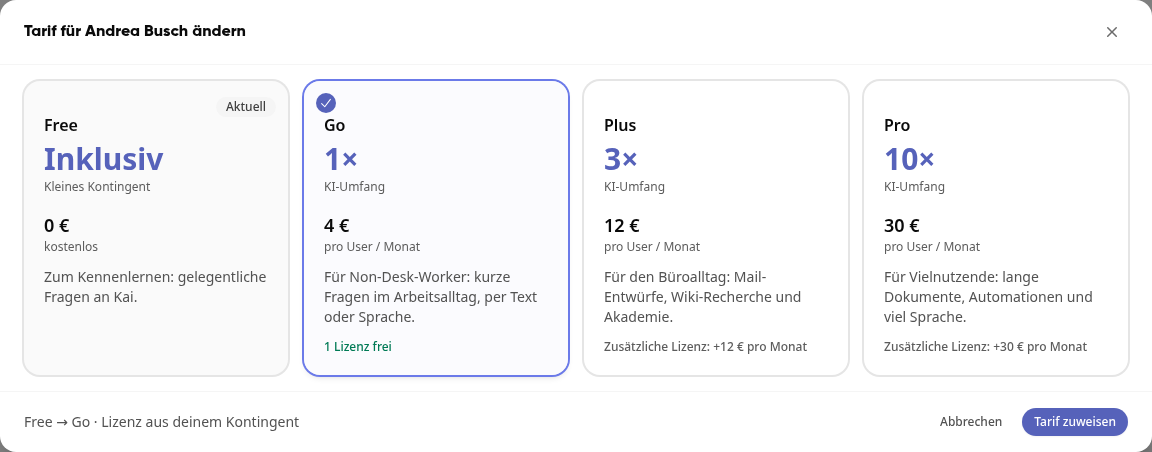
In the dialog, select the new rate.
If a license is still free, it will be displayed on the card, for example 1 license free. Then click on Assign rate. This does not incur any additional costs.
The new rate will then appear directly in the table.
Order an additional license#
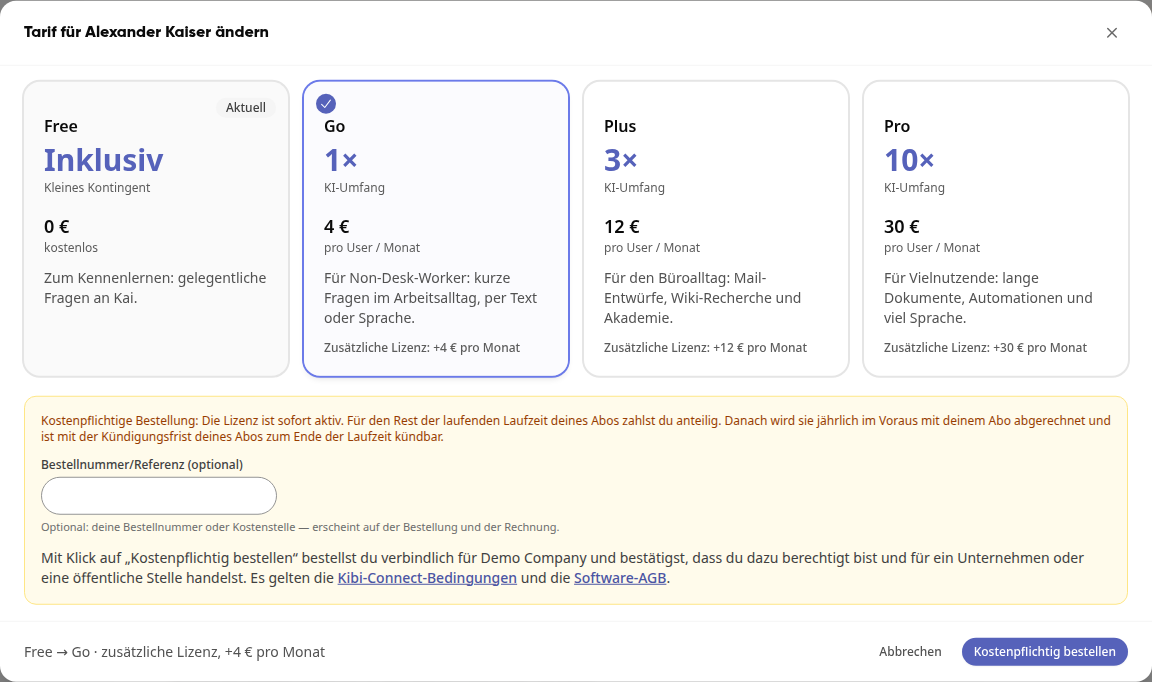
If there are no more free licenses in the selected rate, the card will show the surcharge, for example Additional license: +4 € per month. You can order the license directly in the same dialog.
Read the conditions in the yellow field. They specify how the license is billed and when you can cancel it.
If necessary, enter your order number or cost center under Order number/Reference (optional). It will appear on the order and the invoice.
Click on Order with charge.
Warning
Order with charge is a binding order for your company. The license is activated immediately.
Change multiple people at once#
In the table, check the boxes next to the people you want to change. The number of selected people appears above the table.
Click on Change package & release.
Under Personal package, select the rate. Under Use company credits pool, you define whether the people use the company pool: Release, Exclude or Decide by user role (default). What should remain the same is set to Leave unchanged.
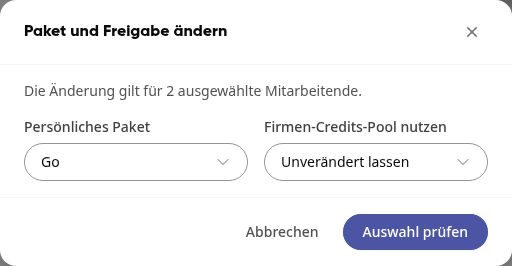
Click on Check selection. You will see the affected employees and the monthly package price of the selection.
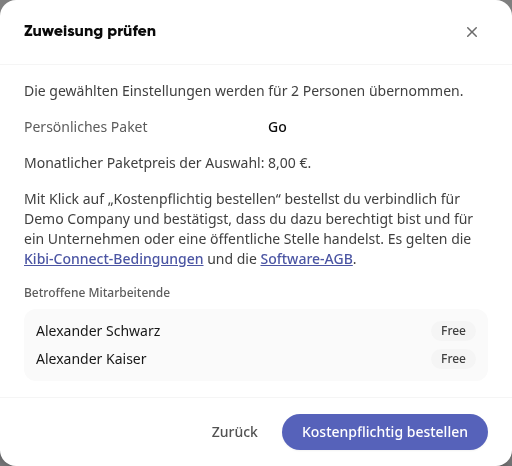
Confirm the change. If there are not enough free licenses, the button will say Order with charge, and you will order the missing licenses bindingly.
Tip
You can find larger groups via the filters in user management (AI rate, role, group). You can find the link Open user management directly in the Assignment tab.
Release a license again#
Click on Change rate in the person's row.
Select the Free rate. The card will say releases the license.
Click on Change rate.
The person will then use the free rate. The license remains booked and is free for another person. If you no longer want to pay for it, reduce the number as described in the next section.
Change the number of licenses#
Click on Change licenses on the rate card.
Under Future number of licenses, enter the desired number. Below, you can see how many licenses are required at minimum and what changes in the price.
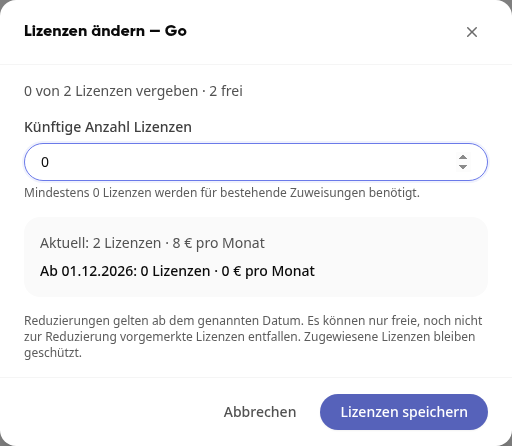
Confirm the change: - More licenses: Click on Increase with charge. The additional licenses are immediately available. - Fewer licenses: Click on Save licenses. The change takes effect from the date specified in the dialog. Only free licenses can be removed; assigned licenses remain protected.
Scheduled cancellations are displayed on the rate card, for example 2 licenses canceled as of 11/30. With Retract and Confirm, you cancel the termination, and the licenses remain in the inventory.
Company pool and mailboxes#
-
Company pool: Purchased credits and starting credit are used by employees whose user role includes the permission "Use company credits pool" - by default, this includes system administrators. The inclusive credits of the month can be used by any person. Anyone who is individually excluded cannot use inclusive credits either.
-
Personal email mailboxes: You assign mailboxes per person in the mail settings. You can access them in the Assignment tab via Manage mailbox licenses.
Info
Here you distribute Kai rates and mailboxes. How many employees can use the platform in total is determined by your license package. You can change this as described under "Subscription & Licenses".