
How do I edit a sales opportunity?
Updated Reading time: 2 min
On this page
On the deal page, you manage everything related to this sales opportunity: value, closing date, customer, and notes. Here you also mark the deal as won or lost. Every change is saved immediately—you don’t need a save button.
Info
You can edit deals that you created or for which you are responsible. For other deals, you can only view them, and the fields will be locked.
Open a deal#
You have two ways to access a deal:
Click on the deal card in CRM > Pipeline.
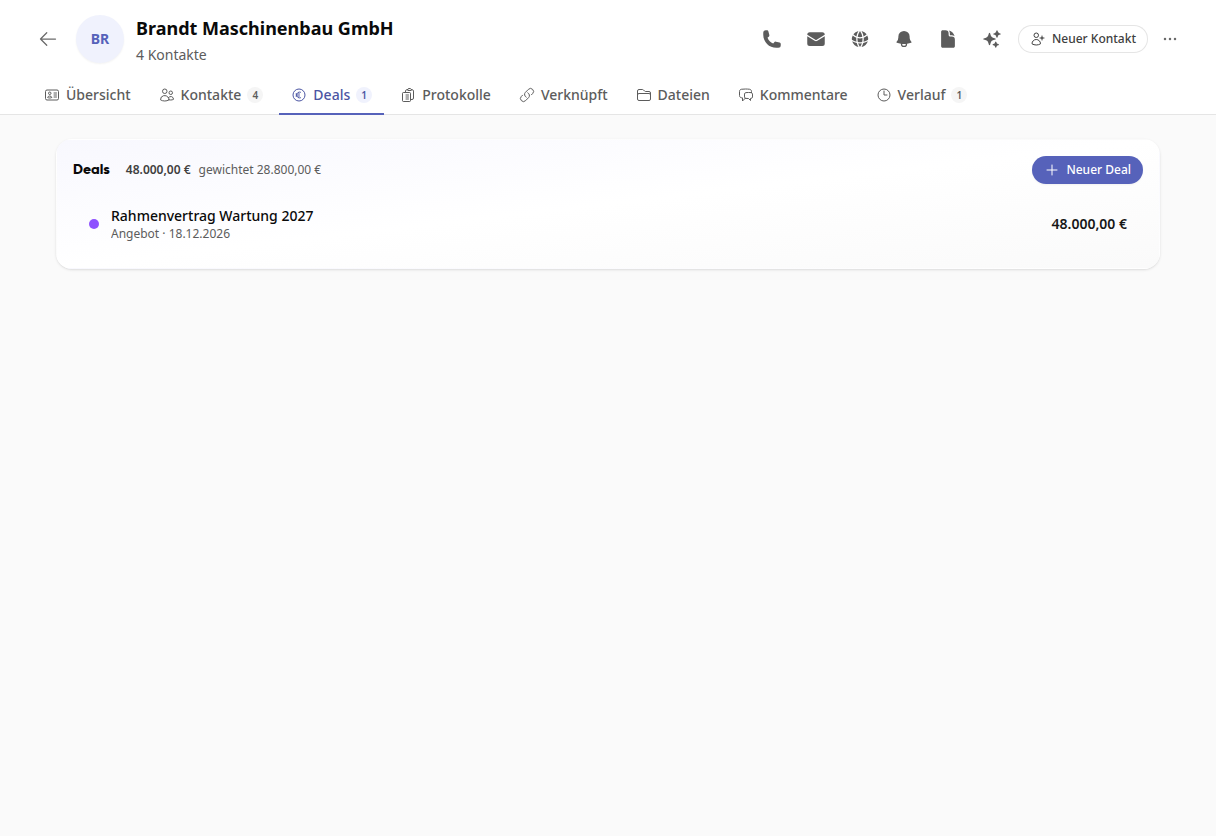
Open a company in the CRM and click on the Deals tab. There you’ll see all deals for that company, the sum of their values, and you can create a new one with New Deal. The company will already be entered.
Edit details#
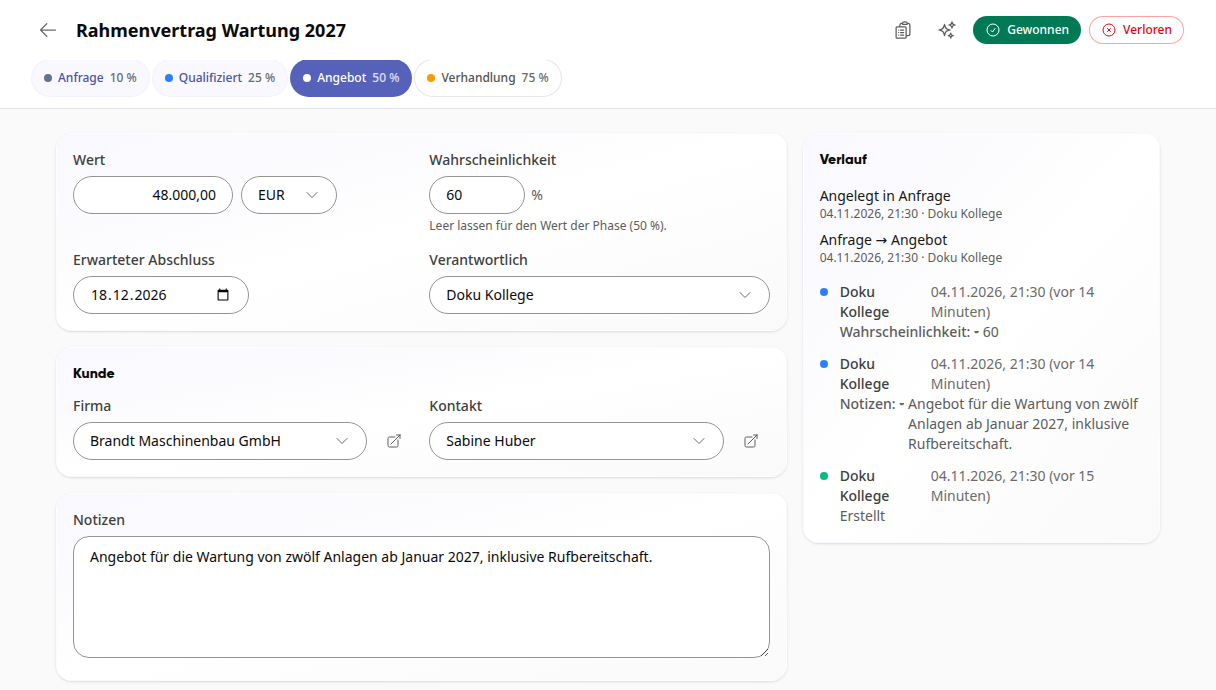
Click on the title to change it.
Enter the amount under Value and select the currency (EUR, CHF, USD, or GBP).
Set the Expected Closing Date.
Under Responsible, search for the person handling the deal.
Under Customer, select Company and Contact. Use the arrow next to the field to jump directly to the company or contact.
Under Notes, record what’s important for the deal.
Tipp
The Contact selection shows all contacts, not just those of the selected company. Type the name and check the company listed below it.
Phase and probability#
Click on the current phase at the top, e.g., Quote.
The deal adopts the probability of this phase. If you estimate it differently, enter your own value under Probability. If you leave the field blank, the phase’s value applies again.
The probability determines how much the deal contributes to the weighted sum and forecast.
Close a deal#
Won: Click Won in the top right. The deal will then show when it was won.
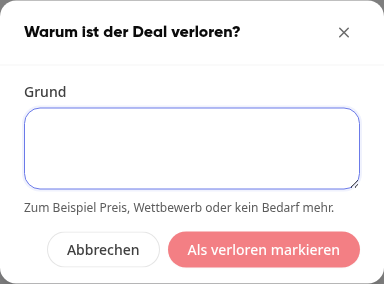
Lost: Click Lost in the top right, enter the Reason, and click Mark as lost. The reason will then appear at the top of the page.
Was this too soon? Use Reopen to move the deal back to the first open phase.
History, logs, and links#
History shows who changed the phase or details and when.
Logs collects visits, conversations, and appointments related to the deal. Use Add Log to create a new one. The deal, company, and contact are already entered.
Linked shows what is connected to the deal. Link appointments, tasks, chat messages, and files where they are located via Link to CRM.
Delete a deal#
Scroll to the bottom of the page and click Delete Deal.
Confirm with Delete Deal. You’ll return to the pipeline.
Warnung
Only delete a deal if it was created by mistake. For deals that didn’t materialize, mark them as Lost so they remain visible in the forecast and history.