How do I set up pipelines and phases?
Updated Reading time: 3 min
On this page
Pipelines represent your sales processes; their phases are the columns your team sees in the CRM pipeline. You define which pipelines exist, what phases they have, and how likely a deal is to close in each phase.
Info
This feature is available to system admins.
Open settings#
Open the Administration.
Expand Organization on the left and click on CRM.
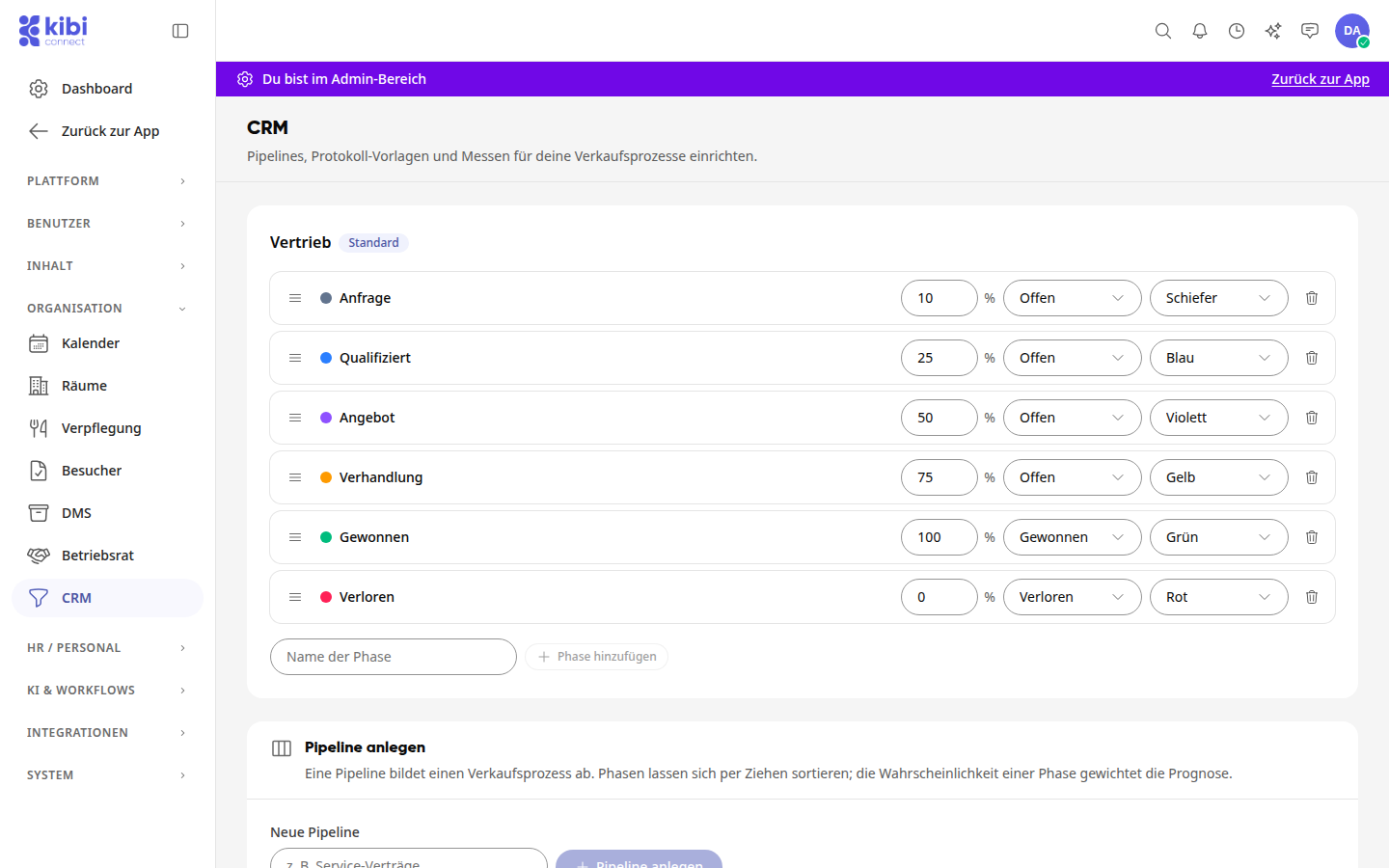
Each pipeline is displayed in its own card. Below these are the cards Create Pipeline, Protocol Templates, and Trade Shows. Any changes made on this page are saved immediately. The Sales pipeline is already set up; you can adjust it directly.
Create a new pipeline#
In the Create Pipeline card, enter a name under New Pipeline, for example, "Service Contracts".

Click Create Pipeline. The pipeline appears as its own card and starts with the phases Inquiry, Qualified, Quote, Negotiation, Won, and Lost.
Once there are multiple pipelines, your team selects which one to view on the board.
Adjust phases#
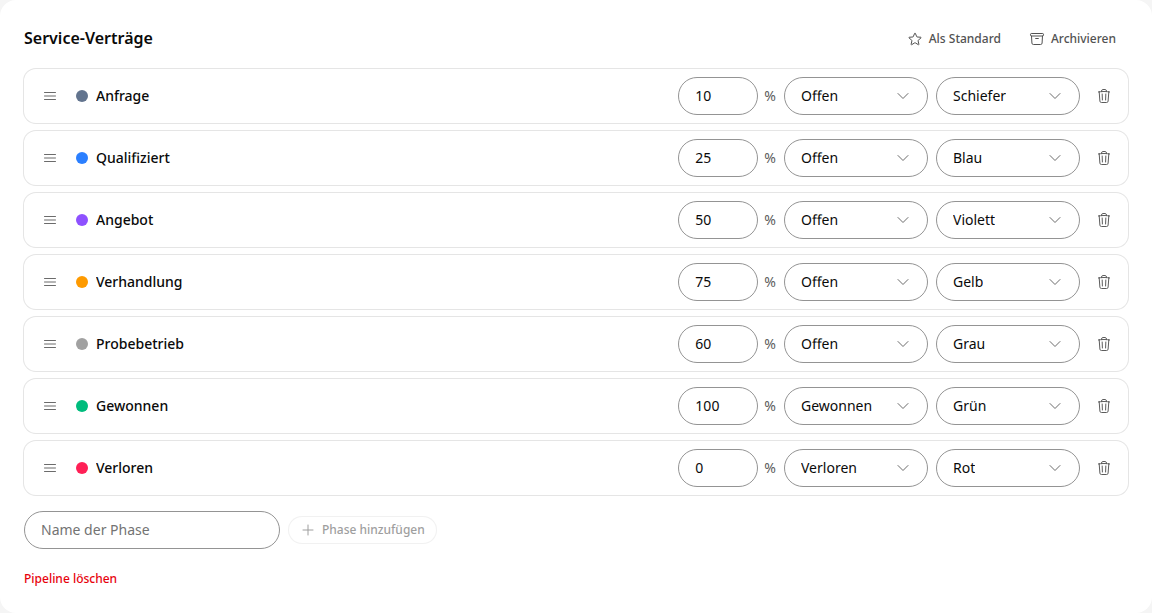
Add: Enter the phase name below the list and click Add Phase. The new phase appears at the bottom, is of type Open, and has 0%.
Sort: Drag the phase by the three lines on the left to its position. It will appear in this order as a column on the board.
Rename: Click on the name and overwrite it.
Probability: Enter the percentage value. It weights the deals in the forecast.
Type: Select Open, Won, or Lost.
Color: Select the color of the dot next to the name.
Tip
Enter the probability for a new phase right away. Otherwise, its deals will count as 0 € in the weighted forecast.
Delete a phase#
Click the trash can icon in the phase's row.
If the phase still contains deals, select the phase to move them to under Move Deals To in the dialog. Without a selection, the platform will display: "The phase contains deals. Select a phase to move them to."
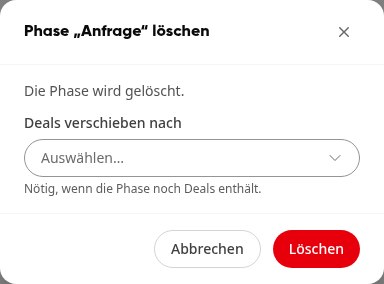
Click Delete.
Important
A pipeline must have at least one open phase. You cannot delete the last open phase.
Set default, archive, delete#
-
As Default: This pipeline opens when someone accesses the Pipeline tab. It then displays the Default badge. You cannot archive or delete the default pipeline. First, make another pipeline the default.
-
Archive: The pipeline is no longer available for your team to select on the board. In the administration, it remains with the Archived badge; use Restore to bring it back.
-
Delete Pipeline: Click the link at the bottom of the pipeline and confirm. If it still contains deals, select the pipeline to move them to under Move Deals To. Open deals will start in the first open phase there.
Edit protocol templates#
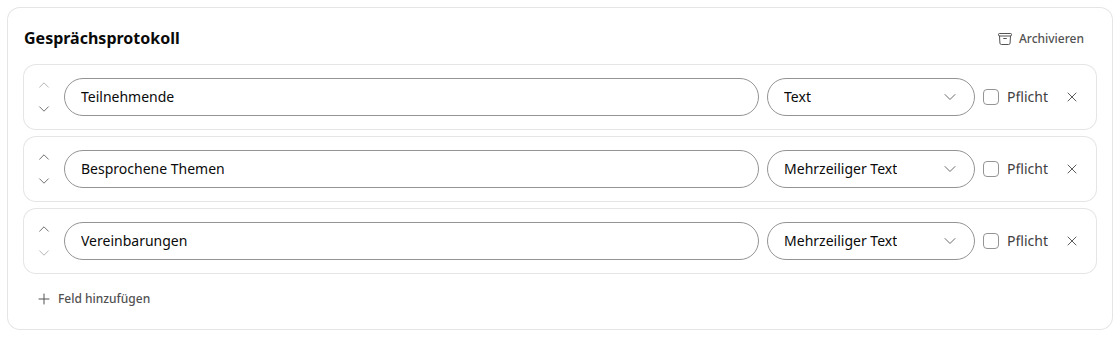
Templates provide fixed fields for conversation protocols. The templates Visit Report and Conversation Protocol are already set up.
-
Add Field: Click Add Field and overwrite the Label. The field is saved as soon as you leave the input field.
-
Configure Field: Choose the type: Text, Multiline Text, Date, Selection, Yes/No, or Number. With Required, you specify that the field must be filled out.
-
Sort and Remove: Move a field using the arrows on the left; remove it with the cross on the right.
-
Archive: Archived templates remain readable on existing protocols.
Create a trade show#
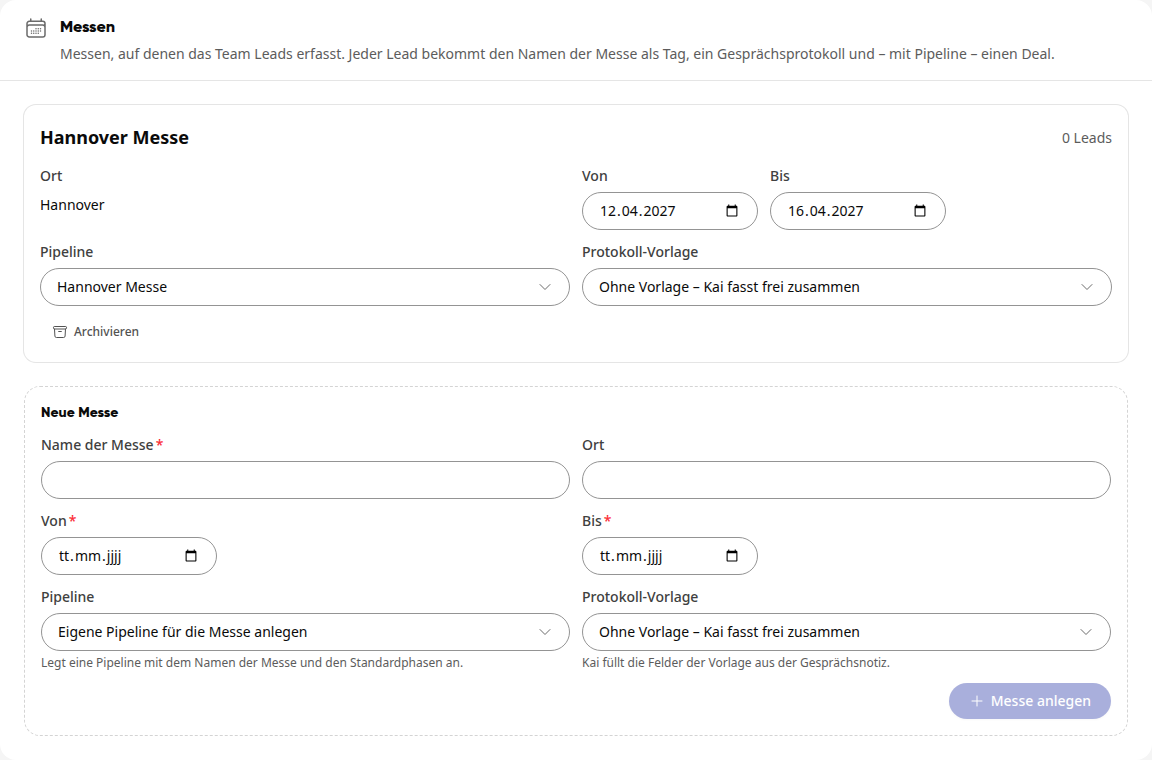
At trade shows, your team captures leads. Each lead receives the trade show's name as a tag, a conversation protocol, and, if you select a pipeline, a deal.
In the Trade Shows card, enter the Trade Show Name and the From and To dates under New Trade Show, optionally the Location.
Select the Pipeline: Create a dedicated pipeline for the trade show creates a pipeline with the trade show's name and standard phases. You can also choose an existing pipeline or No Pipeline – Contact and Protocol Only.
Select the Protocol Template. Kai fills in its fields from the conversation notes. With No Template – Kai Summarizes Freely, Kai writes a free summary.
Click Create Trade Show. The trade show appears as its own card above the form, where you can change From, To, the Pipeline, and the Protocol Template.