
How do I report damage or an incident to the vehicle?
Updated Reading time: 2 min
On this page
If something happens to a vehicle, report it directly in Kibi Connect. The fleet managers will be notified immediately, and you can add details and evidence later.
Info
This function is available to all employees. You will only see your own reports here.
Report damage#
Click on Vehicles in the navigation and then on the Damage tab.
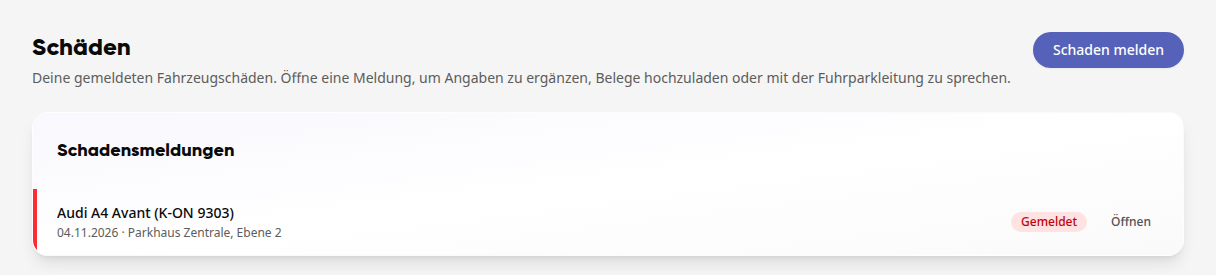
Click on Report damage in the top right.
Select the Vehicle and briefly describe the damage under What happened?.
Check the date under When. The current day is pre-filled.
If necessary, enter the Mileage and Where, and add photos of the damage via Add photos.
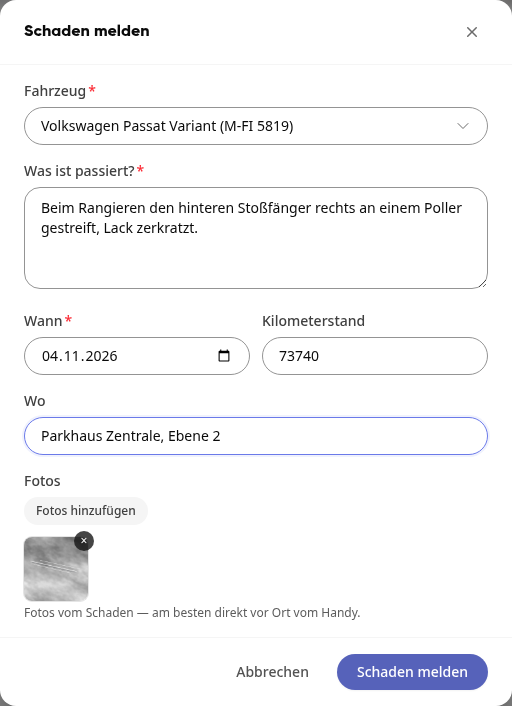
Click on Report damage. The report will open and have the status Reported.
Tipp
If you are currently on the road with a booked vehicle, click on Damage under My Bookings on the booking. The vehicle will already be entered.
Add details and evidence#
Open the report in the Damage tab with Open. You can do this even if you receive details later.
Enter what you know under Additional details, for example, the details of the person at fault, the Police case number, or the Course of events.
Click on Save. You will see the confirmation Details saved.
Under Documents & Evidence, upload your documents via Add files to the appropriate section: Damage photos, Police report, or Insurance documents of the person at fault.
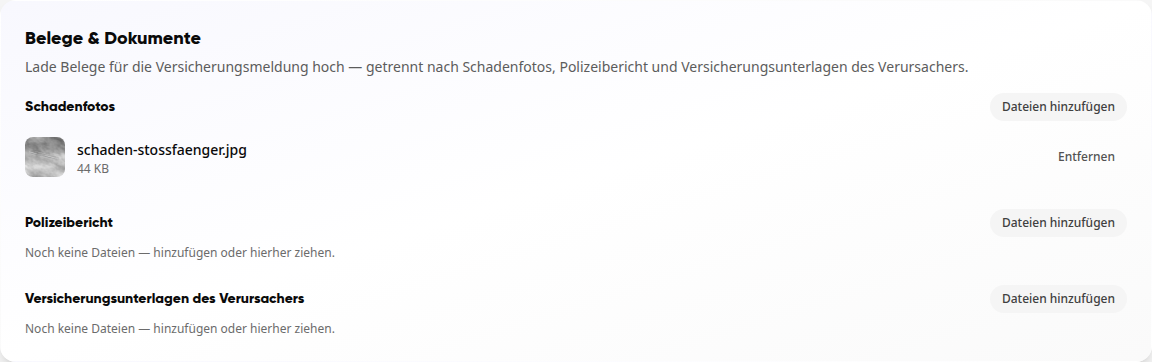
Remove a wrong file with Remove.
Coordinate with fleet managers#
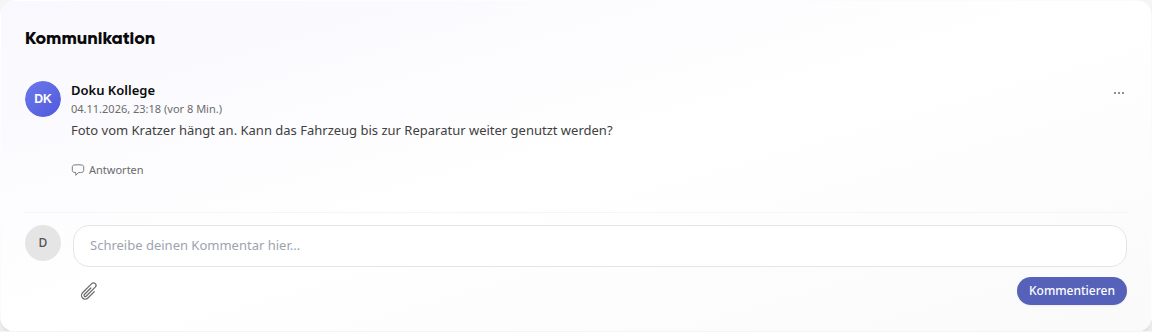
Under Communication, write a comment and click on Comment. The fleet managers will be notified, and you will receive a notification when they reply.
Status of the report#
The fleet managers set the status. If it changes, you will be notified.
Reported: The report has been received.
In progress: The fleet managers are taking care of it.
Completed: The case is closed.