
How do I confirm a change to my admin account through identity management?
Updated Reading time: 2 min
On this page
Your identity management must not simply take over an admin account or change its email address. You will receive an email beforehand and decide for yourself whether the change will take effect.
Info
This applies to your own account if you are a system admin or have a role with admin rights. Only the affected person can respond to the request, not another admin.
When you will be asked#
You will receive an email if one of the following changes is pending:
Takeover: The identity management wants to take over your existing account. After that, it will manage your name, email address, and contact details and can lock the account. Subject: "Please confirm: ... wants to take over your admin account".
New email address: The identity management or the directory sync with Microsoft Entra ID wants to change your account's address. Subject: "Please confirm: new email address for your admin account" or "Please confirm: Microsoft Entra ID wants to change the email address of your admin account".
The email is always sent to your current address, never to the new one.
Info
There is no such confirmation for locking or removing a person. The protection rules under Security Features apply.
Respond to the request#
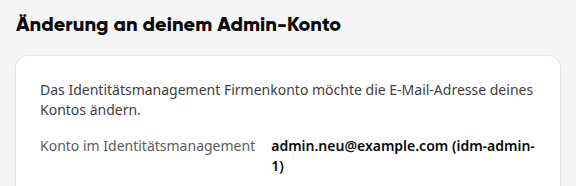
Open the email and click Confirm or Reject. The click does not change anything yet; it only opens the page Change to your admin account.
Log in if you are not already logged in. Use the account to which the email was sent.
Check what is requested: the text above, the entry Account in identity management, and for an address change, Previous address and New address.
Click Confirm or Reject.
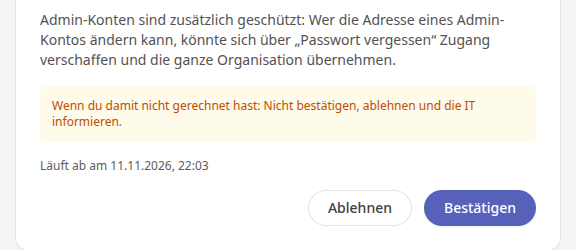
Warning
Didn't expect this? Do not confirm. Reject and inform your IT. Check together with them who had access to the SCIM token and renew it.
What happens next#
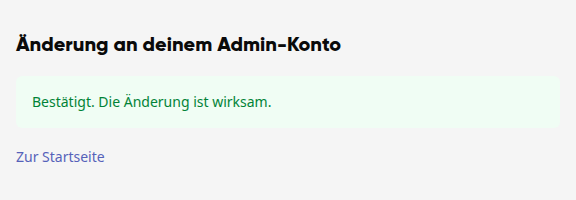
Confirmed: You see "Confirmed. The change is effective." In case of a takeover, the identity management will now manage your account.
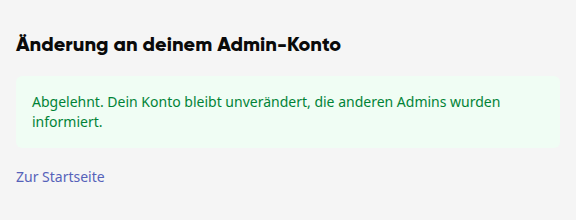
Rejected: You see "Rejected. Your account remains unchanged, the other admins have been informed." The other system admins receive a notification and an email.
Not answered: The request is valid for 7 days. After that, it expires, your account remains unchanged, and the other system admins are notified.
Messages on the page#
This link is invalid or has already been used. The request has already been answered, or you are logged in with a different account. Log in with the account to which the email was sent.
This request has expired. The 7 days have passed. Your account remains unchanged.
This request is no longer current. Your account or the identity source has changed in the meantime. Your account remains unchanged.
The change cannot be applied at the moment. For example, the address is already taken. Your account remains unchanged.
View open requests as a system admin#
Under Administration → Integrations → SSO & Directory, open the identity source and switch to the User Sync tab. There, under Pending Confirmations, you will find all open requests with the person, change, and expiration date. Only the affected person can respond to them.
