
How do I find automations in Kai's library?
Updated Reading time: 2 min
Automations are workflows that automatically assign a Kai agent, for example every Friday at 2 PM or when a new room is booked. In the Kai section, you can see which automations are available to you and which agent works within them.
Info
This view is available to everyone who is allowed to use Kai. You see the automations that you are also allowed to see in the Workflows module: as an employee, your own; with the rights for workflows, also those of others and those of the company.
Display Automations#
Open Kai in the navigation and switch to the Agents & Skills tab.
Click on Automations next to the search field. The page now shows only the automations.
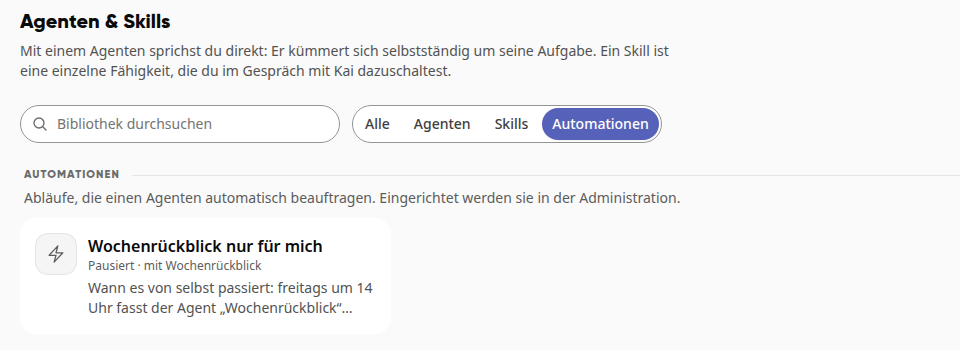
Each card shows the name of the automation, whether it is Active or Paused, which agents it assigns (with …), and a brief description of when it starts automatically. The cards are for overview purposes only. Automations are set up and modified in the administration under Workflows.
Under All, the automations are listed at the end of the page, after the agents and skills. If there are none for you, this section is omitted there.
Searching Automations#
Type a term into the Search library field. Kai searches the name, description, and the names of the assigned agents. If Kai finds nothing, it shows, for example, "No automation for 'Invoice'."
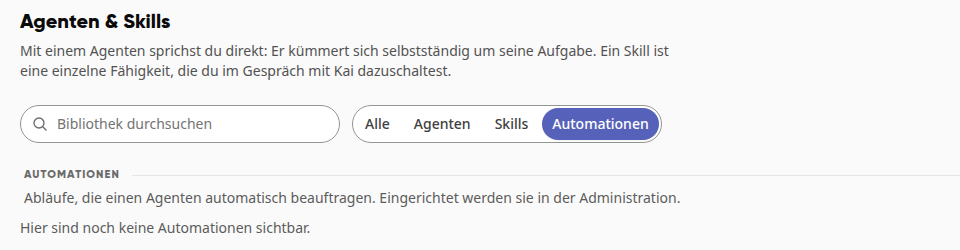
If there are no automations you can see yet, the Automations filter shows the message "No automations are visible here yet."
Creating an automation for an agent#
Automations can be created by anyone who is allowed to manage agents, usually the system admins: in the agent editor via Let it work on its own or Change and there under Workflows with Create workflow. If a template includes a workflow, for example the Weekly review, the editor offers Create workflow directly after Activation. The workflow starts paused until someone activates it. For details on how this works, see How do I create my own Kai agents?.