
How do I control a display with a smartphone?
Updated Reading time: 2 min
With the remote control, you can change the playlist or mode of a display from your smartphone, reload it, or find out which screen is which. You don't need to go to the computer for this.
Info
The remote control is available to everyone who is allowed to manage displays (right Manage Displays in the Kibi Devices section), by default to the System Admin role. Without this right, Display not available appears with the note "Only those who are allowed to manage displays can control this display."
Open remote control#
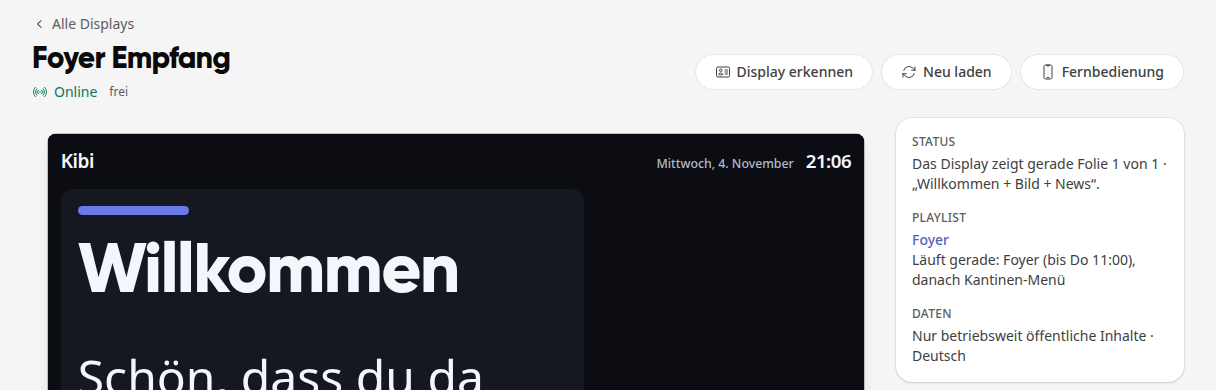
On your smartphone, open Administration → Kibi Devices and tap on the display.
Tap Remote Control at the top.
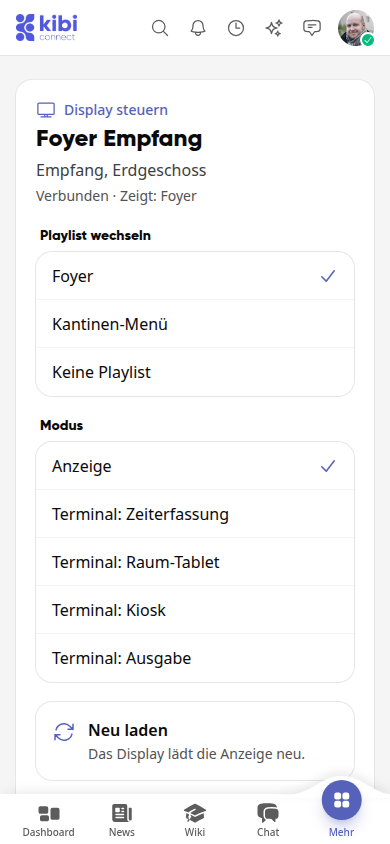
At the top, you can see the name of the display, its location, whether it is connected, and what it is currently showing.
Tipp
The remote control has a unique address for each display. Save it as a bookmark if you frequently control a display.
What you can control#
Simply tap on a line or card. The action starts immediately, and below it, you can see whether it was successful.
Change playlist: The available options are the playlists in the display's format and No Playlist. The checkmark shows what is currently assigned.
Mode: Display plays the playlist. As a terminal, you can choose Time Tracking, Room Tablet, Kiosk, and Output. The playlist remains assigned but does not play.
Reload: The display reloads the content.
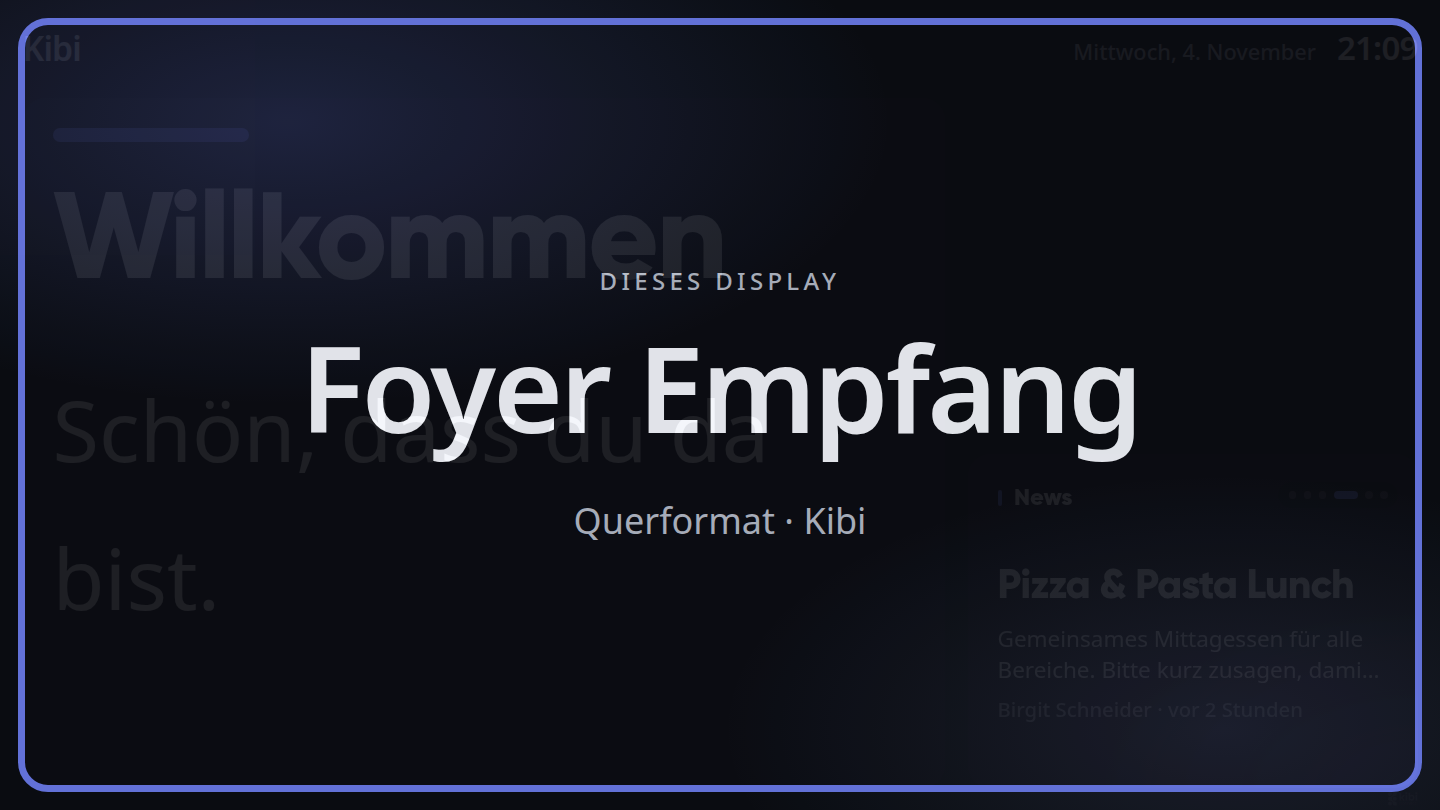
Identify Display: The display shows its name in large letters for 15 seconds. This helps when multiple screens are next to each other.
Disconnect: After a confirmation prompt, the device shows a code instead of the playlist again. You can reconnect it at any time.
All Settings: opens the display's page in the administration.
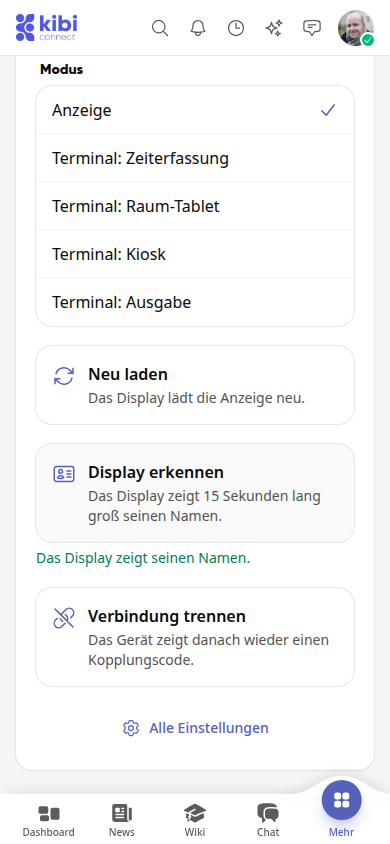
This is what Identify Display looks like on the screen:
Info
A display applies changes via the internet connection. Therefore, it may take a moment before you see them on the screen.
Open remote control directly on the display#
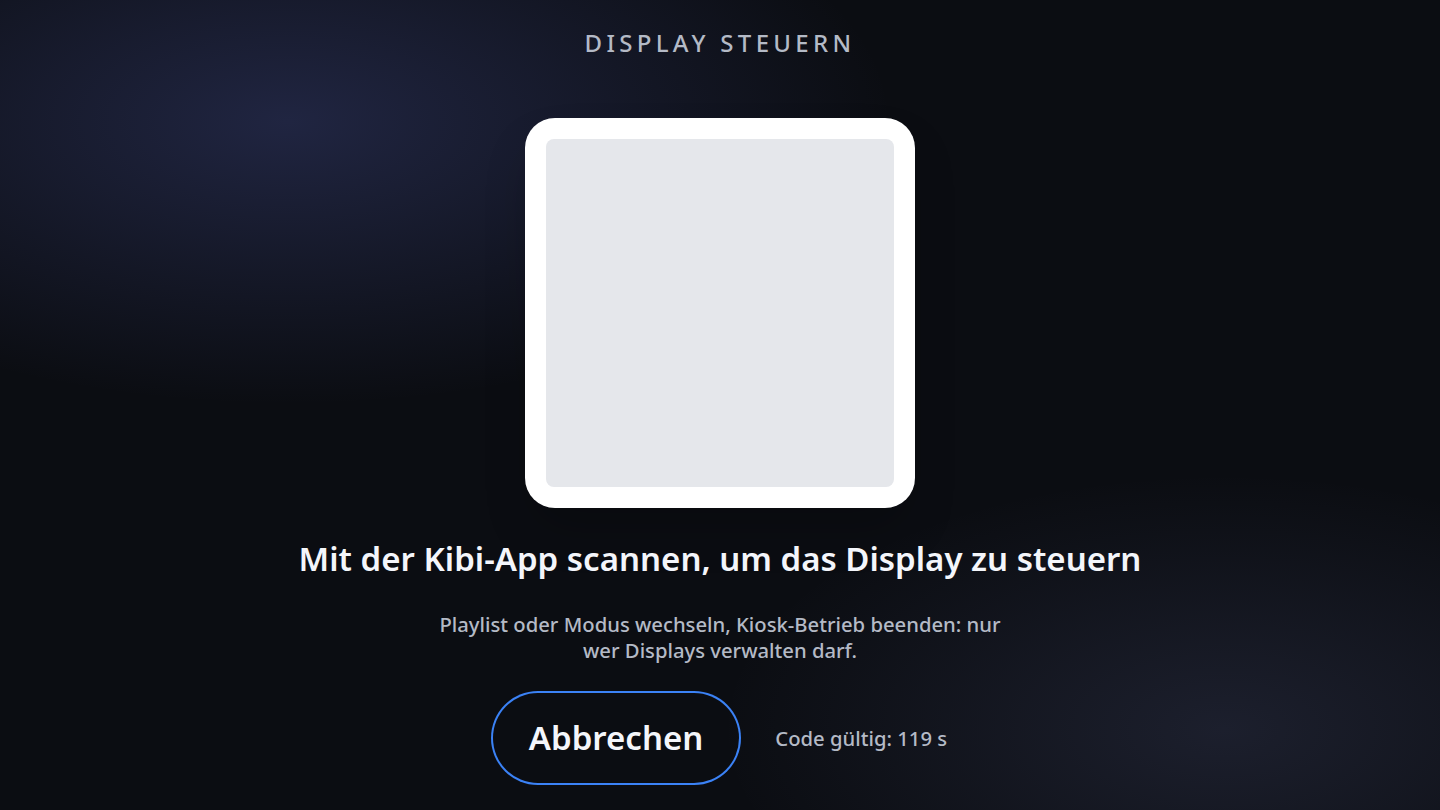
If a connected display is running in the Kibi app's display mode, it shows a QR code after the exit gesture on the device. The code is valid for two minutes and opens the remote control as soon as you scan it with the Kibi app. Cancel closes the prompt again.
Warnung
End Kiosk Mode currently does not work via the QR code: After scanning, the message "The code has expired or has already been used" appears. All other remote control actions are still available. If you need to take a device out of display mode, please contact support.