How do I manage holidays, school holidays, and company holidays?
Updated Reading time: 2 min
On this page
To prevent anyone from scheduling a meeting on a public holiday or during company-wide vacations, you first define which public holidays apply to you and when the entire organization is closed. Kibi will then display these days in all calendars and, if desired, block the rooms.
Info
These settings are available to system admins.
Open Administration → Organization → Calendar and switch to the Public Holidays and Closure Days tab.
Save changes#
Changes on this page only take effect once you save them. As soon as you make a change, the Save button in the top right becomes active. After clicking, it will display Saved again. This applies to all sections of the page, so you can save multiple changes at once.

If you leave the page with unsaved changes, Kibi will ask Discard changes?. Select Continue editing to stay on the page, or Discard to lose the changes.
Set public holidays and school vacations#
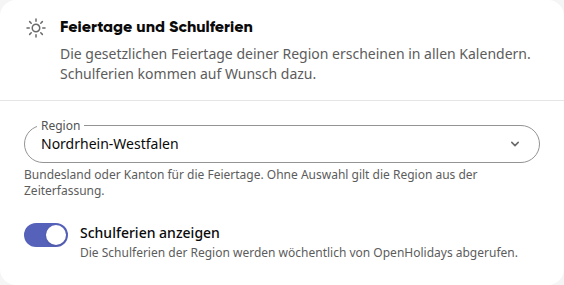
Under Region, select your federal state or canton, for example, "North Rhine-Westphalia". The options include all German federal states, Austrian federal states, Swiss cantons, and other European countries.
Enable Show school vacations if you also want the school vacations for your region to appear in the calendar. Kibi retrieves them weekly.
Click Save in the top right.
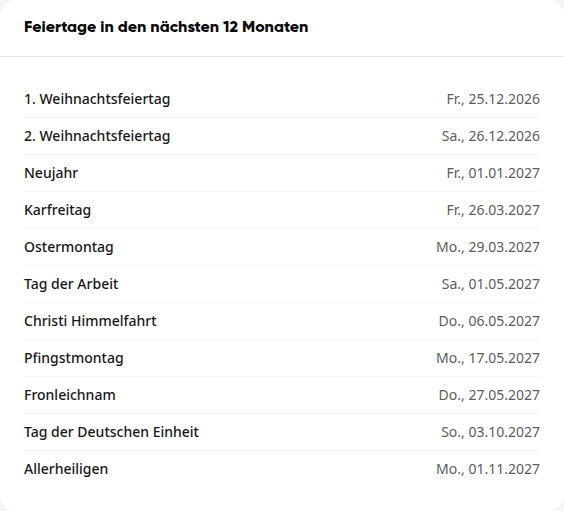
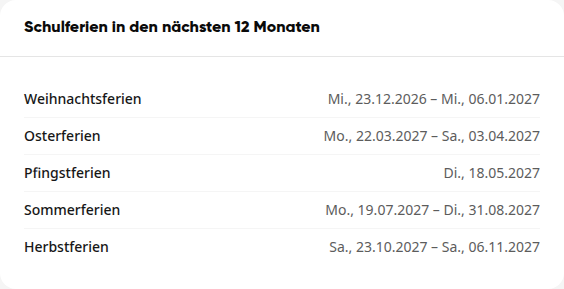
After saving, you will see a preview at the bottom of the page for verification: Public holidays in the next 12 months and School vacations in the next 12 months.
Tipp
School vacations require a region with a federal state or canton. It may take a few minutes after saving for them to appear in the preview.
Enter company vacations and bridge days#
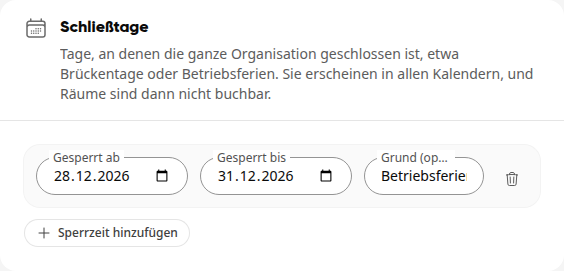
Closure days are days when the entire organization is closed.
In the Closure Days section, click Add block period.
Enter Blocked from and Blocked until. For a single bridge day, use the same date for both.
Under Reason (optional), specify why the organization is closed, for example, "Company vacations between the years". This text will later appear in the calendar.
Click Save in the top right.
You can remove a block period using the trash can icon next to it. This change also only takes effect after clicking Save.
Block rooms on public holidays and during vacations#
Rooms are always blocked on closure days. For public holidays and school vacations, you decide in the Rooms section:
Closed on public holidays: Rooms cannot be booked on public holidays.
Closed during school vacations: Useful for schools and daycare centers, for example.
You can only select these options once a region is set. Click Save afterward.
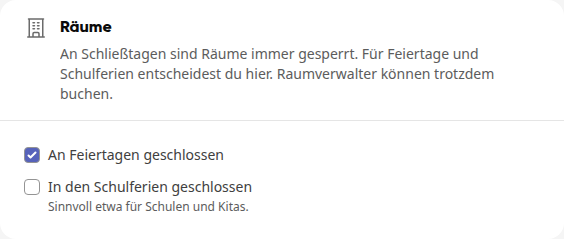
People who manage rooms can still make bookings.
Set workweek#
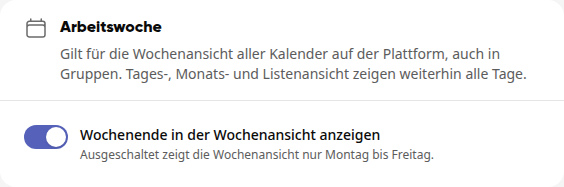
In the Workweek section, you define whether the weekly view of all calendars on the platform shows the weekend. If you disable Show weekend in weekly view, the weekly view will only display Monday to Friday. The day, month, and list views will still show all days. Click Save afterward.
How it appears in the calendar#
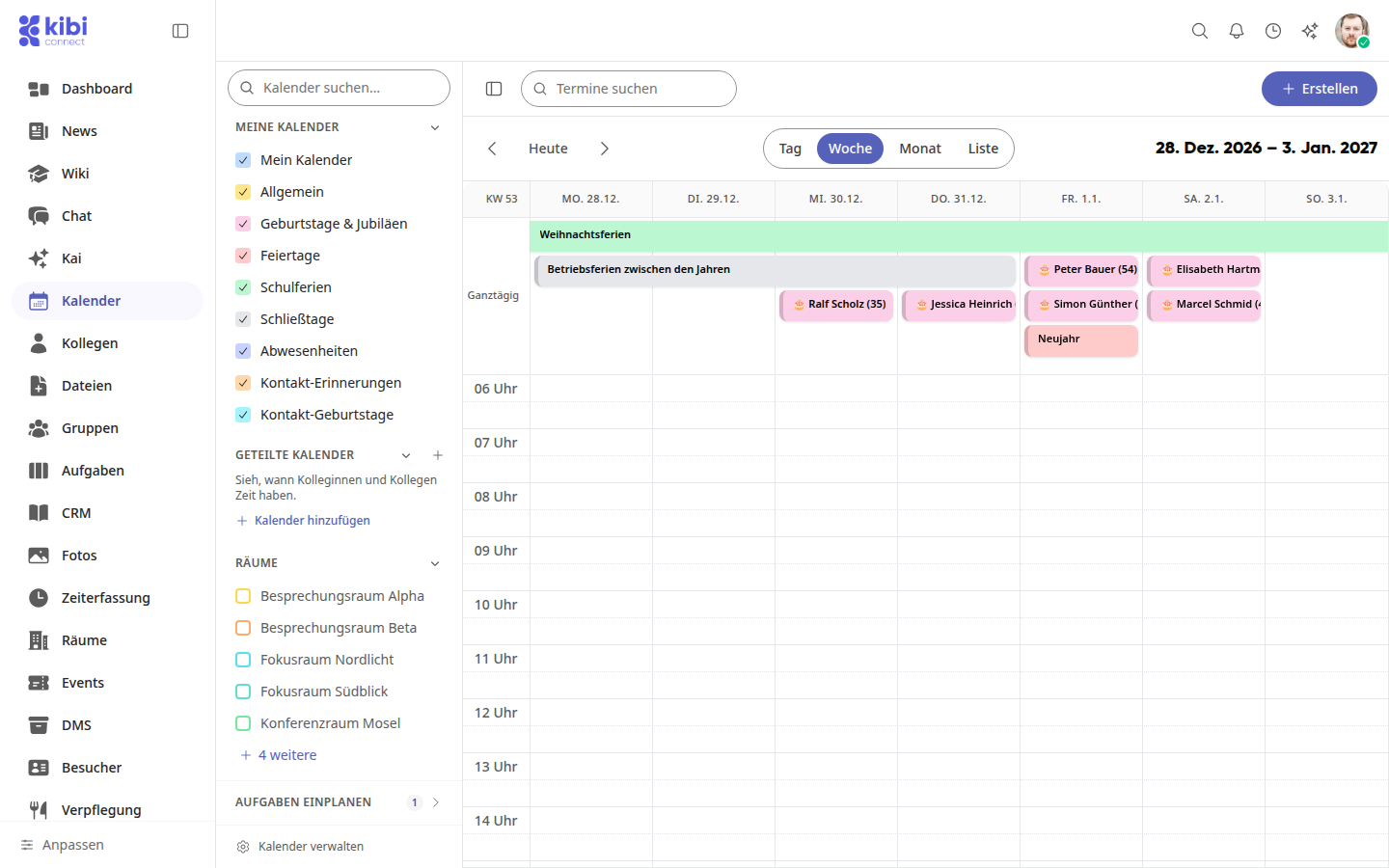
Public holidays, school vacations, and closure days appear for everyone in the calendar as all-day events. In the sidebar, they are listed under My Calendars as Public Holidays, School Vacations, and Closure Days; each person can hide them there if desired.