
How do I publish the duty roster?
Updated Reading time: 2 min
On this page
As long as you are planning, only the planners of a department can see the draft. Only when you publish the schedule will employees see their shifts, and each person receives a message with exactly their changes.
Info
You can publish in any department where you have the role Planner.
What is not yet published#
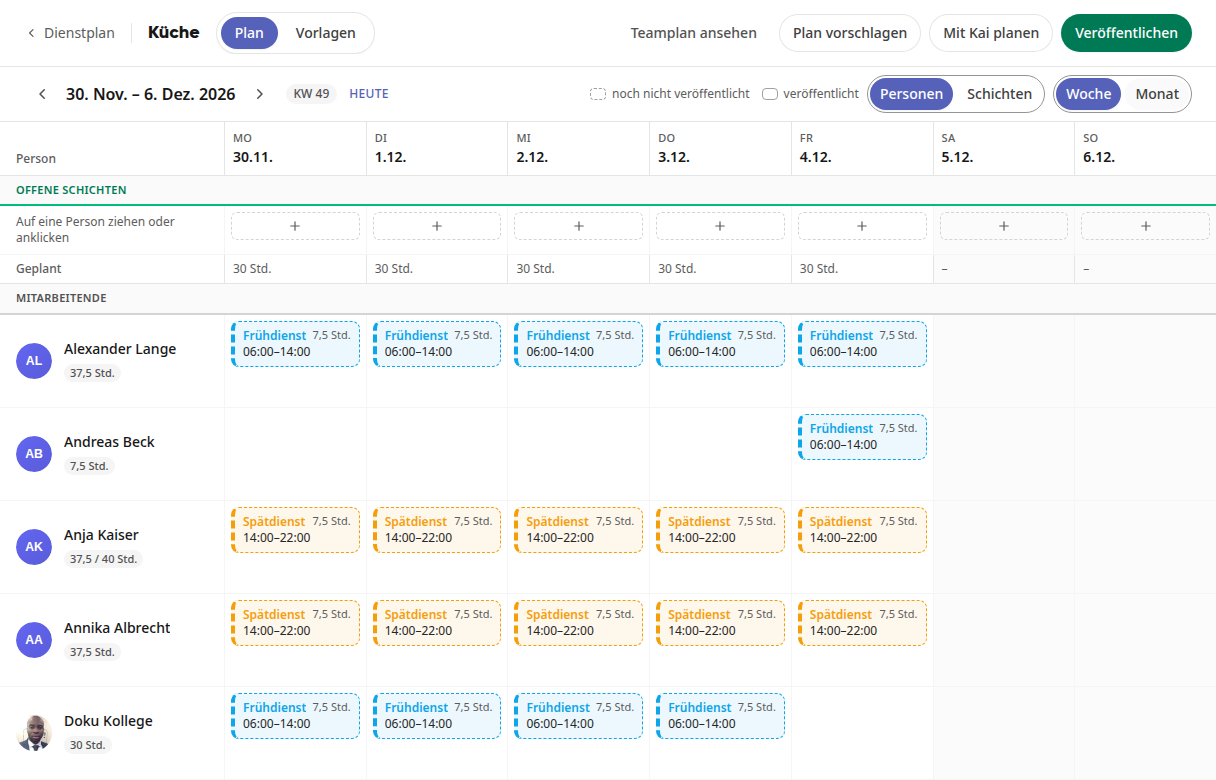
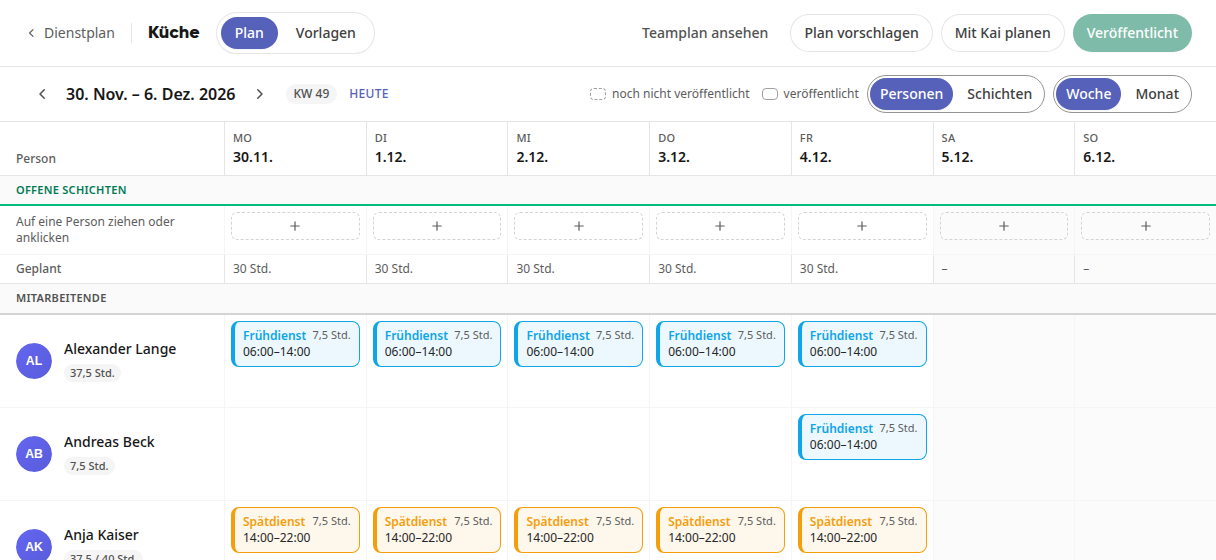
In the plan, you can recognize drafts by their dashed border. Published shifts have a solid border. The button at the top right shows the status:
Button | Meaning |
|---|---|
Publish | The week has never been published. |
Publish changes (2) | Shifts have changed since the last publication, here two. |
Published | All employees see the current status. |
Publishing the Plan#
Open the area's plan in the schedule and select the week.
Click Publish or Publish changes at the top right.
The Publish schedule window shows who receives a message and what changes for that person, for example "new: Mon 30.11. Early shift 06:00–14:00".
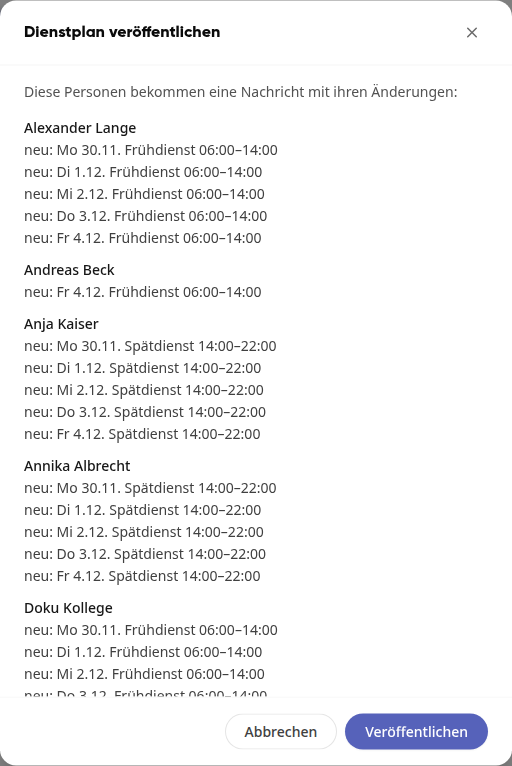
Click Publish.
The shifts now have a solid border and the button shows Published.
Warning
The window points out understaffed shifts and assignments that go against a request or a working time rule. Publishing is still possible. Check these shifts beforehand.
Changes after Publishing#
If you change a published plan, for example because someone is sick or you have adopted a suggestion, employees will only see the change after the next publishing.
Click on Publish changes.
The window only shows the people for whom something changes. New shifts are marked with "new", removed ones with "removed", moved ones with "relocated", changed times with old and new time.
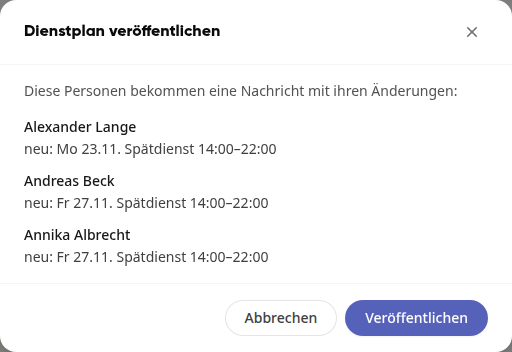
Click on Publish.
People whose shifts remain the same do not receive a message. Changes to days that have already passed are marked with "only past days, no message".
What employees receive#
Each affected person receives a notification in the bell and, if they have allowed push notifications, on their devices:
After the first publication of a week: Shift schedule Kitchen – "Your shift schedule for KW 49 has been published."
For later changes, the changes themselves are included in the message; if there are more than three changes, only their number is shown.
With Open shift schedule, the person goes directly to My shift schedule.
Info
Notifications follow the person's notification settings, such as their working hours and "Do not disturb". Outside of these, the message arrives later. If a changed shift begins earlier, the message arrives immediately.