
How do I approve or reject absences?
Updated Reading time: 2 min
On this page
In the administration, you can see all open absence requests and decide on them with just a few clicks.
Info
This function is available to HR managers.
Open pending requests#
Click on your profile picture in the top right corner and then on Administration.
In the sidebar under HR / Personnel, click on Time & Absences.
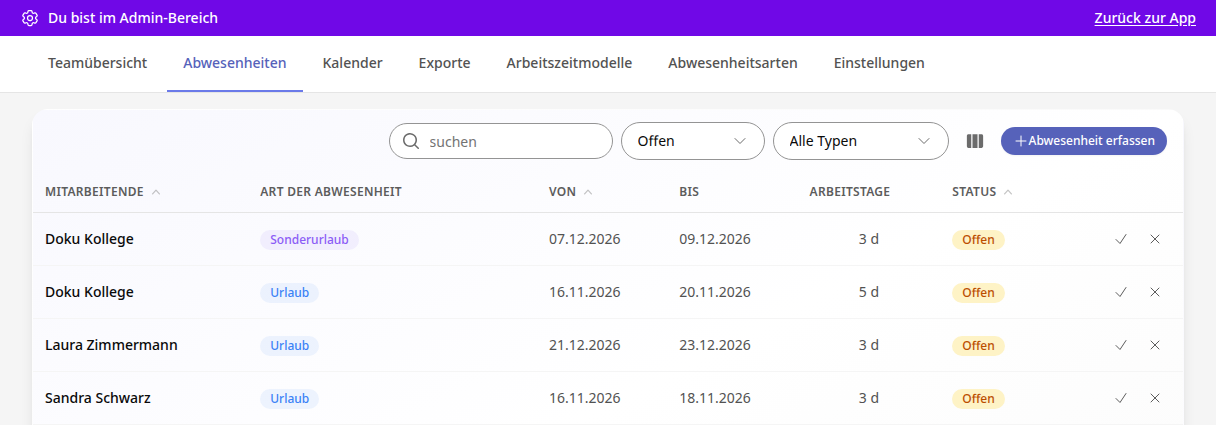
Switch to the Absences tab.
The list opens with the status Open. You can see who has requested which type of absence for which period and how many working days it covers.
Info
Types that do not require approval do not appear here as open. They are approved immediately, for example, often Sick.
Approve request#
In the request row, click on the checkmark (Approve).
If needed, enter a note for the person.
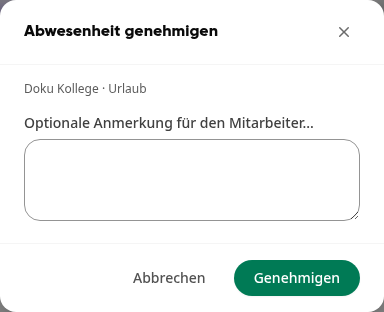
Click on Approve.
The request disappears from the Open view and now has the status Approved. The person will be notified and will receive your note.
Reject request#
In the request row, click on the X (Reject).
If needed, enter a note. The field is optional, but a brief explanation will help the person.
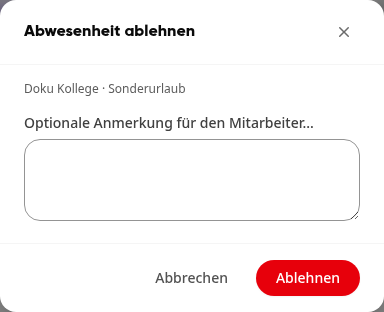
Click on Reject.
The request now has the status Rejected. The person will also be notified here.
Find requests and modify them retroactively#
-
Filter: Use the Open field to switch to All, Approved, Rejected, Canceled, or Draft. Next to it, filter by type of absence. Use search to find individual people.
-
Modify: Click on a row to open Edit absence. There you can adjust the type, period, and note, and save with Save changes. With Delete absence, you remove the entry.
-
Enter manually: With Record absence, you can directly enter an absence for a person. The status is preset to Approved.
-
Plan in calendar: In the Calendar tab, you can see all absences at a glance. You can recognize open requests there by the addition requested when you hover over the bar.
Info
If you want Kai to prepare a note for you for each new vacation request, for example about overlaps in the team, the administration can set up a workflow with the trigger Vacation requested. Kai does not make decisions here; the approval remains with you. More on this in "How do I set up a workflow?".