How do I change the fleet settings?
Updated Reading time: 2 min
On this page
In the fleet settings, you define who is responsible, which rules apply when booking, and which functions your team uses.
Info
This function is available to system administration.
Open and save settings#
Click on Administration in the navigation and then on Fleet under Organization.
Open the Settings tab.
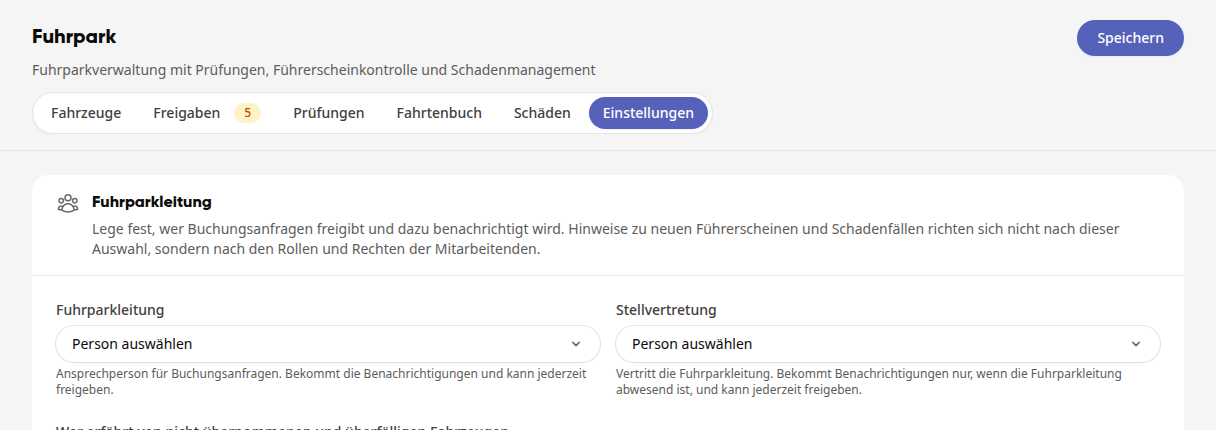
Change what you need and click Save at the top right of the page. The button remains visible when scrolling. After saving, it will display Saved.
If you leave the page with unsaved changes, the platform will ask: Continue editing takes you back, Discard discards the changes.
Define fleet management#
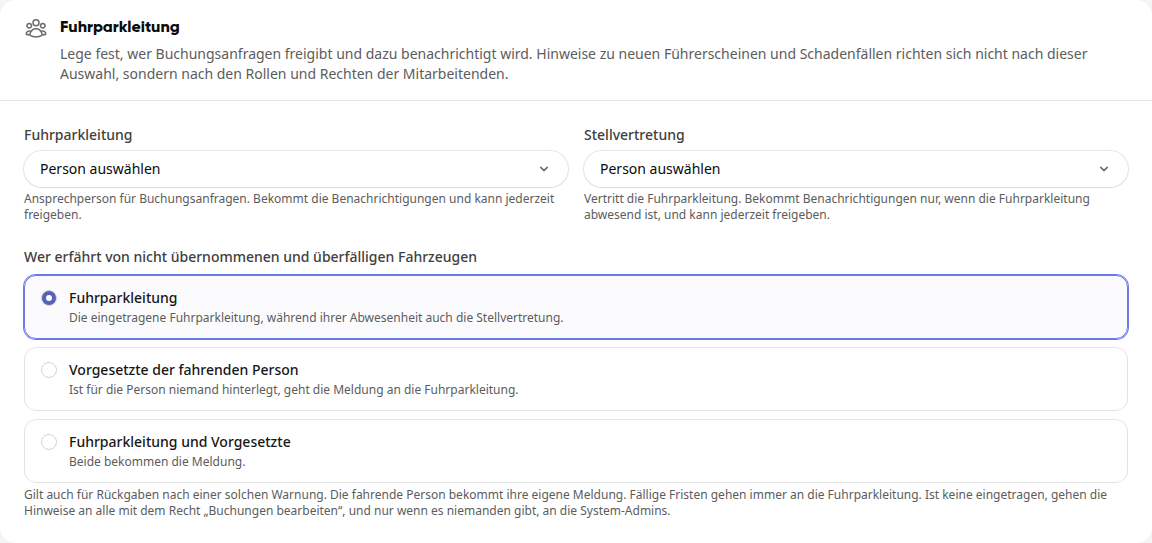
Under Fleet Management and Deputy, select the responsible persons. The deputy only receives notifications if the fleet manager is absent. Both can approve at any time.
Under Who is notified about unassigned and overdue vehicles, choose between Fleet Management, Supervisor of the driver, or Fleet Management and Supervisor.
Info
Notifications about new driver's licenses and damage cases are not based on this selection but on the roles and permissions of the employees.
Set booking rules#
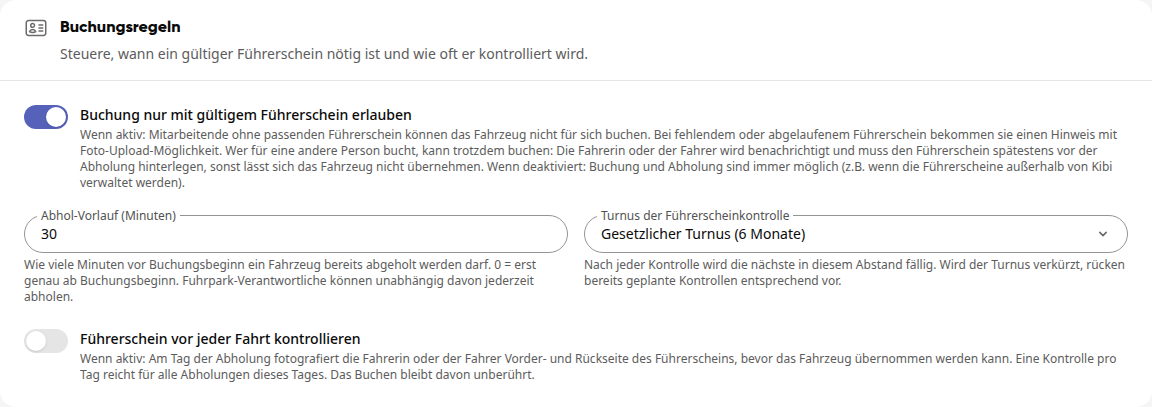
Allow booking only with a valid driver's license: Employees without a suitable driver's license cannot book the vehicle for themselves.
Pickup lead time (minutes): This is how many minutes before the booking starts a vehicle can be picked up. If set to 0, this is only possible exactly at the start of the booking.
Driver's license check cycle: The legal cycle or a shorter interval. After each check, the next one is due at this interval.
Check driver's license before each trip: On the day of pickup, the driver photographs the front and back of the driver's license before they can take over the vehicle.
Enable booking approval#
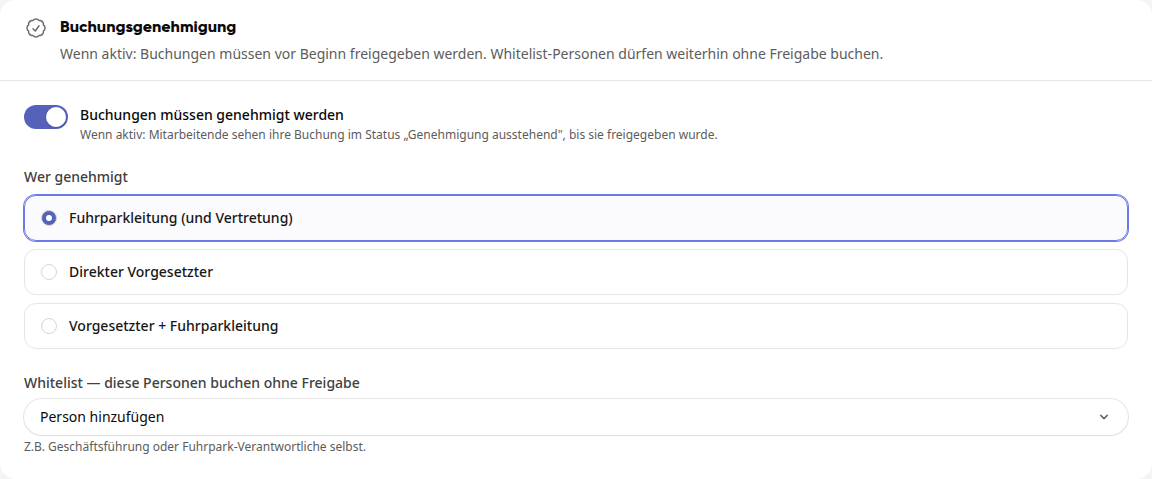
Enable Bookings must be approved if bookings should be approved before they start. Employees will then see their booking in the status "Approval pending" until it has been approved.
Under Who approves, choose: Fleet Management (and Deputy), Direct Supervisor, or Supervisor + Fleet Management.
Under Whitelist — these people book without approval, add everyone who is allowed to book without approval, for example, the management.
Enable and disable functions#
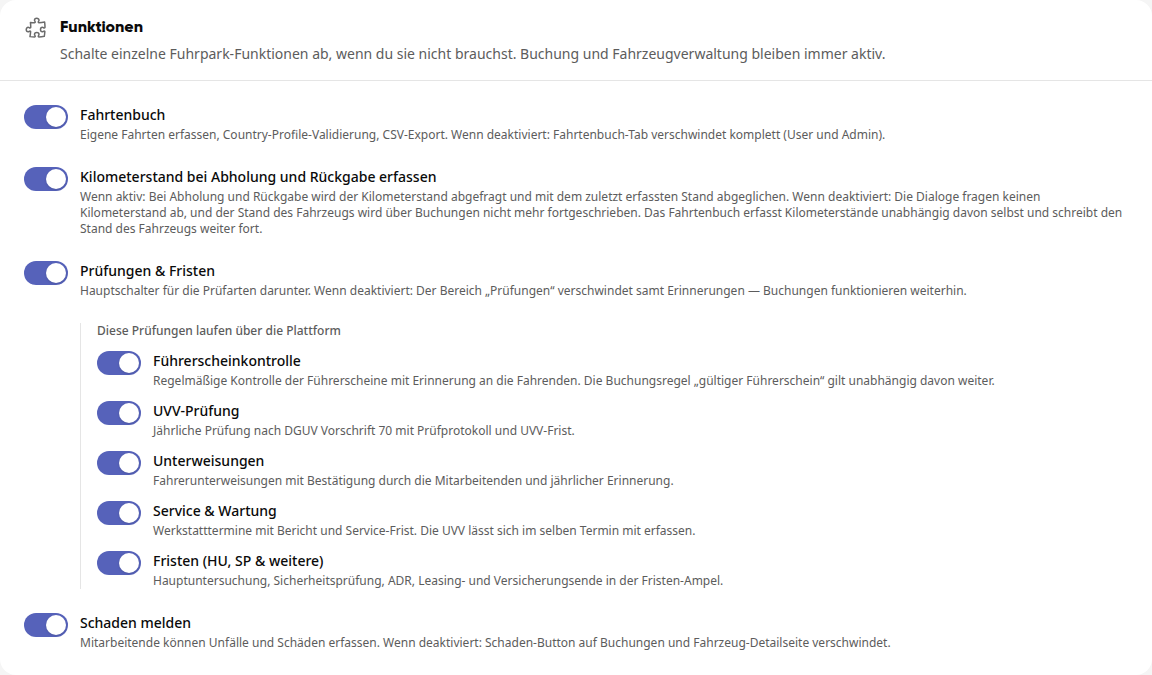
Under Functions, disable what your team does not need. Booking and vehicle management always remain active.
Logbook: Without this function, the "Logbook" tab disappears for everyone.
Record mileage at pickup and return: Asks for the mileage at pickup and return.
Inspections & Deadlines: The main switch for Driver's license check, UVV inspection, Instructions, Service & Maintenance, and Deadlines (MOT, SP & others). Without it, the "Inspections" section, including reminders, disappears, but bookings continue to work.
Report damage: Employees can record accidents and damages.