How do I write to the participants of an event?
Updated Reading time: 2 min
You send a message to the participants of your event, immediately or at a scheduled time, for example the reminder the day before. You choose who receives it and can start with a template.
Info
Anyone who created the event or is part of the event's organization can write messages. As an employee, you do not need a special role for this: it is sufficient if the organization adds you under Master data in the Organization tab.
Write message#
Click on Events in the menu and open the event.
Click on Manage at the top right and then on the Messages tab.
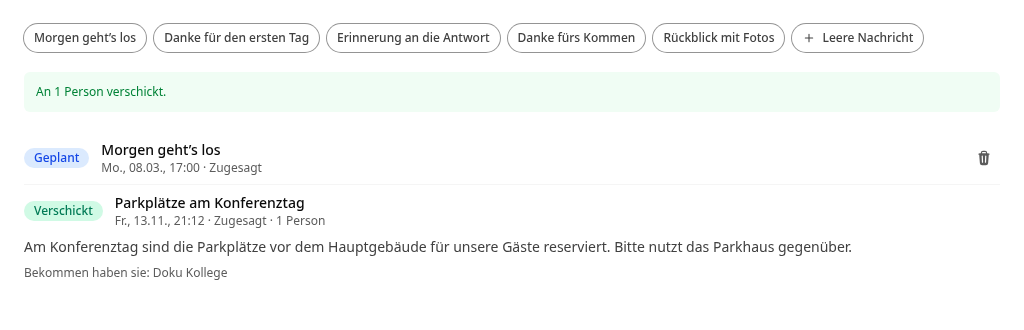
Select a template or Empty message at the top:
It starts tomorrow: reminder the day before
Thanks for the first day: for multi-day events
Reminder to respond: to everyone who has not responded yet
Thanks for coming: after the event
A template pre-fills Subject and Message and sets suitable recipients and a suitable sending time. You can adjust everything. In addition, Review with photos opens a separate form for the review after the event.
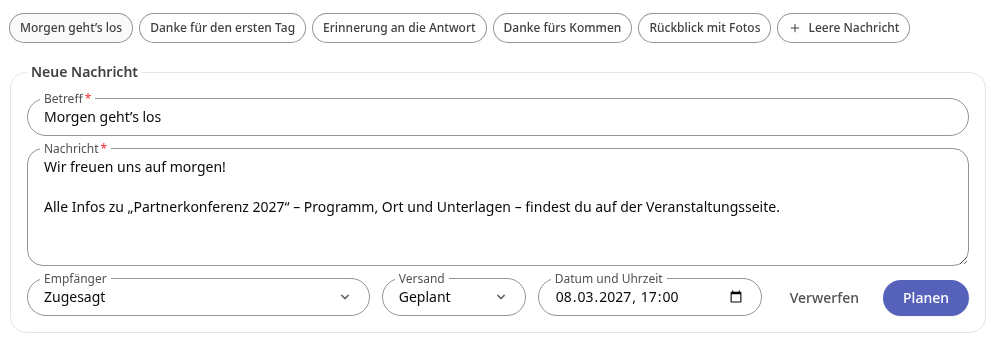
Check Subject and Message and adjust them.
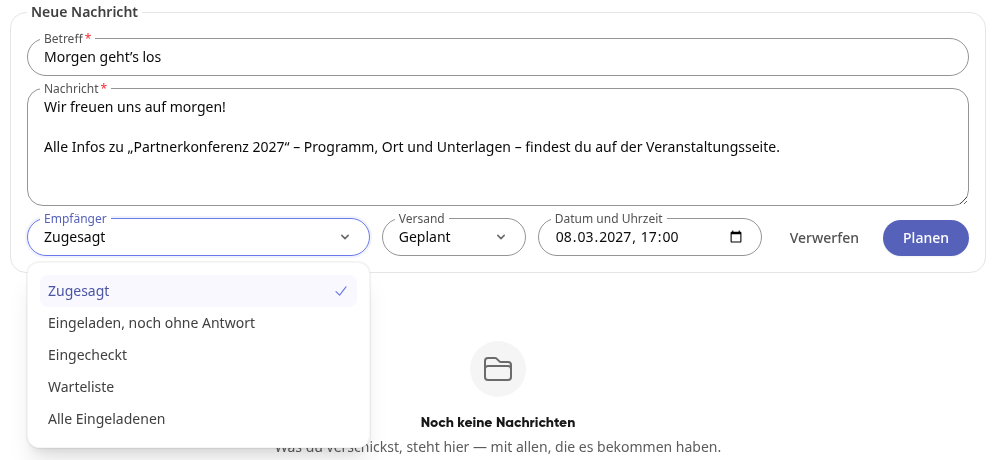
Under Recipients, select who receives the message:
Accepted
Invited, no response yet
Checked in
Waiting list
All invited
Send immediately#
Set Send to Immediately.
Click on Send now.
Confirm the prompt "Send message now?" with Send now.
At the top, you will see how many people the message was sent to, for example "Sent to 1 person." If no one is currently in the selected group, you will instead see a notice that the message was not sent to anyone.
Info
Colleagues receive the message in the platform and by email, external guests by email.
Plan for later#
Set Send to Scheduled.
Under Date and time, enter when the message should go out.
Click on Schedule.
At the top, for example, "Scheduled for Mon., 03/08, 5:00 PM" appears. The recipients are only determined at the time of sending: anyone who confirms by then will also receive the message. If you cancel the event, nothing will be sent.
With Discard, you cancel a message that you have not yet sent or scheduled.
Viewing sent and scheduled messages#
Below the form, all messages for the event are listed:
Scheduled: with time and recipients. Use the trash can icon (Withdraw scheduled message) to take it back as long as it has not been sent yet.
Sent: with time, recipients, and number of people. Click on the message to see the text and the names of everyone who received it ("They received: …").