
How do I view my group's working hours?
Updated Reading time: 1 min
On this page
Members can assign their working time to a group when they arrive, for example to a project or a department. As an admin of the group, you can see in the Time Tracking tab how many hours have been booked per person for the group, and download the evaluation as a PDF.
Info
The evaluation can be viewed by the group admins as well as HR managers and system administrators. A prerequisite is that you are allowed to use time tracking.
Enable time tracking for the group#
Open Groups and click on your group.
Click on Edit (pencil icon) in the top right.
Under Active Areas, enable the Time Tracking area. This also sets Counts as Working Time under Times. The change is saved immediately.

Close the window. The Time Tracking tab will now appear in the group.
Book time to the group#
Members assign their working time to the group when they arrive:
Open Time Tracking.
Under the Arrive button, select the desired group instead of Without Group.
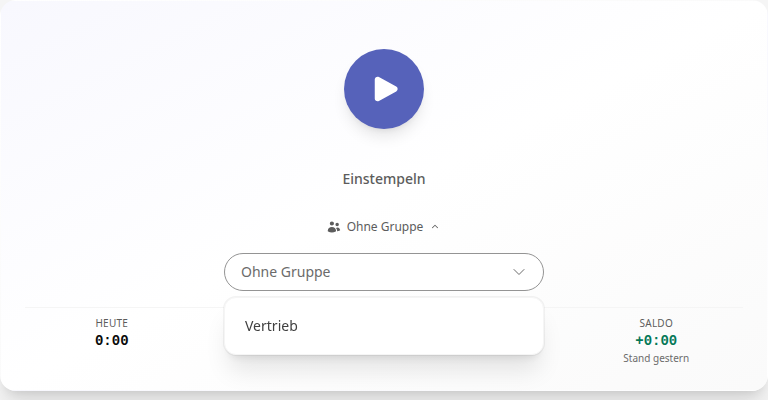
Click on Arrive. When leaving, the time will be credited to the group.
View project times of the group#
Open the group and switch to the Time Tracking tab.
Under Project Times, you can see the total time in the period, the comparison to the previous period, and the hours of each person with bookings.
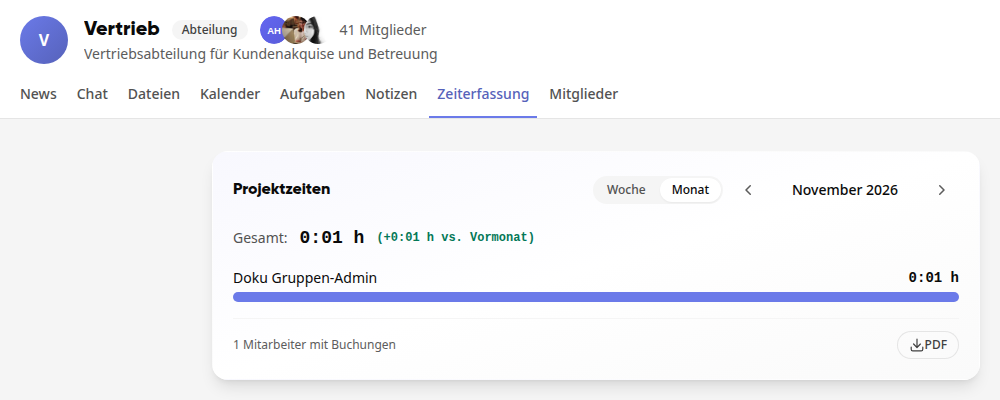
Switch between Week and Month and use the arrows to navigate to earlier periods.
Click on PDF to download the evaluation of the displayed period.
Tipp
Only completed bookings are counted. Anyone currently on duty will only appear once the departure has been booked.