
How do I send a recap with photos to the participants?
Updated Reading time: 2 min
On this page
After an event, you send a few closing words to all attendees along with the photos and documents. Participants can also find the recap afterwards on the event's page.
Info
Anyone who created the event or is listed in the event's organization can send a recap. An event you are co-organizing can be found under Events in the My filter, even if it has already ended.
Upload photos#
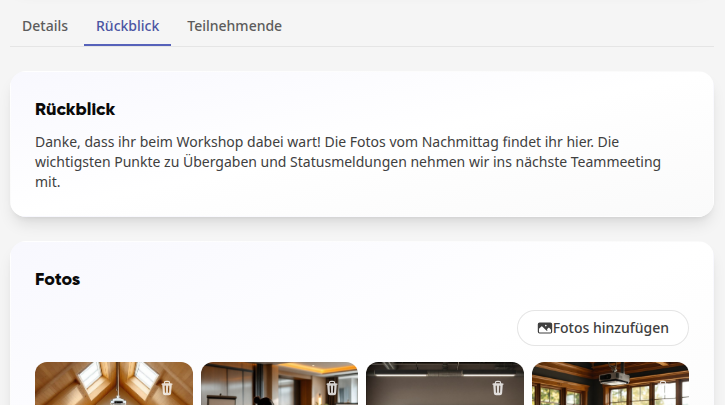
Open the event and click on the Recap tab. The tab appears as soon as the event has started.
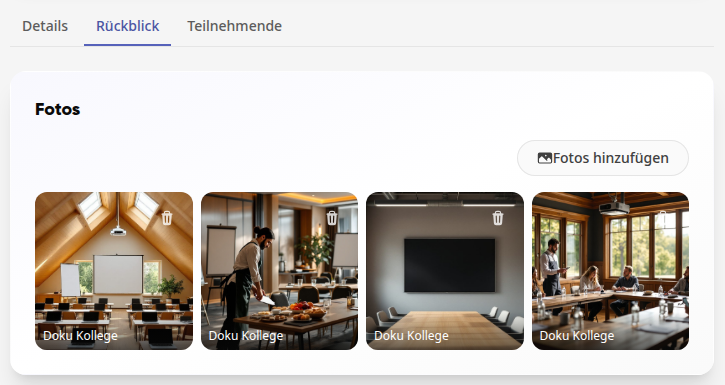
Click on Add photos and select the images. Under each photo, it shows who uploaded it.
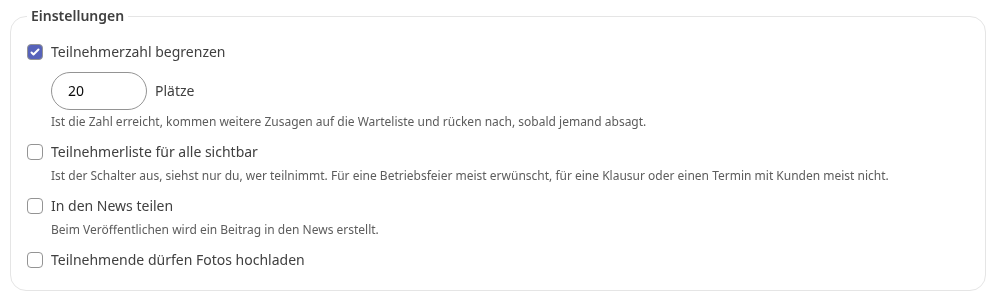
If you also want participants to contribute their photos, click on Manage and, in the Master data tab under Settings, check the box for Participants may upload photos. Then everyone who has confirmed can add photos in the Recap tab during the event.
Send recap#
On the event page, click on Manage and open the Messages tab.
Click on the Recap with photos template. The Send recap section opens below it.
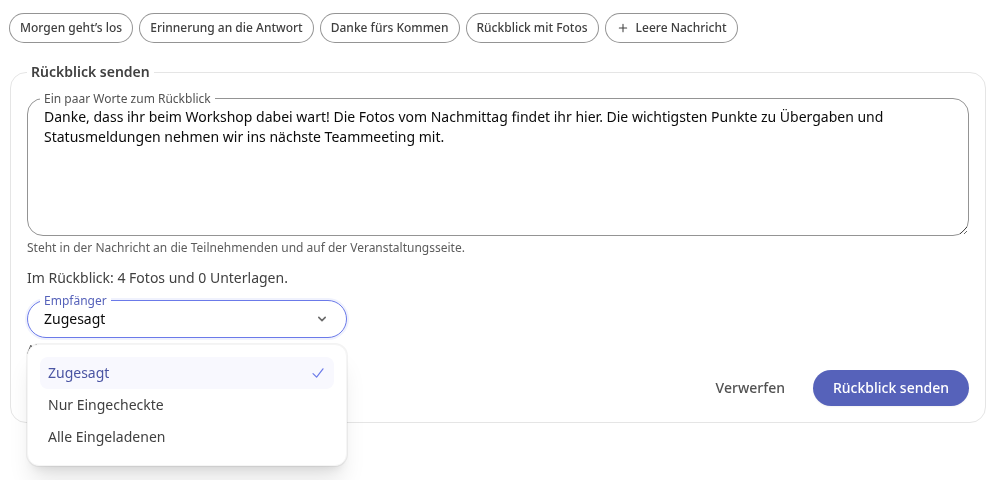
Under A few words about the recap, write your text, for example a thank you and the key results. The text appears in the message and on the event page. Below that, you can see what will be included, for example In the recap: 4 photos and 0 documents.
Under Recipients, choose who receives the recap:
Confirmed: everyone who confirmed or checked in.
Only checked-in: only those who checked in at the entrance, meaning they were actually there.
All invited: all invited and registered people, except those who declined.
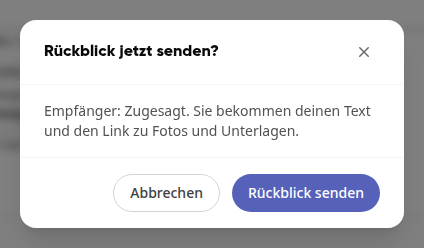
Click on Send recap and confirm the prompt Send recap now? with Send recap.
Kibi shows you how many people received the recap, for example Sent to 17 people., and next to it Last sent on with date and time.

With Discard, you collapse the section again without sending anything. Kibi still keeps your text.
Tip
First upload all photos and documents, then send the recap once. You store documents under Manage in the Files tab. You write further messages to participants, such as a reminder before the event, in the same Messages tab using the other templates.
Important
You can send the recap a second time no earlier than ten minutes later. Before that, the notice The recap was just sent. Try again in a few minutes. appears.
What participants receive#
Colleagues receive the recap as a notification in the platform and by email; guests without a Kibi account receive it by email with a link to their event page. Colleagues land directly on the Recap tab of the event via View recap. There, your text and the photos below it are displayed.
Info
Only people who belong to the event can see the photos: the organization and everyone who has accepted, responded with "Maybe," or is on the waiting list.