
How do I form a company group in the CRM?
Updated Reading time: 2 min
On this page
When several companies belong together, such as a holding company with its subsidiaries or locations, you assign them to a parent company in the CRM. At the parent company, you then see the entire group at a glance: all companies, open deals, activities, and logs.
Assign a company to a parent company#
In the CRM, open the company that belongs to a group, for example a location or a subsidiary.
In the Assignment card, click in the Belongs to field and search for the parent company by its name.
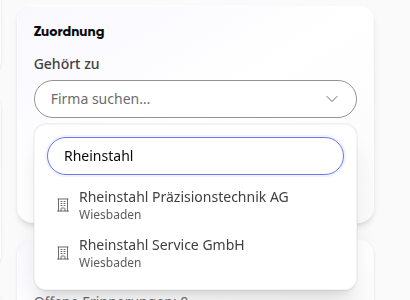
Select the parent company. The assignment is saved immediately. At the top under the company name, Part of the group now appears with a link to the parent company.
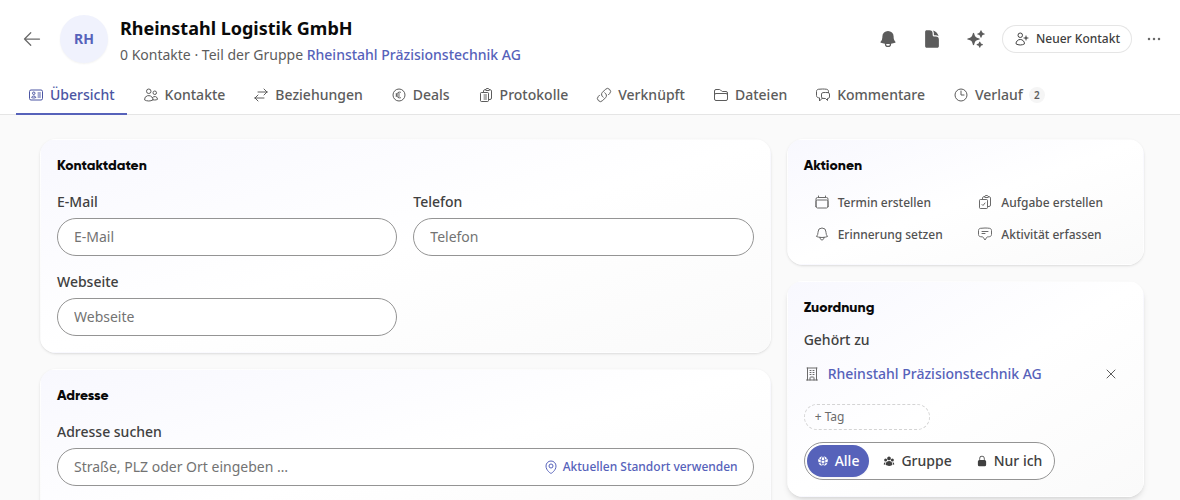
To remove the assignment, click the X next to the parent company in the Belongs to field.
Info
You can change the assignment for companies you are allowed to edit, for example companies you created yourself. A group can have multiple levels, such as holding, national company, and location, but at most ten.
View group at the parent company#
Open the parent company, for example via the Part of the group link on one of its companies. Below the name, you can see how many companies belong to the group.
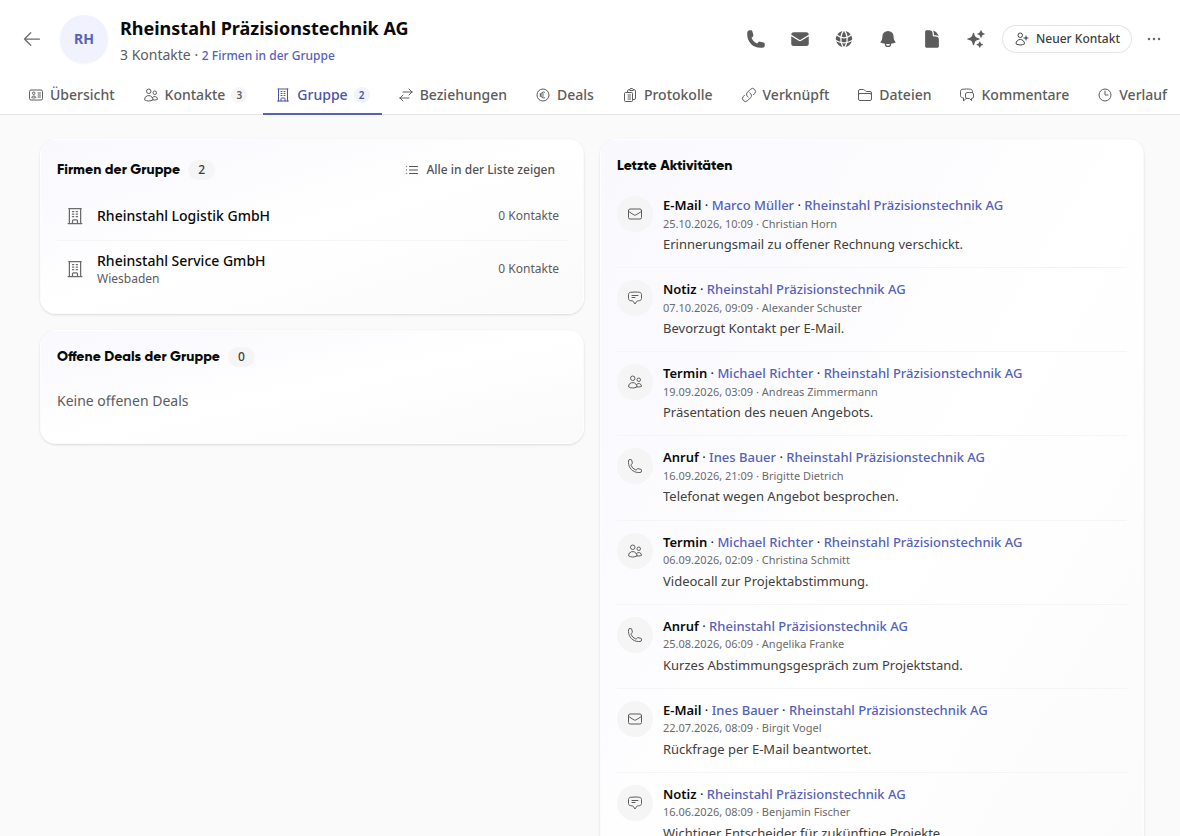
Click on the Group tab. You will see:
Companies in the group with the number of their contacts; a click opens the company,
Open deals of the group,
Recent activities of all companies in the group, each with the company and contact person,
the group's logs.
Tip
The tab only shows companies, deals, and entries that you are allowed to see.
Filter list by company group#
In the Group tab, click on Show all in list in the Companies in the group card.
The list in the CRM now shows all companies and contacts in the group. At the top is the Company group filter with the name of the parent company.
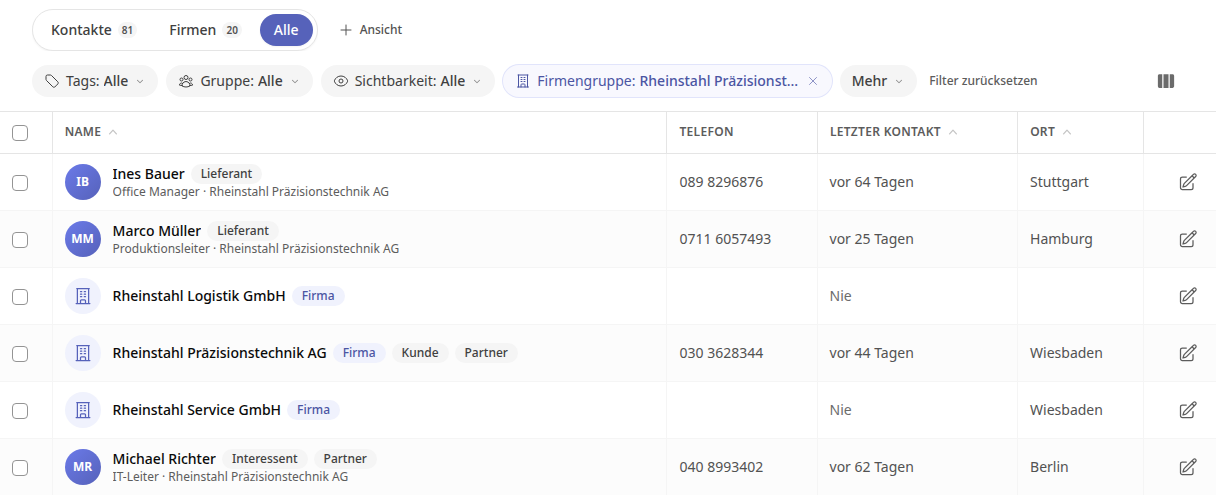
To see all entries again, click the X on the filter or Reset filter.