
How do I check the deletion log of the DMS?
Updated Reading time: 2 min
In the deletion log, you can see in an audit-proof manner which DMS documents have been permanently deleted, when, by whom, and for what reason.
Info
The deletion log is available to system administration. You can find it in the administration under Organization > DMS.
Open deletion log#
Open DMS in the administration.
Click on the Deletion log tab. The most recent entries are at the top.
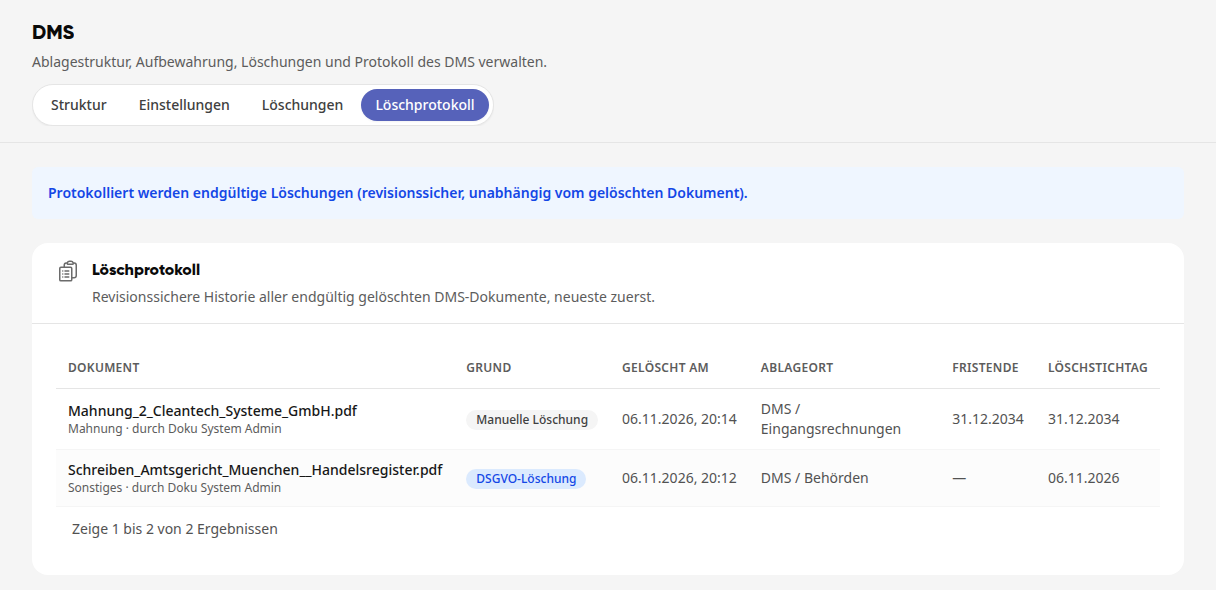
Check the entries in the table. The columns are explained below.
The entry remains even though the document itself has been deleted. You can only read the log. If there are no entries yet, it will say No deletions logged yet.
What the columns mean#
Column |
What it contains |
|---|---|
Document |
File name, below it the document type and who deleted it |
Reason |
GDPR deletion or Manual deletion |
Deleted on |
Date and time of permanent deletion |
Storage location |
Folder where the document was stored |
Retention period end |
End of the retention obligation; a dash means no period applied |
Deletion date |
Scheduled deletion date for the document; a dash means none was set |
The reason shows you where it was deleted:
GDPR deletion: The document was permanently deleted in the administration under the Deletions tab.
Manual deletion: The document was permanently deleted under Files in the Recycle Bin.
Wichtig
Only permanent deletions are logged here. Moving to the Recycle Bin as well as opening or downloading a document do not appear in the deletion log.
View changes to an individual document#
Open DMS in the navigation and click on the document.
In the preview, click on the History tab. Under Document history, for example, Retention changed with timestamp and person is listed.
