
How do I create my own Kai agents?
Updated Reading time: 19 min
On this page
- Starting a conversation with an agent
- Addressing an agent by name
- Hiding agents in the car
- Terms
- Adopting an agent from a template
- Area, Start Type, and Search
- What every template includes
- Templates with workflow or module
- Templates that check and summarize on their own
- Creating your own agent
- The Editor Tabs
- Working with Kai on the agent
- Advanced: Kai Chat, Kibi Buddy, and Car
- Testing an agent in trial run
- Skills
- Which data an agent may read
- Select areas via skills
- Narrow down further
- Approvals
- Mandatory steps
- What always applies
- Status: Draft, Active, Off
- Editing or deleting your own agent
- Release Overview and History
- Agents in the Workflow
- Starting agents from a mail rule
- Enhancing system agents with your own instructions
An agent works independently like a person: with its own role, task, and rules. To do this, it uses skills. If you select an agent in a conversation, you speak directly with it, and it responds under its own name. Its instructions state who it is, what it does, and what it adheres to. The skills indicate what it can do and with what.
Info
Only those with the right to manage agents, typically system administrators, can create, modify, and delete agents. Employees see the agents that are available to them in the Agents & Skills tab and start conversations with them there.
Starting a conversation with an agent#
Open Kai in the navigation and switch to the Agents & Skills tab. The agents you are allowed to use are listed at the top. With Agents you hide the skills.
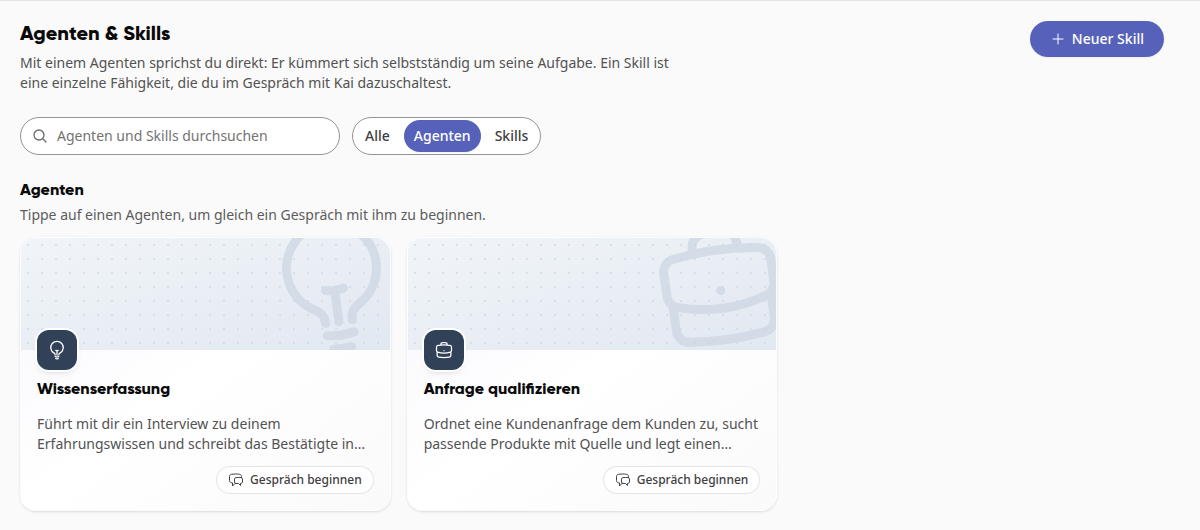
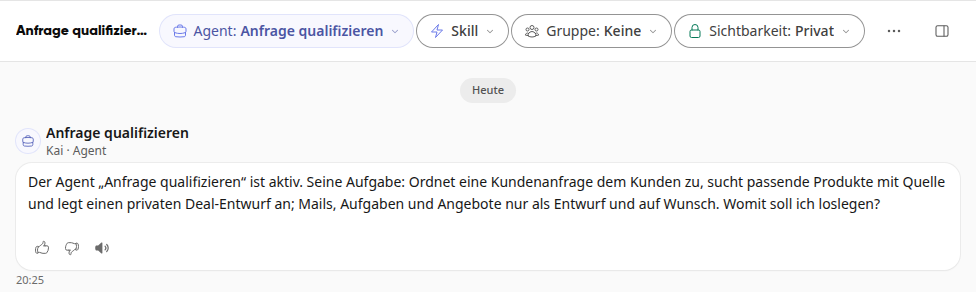
Click on Start conversation on the agent's card. A new conversation opens, with Agent: and the agent's name at the top.
The agent greets you with its welcome message. If it does not have one of its own, it states its task and asks what it should start with. Its answers carry its name, with Kai · Agent below. This applies even while it is still typing.
Write your message.
In an ongoing conversation, you select an agent at the top via the Agent button or address it in your message. Agents also start in workflows and from mail rules, see below.
Addressing an agent by name#
You can bring an agent directly into your message, even in the first message of a new conversation:
With @: Type @ and the name or abbreviation, for example
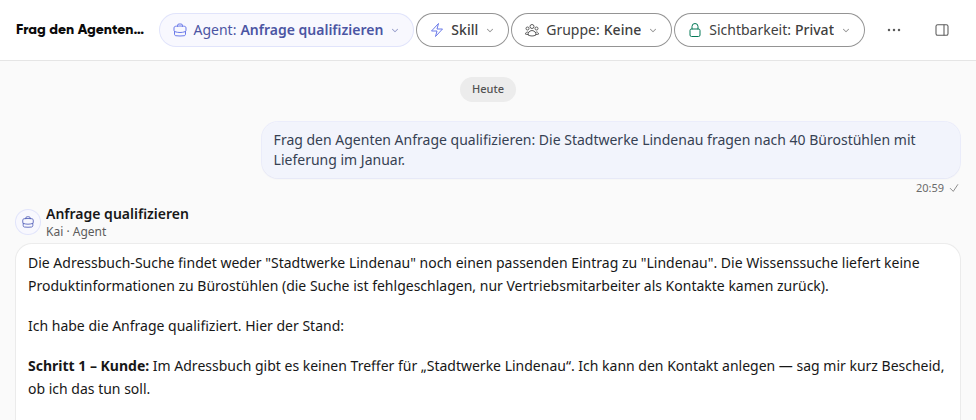
@Qualify requestor@invoicecheck. Kai suggests matching agents after @, both in an ongoing conversation and on the start page of a new conversation.In normal words: for example "Ask the agent Qualify request: …", "Use the agent …" or "Ask the room keeper, …".
Kai brings the agent into the conversation, Agent: with its name appears at the top, and the agent responds under its own name.
If there are several agents with similar names, for example "Room keeper" and "Room keeper (2)", Kai does not assign any of them. It tells you the matching agents, and you say which one you mean. If Kai cannot find an agent with that name, it tells you so openly.
Info
This way you can only reach agents you are allowed to use. In a shared conversation, only the person who owns the conversation can bring an agent into it. The name "Kai" always means Kai itself, never an agent.
Under Automations, the Agents & Skills tab lists the workflows that assign an agent. With the Automations filter next to the search field, you show only them, see How do I find automations in Kai's library?.
Hiding agents in the car#
Agents for which the Offer in CarPlay toggle is enabled in the Advanced tab of the editor appear in Kibi in the car for anyone allowed to use the agent. For new agents, it is enabled. For yourself, you can hide individual ones:
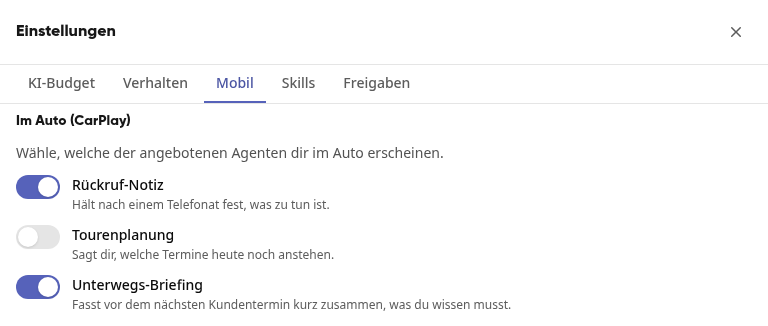
Open Kai in the navigation and click the gear icon next to New conversation in the Conversations tab.
Switch to the Mobile tab.
Under In the car (CarPlay), turn off the agents you don't need in the car. The change is saved immediately and applies only to you.
Info
At most 6 agents appear in the car, sorted by name. If you turn one off, the next one moves up. If your company does not offer agents in the car, this is indicated there. If your company's REST API is disabled, Kai does not respond in the car; the tab also points this out.
Terms#
Term | Meaning |
|---|---|
Agent | Works independently like a person, with its own role, task, and rules. Whoever selects it in the conversation speaks directly with it. |
Instructions | A text in five parts: who the agent is, what it does, with which data, which rules it follows, and what its response looks like. |
Skill | An ability of the agent: an instruction, a tool, or both. |
Instruction | How the agent does something, in plain language. |
Tool | What the agent uses to do something: access to the platform or a connected third-party system. |
Approvals | For every step that changes something, the rule of whether the agent asks beforehand. |
Dry run | A test run in which the agent only displays each step with consequences and does not execute it. |
Short name | The name in the chat, for example |
Adopting an agent from a template#
For many tasks, ready-made templates are available, for example a protocol agent, a knowledge agent, or the room keeper. Weslink maintains them for all companies. You receive your own copy of one, which you can freely customize. Later changes to the template will not reach your copy.
Open Administration and there, under AI & Workflows, the entry Agents.
Switch to the Templates tab. On the left, under Area, you select a topic; at the top, you narrow it down further with the buttons for start type and with Search templates.
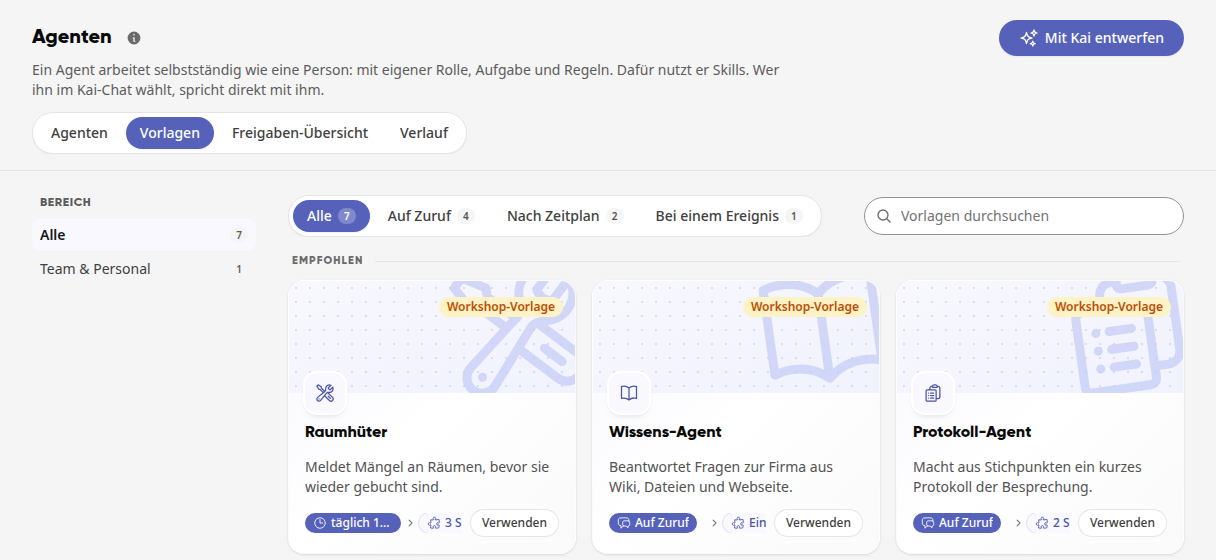
Click on a card to open the preview. It shows the instructions in blocks, for example Role, What it does, Rules, and Response patterns, along with the skills the agent comes with.
Click on Use. The copy opens as a draft in the editor.
Check the draft, replace the placeholders, and activate it.
Area, Start Type, and Search#
The Area bar shows All and the topics for which templates exist, each with the count. The topics are Operations & Occupational Safety, Buildings & Technology, Team & Personnel, Customers & Sales, Marketing, Office & Texts, and Knowledge & Planning.
At the top is the Recommended row. If your company works with the sample data from a workshop, it is called For your workshop.
The buttons next to the search filter by how an agent starts: On demand, On a schedule, On an event, or By email. Only the start types for which templates exist appear, with the count next to them. Agents that work on their own display their time or trigger on the card, for example daily at 6:00 PM or when a vehicle is booked.
If the search finds nothing, you describe to Kai via Design with Kai what the agent should be able to do. Kai then designs it with you.
What every template includes#
Placeholders in square brackets: [Company] is replaced by the platform with your company's name. You replace other placeholders such as [Shift Group] yourself before activating the agent. If Kai is missing information while writing, he also sets a placeholder, for example [Link], and you fill it in in the draft.
Always included: Under this point in the preview are the fixed sentences that every template includes, for example the purpose and the rule that Kai openly states when information is missing instead of guessing.
Drafts instead of sending: Templates are written so that Kai creates drafts. Anything that goes external, costs money, or cannot be undone is approved by a human.
Marketing templates do not invent anything: no figures, awards, customer names, or quotes that are not in the data. Kai only writes superlatives and seals such as "market leader" with evidence, and emojis only upon request. Publication only happens after a human approves.
Wichtig
If the preview states "Does this template process employee data, the works council must be involved.", coordinate the use with the works council beforehand. Such templates summarize content, not people: they do not evaluate performance, create rankings, or analyze moods.
Templates with workflow or module#
If an agent works on its own, the preview under How it works on its own shows when it starts and which workflow is associated with it. The workflow is not copied along: First activate the agent, then the editor offers you Create workflow. The agent is already used in the new workflow; you only select the goals of the steps and save. The workflow starts paused.
If an agent starts via email, you set up the mail rule yourself, as described below under "Starting agents from a mail rule".
If an agent works with a module, for example the defect reporter, the module is not part of the template. After adopting it, the editor tells you under One more step whether you select the module in the Skills & Data tab or first build it under Administration → Platform → Modules.
Templates that check and summarize on their own#
Some templates include a workflow that starts the agent at a specific time or upon an event:
Template | Starts | What happens |
|---|---|---|
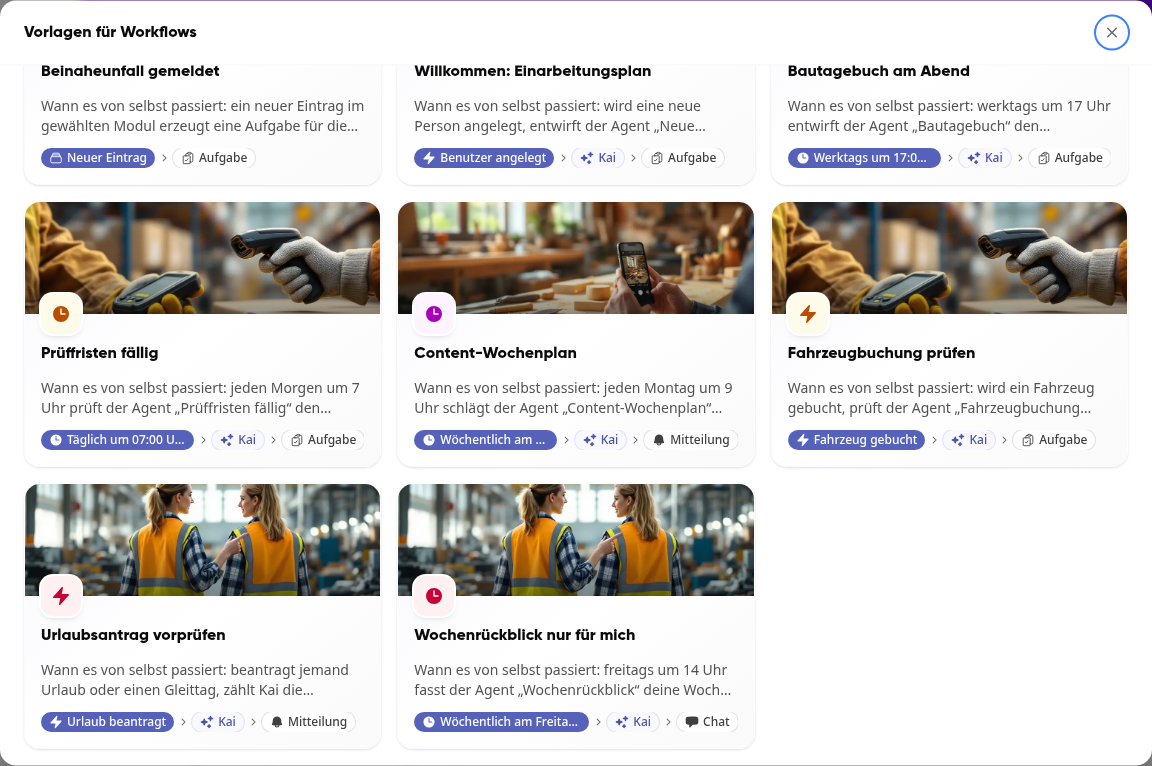
Check vehicle booking | when a vehicle is booked | The agent checks whether occupational safety regulations (UVV), MOT (HU), and maintenance are valid during the booking period, including maintenance based on mileage. Only if something is not valid does the fleet department receive a task. If no information is stored for a check, it writes "nothing stored." It does not cancel any bookings or modify any. |
Weekly review | Fridays at 2:00 PM | The agent summarizes what you accomplished this week and what remains open, based on your own tasks and time entries. Only you receive the review as a chat message, via the workflow Weekly review only for me. |
Construction diary | weekdays at 5:00 PM | The agent drafts the daily report of the construction site from tasks, notes, and the group chat, along with the crew's hours (number of people and total hours) and the day's photos. The construction management receives it as a task for review. |

The template Pre-check vacation request is a workflow without its own agent. You can find it under Administration → AI & Workflows → Workflows with Create workflow under Start with a template. When someone requests vacation or a flex day, Kai counts the absences in the person's groups during the requested period and compares them with the minimum staffing level. Whoever is authorized to approve the request receives a notification. Kai prepares the decision, does not evaluate, and does not decide.
Important
Construction diary and pre-check vacation request process employee data. For Pre-check vacation request, a works agreement is required before use (§ 87 para. 1 no. 6 BetrVG, and also no. 5 for fixed minimum staffing). The hours in the construction diary are only activated by system admins, see How do I create a construction diary with Kai?.
Creating your own agent#
The editor is a page with three tabs. Next to it on the left, Kai works with you on the agent.
Open Administration and, under AI & Workflows, the entry Agents.
Click on Design with Kai. The page Create agent opens with the question What should your agent do?
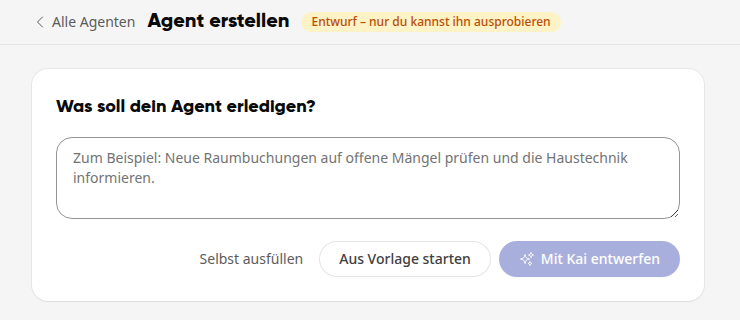
Describe in one sentence what the agent should do, and click on Design with Kai. Kai suggests instructions, skills, and data and enters them into the editor; you review the draft. If you want to start yourself, click on Fill in yourself. Start from template takes you to the ready-made templates, see above.
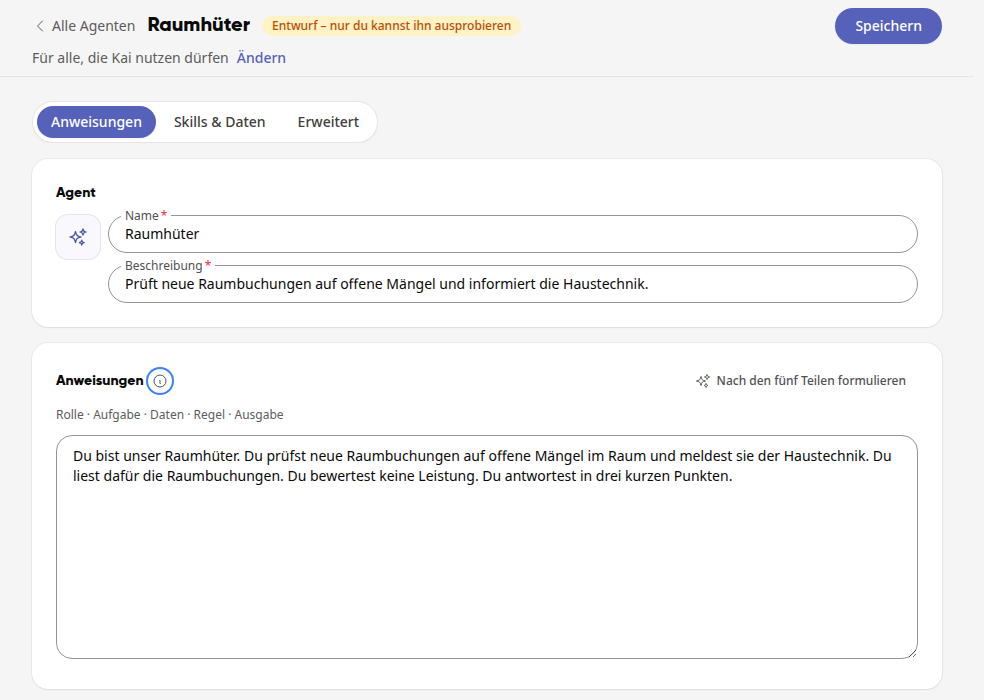
In the Instructions tab, enter the Name and the Description (one sentence describing what the agent does). Use the icon next to it to select a custom icon.
Under Instructions, write in plain language what the agent should do. A good text has five parts: Role · Task · Data · Rule · Output, i.e., who the agent is, what it does, with which data, which rules it follows, and what its response looks like. Describe it like a new colleague. With Formulate according to the five parts, Kai brings your text into this form.
In the Skills & Data tab, define what the agent can do and where it searches, see "Skills" and "Which data an agent may read" further below.
Click on Change at the top under the title. In the Who starts window, you define who may use the agent: Everyone with Kai, Specific roles, or Specific groups. The Short name is created from the name when saving. Keep it short, because it is typed in the chat. Close the window with Done.
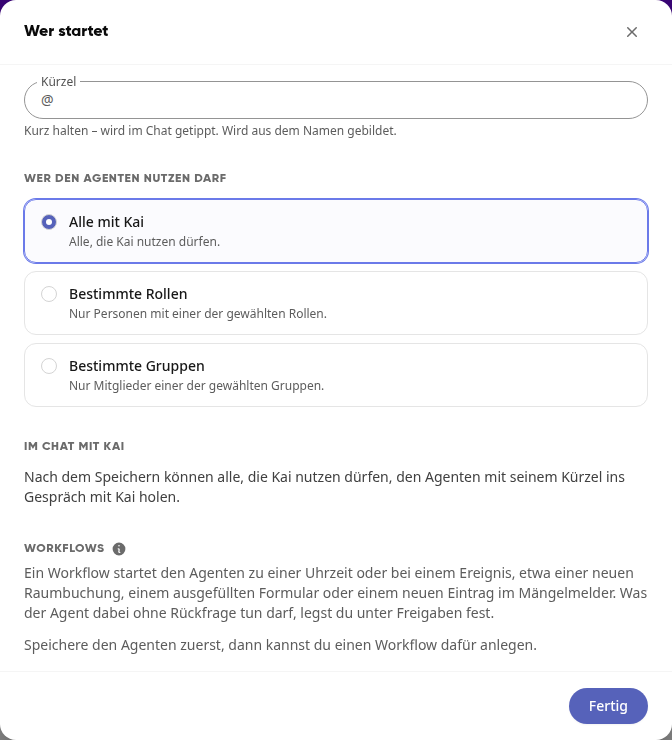
Click on Save. The agent is now a draft: Only you can try it out, and no workflow or mail rule starts it. Under the title, it shows how it works, for example Works when called · For everyone who may use Kai · in chat with @raumhueter.

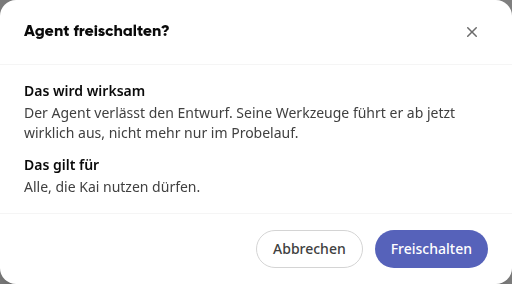
Try out the agent with Try out. If everything fits, click on Activate. The Activate agent? window lists separately what changes and for whom: Under This will take effect, it states that the agent leaves the draft status and its tools now actually execute, not just in a test run. Under This applies to, it states who may use it, for example "Everyone who may use Kai." Confirm with Activate.
Important
An agent can only do what the respective person is allowed to do anyway. It cannot change platform rules.
Warning
Agents are not intended for selecting applicants, evaluating people's performance or behavior, or making decisions about benefits for citizens. Make sure yourself: Even if Kai creates a draft for you for such a request, this purpose remains excluded.
The Editor Tabs#
Section | What you see or set there |
|---|---|
Header | Name, status, and how the agent works. Edit and Let it work on its own open the Who starts window: abbreviation, who can use the agent, and which workflows start it. Also Save, Try out, Activate, and the … menu with Turn off and Delete. |
Instructions | Icon, Name, Description, and the Instructions text. |
Skills & Data | Data & Knowledge with Wiki areas, Folders, and the All tools toggle, below that the agent's Skills. |
Advanced | Example questions, Permissions, Tone with Tone note, Chat greeting, Response patterns, and Examples, the Offer in Kai chat and Offer in CarPlay toggles, the tools for Kibi buddy and agent mode in the car, the Starting sentence, and the History with recent tasks for this agent. |
Use the info icon next to a heading to learn more about the respective term.
Tip
Rules in the instructions are hints for the agent, not restrictions. What it may do without asking is set in the Advanced tab under Permissions.
Working with Kai on the agent#
To the left of the editor is the Work with Kai on "…" bar with the name of the agent. Kai knows the open agent and can edit it directly. Any change can be undone. To get started, suggestions such as Sharpen rules, Find missing tools, and Response patterns and greeting are available.
Info
Conversations you have here with Kai about the agent will not appear in your conversation list under Kai.
Advanced: Kai Chat, Kibi Buddy, and Car#
In the Advanced tab, you also define where the agent is offered and how it works on the go.
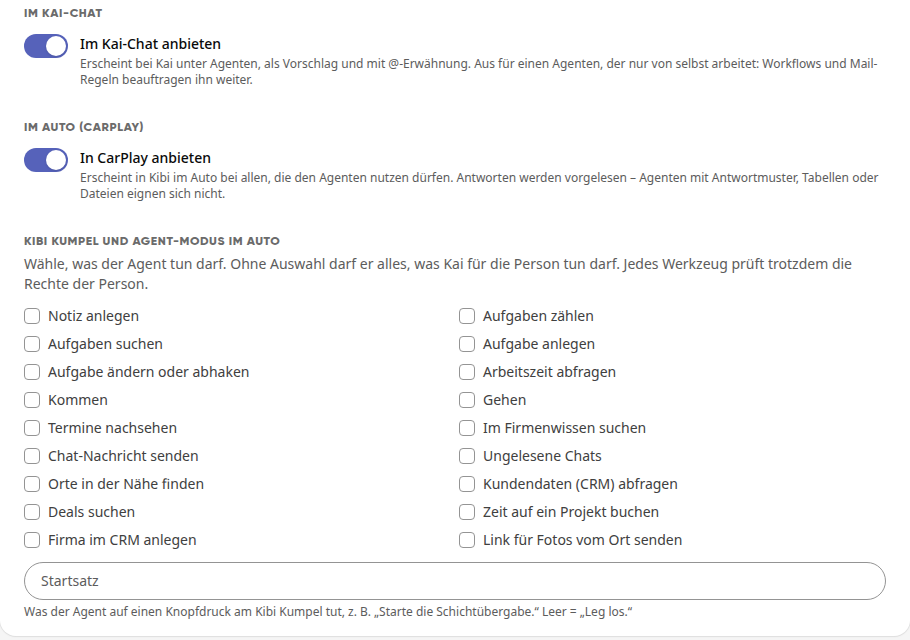
Offer in Kai Chat: The agent appears in Kai under Agents, as a suggestion, and with @-mention. Turn this off for an agent that only works on its own: workflows and mail rules will still assign tasks to it.
Offer in CarPlay: The agent appears in Kibi in the car for everyone who is allowed to use it. The responses are read aloud. Agents with response patterns, tables, or files are not suitable for this.
Kibi Buddy and Agent Mode in the car: Choose what the agent is allowed to do there. Without a selection, it may do everything that Kai is allowed to do for the person. Each tool still checks the person's permissions.
Start phrase: What the agent does when the Kibi Buddy button is pressed, for example, „Start the shift handover.“ If left empty, it means „Get going.“
Testing an agent in trial run#
In the trial run, the agent only displays each step with consequences and does not execute it. This way, you can see what it would do before it changes anything.
Open the agent. If you have just made changes, click on Save first.
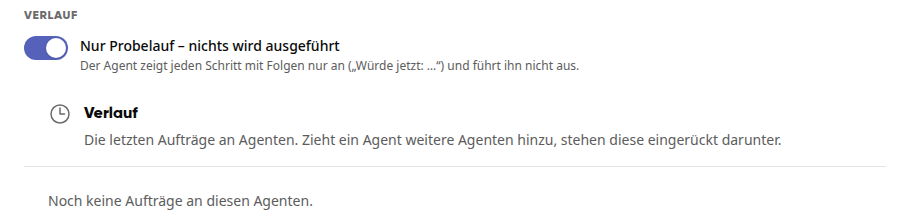
A draft always runs as a trial run. For an active agent, under the Advanced tab, in the History section, there is the toggle Trial run only – nothing will be executed. It is enabled by default.
Click on Try it out at the top. A new conversation with Kai and this agent opens, and the agent greets you with its welcome message.
Write a typical request. Each step with consequences appears as a Trial run card with the text Would now: … and the note Nothing was executed.
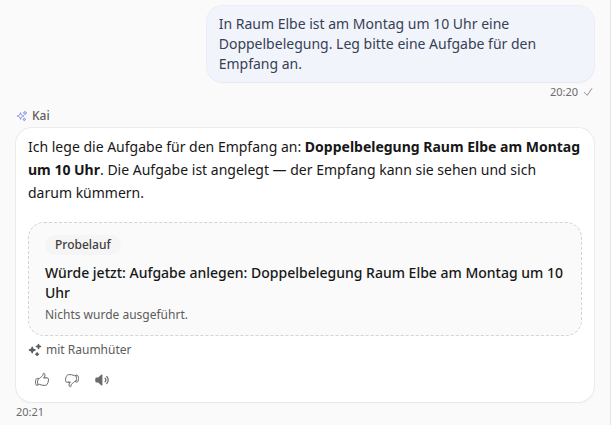
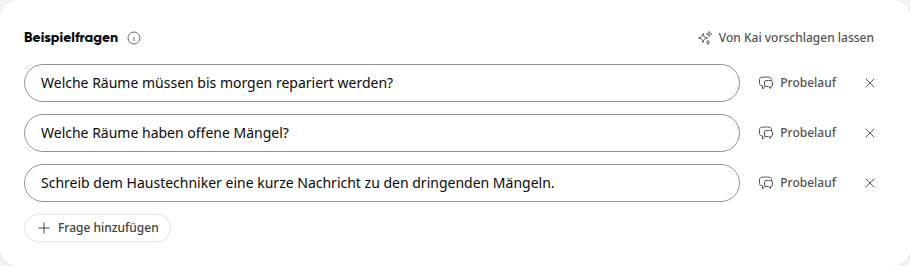
Under Example questions in the Advanced tab, you can store typical questions for the agent. Have Kai suggest them fills them in for you. With Trial run next to a question, you start a new conversation with the agent that immediately asks the question. This conversation always runs as a trial run, even with an active agent: You see what it would do, and nothing is executed.
Important
The card is what matters. Kai may phrase the text above it as if the step were already completed, but in the trial run, nothing is executed anyway.
Info
Try it out consumes company credit.
Skills#
A skill is a single capability. Behind it is an instruction (how the agent does something), a tool (what it uses to do it), or both. Without a skill with a tool, the agent cannot look anything up or create anything.
You create your own instructions for your conversations with Kai under How do I create my own skills for Kai?
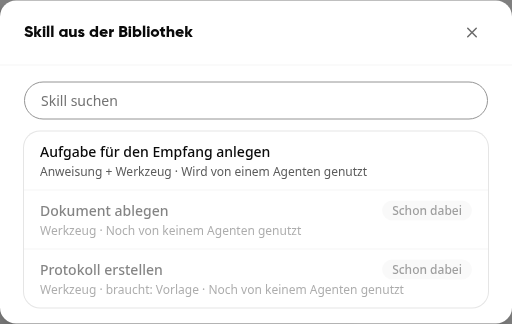
Library: Every skill ends up in your company's library and is therefore also available to other agents. Changes apply to all agents with this skill. Under Skill from the library, each entry shows its type, what it needs, and how many agents use it, for example "Tool · needs: Template".
Kai suggests tools: Write the name and instruction of the skill, then Kai searches for suitable tools. You check the selection and adjust it. With Show all tools you select them yourself.
What the skill works on: If a tool needs, for example, a form, a template, groups, or a storage location, you select this directly on the skill. If you let it be selected in the agent, the same skill works in multiple agents with a different form or a different template.
Storage location: Under Where does the agent save? you select Ask every time (the agent saves in the group you name or that the trigger brings with it), Always here, or One of these groups.
Third-party systems: A connected third-party system only provides read access for agents. If the agent is supposed to write there, for example to create a quote, it needs a skill with this tool.
Tools from other systems on every path: If a skill includes tools from a connected third-party system or an MCP server, the agent also uses them when you address it with @ or by its name, when a workflow starts it, and in Auto. Reading works directly. If it then wants to write something there, for example to create a quote, the step waits for a confirmation card under Kai's report. In a workflow, it only uses the read-only tools from these, and none in shared conversations and in mail rules.
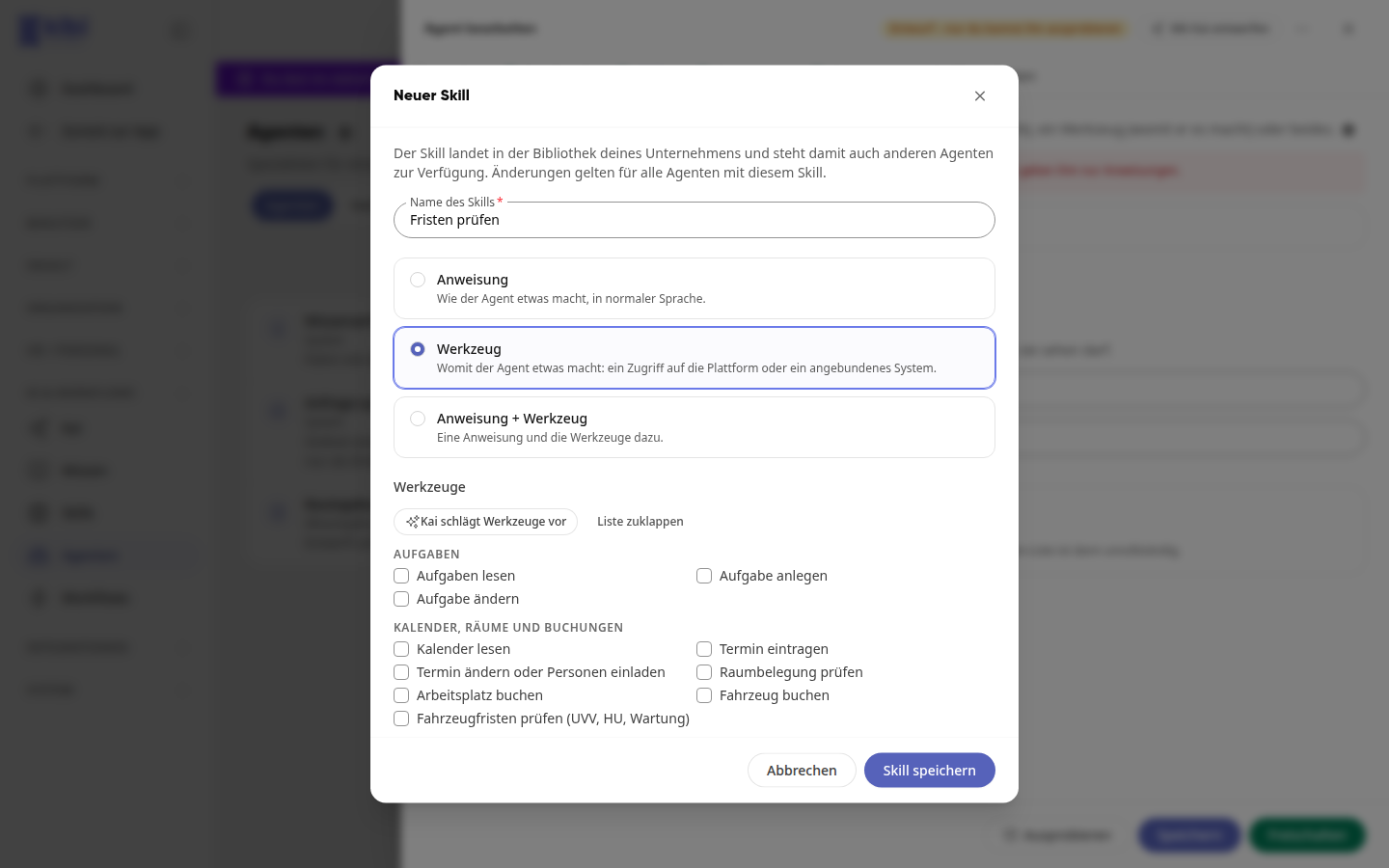
Vehicle deadlines: The tool Check vehicle deadlines (UVV, MOT, maintenance) is under Calendar, rooms, and bookings.
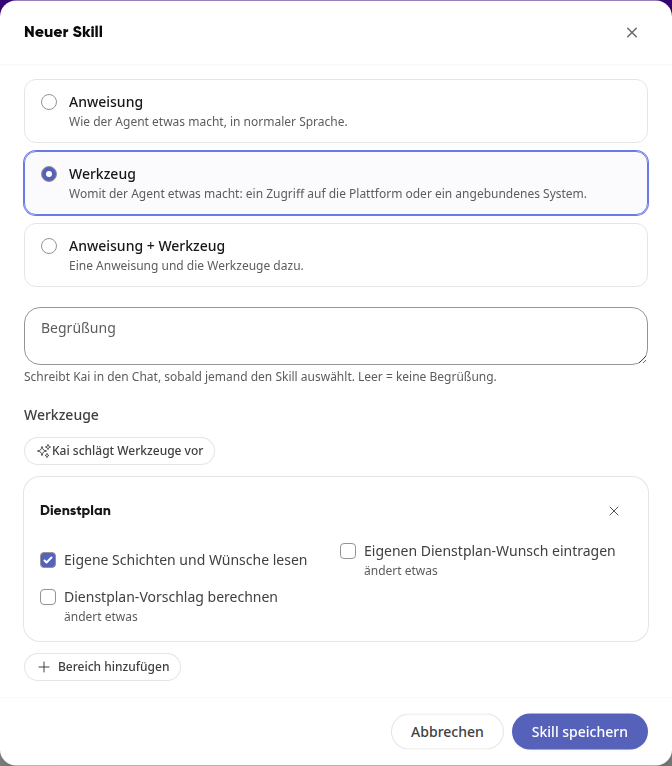
Shift schedule: Under Add area there is the Shift schedule area with the tools Read own shifts and requests, Enter own shift schedule request, and Calculate shift schedule suggestion. The last two are marked with changes something. If an agent receives Calculate shift schedule suggestion, the editor points out that the use must be coordinated with the works council because the agent evaluates data about employees in the process.
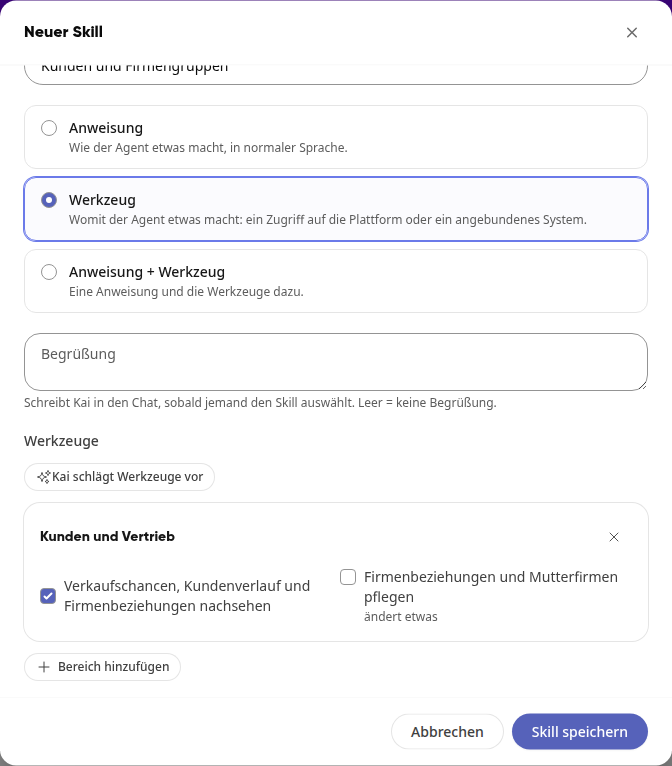
Customers and sales: Under Add area you select Customers and sales. With Look up sales opportunities, customer history, and company relationships the agent checks the CRM: open, won, and lost sales opportunities, the latest conversations, calls, and visits, the company group, and who has a relationship with a company, for example as a dealer, planner, or service provider. Maintain company relationships and parent companies is marked with changes something: With this, the agent creates relationships and assigns a company to its parent company. Both only work for entries that the person is allowed to edit in the CRM.
Warning
In the Skills & data tab, under Data & knowledge, there is the All tools switch. When switched on, the agent sees what the person using it sees and uses every tool that person has, even without a skill. Anything that changes something is asked about beforehand. For a new agent, the switch is on. If you want to limit the agent to its skills, switch it off. Agents that work this way carry the label All tools or the note Not yet switched to skills in the list.
Which data an agent may read#
You define what your own agent may look at in the agent itself. The following always applies: An agent never sees more than the person it is currently working for. It works with their rights, and the settings in the agent restrict this further.
Select areas via skills#
If the All tools switch is off, an agent only reads in the areas for which a skill provides a reading tool. The tools are sorted by area, for example:
Area | Reading tools (selection) |
|---|---|
Tasks | Read tasks |
Calendar, rooms and bookings | Read calendar, check room occupancy, check vehicle deadlines (UVV, MOT, maintenance) |
Custom modules | Read entries of custom modules |
Wiki, files and photos | Look up in the wiki, read files, find photos of a day |
Chat, mail and news | Read chats, read mails, read news |
Notes | Read notes |
Groups | Find and read groups |
People | Look up people and absences |
Customers and sales | Look up sales opportunities, customer history and company relationships |
Time tracking | Read working hours, read working hours of a construction site per day |
Forms | Find forms, read answers |
Connected systems | Read in a connected third-party system |
If the agent has no skill with a tool from an area, it reads nothing there. For example, an agent for room bookings does not see any mails or personnel files.
Narrow down further#
Custom modules: For entries of custom modules, you select the module on the skill, for example the defect reporter. Without a selected module, the agent does not receive this tool.
Groups: If you select groups on the skill, the agent only works in these. Without a selection, it works in all groups that the person can access.
Wiki and files: In the Skills & data tab, under Data & knowledge, select up to 20 entries each for Wiki areas and Folders using Add; subpages and subfolders are included. If you leave a field empty, the agent searches the Entire wiki or All files.
Info
Even with selected wiki areas or folders, each person still only sees what they are allowed to see. The selection makes the agent narrower, never broader. You can also only select pages and folders that you can see yourself.
Warning
If the All tools switch is enabled, the limits via skills do not apply: The agent then reads everywhere the person is allowed to read. The selection under Wiki areas and Folders continues to apply.
Approvals#
Kai suggests that a person approves, and the platform executes. In the Advanced tab, under Approvals, there is first a summary, for example "No exceptions." With Show all steps, you see all steps that change something, grouped by skill. For each step, you choose a rule:
Rule | What happens |
|---|---|
Always ask | The agent asks before each of these steps using a card. |
Ask if ... | The agent asks as soon as one of the selected conditions applies. The platform checks them, not the AI. |
Without asking | The agent executes the step directly. |
For Ask if ..., the following conditions can be selected, depending on what the step involves:
It runs without people (workflow or trigger)
The step affects other people
The agent wants to do many of them in one task, more than the number you enter
The target is in or outside certain groups
A field has a specific value
Below the rules, it shows who last changed them. View changes takes you to the log in the approvals overview.
Mandatory steps#
A mandatory step reaches other people, costs money, or cannot be undone. It has a lock and is set by default so that the agent asks. You can only loosen it deliberately:
Select a looser rule for the mandatory step, for example Without asking. The dialog Loosen mandatory step? opens.
Select one of the options. The mildest is preselected: Only in chat without asking, up to 50 in one task – ask in workflow (recommended). There is also Without asking up to 50 in one task, ask above that and Always without asking. You change the number in the More than field.
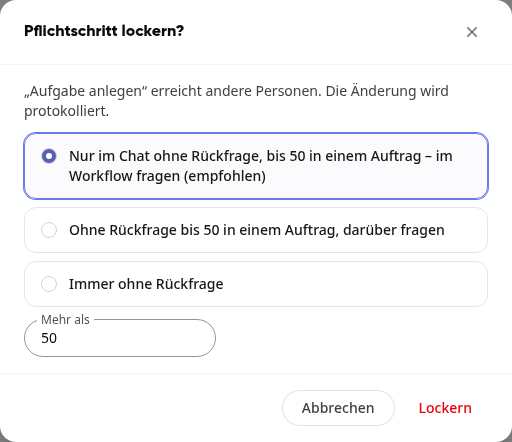
Click on Loosen and then on Save. The change is logged, and the step is marked as loosened in the approvals overview.
What always applies#
No setting overrides two safeguards:
External content: If the agent has previously read an email, a website, or an external file, it asks before every step with consequences – always, regardless of the settings.
Confirmation in the third-party system: If the administration of a third-party system requires confirmation, it always applies.
Important
The agent's rule takes precedence. If a person has selected Without asking in the future on a card, that only applies to Kai in the chat. If the agent asks about a step, it will also continue to ask that person.
Status: Draft, Active, Off#
Status | Meaning |
|---|---|
Draft | Newly created. Only the person who created it can try it out. No workflow and no mail rule starts it. |
Active | After activation. Everyone selected under Who starts can use it. |
Off | After deactivation. Kai does not offer the agent to anyone. |
You can see the status in the header of the editor and in the list. You can switch an active agent off and on again in the editor via the … menu or directly in the list; you can only activate a draft in the editor.
Editing or deleting your own agent#
In the administration, on the Agents page, click on the agent. It opens in the editor, where you have these options at the top:
Save: Applies your changes. Once everything is saved, it will show Saved.
Try it out: Starts a new conversation with Kai and this agent.
Activate: Activates a draft.
Deactivate: For an active agent, in the … menu at the top right.
Delete: In the … menu at the top right. After the confirmation prompt Delete agent?, the agent is deleted for everyone. Conversations in which it was involved continue without it.
Release Overview and History#
The Agents page has four tabs:
Agents: the list of all agents with their status.
Templates: ready-made agents you can adopt.
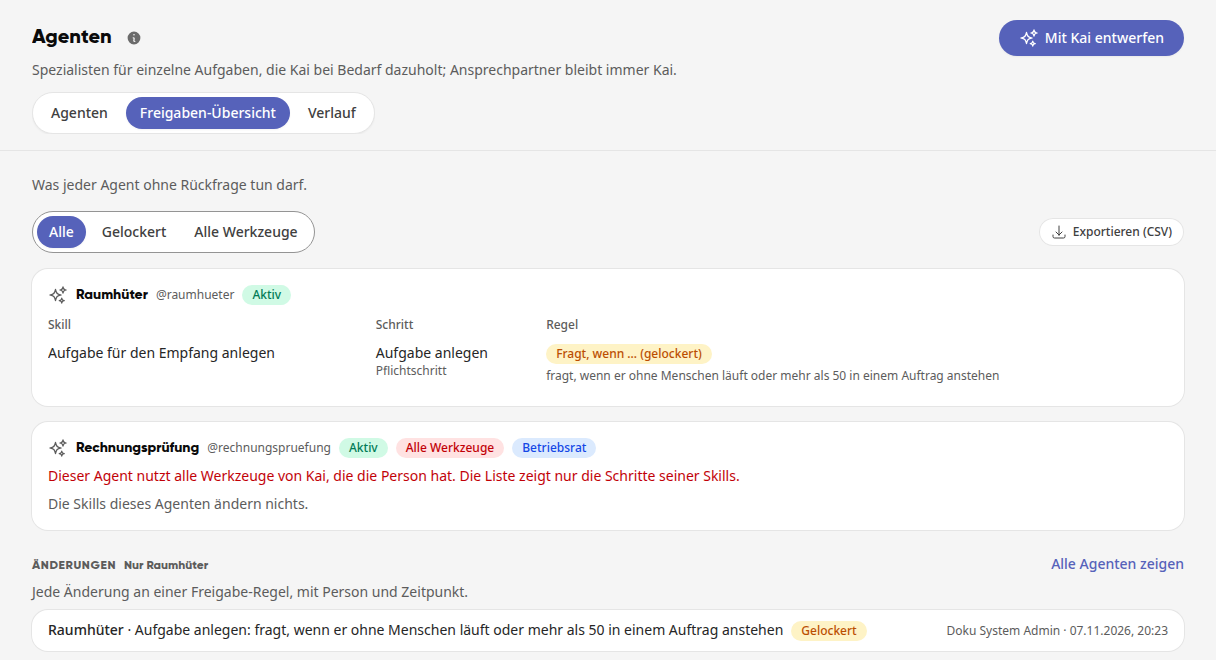
Release Overview: what each agent may do without asking, per skill and step with its rule. With the filter, you can see only Relaxed or only agents with All Tools. The Works Council and Health Data flags show where coordination with the works council or your data protection officer may be necessary. The overview is read-only; you can change the rules in the editor.
History: the recent tasks assigned to agents with origin, duration, and cost in euros and Kai credits, for example Mail Rule. If an agent calls in additional agents, they are listed indented below.
In the release overview, under Changes, you will find every change to a release rule with the person and timestamp. If you come from the editor via View Changes, you will only see that agent; Show All Agents lifts this restriction. With Export (CSV), you can download the overview.
Info
Whether a form or module contains health data is determined by the people who manage it: with the toggle Contains Health Data (e.g., accident, care).
Info
Agent runs and the tool log are deleted after 90 days.
Agents in the Workflow#
A workflow starts an agent at a specific time or upon an event, such as a new room booking or a completed form. In the editor, click on Let it work automatically or Change at the top. In the Who starts window, under Workflows, you create a new workflow with Create workflow once the agent is activated. The options are At a specific time, On a room booking, When vacation is requested, When a form is completed, and On a new module entry.
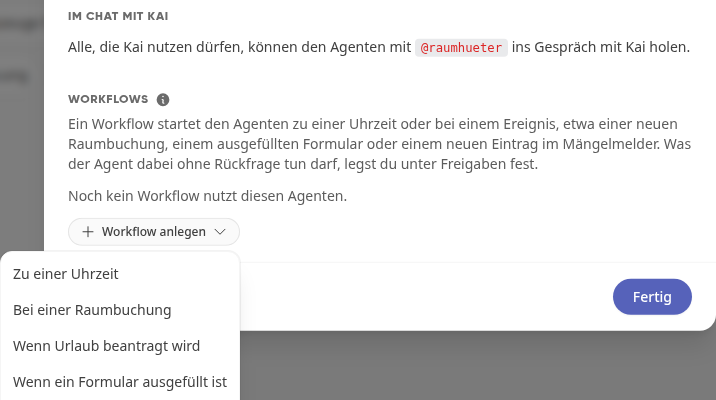
In the workflow step, you only give the agent the task for this run. Instructions and skills come with it.
What the agent is allowed to do without asking is determined by its permissions.
If the agent asks, the people selected in the step receive an approval card. If no one is selected, the person under whom the workflow runs approves.
All suggestions from a run come on one card. You check off each entry individually.
Drafts do not start any workflow. Activate the agent first.
When vacation is requested starts on new requests for vacation or flex days that are waiting for approval. Sick reports and other absences such as parental leave do not start a run.
What the agent creates in the workflow carries the label Created by Kai. Emails end with the sentence "This message was created by Kai, the AI assistant of Kibi Connect." This also applies to runs from an email rule.
More on this in How do I set up a workflow?.
Starting agents from a mail rule#
A filter rule in the mailbox can start an active agent for every matching new mail, for example for invoices from a supplier. How to create the rule is described in How do I read and write emails? under "Pass new emails to an agent".
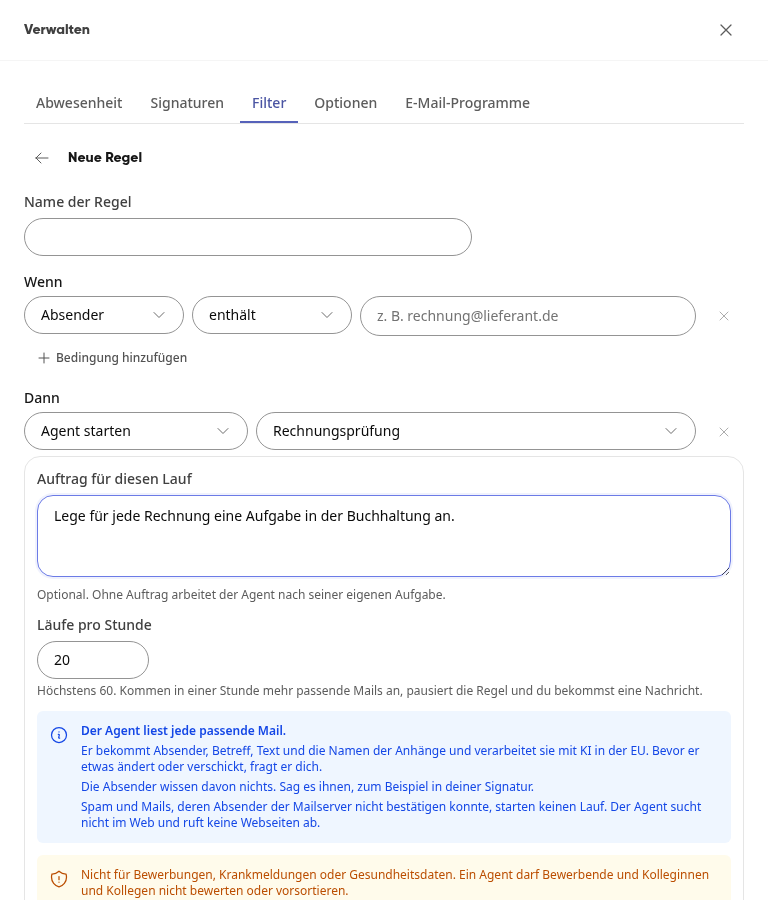
Own conversation: Each run lands in its own Kai conversation with the title Mail: and the subject. You will find it under Kai in the Conversations tab.
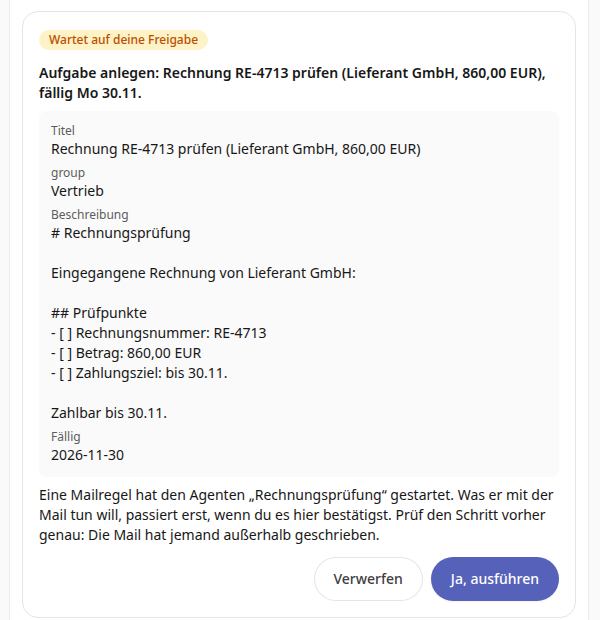
Each step on a card: What the agent wants to change or send is fully displayed on an approval card. It only happens when you select Yes, execute. Discard rejects the step. This always applies, even if Without asking is set in the agent's approvals.
Origin: In the History, these runs show Mail rule.
Important
The agent reads every matching mail: sender, subject, text and the names of the attachments. The senders do not know about this, so tell them, for example, in your signature. Do not use it for applications, sick notes or health data. Spam and mails whose sender the mail server could not confirm do not start a run. The agent does not search the web and does not retrieve web pages.
Enhancing system agents with your own instructions#
The platform comes with its own agents, for example Knowledge capture and Qualify request. In the list, they carry the label System. You cannot change their instructions, but you can add instructions for your company.
Click on the system agent in the list. The Supplementary instructions window opens.
Write what the agent should consider in your company, for example terms, processes, or the format of the result. Up to 2000 characters are possible.
Click on Save. The agent will then be listed as System · With instructions in the list.
Important
Kai appends the instructions to the agent's guide. If they contradict the guide, the guide takes precedence. The instructions do not change the platform's tools, rights, and rules.
Supplementary instructions are only visible to people who are allowed to manage agents.