
How do I view events and RSVP?
Updated Reading time: 3 min
On this page
In the Events module, you can see which workshops, company parties, and team events are coming up, and you can let the organization know whether you will be attending. If there is food, you select it directly in the event, for each day individually.
Info
This feature is available to all employees. You can see the events that are released for everyone or for your groups, as well as those to which you have been invited.
If your role does not unlock the Events area, you can still access any event that the organization has registered you for: open it via the link from the invitation or the notification and confirm or decline there. The list and other events will then remain hidden from you.
Finding events#
Click on Events in the menu. The list shows the upcoming events with date, time, location, and the number of confirmations. If there is a second value after the number, such as 13 confirmed / 14, the spots are limited. The cutlery icon shows you that there will be food at the event.
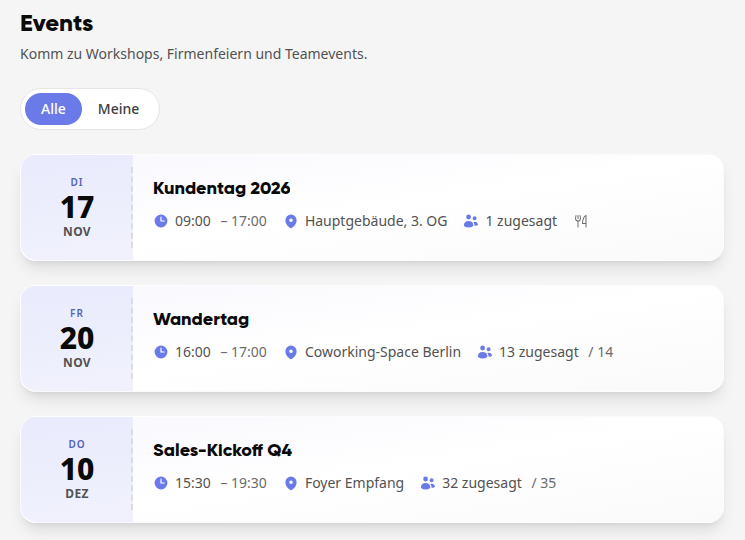
Use All and Mine to switch between all events and those you have confirmed.
Click on an event. At the top are the date, time, location, and room; below that are your response and the tabs with all further details, for example Catering, Details with the description, Program, and Files.
RSVP#
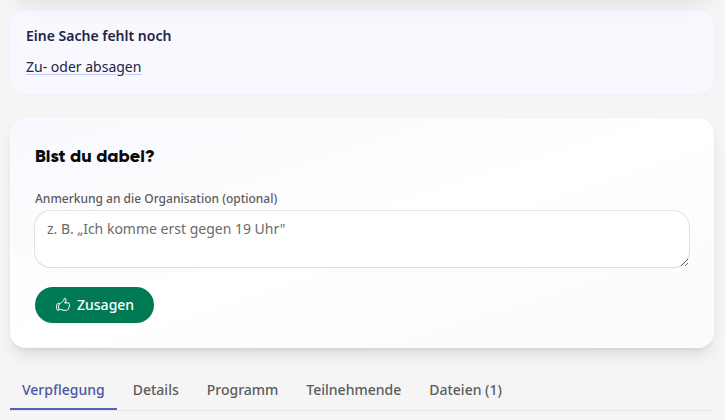
Open the event. Under Will you attend? you can see how many spots are still available, and if applicable, the registration deadline.
If the organization should know something, write it under Note to the organization (optional), for example, that you will arrive later.
Click on RSVP.
After that, it will say You are attending there, and the event will appear under My events.
Tip
If something is still missing from you, One thing is still missing at the top of the event will point it out, for example RSVP or decline or Choose meal — possible until …. Clicking on it will take you directly to the right section.
Choosing your meal#
If the event includes meals, Catering is the first tab in the event. As long as you haven't chosen your meal yet, the event opens directly there.
If the event lasts several days, select the day at the top, for example Wed., 18.11. Each day has its own dishes and its own deadline.
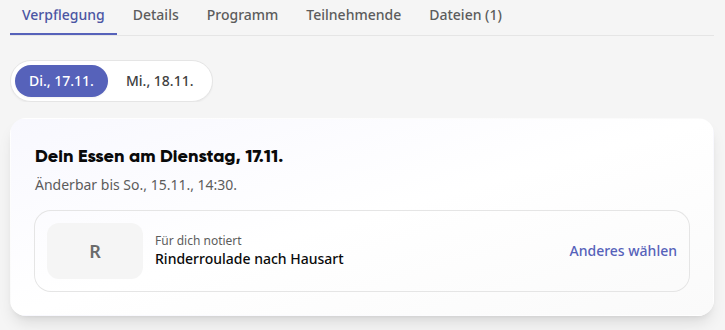
In the card Your meal on …, click on the dish you want. Under Changeable until you'll see the deadline for changing your choice. If the organizers have set a standard menu, the card shows which dish you'll receive without making a choice.
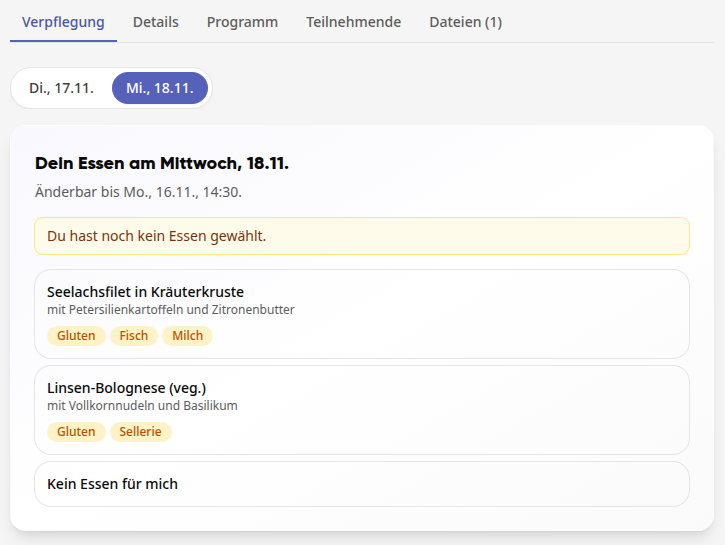
If you don't want to eat on a certain day, click on No meal for me.
Afterwards, the card shows Noted for you with your choice. Use Choose something else to change it before the deadline.
After the deadline, the card shows The selection is closed. Below that, you'll see what has been ordered for you: your chosen dish, the standard menu if you didn't choose anything, or Not selected with the note No meal has been ordered for you on this day. if there is no standard menu.
Info
No meal for me is a response just like a dish: You won't receive a standard meal on that day, no One thing is still missing notice, and no more reminders.
View the program#
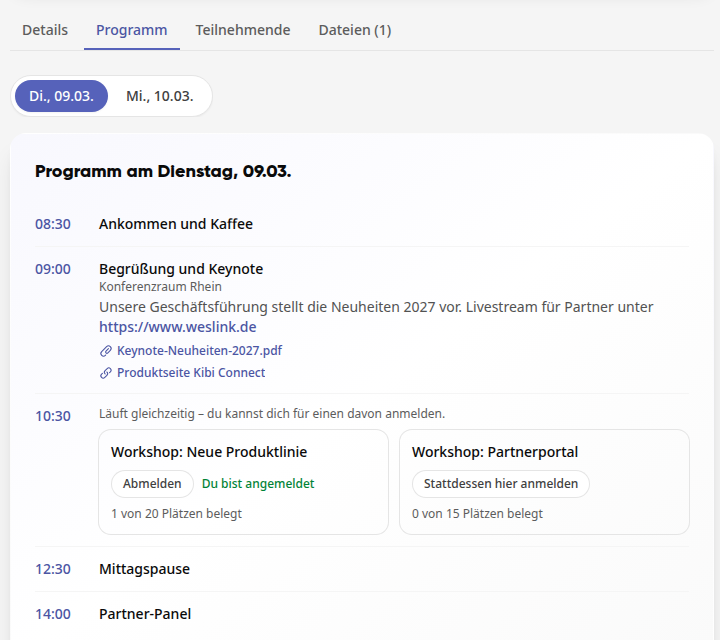
If the organization has provided a program, you will find it in the Program tab. For multi-day events, select the day at the top; the program will then be displayed for that day, for example Program on Tuesday, 11/17. Program items that run simultaneously are displayed side by side.
For each program item, you will see the time, room, and description. Web addresses in the description are clickable. Below that are the documents and links that the organization has provided for the item, such as the keynote slides or the livestream page. A click opens them in a new tab.
When the event is fully booked#
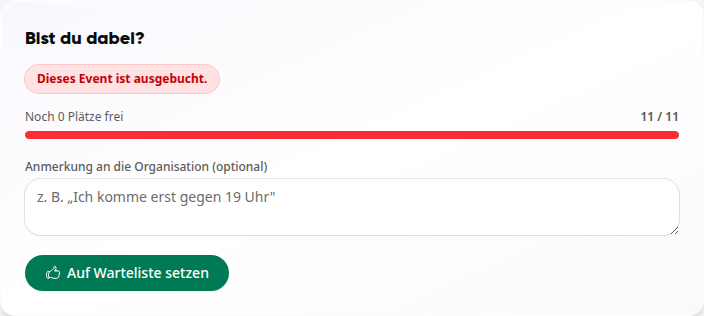
If all spots are taken, it will show This event is fully booked. With Join waitlist you can add yourself. You will receive a notification as soon as a spot becomes available.
Withdraw Confirmation#
Open the event and click on Withdraw participation. This also applies to a spot on the waiting list. Your spot will become available again, and you can confirm again later.
Questions and files for the event#
If the organization has answered frequently asked questions or provided documents, you will find them in the event under the FAQs and Files tabs. Click on a question to read the answer. Some documents are only released by the organization after you have confirmed attendance or checked in, or only from a certain point in time.