
Where can I see my shifts?
Updated Reading time: 1 min
On this page
Under My Schedule, you can see at a glance when you work next and which shifts are planned for you in the coming weeks.
Open my schedule#
Click on Schedule in the navigation.
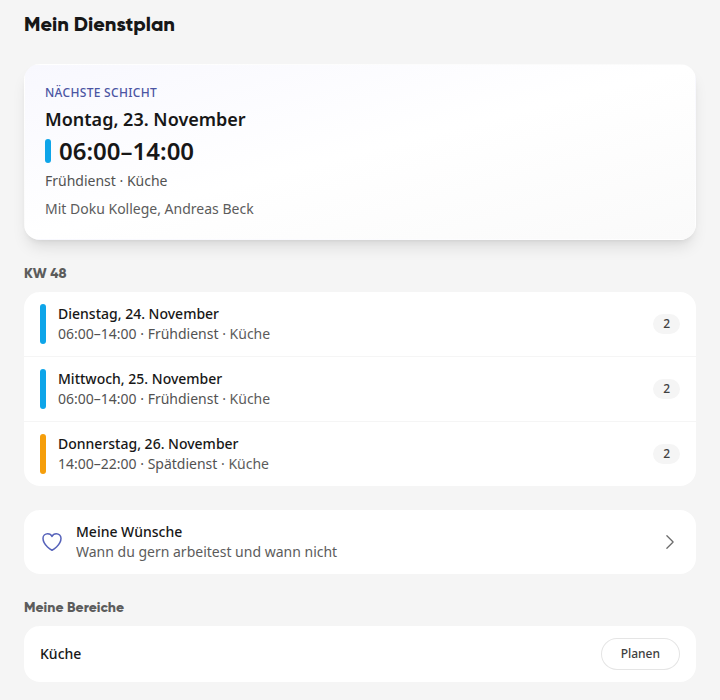
At the very top, you will see your Next Shift with the day, time, shift, and area, and below it, who is assigned to this shift. If the shift is already in progress, it will say Currently running.
Below that, your further shifts for the next six weeks follow, sorted by calendar weeks. The colored line indicates the shift, and the number on the right shows how many people are assigned to this shift.
Info
You only see shifts that a planner has already published. As long as nothing has been published, it will say "No shifts planned". If your schedule changes, you will receive a message.
My areas#
Under My Areas, you will find the areas you are assigned to, for example "Kitchen". Clicking on the name opens the team schedule with the shifts of all colleagues. If you are a planner in an area, Plan will appear next to it.
If you are not yet assigned to any area, it will say "You are not yet assigned to any area." HR managers can assign you.
Enter preferences#
Using My Preferences, you can record when you would like to work and when not. Preferences are hints for planning, not a commitment.