
How do I create a company in the CRM?
Updated Reading time: 2 min
On this page
In the CRM, you create companies to manage customers, suppliers, and partners along with their contacts in one place.
Create company#
Click on CRM in the left navigation.
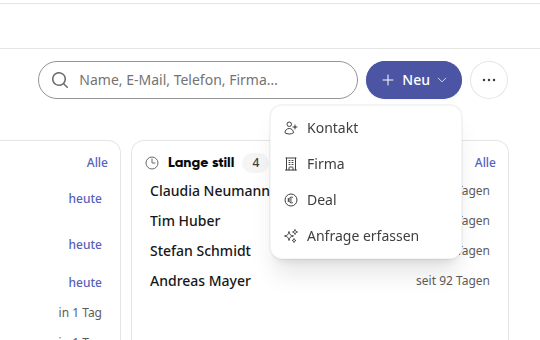
Click on New in the top right corner and select Company.
Enter the Name of the company. You can also provide Email, Phone, and Website right away or add them later.
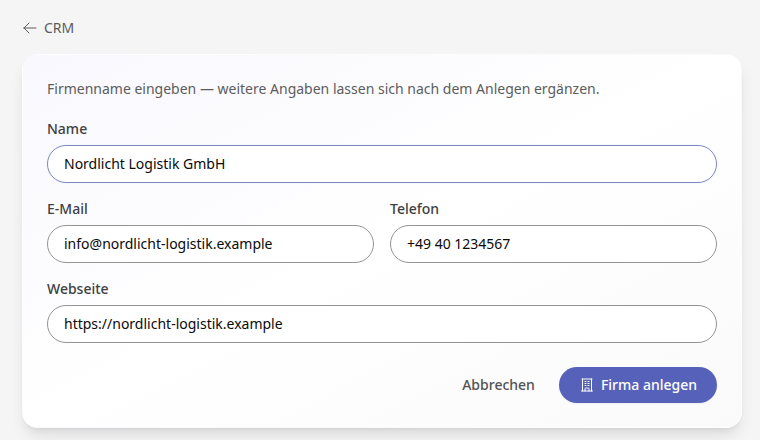
Click on Create company. The detail page of the new company opens.
Edit company#
Open the company in the CRM via the Companies list or the search.
Change the details directly in the fields, for example under Contact details, Address, or Notes. Every change is saved automatically as soon as you leave the field.
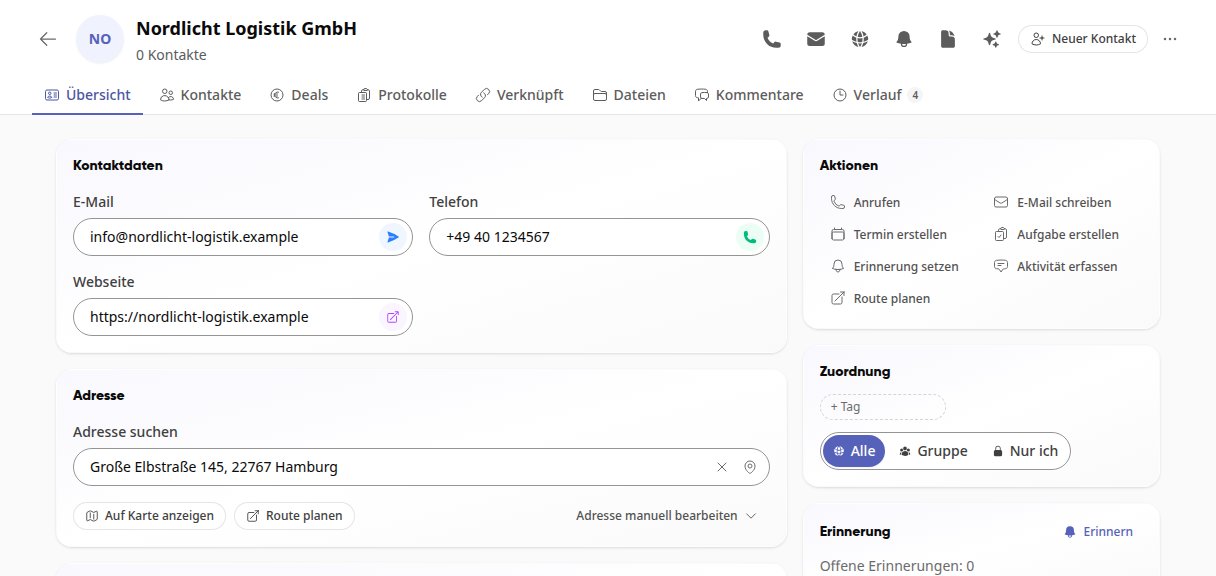
Under Assignment, you assign tags such as "Customer" or "Supplier" and define who sees the company: Everyone, a Group, or Only me.
With New contact at the top right, you can directly create a contact person who belongs to this company.
Working with a Company: Actions#
The Actions card at the top right of the overview bundles what you do most frequently with a company:
Call and Write email use the stored phone number and email address.
Create appointment and Create task open the appropriate form. The appointment or task is automatically linked to the company and appears in the Linked tab.
Set reminder reminds you of the company at a time of your choice.
Log activity jumps to the Activities area, where you can record a call, an email, an appointment, or a note.
Plan route opens the directions to the company's address. The action appears as soon as an address is stored.
View contacts of a company#
Open the company and click on the Contacts tab. The number next to the tab shows how many people belong to the company.
The table lists each person with Name, position, Phone, and Email. Use Search contacts to quickly find a person; clicking a column header sorts the list.
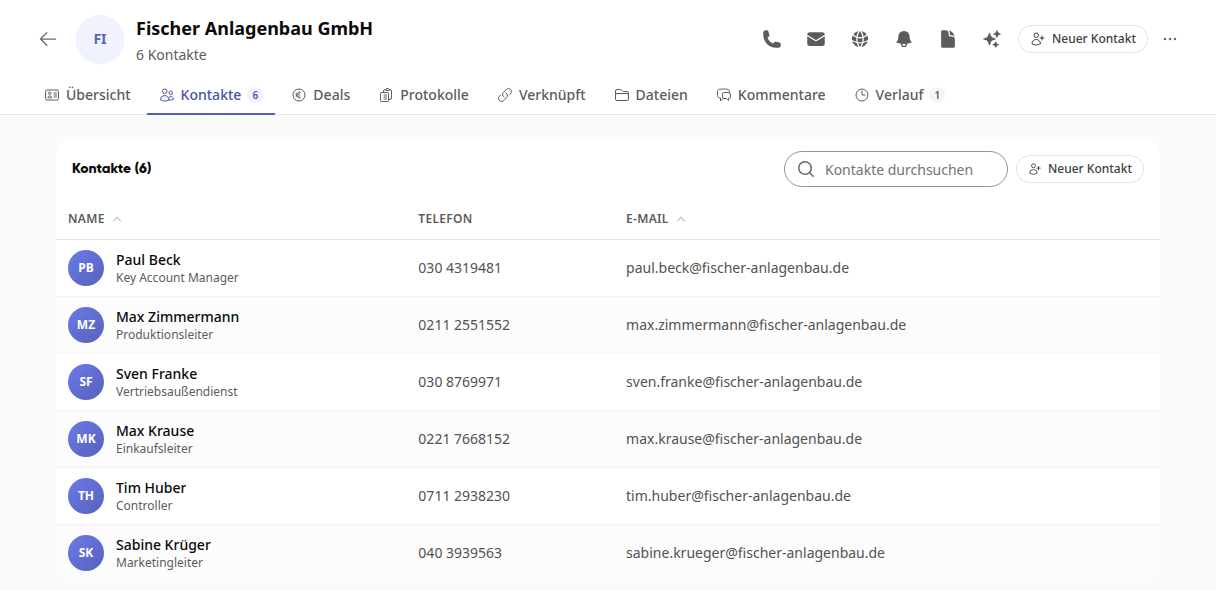
Click on a person to open their detail page. You can also create another contact here via New contact.
Delete and restore a company#
Open the company and click … at the top right, then click Delete.
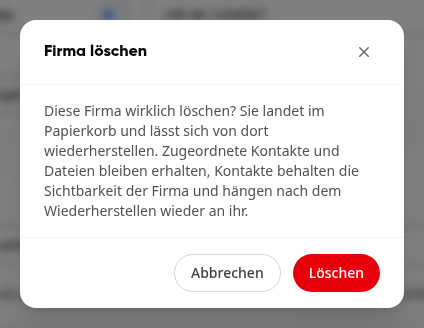
Confirm with Delete. The company moves to the trash. Assigned contacts and files are retained; contacts keep the company's visibility and will be reattached to it after restoration.
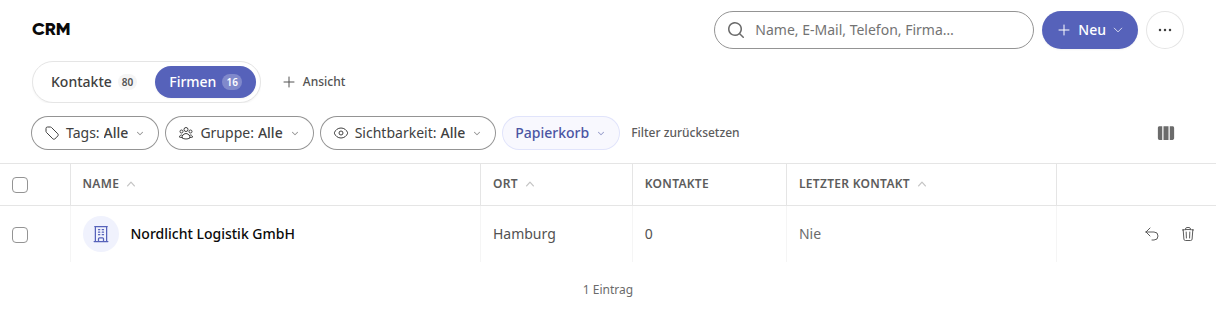
To restore, open the More filter in the CRM, select Trash, and then Companies. Click Restore (arrow icon) in the company's row. With Delete permanently (trash icon) you remove it permanently.
Tip
For the address, you can search by street, postal code, or city, use Use current location to adopt your location, or enter it yourself via Edit address manually. Companies with an address also appear on the map in the CRM.
Info
If you accidentally created a company even though it is a single person, select Convert to contact via …. Contact data, address, notes, tags, comments, files, reminders, activities, deals, and history are transferred; the company moves to the trash.
Info
All employees can create companies. You can edit and delete the companies you created yourself; companies created by others only if your role has the right to do so. This is defined by the administration in the roles.