
How do I connect a third-party system to Kibi?
Updated Reading time: 6 min
On this page
- Create Third-Party System
- The types and their connection
- Connecting an MCP server
- The Switches
- Who uses the tools and with what access
- Test connection
- Setting up tools for Kai
- API connection (HTTP API and Odoo)
- MCP connection
- Confirming calls in chat
- What you will find on the detail page
- Third-party systems in your own agents
Under third-party systems, you connect external systems to Kibi, such as your ERP, your CRM, or a specialized API. Kai and your own modules can then use these systems: look up data, create records, trigger actions. Write actions are always confirmed by a human.
Info
This function is available to system administrators. Conversely, if another system needs to access Kibi, use REST API, webhooks, MCP servers, or SSO: Integrations at a glance.
Create Third-Party System#
Open the Administration and select Integrations → Third-Party Systems in the menu.
Click on Create Third-Party System.
Enter a Name and select the Type: HTTP API (JSON), Odoo, or MCP Server (Tools for Kai).
For an HTTP API, select the Authentication: None, Bearer Token, API Key in Header, or Username and Password.
Enter the API URL. Only https is allowed; internal and local addresses are blocked.
If needed, enter a Path for the Connection Test, for example /health.
Set the switches Active, Usable in Workflows, and Usable for Kai.
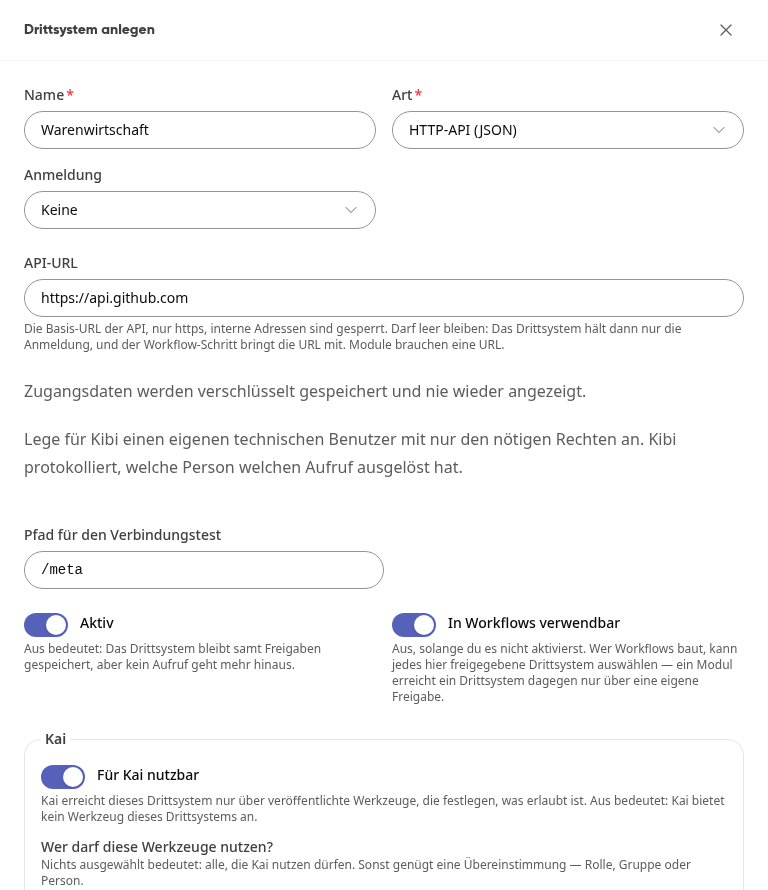
Click on Create Third-Party System.
The platform then opens the detail page of the third-party system. For an HTTP API with Usable for Kai, you will land directly in the Tools tab.
The types and their connection#
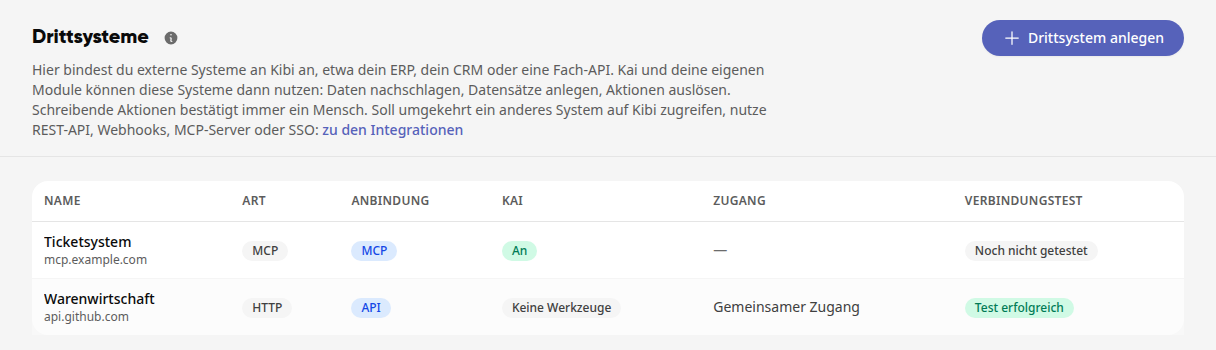
The type determines where the tools for Kai come from. In the list, this is shown in the Connection column.
Type | Connection | Where the tools come from |
|---|---|---|
HTTP API (JSON): any web API | API | Kai builds the tools from the API, you approve them. |
Odoo: your Odoo via JSON-RPC (Odoo 14 to 19), with database, user (login), and API key | API | Kai builds the tools from the API, you approve them. |
MCP server (tools for Kai) | MCP | The server brings its own tools. |
Connecting an MCP server#
For an MCP server, the form looks a bit different:
Authentication: None, Bearer token, OAuth, or Custom headers.
Timeout per call (seconds): how long a single call may take before Kai aborts it. The default is 10 seconds.
Who may use these tools?: Roles, groups, or individuals, as described below.
Instead of Usable by Kai, the toggle is called Kai may use the tools.
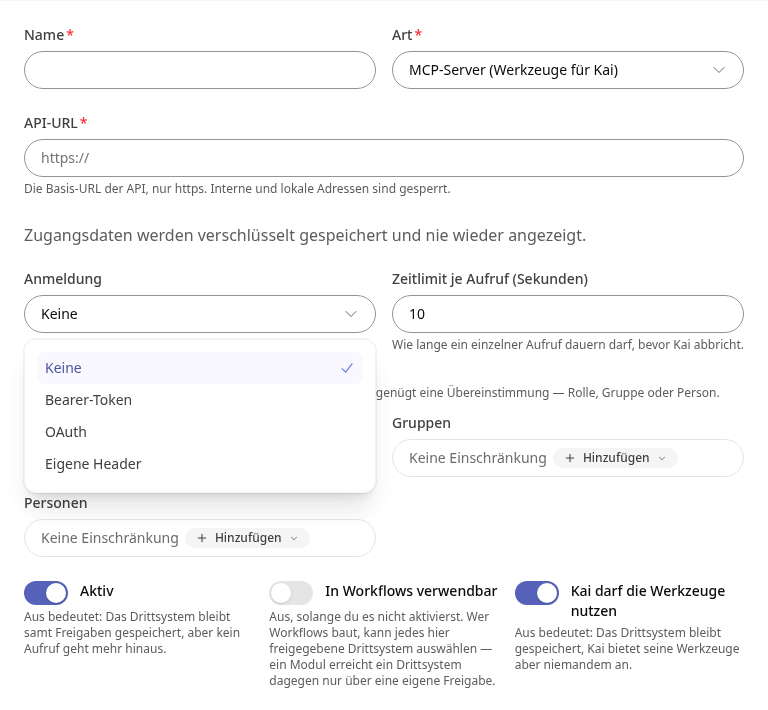
Custom headers: Some servers, such as Akeneo, do not expect their credentials as a bearer token but in custom headers. For this, select the entry Custom headers under Authentication:
Under Header name, enter the name the server expects, for example X-Api-Key. It begins with a letter and contains only letters, digits, and hyphens.
Under Header value, enter the value, for example the API key.
If you need multiple headers, click Add header. Up to ten headers are possible, each name only once. Use the trash can next to a row to remove a header.
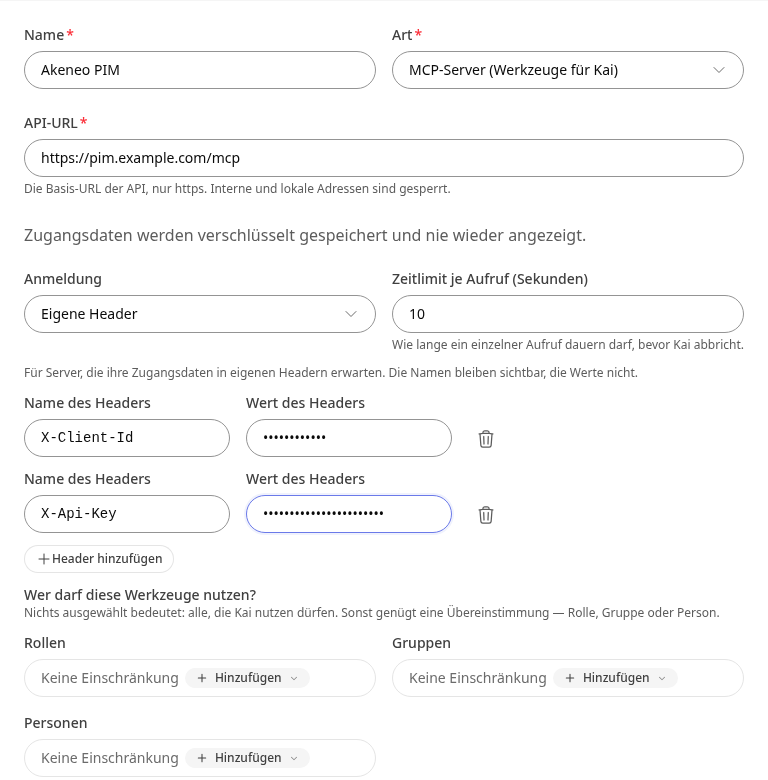
After saving, the header names remain visible, but the values do not. The field then shows Stored – enter again to change. If you leave it empty, the stored value is retained. If you change the API URL to a different address, you must enter all values again.
Info
Headers that Kibi sets itself cannot be used. If you select such a name, the form will point this out.
You set up OAuth in two steps: First, enter Client ID, Client secret, and if needed Permissions (scopes), and save. Then, log in once to the provider via Connect. If the server supports dynamic client registration, Connect alone is sufficient.
The Switches#
Active: Off means the third-party system remains saved along with its permissions, but no calls are sent out anymore.
Usable in workflows: Those who build workflows can then select the third-party system. A module, on the other hand, can only reach a third-party system through its own permission.
Usable for Kai: Kai can only reach the third-party system through published tools that define what is allowed.
Who uses the tools and with what access#
When Kai is enabled, you define roles, groups, or individuals under Who may use these tools? If nothing is selected, it means: everyone who is allowed to use Kai. Otherwise, a single match is sufficient.
For an HTTP API or Odoo, you also select under Access whose login Kai uses:
A shared access: Kai works with the technical access of the third-party system, the same for all individuals. In the external system, all calls appear under this access.
Each person connects themselves: Kai works with each individual's own access and only sees what that person is allowed to see in the external system. Anyone who has not yet connected will receive a card in the chat to connect.
Tip
Create a dedicated technical user for Kibi with only the necessary permissions. Access data is stored encrypted and never displayed again. Kibi logs which person triggered which call.
Info
If Usable in workflows is enabled, the API URL may remain empty: the third-party system then only holds the login, and the workflow step provides the URL. Modules require a URL. Without a URL, the form shows the Allowed hosts field: one host per line, for example api.example.com or *.example.org. If it remains empty, the login may be sent to any host.
Test connection#
In the list, open the third-party system and select the Access tab.
Click Test connection at the bottom.
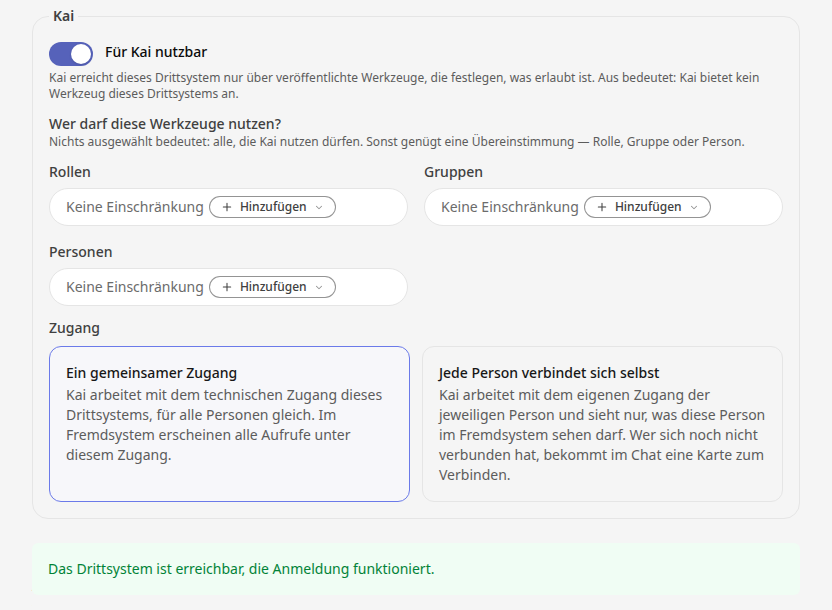
If the test succeeds, The third-party system is reachable, the login works. appears. The result is also shown in the list under Connection test.
Setting up tools for Kai#
What you do for this depends on the connection.
API connection (HTTP API and Odoo)#
Open the third-party system and select the Tools tab.
Click on Set up with Kai. Kai examines the system, suggests suitable tools, and creates the draft. Alternatively, select a template under Template or Without template (empty draft) and click on Set up.
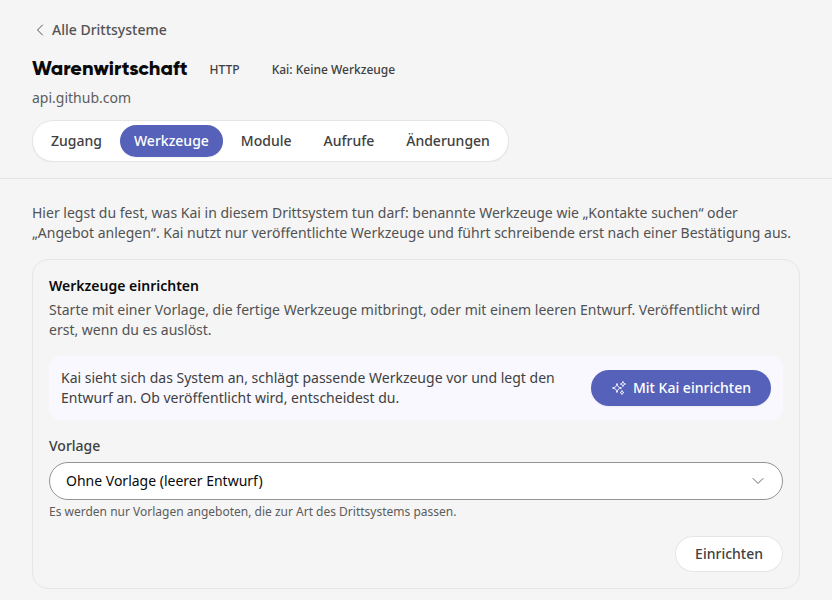
Check the draft and click on Publish. If the draft contains errors, fix them first.
The Publish tools? dialog lists under What will take effect what changes: the first time, Kai can use the tools immediately; later, they replace the previous version. Under This applies to, it states for whom: everyone who is allowed to use this connection. If the Active switch is off, the dialog points out that Kai will only offer the tools once it is turned on. Click Publish to confirm.
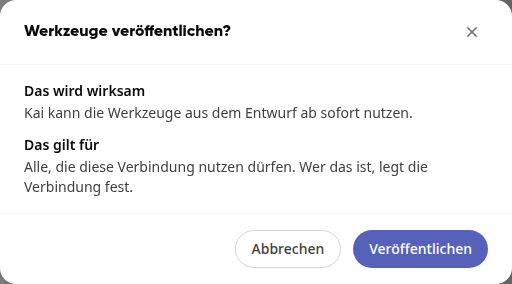
The platform reports Published. Kai will use this version from now on. Only then does Kai use the tools.
MCP connection#
Open the third-party system. There is no Tools tab here; you stay on the Access tab.
In the Tools section, click on Retrieve tools. The server then reports which tools it provides.
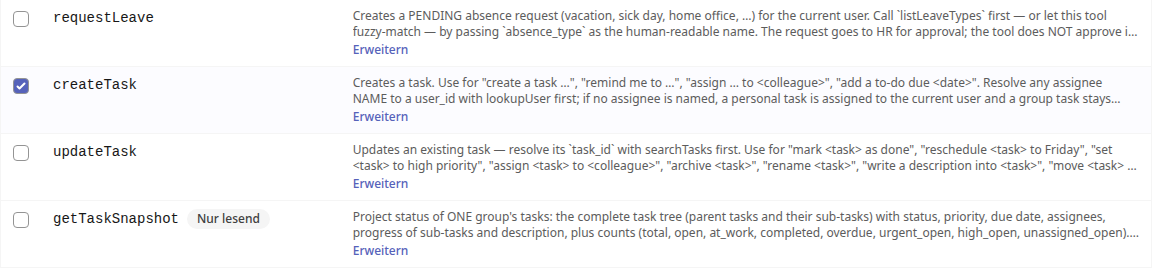
In the Ask before column, check the tools that Kai should only execute after approval in the chat, for example, anything that creates or changes something in the third-party system. Tools marked Read-only are labeled by the server itself. Then click on Save.
Info
Unchecked tools run directly. If Kai has read external content in the same conversation, such as an email, a webpage, or a file, Kai asks before every tool that the server does not mark as read-only.
Confirming calls in chat#
If a call requires approval, Kai shows a card For confirmation in the chat with the third-party system, the tool, and the data that Kai wants to send.
Check the data on the card.
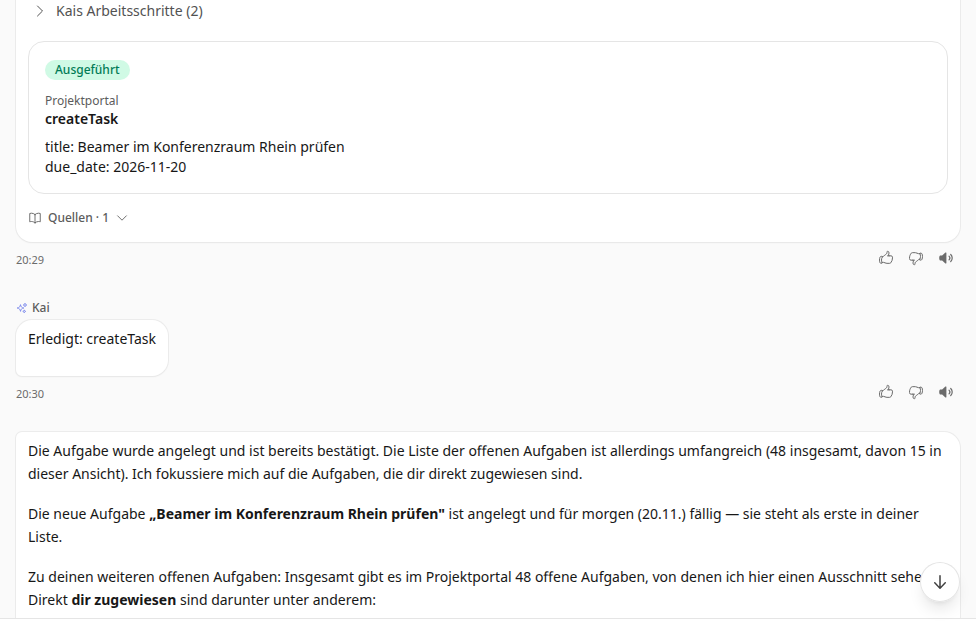
Click on Execute so that Kai sends the call, or on Discard to reject it. After execution, the card shows Executed.
Kai then continues on his own: he reads the result of the call, confirms what happened in the third-party system, and answers the rest of your question. You do not need to write a new message for this.
Info
Kai only continues if all cards in his response have been decided and you have not written anything new in the meantime. After Discard or a failed call, Kai waits for your next message. If Kai needs approval again for the next step, he shows a card again. Continuing is a normal response from Kai and consumes Kai credits like any other.
What you will find on the detail page#
Access: the information from the form, Save, Test connection, and Delete third-party system.
Tools (only for HTTP API and Odoo): what Kai is allowed to do in this third-party system, named tools such as "Search contacts" or "Create offer". Kai only uses published tools and only executes write operations after confirmation.
Modules: the modules that request this third-party system. A module may only do what you authorize here.
Calls: the log of calls. It never contains content or access data and is deleted after 90 days.
Changes: who changed or tested what on the third-party system and when.
Important
For an HTTP API or Odoo, Kai only uses the third-party system when Usable for Kai is enabled in the Access tab and tools are published.
Third-party systems in your own agents#
Your own Kai agents work with third-party systems via skills. A skill is an ability: an instruction, a tool, or both.
Reading: A third-party system only provides its reading tools to agents, for example "search contacts".
Writing: If an agent is to create or change something in the third-party system, it needs a skill with this tool. Whether it asks first is defined by you in the agent under Permissions.
If the administration of the third-party system requires confirmation, it always applies, including for agents.
More on this in "How do I create my own Kai agents?".