
How do I view contacts and companies on the map?
Updated Reading time: 1 min
On this page
On the map in the CRM, you can see at a glance where your contacts and companies are located, for example, to plan visits in a region.
Open map#
Click on CRM in the navigation on the left.
Click on the Map tab at the top. The map first shows your contacts. Above the map, it shows how many addresses are currently visible.
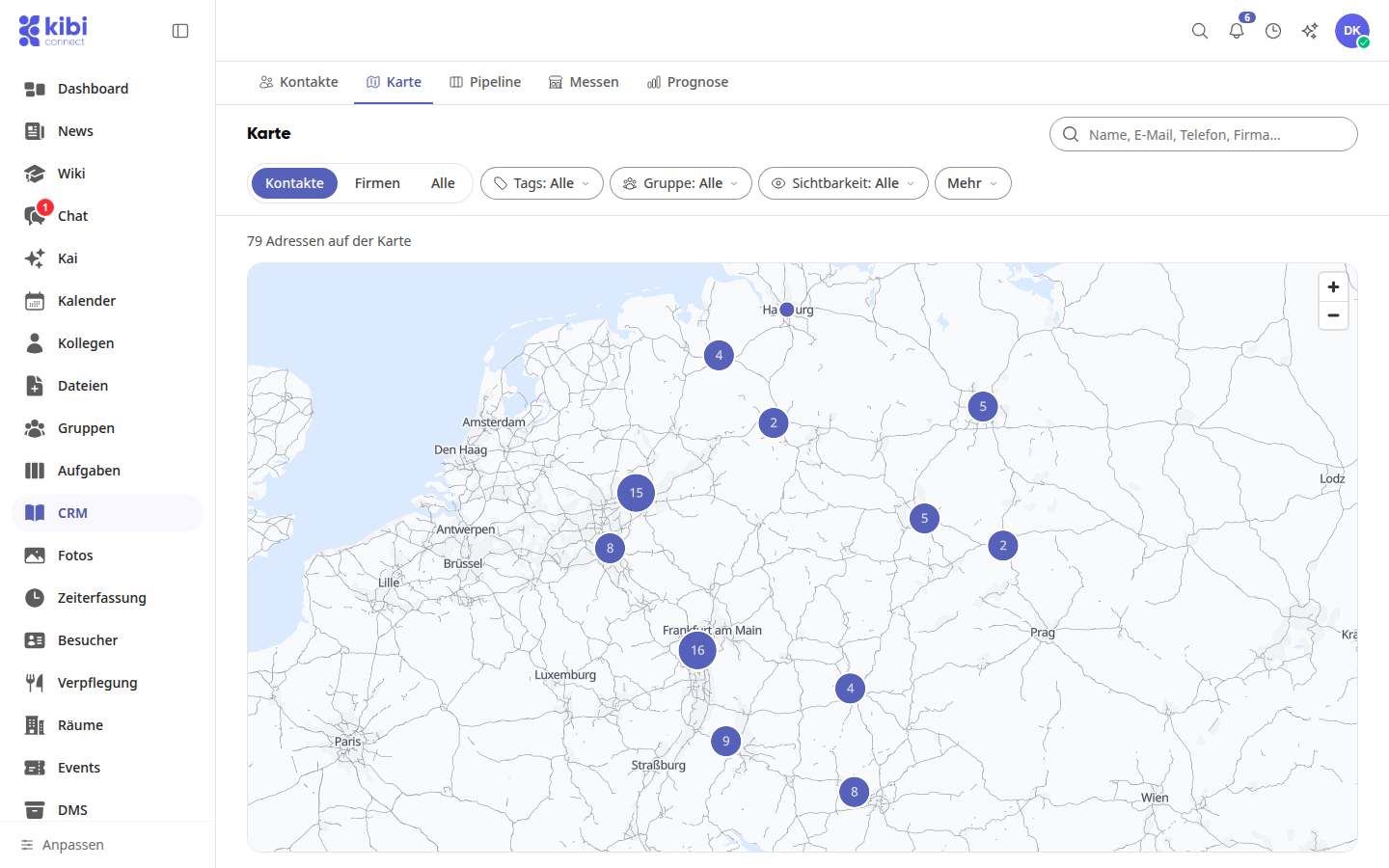
If several addresses are close together, the map groups them into a circle with their count. Click on the circle to zoom into the area. Use + and − or the mouse wheel to zoom yourself.
Open contact or company#
Click on a single pin. A window shows whether it is a contact or a company, and the name.
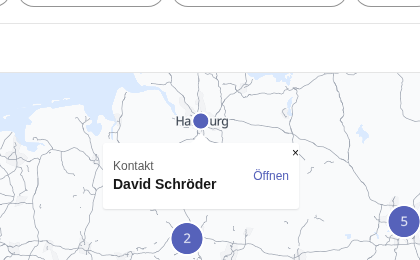
Click on Open to access the detail page.
Filter map#
Select at the top what the map shows: Contacts, Companies, or All.
Narrow down the map using the same filters as in the list: Tags, Group, Visibility, and More, or search by name, email, phone, or company at the top right.
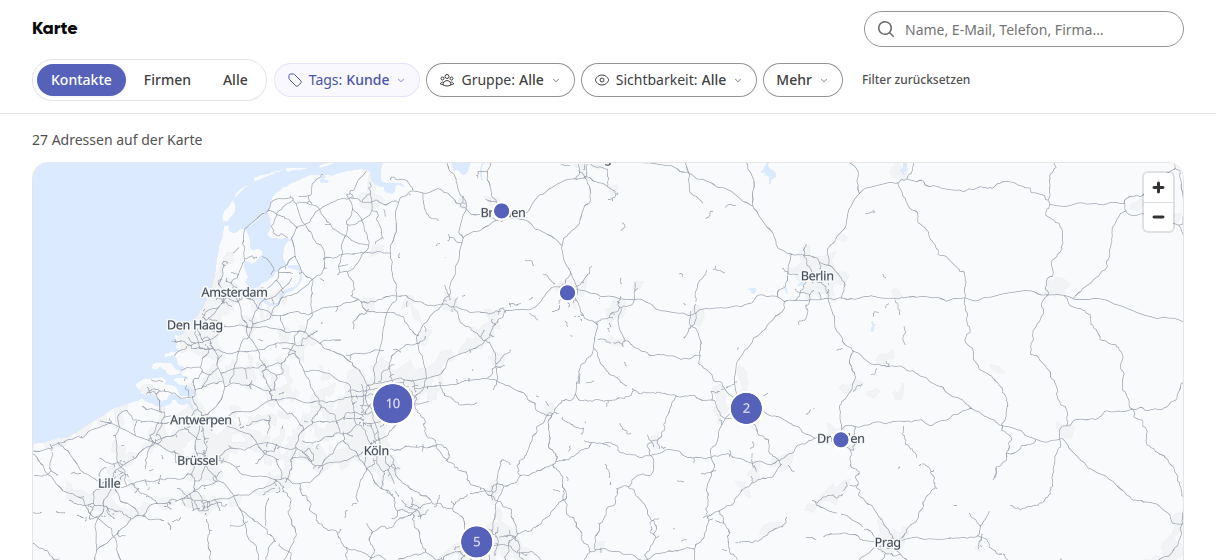
With Reset filter, you will see all addresses again.
Info
Contacts and companies with an address in Germany, Austria, or Switzerland appear on the map. The position is determined in the background after saving, so a new address only appears after a short time. If the street cannot be found, the pin is placed in the center of the location. Addresses without a postal code and city cannot be located, and addresses outside these three countries do not appear.
Info
The map is available to all employees. You only see the contacts and companies that you also see in the list.