
How can I see what became of our feedback to Kibi?
Updated Reading time: 2 min
On this page
Feedback from the feedback tool goes directly to Weslink, the manufacturer of Kibi Connect. In the administration, you can see everything you have sent and what has become of it.
Info
The Feedback page is available to system admins.
How to open the feedback page#
Open the Administration.
In the menu, select System → Feedback.
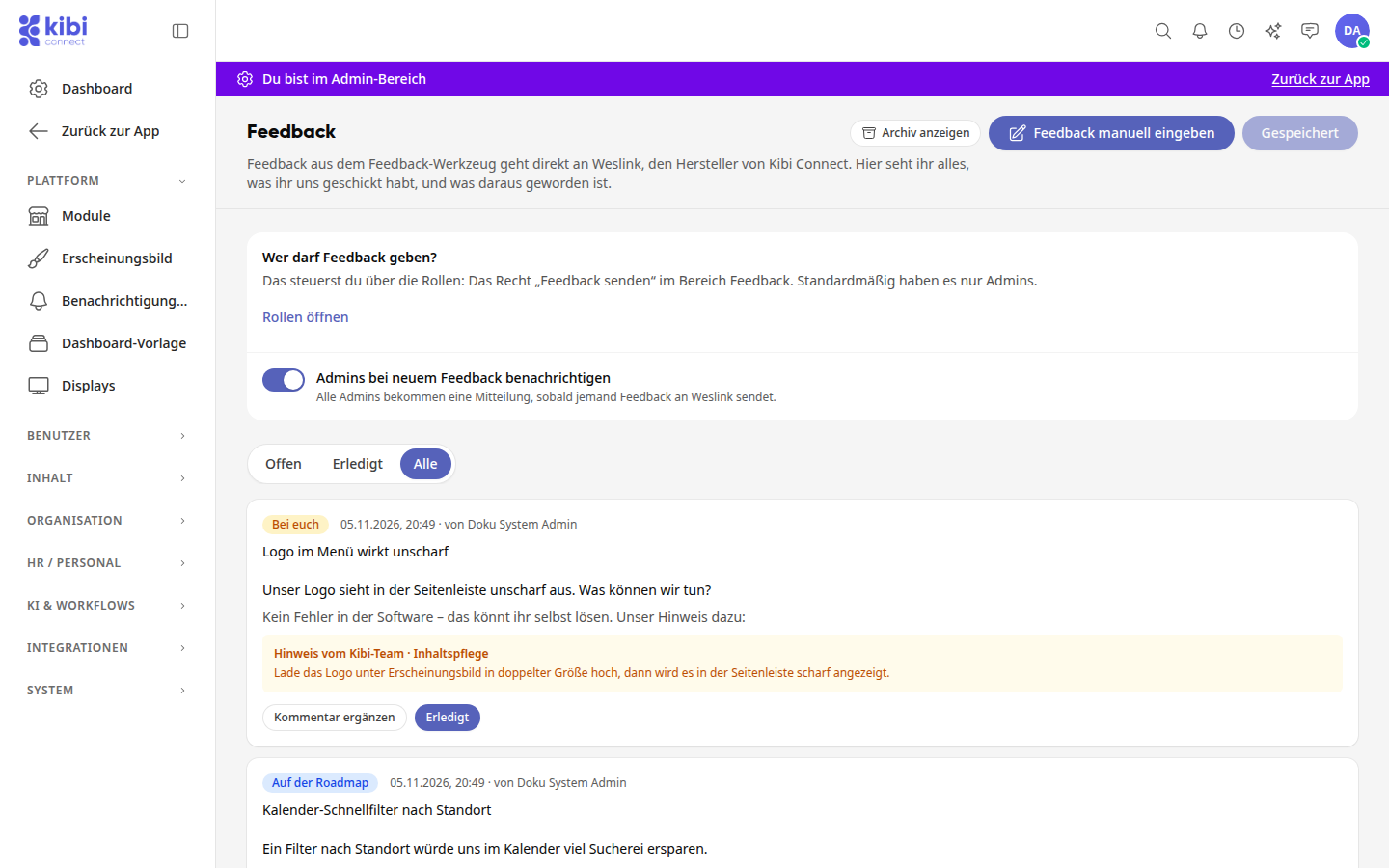
Use Open, Completed, and All to filter the list. Each message shows the status, date, reporting person, and text.
What the status means#
Received: The message has arrived at Weslink and will be reviewed soon.
Under review: Weslink is currently examining the message.
With you: No error in the software; you can resolve this yourself. The note from the Kibi team is attached to the message.
Resolved by you: You have resolved the message yourself; the reporting person has been notified.
Completed: Weslink has processed the message.
On the roadmap: The suggestion is earmarked for further development.
Implemented: The suggestion is now on the platform.
Not currently planned: The suggestion does not currently fit into the planning. Weslink will keep an eye on it.
Enter feedback without a screenshot#
Not all feedback can be captured with the feedback tool via screenshot. In that case, describe it directly.
Click on Enter feedback manually at the top right.
Enter the Subject and Description. The Page and Own Images are optional: up to 5 images as PNG or JPG, each with a maximum of 10 MB.
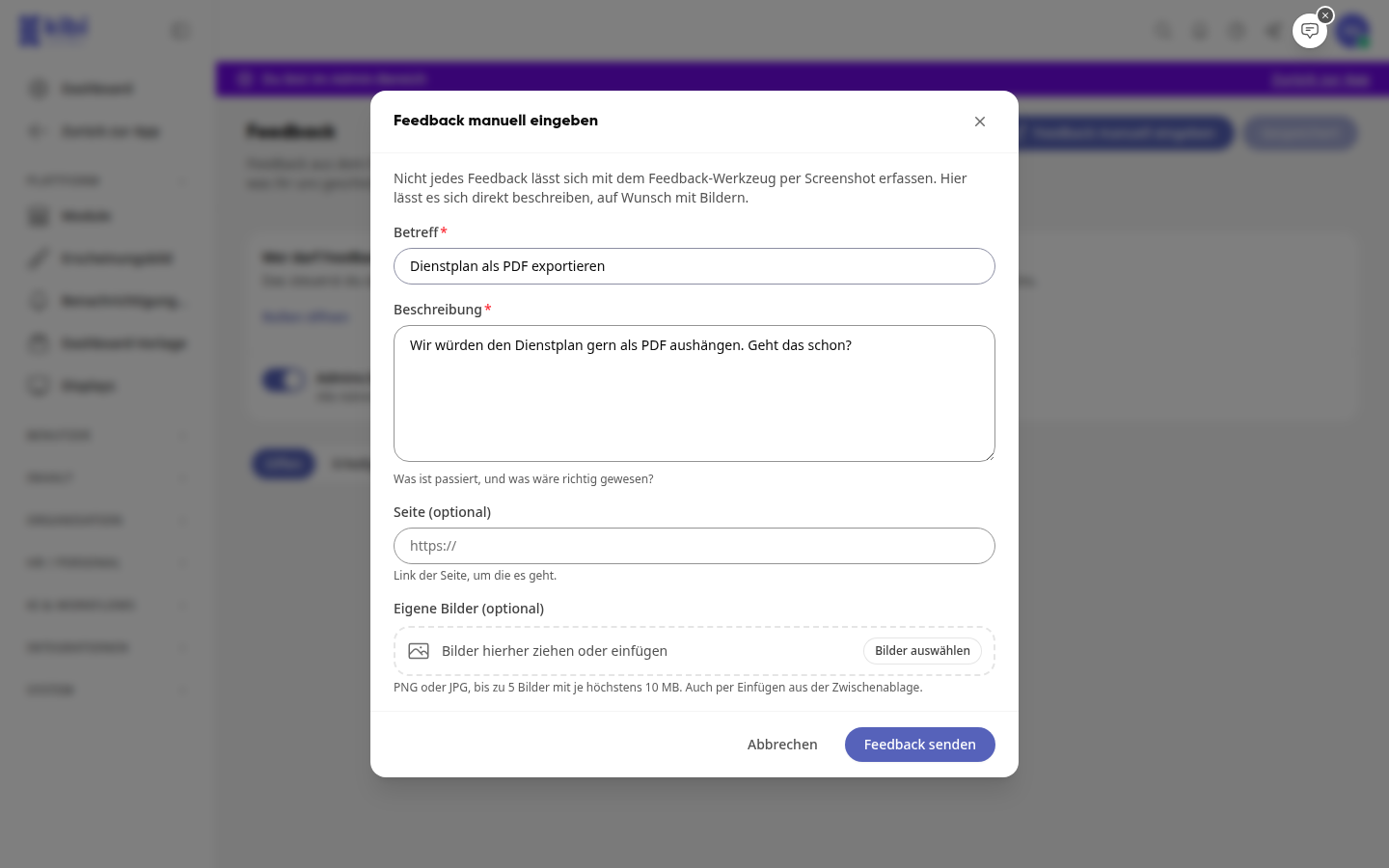
Click on Send feedback.
Afterward, the message appears in the list with the status Received. With Add comment, you can still add something to an open message.
Resolve a message yourself#
If the Kibi team has returned a message with the status With you, you close it yourself.
Read the note from the Kibi team on the message.
Click on Completed on the message.
If necessary, enter a brief response to the reporting person.
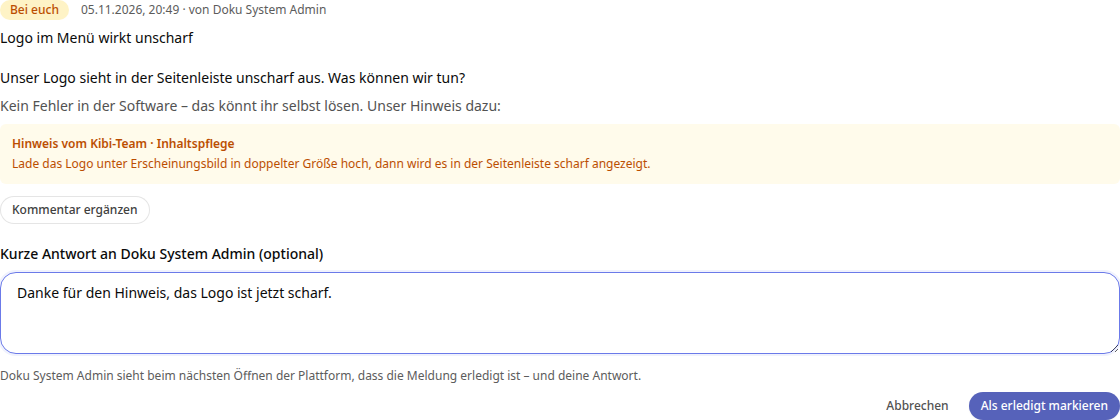
Click on Mark as completed.
The reporting person will see that the message has been resolved and your response the next time they open the platform. The message then appears under Completed with the status Resolved by you.
Archive completed feedback#
Click on Archive on a completed message if it should no longer appear in the list. This does not change anything at Weslink. You can find it again via Show archive at the top right and restore it with Restore. Back to list returns you to the normal view.
Specify who can give feedback and who is notified#
Who can give feedback? You control this via the Send feedback permission in the Feedback section of the roles. By default, only admins have this. The link Open roles takes you directly there.
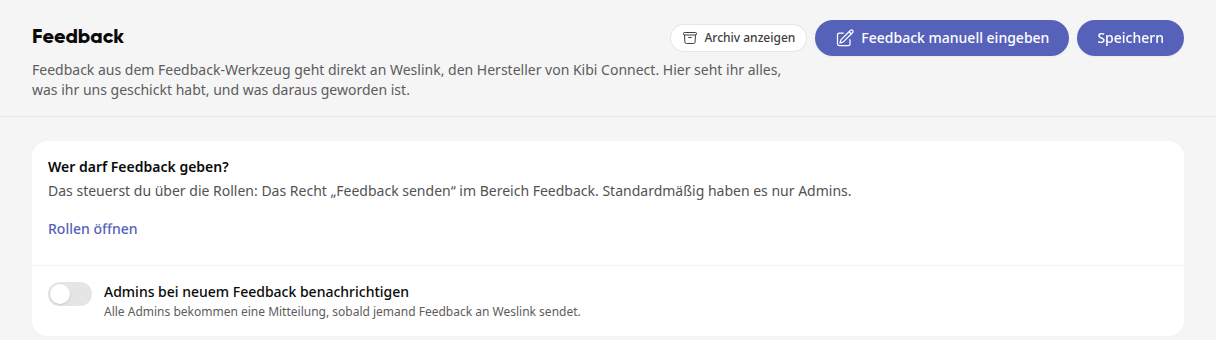
Notify admins of new feedback: If the switch is on, all admins receive a notification as soon as someone sends feedback to Weslink.
Here’s how to change the notification:
Toggle the switch Notify admins of new feedback.
Click on Save at the top right. The button will then show Saved.
Info
If you want to leave the page before saving, the platform will ask with Discard changes?: With Continue editing, you stay on the page; with Discard, the changes are lost.