
How do I make a video call?
Updated Reading time: 2 min
From any chat, you can call colleagues via video. During the call, you control the camera, microphone, and screen sharing using the bar at the bottom.
Starting a video call#
Open the conversation in Chat with the person you want to call.
Click on Start video call (camera symbol) in the top right. For a call without video, use Start call (phone symbol).

Allow your browser access to the camera and microphone when prompted.
Until someone answers, you will see Waiting for participants... and a note that others have been notified.
Info
In confidential chats, calls are not available.
Accepting a call#
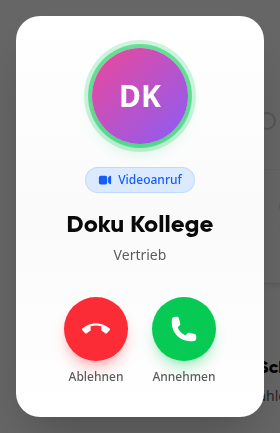
When someone calls you, a window appears with the person's name. Click Accept or Decline.
If there is already an active call in your chat, the platform will show you the note Active call at the bottom. Click Join to participate.
During the call#
At the bottom, you will find all the call functions.
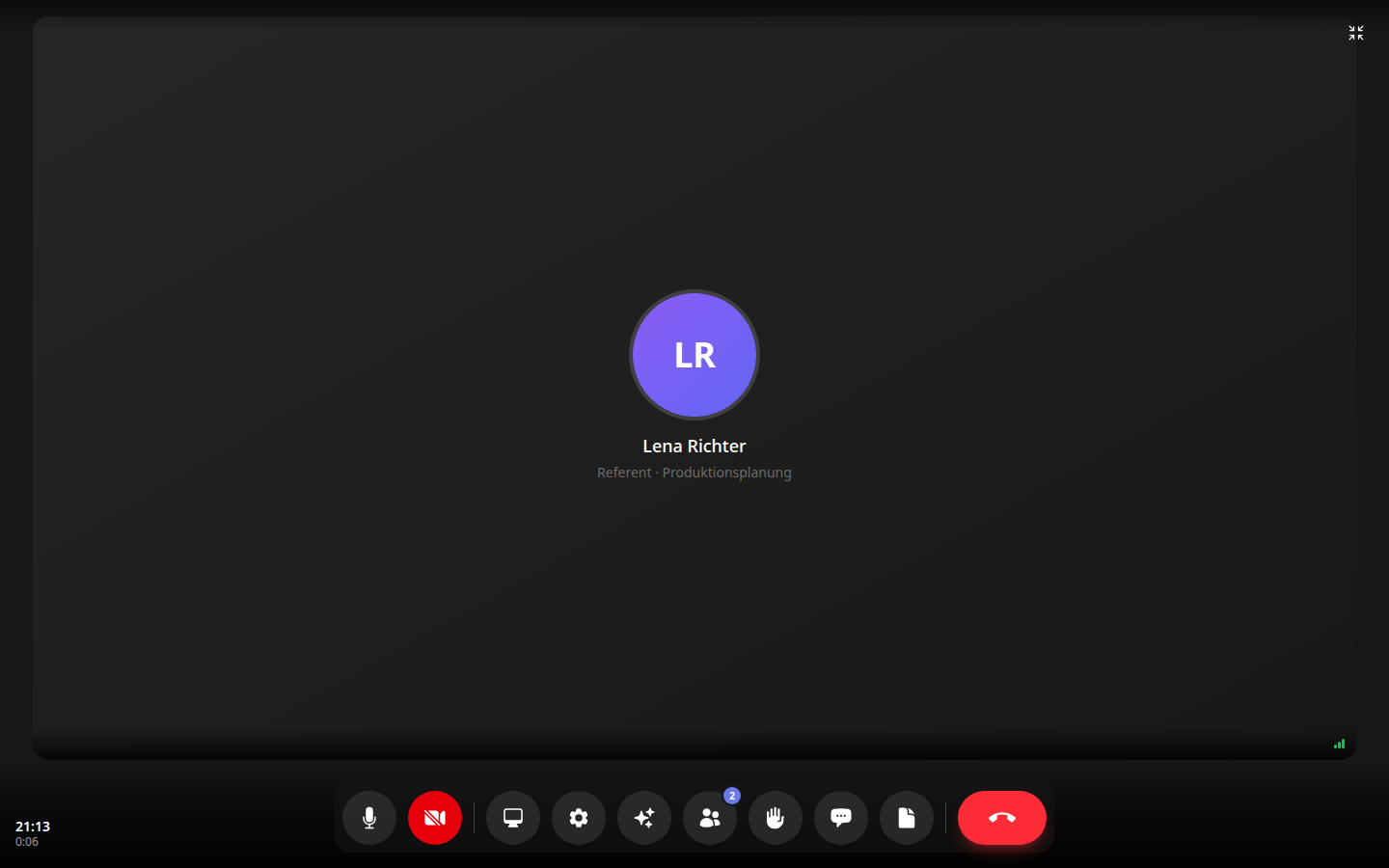
The symbols mean from left to right:

Mute microphone: Turns your microphone off and on.
Turn off camera: Turns your video off and on. If the camera is off, others will see your profile picture or initials instead.
Share screen: Shows your screen to others.
Settings: Here you select the microphone, speaker, and camera.
Background effects: Softens your background (Light or Strong) or replaces it with a virtual background.
People: Shows who is in the call and allows you to add more people.
Raise hand: Shows others with your name and a hand symbol that you want to say something.
Messages: Opens a side panel where you can exchange messages during the call.
Minutes: Opens the side panel for notes and images from which Kai writes minutes after the call.
End call: Hangs up. In a one-on-one call, this ends the call for both of you.
Use the symbol in the top right to minimize the call (Minimize).
Adding more people#
Click on People in the bar.
Click on Add people.
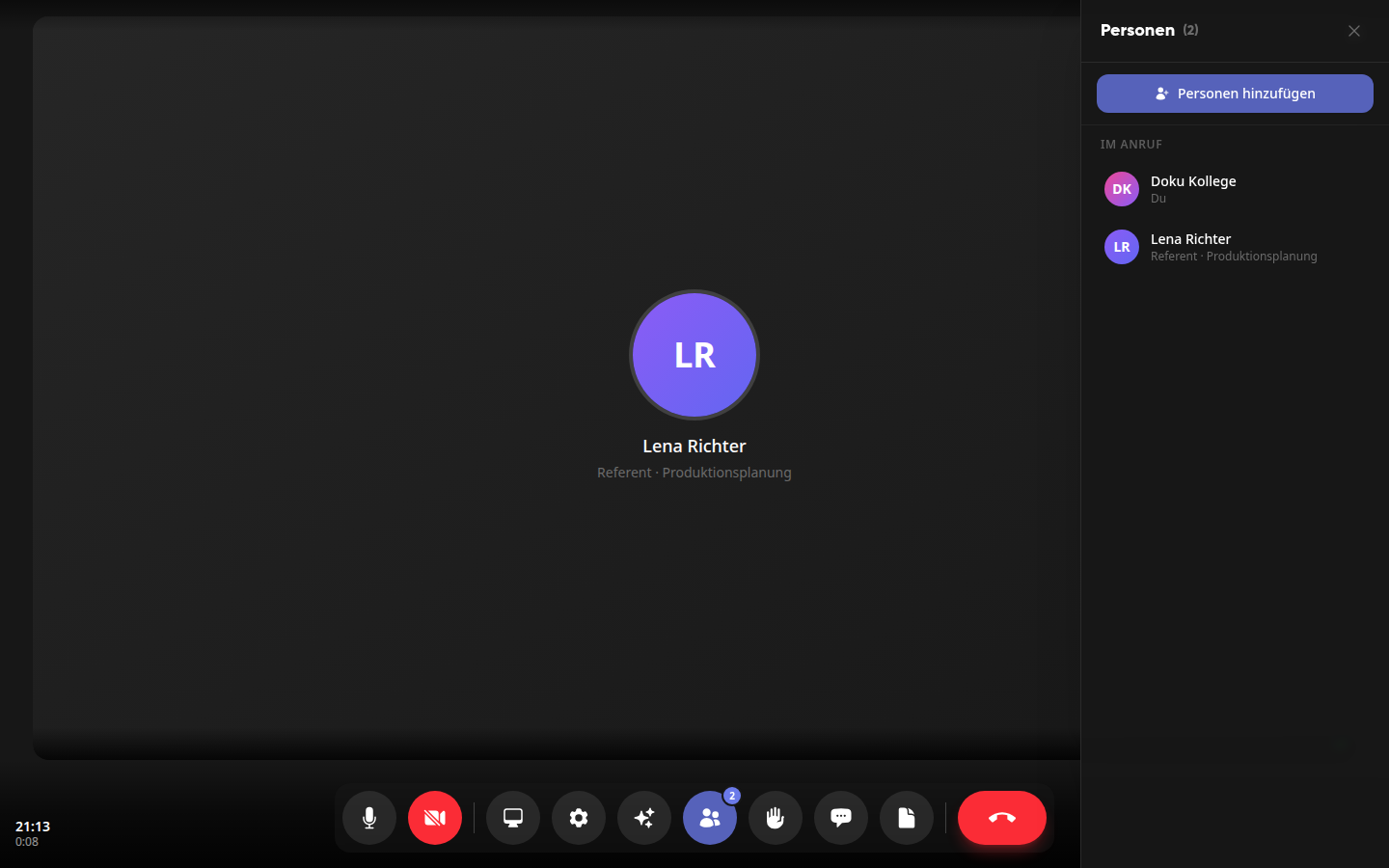
In the Invite people dialog, search by name or email address (at least 2 characters), select the person, and click Invite.
After the call#
Afterward, there will be an entry in the chat about the call, for example Outgoing video call with date and time.