How do I upload and play videos?
Updated Reading time: 3 min
In the Photos & Videos module, you can store videos in addition to photos, for example a tour of the hall or a brief introduction to a machine. Videos appear in the stream as tiles with their duration, you can play them in the large view, and find them again using the Videos only filter or the search function.
Info
All employees can upload and view videos.
Upload video#
Open Photos & Videos in the navigation and click Upload at the top right.
Drag the video onto the field Drag photos or videos here or select them or click on it to select it. You can upload photos and videos together in one step.
Under Note, describe what can be seen. The note will later appear as the title on the tile.
Under Groups, select who can see the video. Without a selection, only you and your manager can see it.
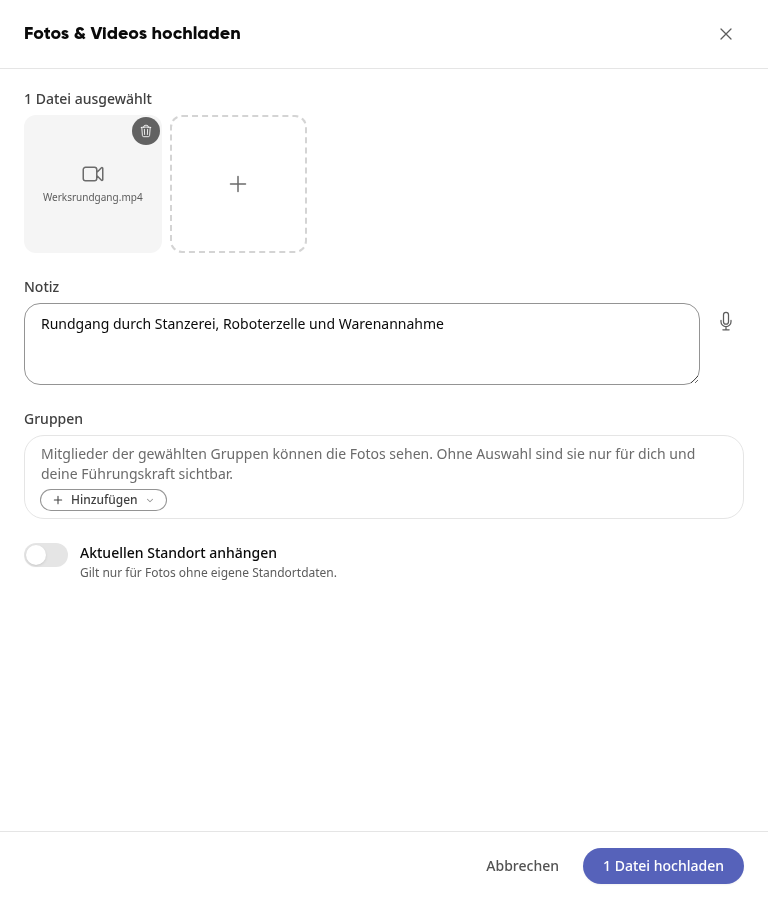
Click on Upload 1 file.
After uploading, the video appears in the Stream. Kibi Connect automatically generates a preview image; at the top right of the tile you will see a play icon and the length of the video.
Important
You can upload videos in MP4, MOV, M4V, or WebM format with a maximum of 500 MB per video. Large videos are transferred in parts; leave the window open until the upload is complete. Larger videos and other formats are not accepted by the window: Under 1 file not accepted, the reason is then shown, for example Video larger than 500 MB.
Tip
You upload videos to an album the same way: Open the album, click Add photos, and then click Upload new photos & videos.
Playing a video#
In the stream, click on the video tile. The large view opens.
Click the play icon at the bottom left. Use the bar below it to jump to any position; on the right, you can adjust the volume or switch to fullscreen.

Below the video, you will find the same actions as with a photo, for example Add to album and Comments. Use the download icon or right-click to download the video: with Download original as the original file, or with Download as MP4 (for all devices) in the processed version.
Info
Videos cannot be rotated. This function is only available for photos.
Info
Kibi Connect processes every video after upload so that it plays on computers and smartphones, including iPhone recordings. Until then, the tile shows Processing. For large videos, this can take a few minutes. If processing fails, the original file can still be downloaded.
Show only videos#
Click on Videos only under Filter on the left. The stream will now show only videos.
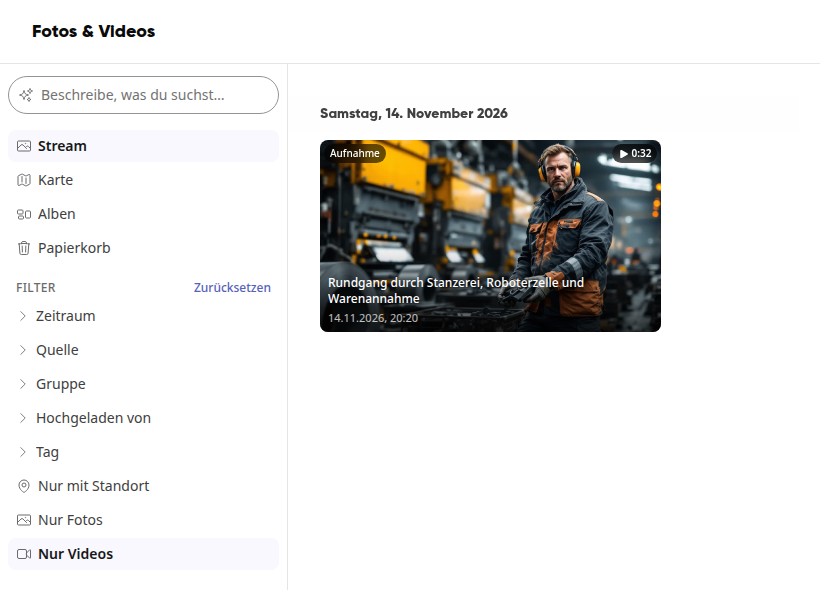
With Photos only you hide videos. With Reset next to Filter you will see everything again.
Finding videos via search#
The AI search also looks inside videos: still images are extracted from each video and captured like photos. This way, you can also find scenes that are not mentioned in the note. Freshly uploaded videos can only be found after a few minutes.
In the search field Describe what you are looking for… at the top left, describe what you are looking for, for example "Truck at the loading ramp", and press Enter. The view switches to the AI search area.
If a scene from a video matches, the tile shows the location, for example Hit at 0:30.
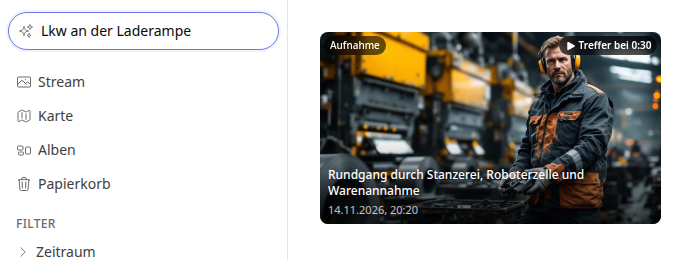
Click on the tile. The large view starts the video directly at this point.