
How do I create and share notes and voice notes?
Updated Reading time: 3 min
On this page
You record thoughts and discussion points in a note, type them or speak them, and share them with colleagues or a group as needed.
Info
Notes are available to employees in all standard roles if the module is installed for you. A new note is only visible to you until you share it or assign it to a group.
Write a note#
Click on Notes in the navigation. A blank note is already open on the right. To start a new note from another note, use the New Note button next to the search field.
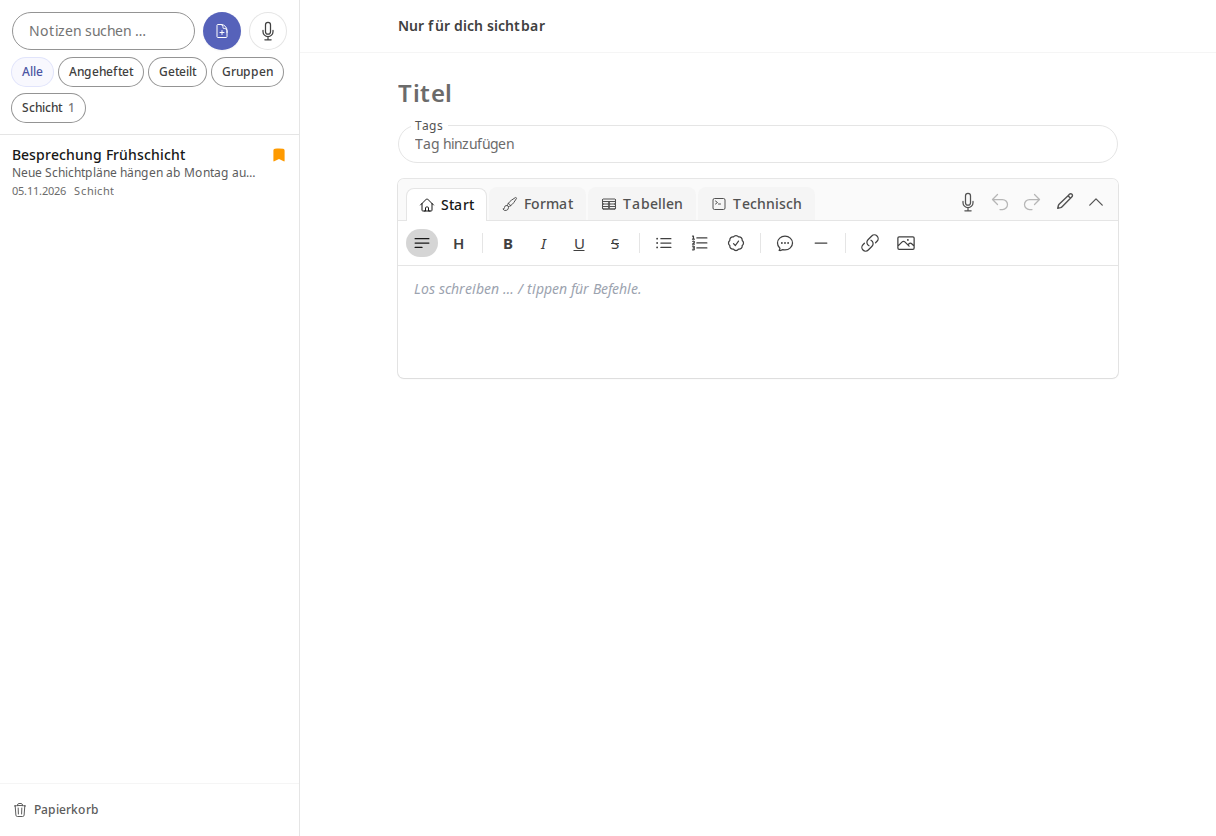
Enter a title or start typing directly in the text field. Use / to open the editor commands, and use the toolbar to format the text.
Done. You don’t need to save: Saved appears at the top, and the note is added to the list. A blank note is not created.
Tipp
In the Tags field, assign keywords, for example "shift". They appear as filters above the list.
Attach files#
Open the note and go to the Attachments section.
Click Add file, drag the file into the area, or select an existing file via Select existing files.
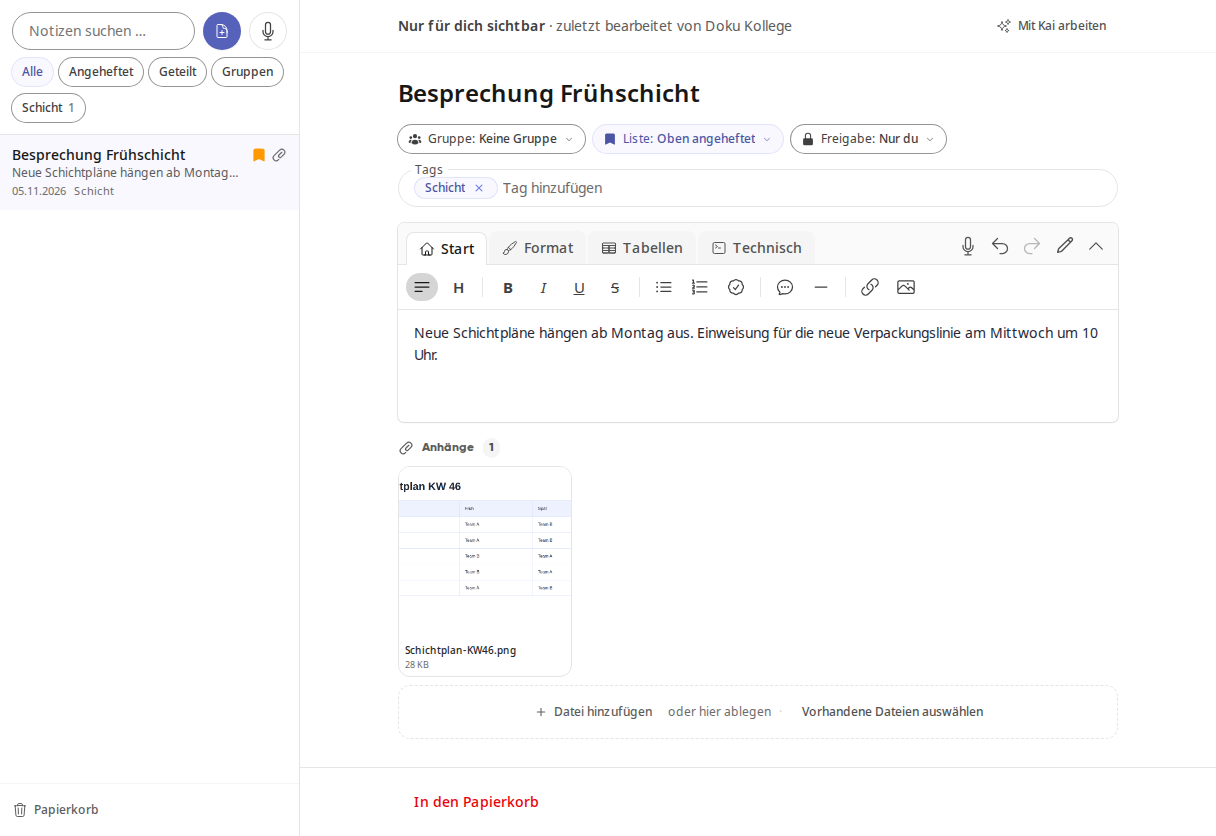
To remove an attachment, hover over the file, click the trash can icon, and confirm with Remove attachment. A file uploaded directly here will be deleted, while a file selected from your files will remain there.
Record a voice note#
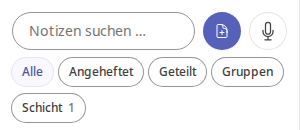
At the top of the list, click the microphone Voice note. The first time, the browser will ask for microphone access.
Start speaking. A new note opens, and the recording runs at the bottom with the time.

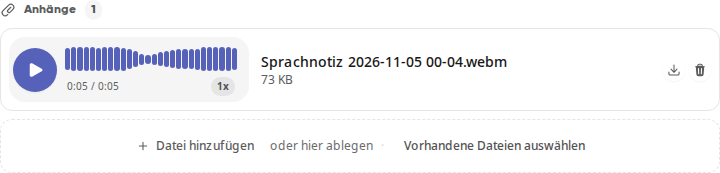
Click Done. The spoken text becomes the note, and the recording is saved as a file under Attachments. Use Discard to cancel the recording.
Info
The Voice note button only appears if Kai is enabled for you and voice input is activated in your tenant. If your browser or device does not support recording, it will also not appear.
Tipp
If a section could not be converted to text, it will show [unintelligible]. The full recording remains in the attachment, and you can listen to it again.
Share a note with people#
Open the note and click on Sharing: Only you.
Under People, search for a name and select the person.
Next to the name, set what the person is allowed to do. With Read, they can read the note and its attachments; with Edit, they can co-edit live and change the title and tags.
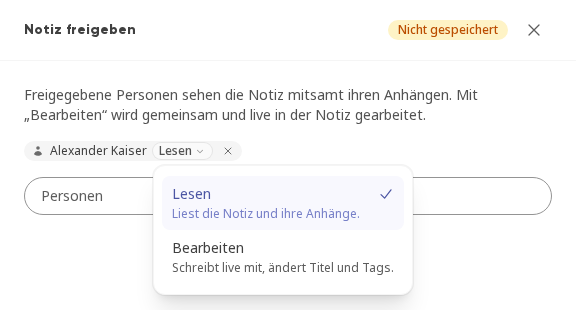
Click Save. The note now shows, for example, Shared with 1 person.
To revoke sharing, reopen the dialog, click the cross next to the name, and then click Save.
Assign a note to a group#
Open the note and click on Group: No group.
Select the group.
The note will then also appear in the Notes tab of the group. All group members can read it; members with Admin and Collaborate permissions can edit it.
Info
Only groups where you are an Admin or have Collaborate permissions are available for selection. A group where you only have Read permissions will not appear here.
Find notes again#
Search: The Search notes... field finds words from the title and text.
Filter: All, Pinned, Shared, and Groups narrow down the list; your tags appear next to them.
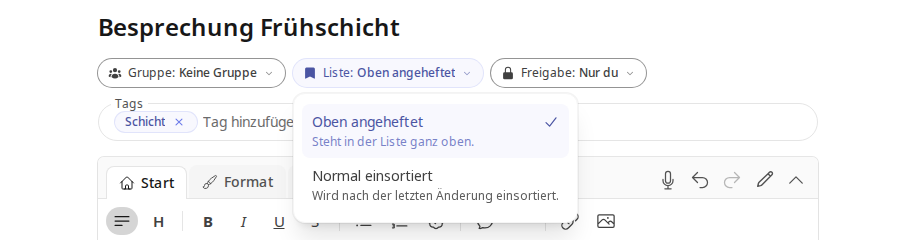
Pin: In the note, click List: Sorted normally and select Pinned at top. The note will then appear at the very top of the list.
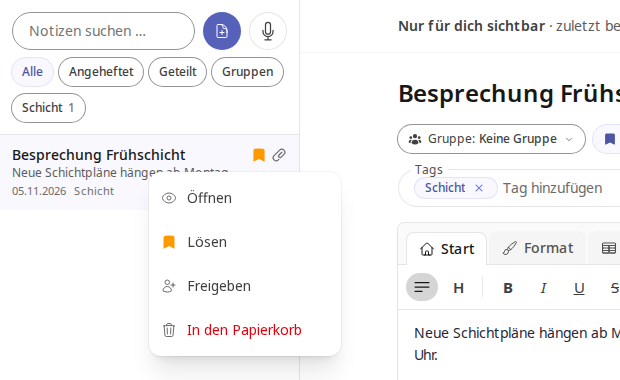
Context menu: Right-click a note in the list to access Open, Pin or Unpin, Share, and Move to trash.
Work with Kai on a note#
Open the note and click Work with Kai in the top right. Kai opens next to the note.
Select a suggestion like Summarize, Create outline, Derive tasks, or Smooth language, or write your own message.
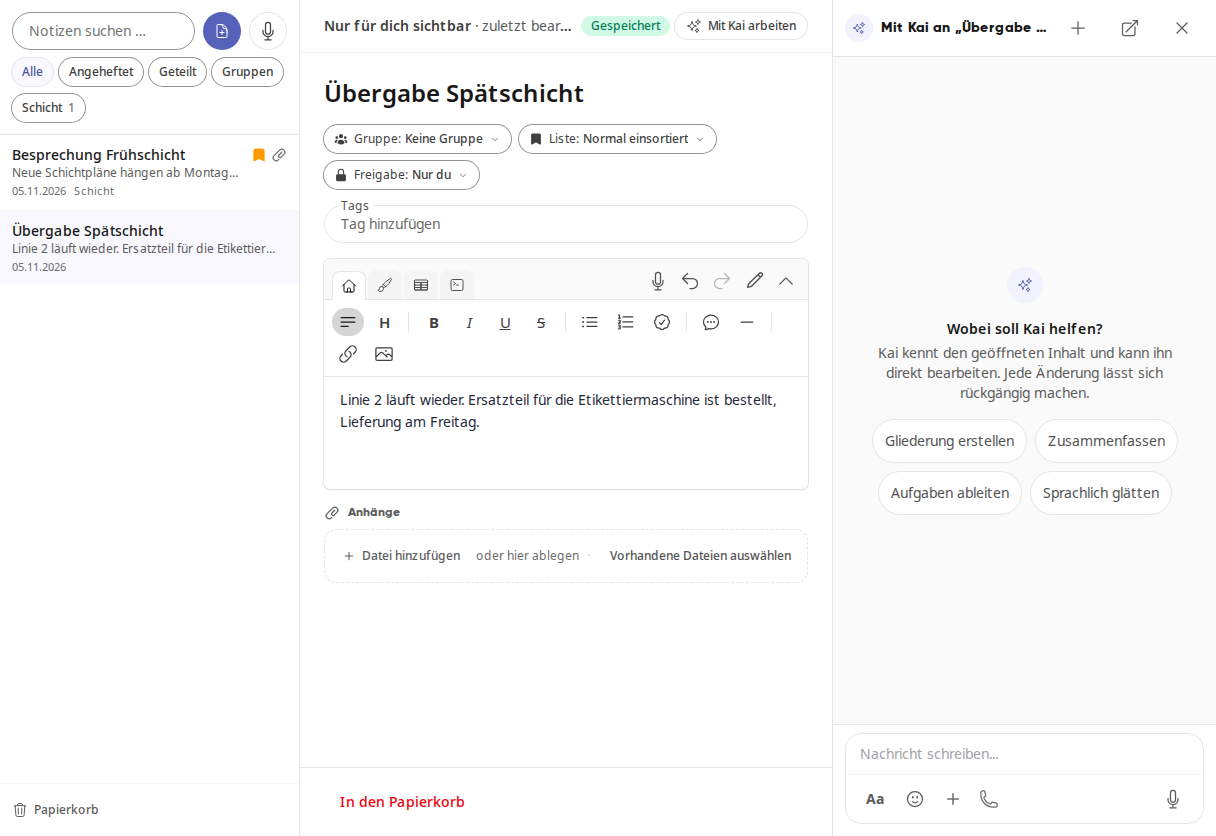
Kai knows the open content and can edit it directly. Every change can be undone.
Delete and restore a note#
At the bottom of the note, click Move to trash.
To restore it, click Trash below the list, then right-click the note and select Restore. Use Delete permanently to remove it immediately.
Info
Notes in the trash can be restored for 30 days.