
How do I view our company's credit balance usage?
Updated Reading time: 2 min
In the Usage tab, you can see what the company credit of your platform was used for and how many pages were processed by text recognition this month. This allows you to identify early which area and which people consume the most Kai credits.
Info
This function is available to system administrators. Users with the "Manage system settings" permission can also view this area.
Accessing Usage#
You can reach the tab in two ways:
Via the AI settings: In the Administration, open AI & Workflows → Costs & Credits.
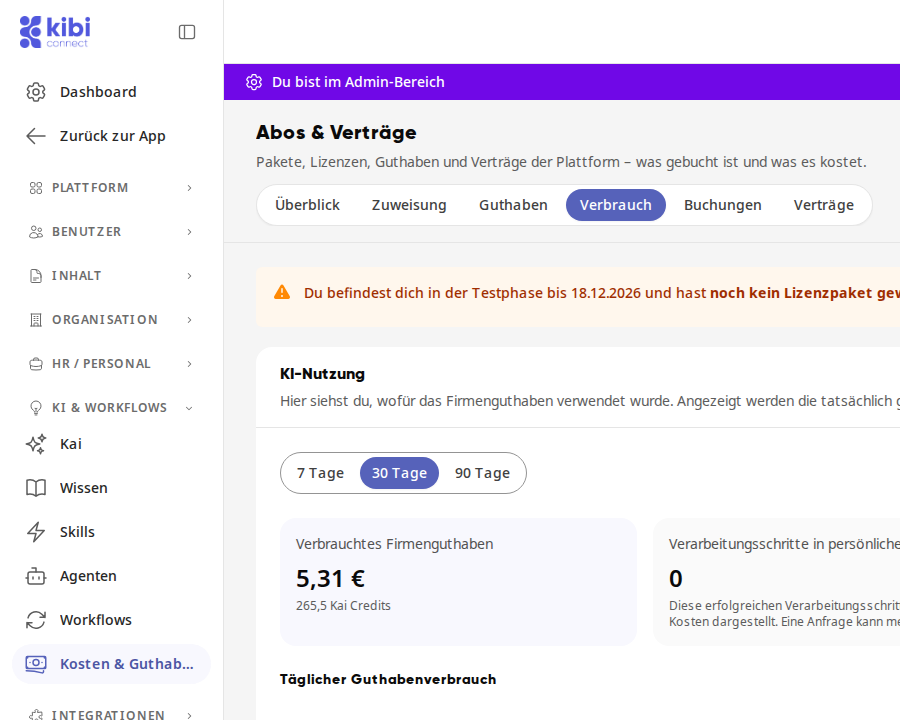
Via the subscription: Open Administration → System → Subscriptions & Contracts and click on the Usage tab.
Info
The Costs & Credits entry only appears if Kai is installed on your platform.
Evaluate AI usage#
The AI usage section shows the actual costs booked from the customer's perspective.
Select the time period at the top: 7 days, 30 days, or 90 days.
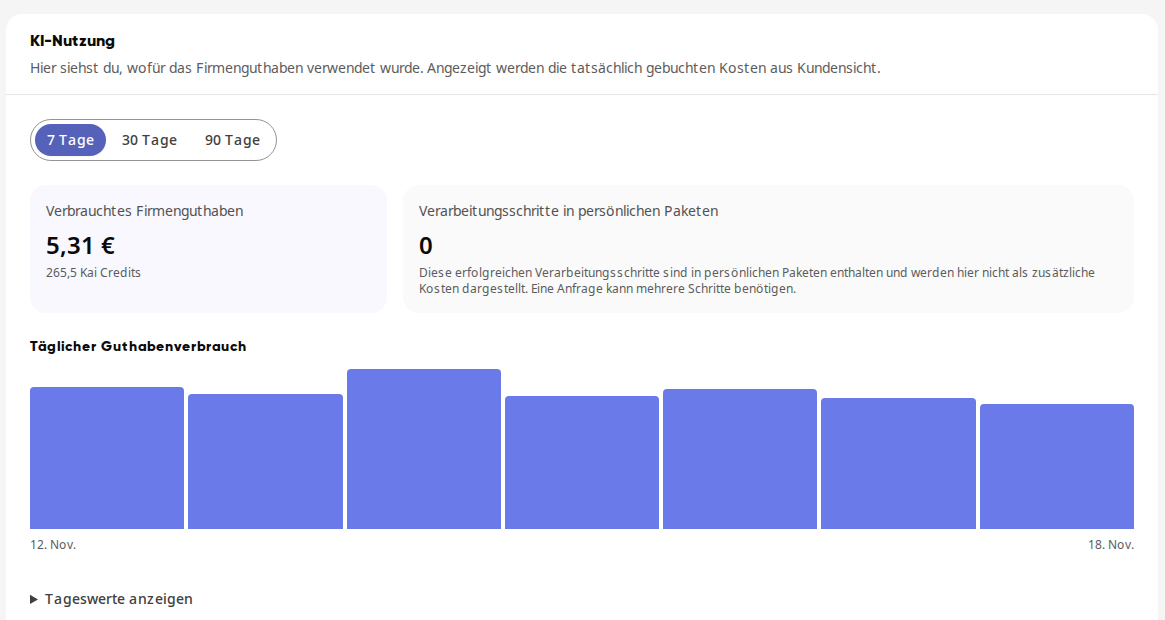
Under Daily credit consumption, you can see the trend as a chart. Click on Show daily values to expand the amounts per day.
The metrics mean:
Consumed company credit: the amount in euros and in Kai credits for the selected time period.
Processing steps in personal packages: successful steps that are included in the personal packages. They do not appear here as additional costs. A request may require multiple steps.
Costs by area and employees#
Below this, the platform breaks down the costs:
Costs by area: what the credit was used for. The area with the highest costs is at the top.
Costs by employees: amount and Kai credits per person. Anything not assigned to a person is listed under System and background tasks.
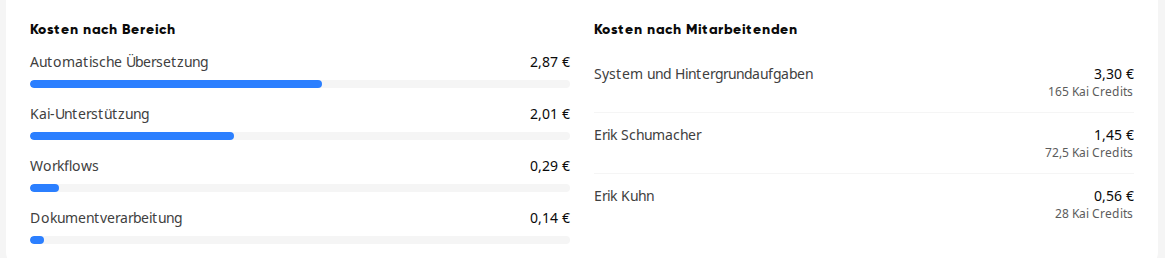
Common areas are:
Area | What it covers |
|---|---|
Kai support | Conversations and tasks that people carry out with Kai |
Automatic translation | Content that the platform translates into other languages in the background, for example publicly shared wiki pages or chat messages |
Workflows | AI steps in your workflows |
Document processing | Text recognition in documents |
Automations | other AI work in the background without an assigned person |
Tip
Automatic translations run without a person and therefore appear under System and background tasks in the employee breakdown.
Check OCR Usage#
The OCR Usage section counts the pages that have been processed by text recognition in this calendar month. It is independent of the period selected above.
Inclusive credits: They apply per license and month, expire at the end of the month, and are shared by documents, Kai, and workflows. After that, purchased Kai credits are consumed.
Remaining pages total: This line does not include purchased Kai credits in the company balance. You can see the full status in the Balance tab.
If OCR processing paused appears here, check the status in the Balance tab and top up if necessary.
Tip
You can find every individual top-up and deduction in the Transactions tab.