
How do I maintain legal texts and privacy statements?
Updated Reading time: 2 min
On this page
On the Policies page in the administration, you set the privacy policy and terms of use that your employees must agree to. You also enter the mandatory information for the imprint and privacy notice, and export who agreed and when.
Info
These settings are available to system administrators.
Open the "Policies" page#
Open the administration and select Policies from the menu under System.
You will not find the contracts between your company and Kibi here, but via the Subscriptions & Contracts link at the top of the page.
Set privacy policy and terms of use#
In the Privacy & Terms of Use section, enable the Activate Privacy Policy toggle.
Write the text in the Additional Information field below. Using the toolbar, you can insert headings, lists, and links.
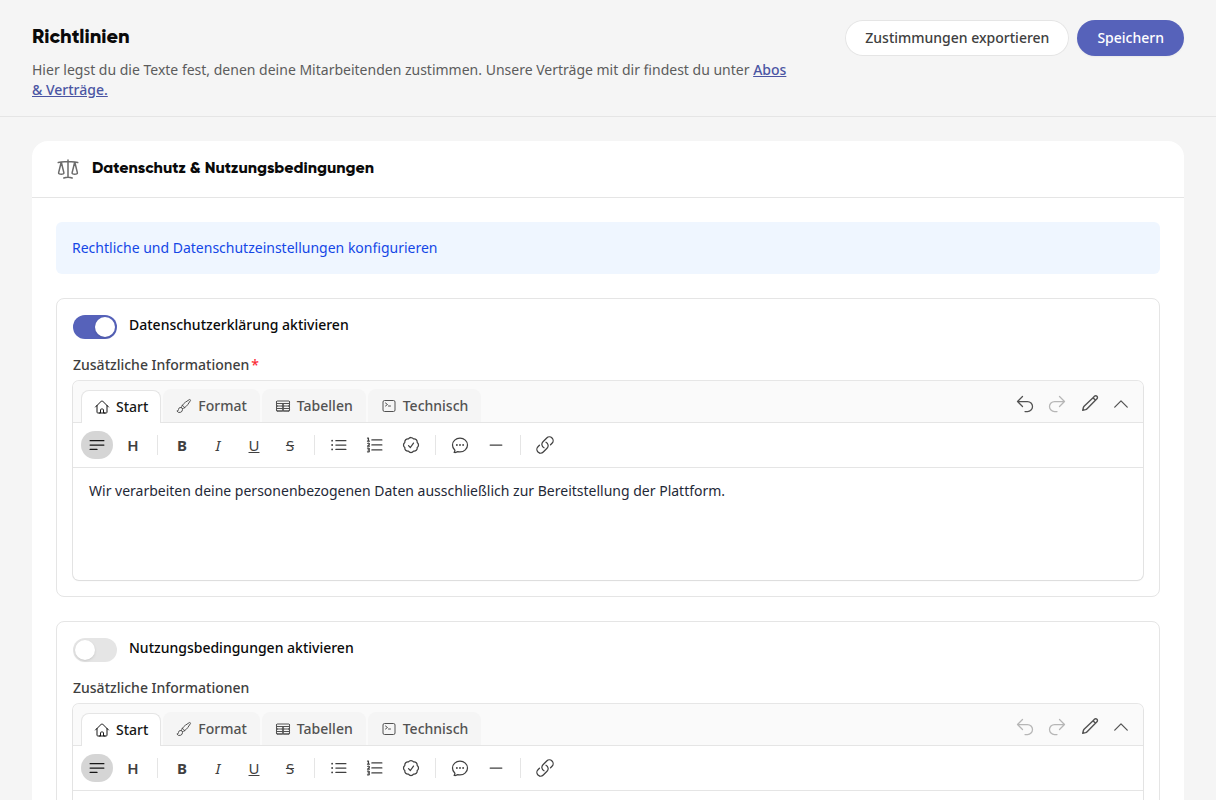
Do the same with Activate Terms of Use if your employees also need to confirm the terms of use.
Click Save at the top right of the page. After that, it will display Saved until you make changes again.
Wichtig
If a text is enabled, it must also have content. An enabled text without content cannot be saved. The message Please provide content if the declaration is activated. will then appear.
What your employees see afterward#
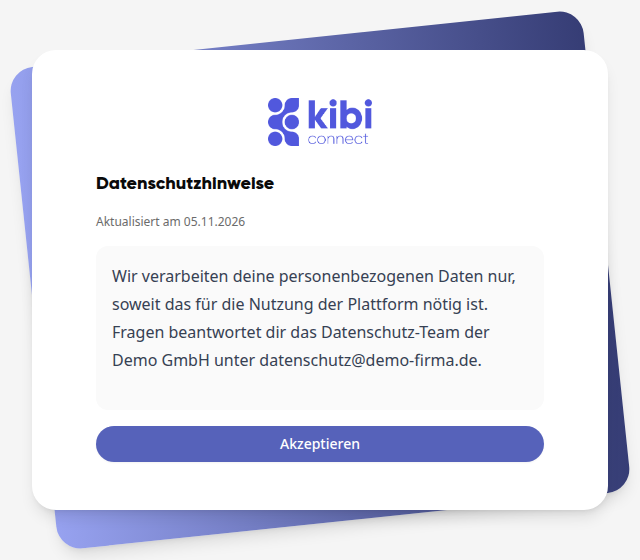
As soon as the platform is reloaded, it will display the text. This also applies to you. Only after clicking Accept can you proceed.
Warnung
If you change an enabled text and save it, all employees must agree to it again. Therefore, save changes collectively. If you leave the page with unsaved changes, your browser will ask for confirmation first.
Enter mandatory information for imprint and privacy notice#
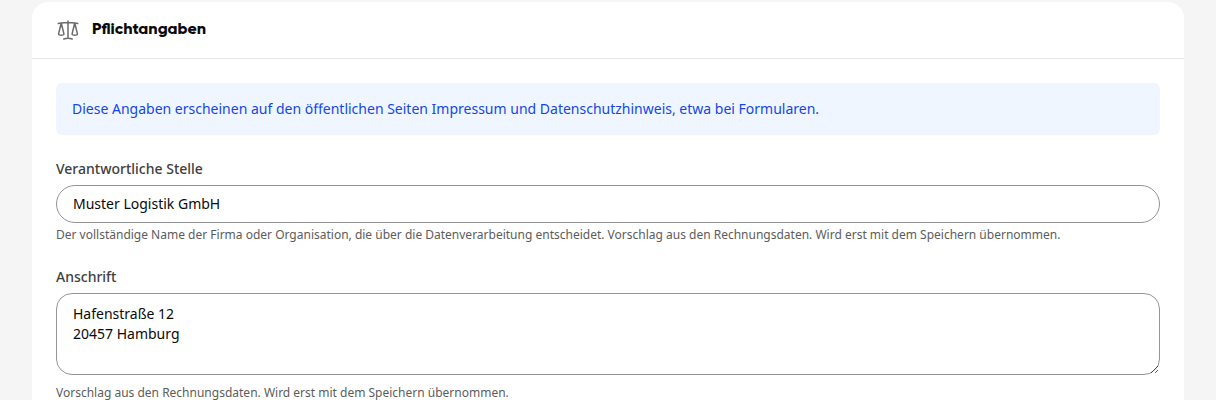
The information in the Mandatory Information section appears on the public pages Imprint and Privacy Notice, which are linked, for example, under public forms.
Under Responsible Entity, enter the full name of the company or organization that decides on data processing, for example, Mustermann GmbH.
Enter the Address and the Email for Privacy Questions.
Write the text of your imprint in the Imprint field. If you already have an imprint on your website, enter its address under Address of an existing imprint (https) instead. The imprint page will then redirect there.
For the Privacy Notice, you can write your own text. If you leave the field blank, the enabled privacy policy will be used.
Click Save at the top right.
Info
If Responsible Entity or Address are still empty, the platform will suggest them from your billing data. Below the field, it will say Suggestion from billing data. Will only be adopted upon saving. Check the suggestion and click Save: Only then will it appear on the public pages. Until then, it is considered an unsaved change, and your browser will ask for confirmation when leaving the page. Already saved information will not be changed by the suggestion.
Export consents#
Click Export Consents at the top right.
Select the format XLSX, CSV, or PDF, and if needed, a different Filename.
Under Columns for Filtering, specify which columns the list should include, for example, Terms of Use accepted on and Latest version accepted. Use Add Column to add your own columns.
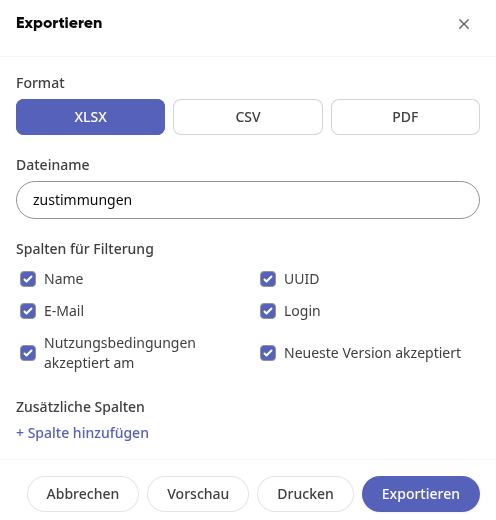
Click Export. Use Preview to view the list beforehand, and Print to print it directly.