
How do I keep the logbook?
Updated Reading time: 2 min
In the logbook, you enter your trips and can see how many kilometers you have driven in the month for business, private, and commuting purposes. You can enter each trip directly or record it after returning a booked vehicle.
Info
This function is available to all employees. You can only see your own trips. The tab exists as long as the logbook is enabled in the fleet settings.
Enter a trip#
Click on Vehicles in the navigation, then on the Logbook tab, and then on New Trip in the top right.
Select the Vehicle. The Starting kilometer reading is pre-filled with the last known reading. Vehicles under repair are not available for selection.
Check the Date and select Business, Private, or Commuting. A future date is not possible.
Enter the End kilometer reading. It cannot be lower than the starting value. The Distance is calculated automatically.
Fill in Destination, Purpose, and Business Partner.
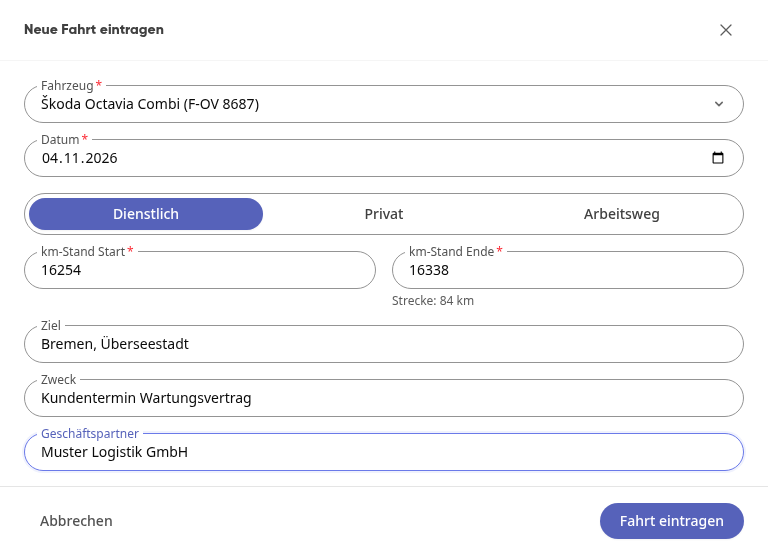
Click on Enter trip. The trip is now listed.
Tipp
Destination, Purpose, and Business Partner are not mandatory fields. However, for a tax-recognized logbook in Germany, they should be filled in for business trips. For trips without customer reference, such as to the TÜV or workshop, the purpose is sufficient.
Record a trip from a booking#
If you have booked a vehicle, it’s even faster.
Under My Bookings, click on the booking and then on Return Vehicle, in the window again on Return Vehicle, enter the Kilometer reading, and click on Confirm Return. Afterward, the Logbook Entry opens with the kilometer readings from pickup and return. Alternatively, you can open it during the booking via Logbook.
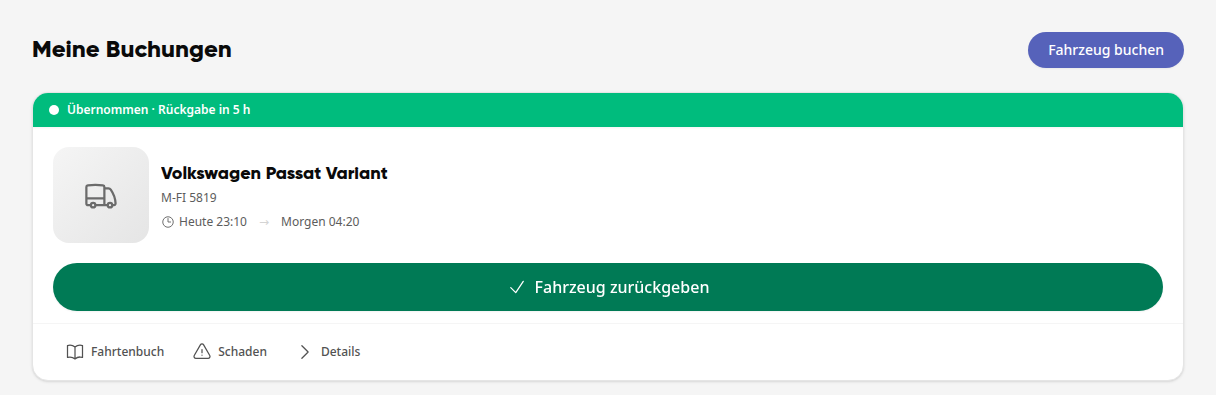
Check the pre-filled information. Under Destination, the purpose of the booking is displayed; adjust it if necessary.
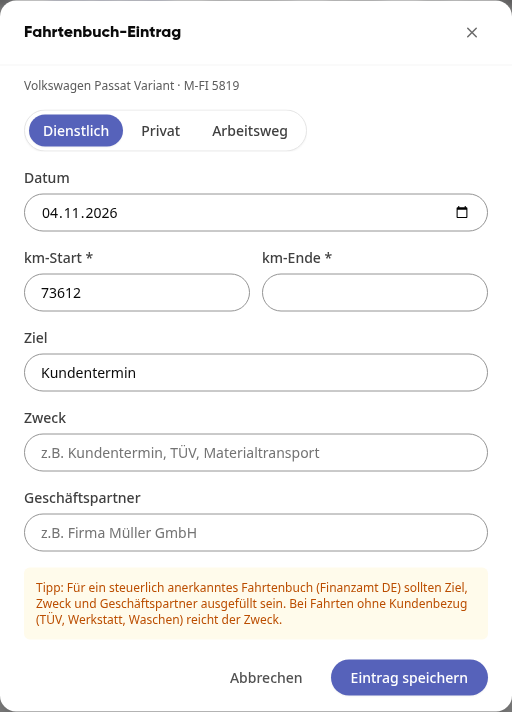
Complete the missing fields and click on Save Entry.
View and export trips#
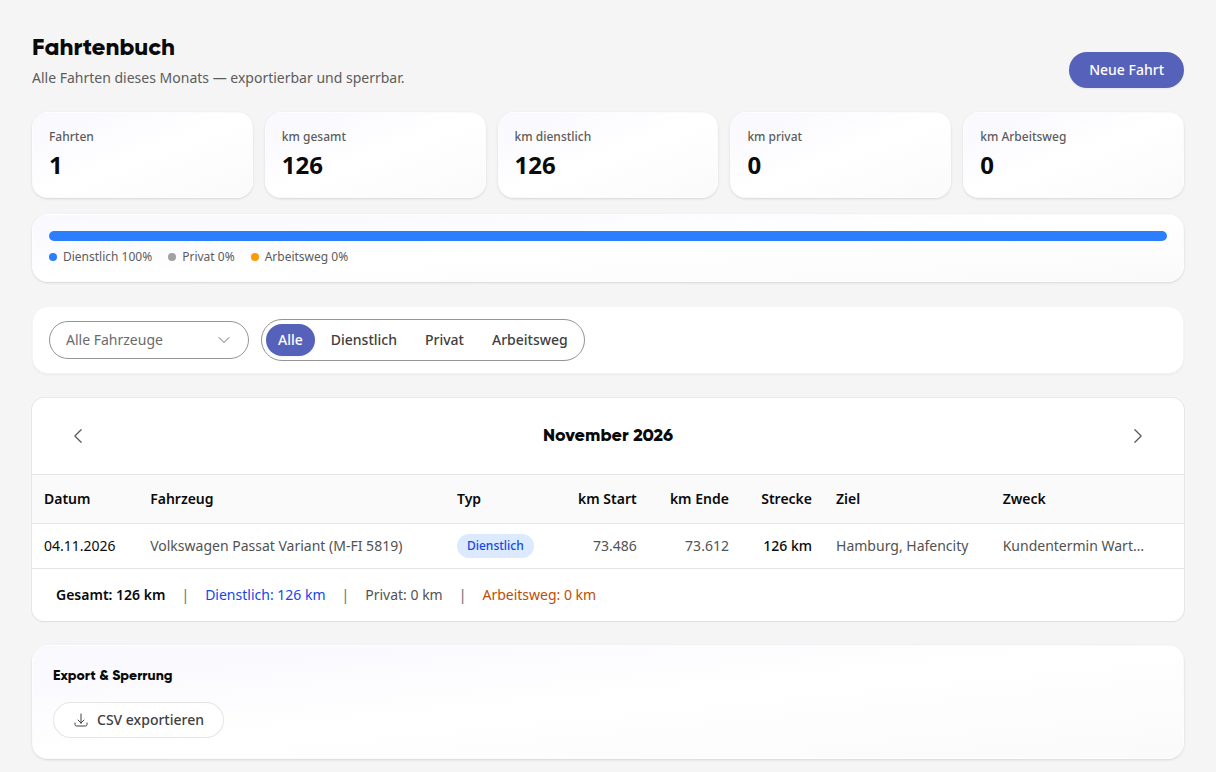
In the Logbook tab, use the arrows next to the month to switch between months. At the top, you see the monthly totals.
If needed, filter the list by All Vehicles or by Business, Private, and Commuting.
Under Export & Locking, click on Export CSV to download the selected month as a CSV file.
Wichtig
Once a trip is saved, you cannot modify it yourself. If there is an error, contact the fleet managers.