
How do I get a duty roster suggested to me?
Updated Reading time: 2 min
Instead of filling every open shift yourself, you can have a suggestion proposed to you. There are two ways to do this: the Suggest plan button and planning with Kai. Both only fill the draft. It is only published when you do it yourself.
Info
You can get suggestions in any area where you have the Planner role. You will only see Plan with Kai if Kai is enabled for you.
Before you start#
A proposal only fills open shifts. Therefore, first create the shifts for the week, see How do I plan shifts and assign people?. Shifts that are already assigned remain as they are. Past days are not scheduled.
The proposal takes into account what is stored in the area: absences, employee preferences, their weekly working hours, and working time rules, such as rest periods.
Using the "Suggest plan" button#
Open the schedule for the area in the duty roster and select the week.
Click on Suggest plan at the top. The calculation takes a few seconds.
The Suggest plan window shows:
how many slots are filled,
under Proposal, each shift with the suggested people,
under Remains open, shifts for which no one was found, with the reason, for example "everyone else is absent" or "requests speak against it",
under Per person, how many shifts and hours each person gets added.
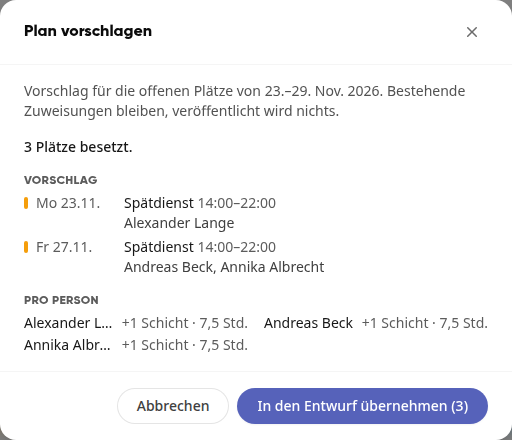
Click on Adopt into draft. With Cancel you discard the proposal.
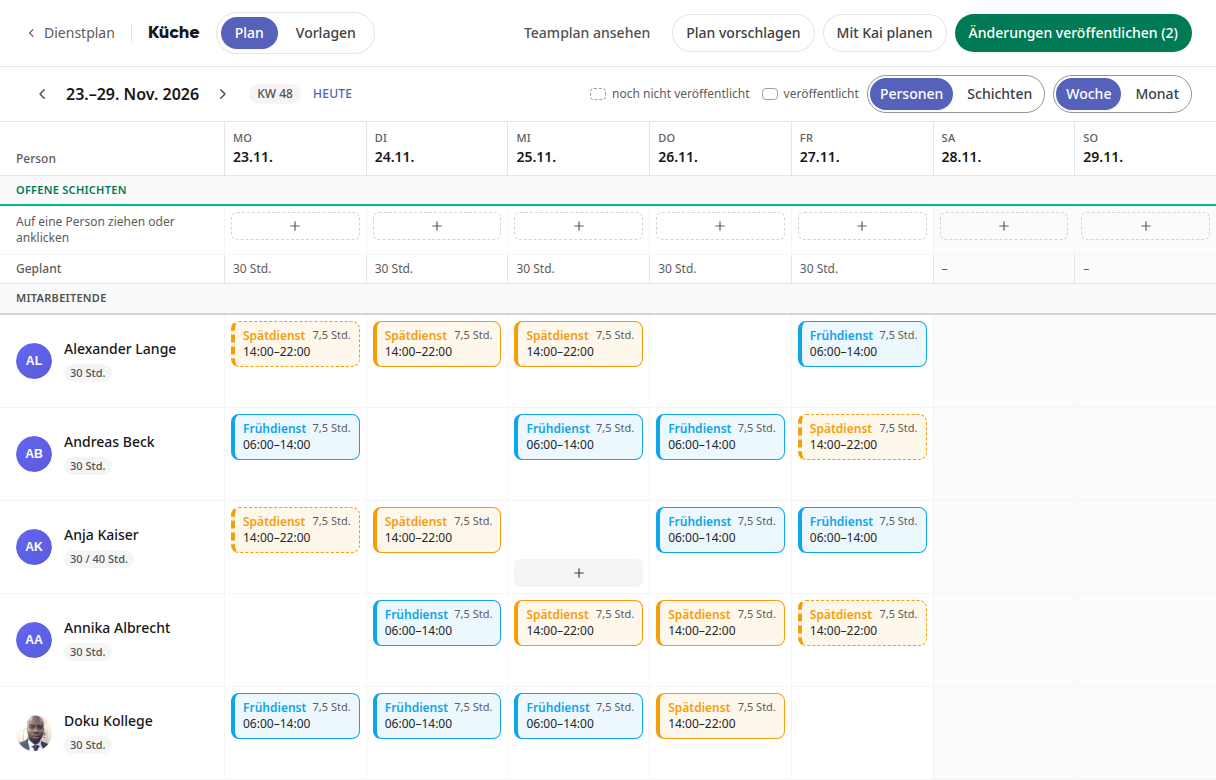
The adopted shifts appear dashed in the schedule because they are not yet published. The button at the top right now shows Publish changes with the number of changed shifts.
Tip
If someone changed the plan while the window was open, those shifts remain unchanged. Kibi Connect then tells you how many shifts were not adopted.
Planning with Kai#
With Kai, you describe in your own words what the plan should look like, for example, who should only work the early shift.
Open the plan for the area and select the week.
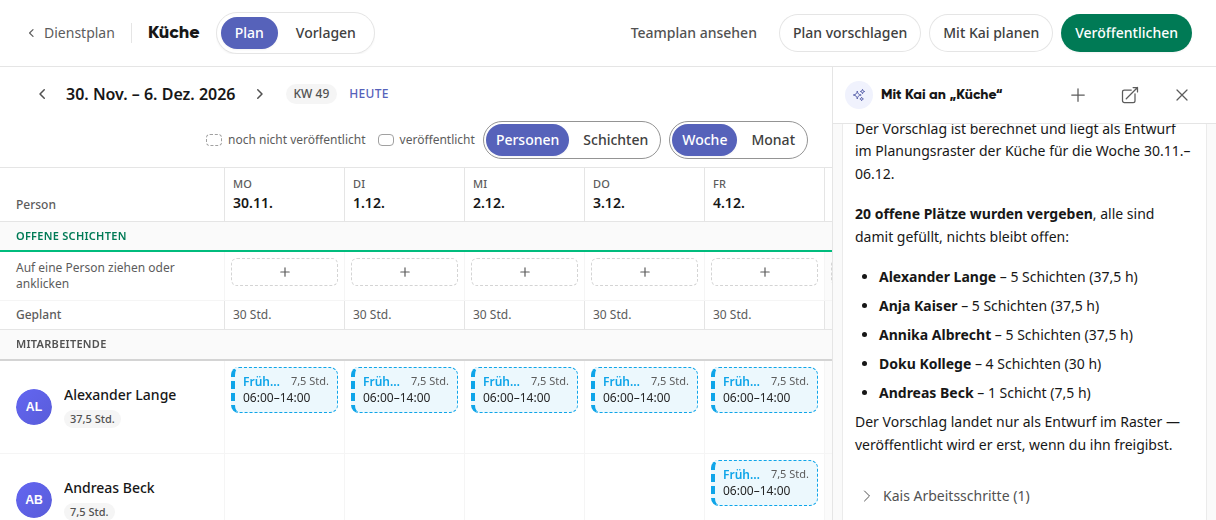
Click on Plan with Kai at the top. The Kai sidebar opens on the right.
Choose one of the suggestions, for example Fill the open slots for this week, Distribute weekends fairly, or Schedule a person for only the early shift this week, or write what you need yourself.
Kai calculates the staffing, enters it into the draft, and summarizes who gets how many shifts.
Important
Check the draft before publishing it. You can change individual shifts as usual in the plan. Only after clicking Publish will employees see their shifts.