
How do I find the tools of my personal MCP connector?
Updated Reading time: 2 min
On this page
With a personal connector, you connect an MCP server to Kai whose tools are available only to you. If the server comes with many tools, you can find the right one by searching by name or description.
Info
Personal connectors are only available if your administration has allowed them: under Administration › AI & Workflows › Kai › Settings with the toggle Allow personal connectors. Only then does the Connectors tab appear in your Kai settings.
Create connector#
Open Kai in the navigation and click the gear icon next to New conversation to open the settings.
Switch to the Connectors tab.
Click on Create first connector or, if you already have one, click the plus icon next to Connectors.
Enter a name and the base URL of the MCP server. The address must begin with "https://".
Under Authentication, select how you log in to the server: None, Bearer token, or OAuth. For Bearer token, enter your access token; for OAuth, log in to the provider after saving via Connect.
Click Save.
Kai retrieves the server's tools and displays them under Available tools.
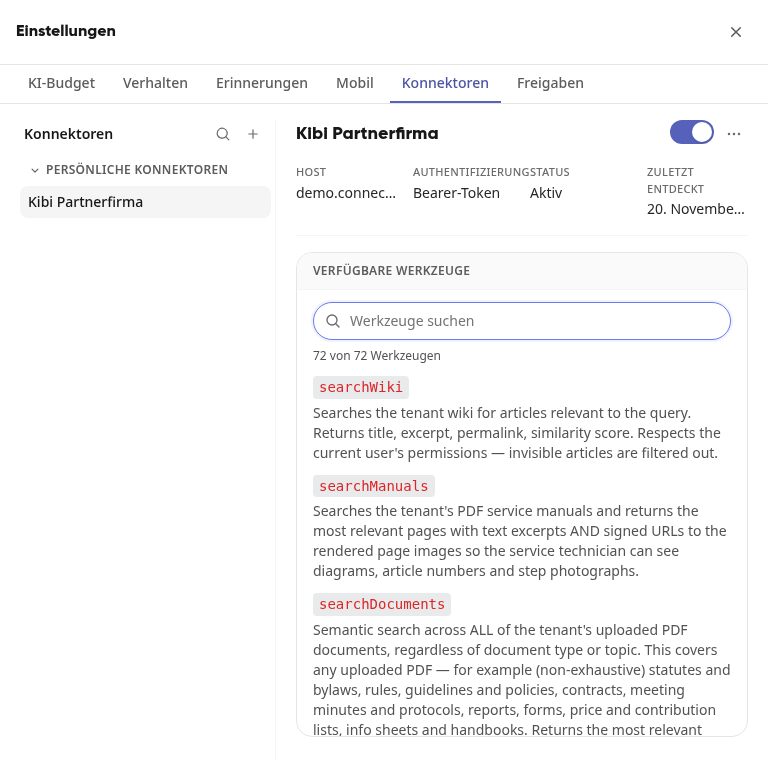
Search for tools#
On the left, under Personal connectors, select your connector.
Under Available tools, type a term into the Search for tools field, for example "Note". The list will then only show the tools whose name or description contains the term. Above it, you will see how many tools match, for example "3 of 72 tools".
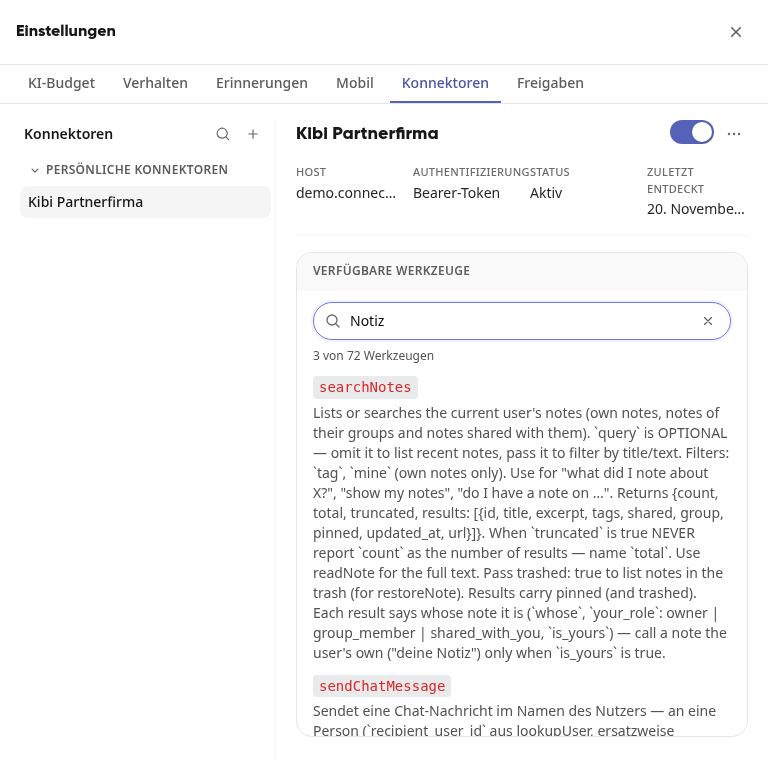
Using the x in the search field, you can show all tools again.
If no tool matches, No matching tools. will appear there.
Tip
The descriptions come from the MCP server itself and are often in English. If you can't find anything with a German term, try the English one, for example "note" instead of "Notiz".
Info
If tools are missing or the server has added new ones, you can refresh the list via More actions (the three dots at the top right) using Rediscover tools. Using the switch next to the name, you can disable a connector without deleting it. Kai only uses the tools of active connectors.