
How do I keep track of my meetings?
Updated Reading time: 2 min
On the Meetings page, you can see your upcoming and past meetings in one place, enter them or their minutes with a single click, and start an impromptu meeting right away if needed.
Open the "Meetings" page#
Open the calendar.
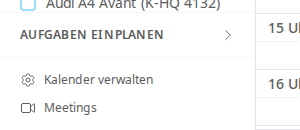
Click on Meetings at the bottom of the left column.
Info
The Meetings entry only appears if calls are enabled in your platform.
Upcoming Meetings#
The Upcoming Meetings tab is selected when opened. It shows the next 28 days: all appointments with a meeting link or Kibi call that you organize or are invited to. Canceled appointments and invitations you have declined are not shown here.
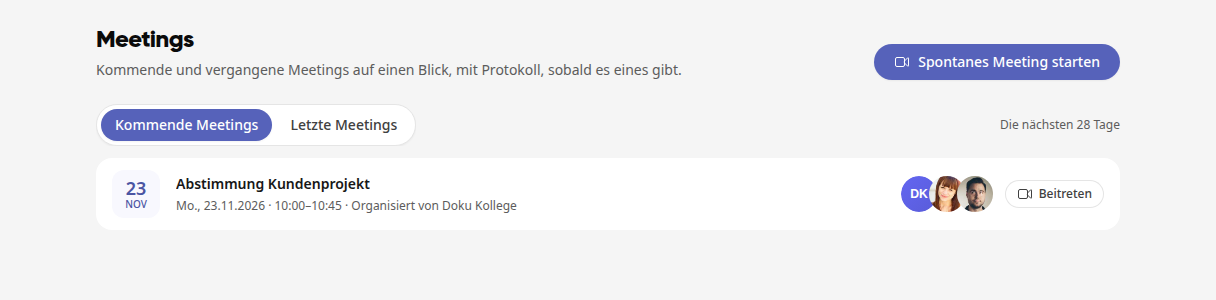
Each row shows the date, time, who organizes the meeting, and the participants.
With Join you go directly into the meeting. If it is already running, Running now appears next to it.
A click on the row opens the appointment in the calendar.
Tip
A meeting appears here as soon as you create an appointment with a meeting link in the calendar.
Recent Meetings#
In the Recent Meetings tab, you will find completed meetings that you started or participated in, with the newest ones listed first. Each row shows the date, time, duration, and participants.
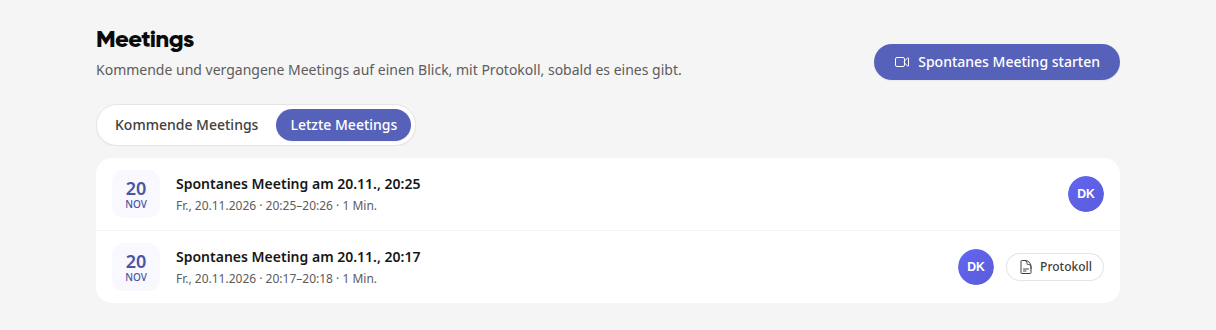
If a meeting has minutes, you can open them via Minutes.
Clicking on the row opens the minutes. Without minutes, it opens the appointment in the calendar or the chat where the meeting took place.
You can load older meetings at the bottom via Load more.
Start an impromptu meeting#
Click on Start impromptu meeting at the top right.
You are immediately in the meeting. The meeting link has already been copied to your clipboard, and the message Link copied – simply share it to invite others. confirms this.
Send the link to the people who should join, for example in the chat.
The link is also available at the top of the Meetings page. Use Copy link to copy it again.
Info
An impromptu meeting has a unique, public link. Anyone with the link can join, even without an account in Kibi Connect. The link is valid for 12 hours.